Introduction
Welcome to the ZIOVO 10-inch Kids Tablet user manual. This guide provides essential information for setting up, operating, and maintaining your new tablet. Designed with children in mind, this tablet features a durable shockproof case, advanced parental controls, and a user-friendly Android 15 interface with Gemini AI 2.0 for an engaging and safe learning experience.
What's in the Box
- 1 x ZIOVO 10.1 Inch Tablet (with pre-installed protective film)
- 1 x EVA Shockproof Case
- 1 x Screen Protector
- 1 x Charging Adapter
- 1 x Type-C Cable
- 1 x User Manual
- 15 x Animal Literacy Cards

Image: All items included in the ZIOVO Kids Tablet package.
Product Overview
The ZIOVO Z138-15 tablet is designed for durability and ease of use, featuring a robust EVA case with an integrated handle and adjustable stand.
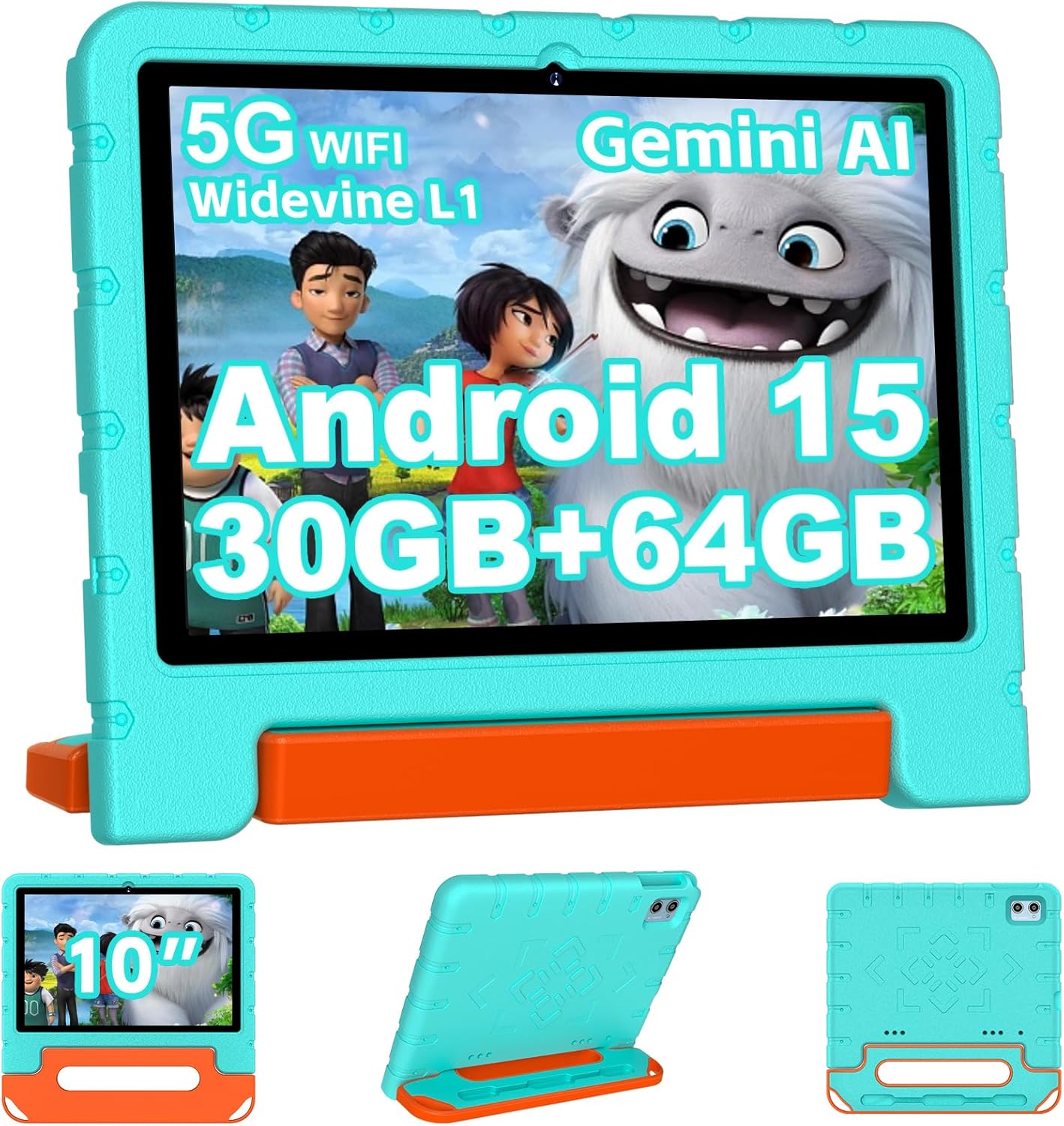
Image: Front view of the ZIOVO Kids Tablet with its protective case.
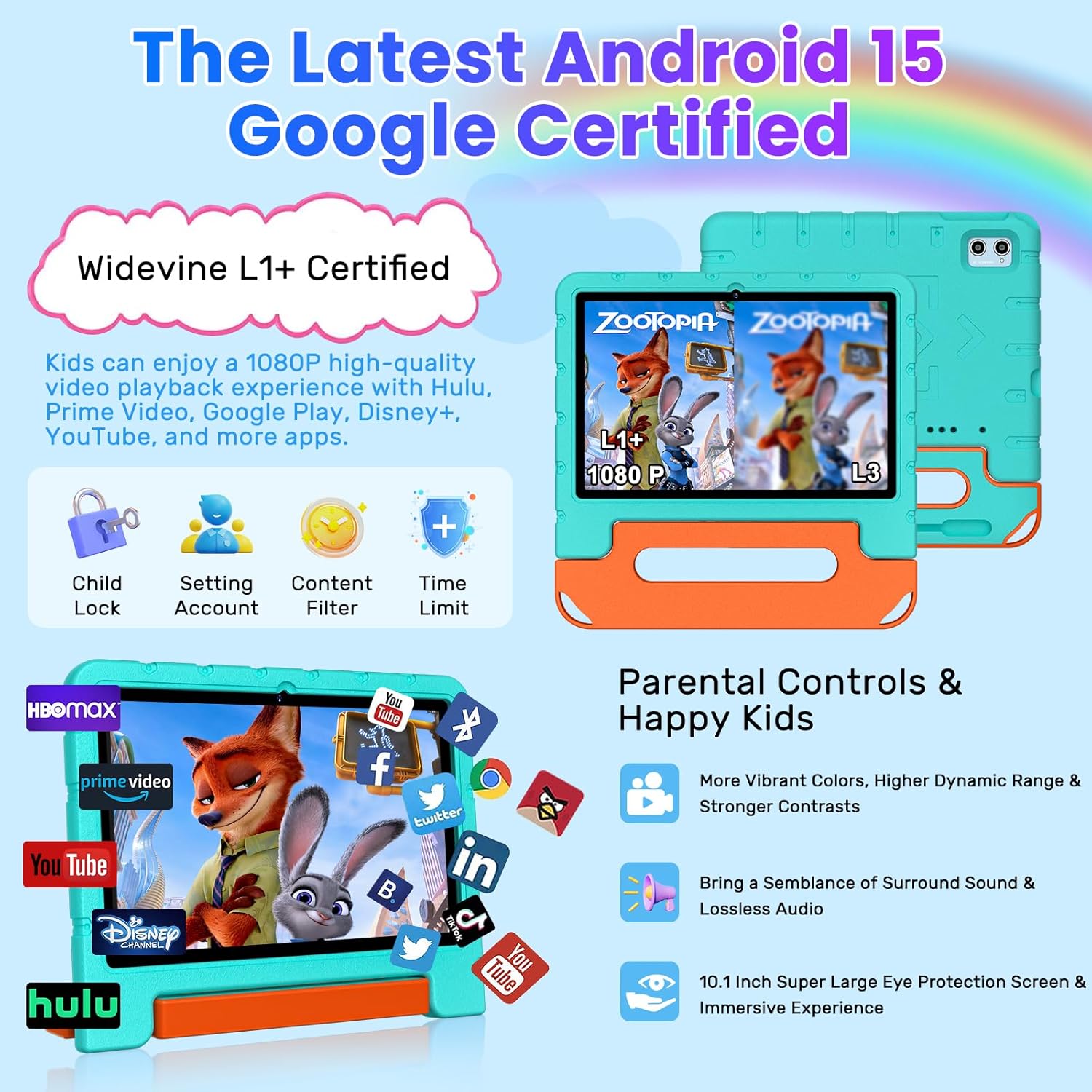
Image: Rear view of the ZIOVO Kids Tablet, highlighting the durable case and handle.

Image: The adjustable stand feature of the ZIOVO Kids Tablet case.
Initial Setup
- Charge the Tablet: Before first use, fully charge the tablet using the provided Type-C cable and charging adapter.
- Power On: Press and hold the power button until the ZIOVO logo appears.
- Language Selection: Follow the on-screen prompts to select your preferred language.
- Connect to Wi-Fi: Select your Wi-Fi network and enter the password to connect to the internet.
- Google Account Setup: Sign in with an existing Google account or create a new one. This is necessary for accessing the Google Play Store and other Google services.
- Parental Control Setup (Family Link): The tablet comes with pre-installed Family Link. It is highly recommended to set up parental controls to manage screen time, filter content, and monitor app usage for a safe environment.
- Install Screen Protector: Apply the included screen protector to prevent scratches and damage to the display.
Operation
Parental Controls & Safe Learning Zone
The ZIOVO Tablet integrates with Google Family Link, allowing parents to manage their child's device usage remotely. This includes setting screen time limits, approving or blocking apps, filtering unsafe web content, and creating separate profiles for each child. The tablet also features eye protection settings with automatic brightness adjustment to safeguard young eyes.
- Screen Time Limits: Set daily limits for tablet usage or specific apps.
- App Management: Control which applications your child can access.
- Content Filtering: Filter websites and content to ensure age-appropriate browsing.
- Eye Protection: Automatic brightness adjustment and eye-friendly HD display.
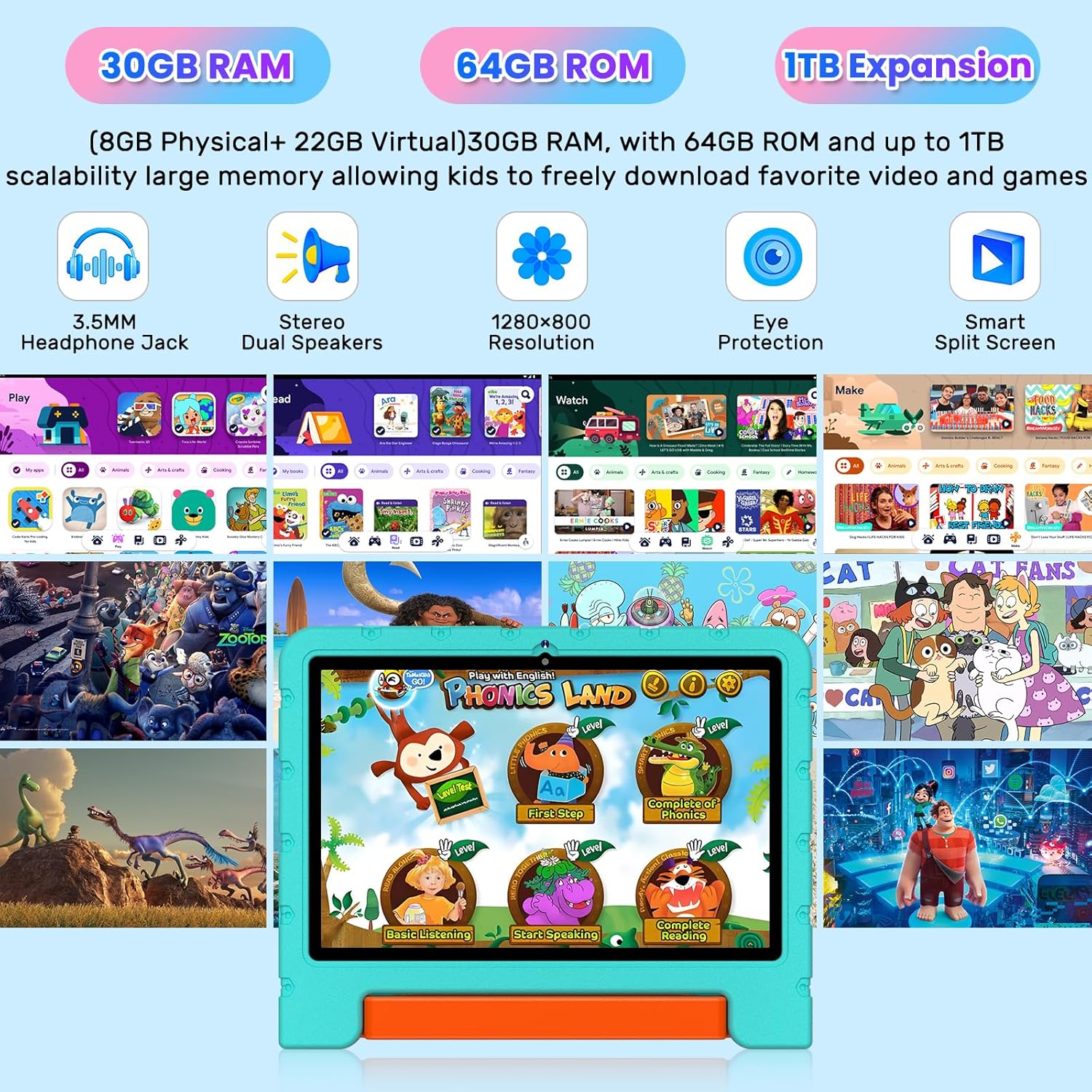
Image: The Android 15 OS interface with pre-installed educational apps like Montessori and Kids Space.
Display and Audio
The 10.1-inch HD touchscreen (1280x800 resolution) provides clear and vibrant visuals. Dual speakers deliver immersive audio, suitable for videos, games, and educational content. Widevine L1 certification ensures high-quality streaming from platforms like Disney+ and Amazon Prime Video.
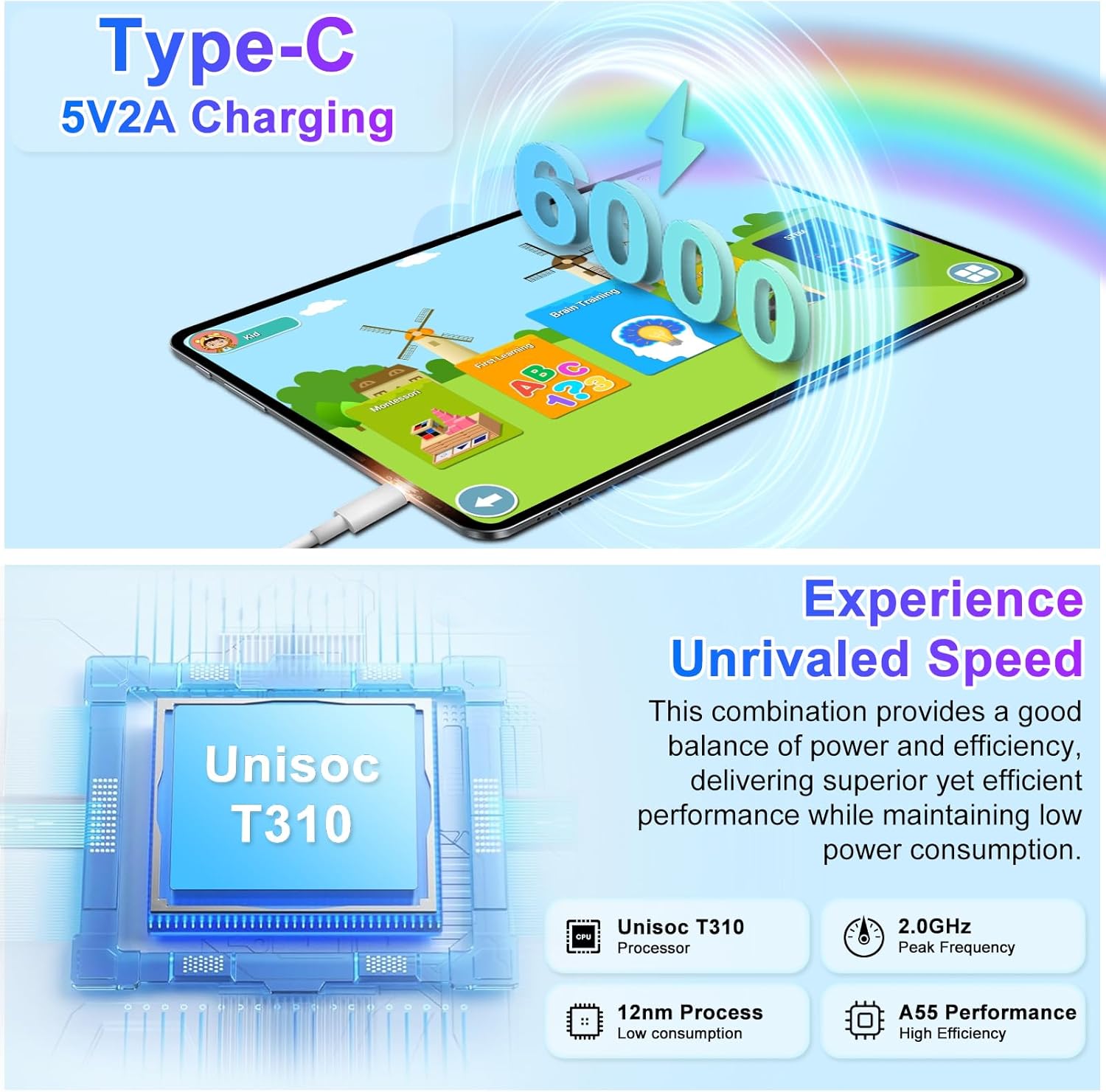
Image: The tablet's display and audio capabilities for media consumption.
Storage and Battery
The tablet offers 30GB+64GB internal storage, expandable up to 1TB via microSD card, providing ample space for apps, photos, videos, and learning materials. The 6000mAh battery supports extended use, making it ideal for travel or long learning sessions.
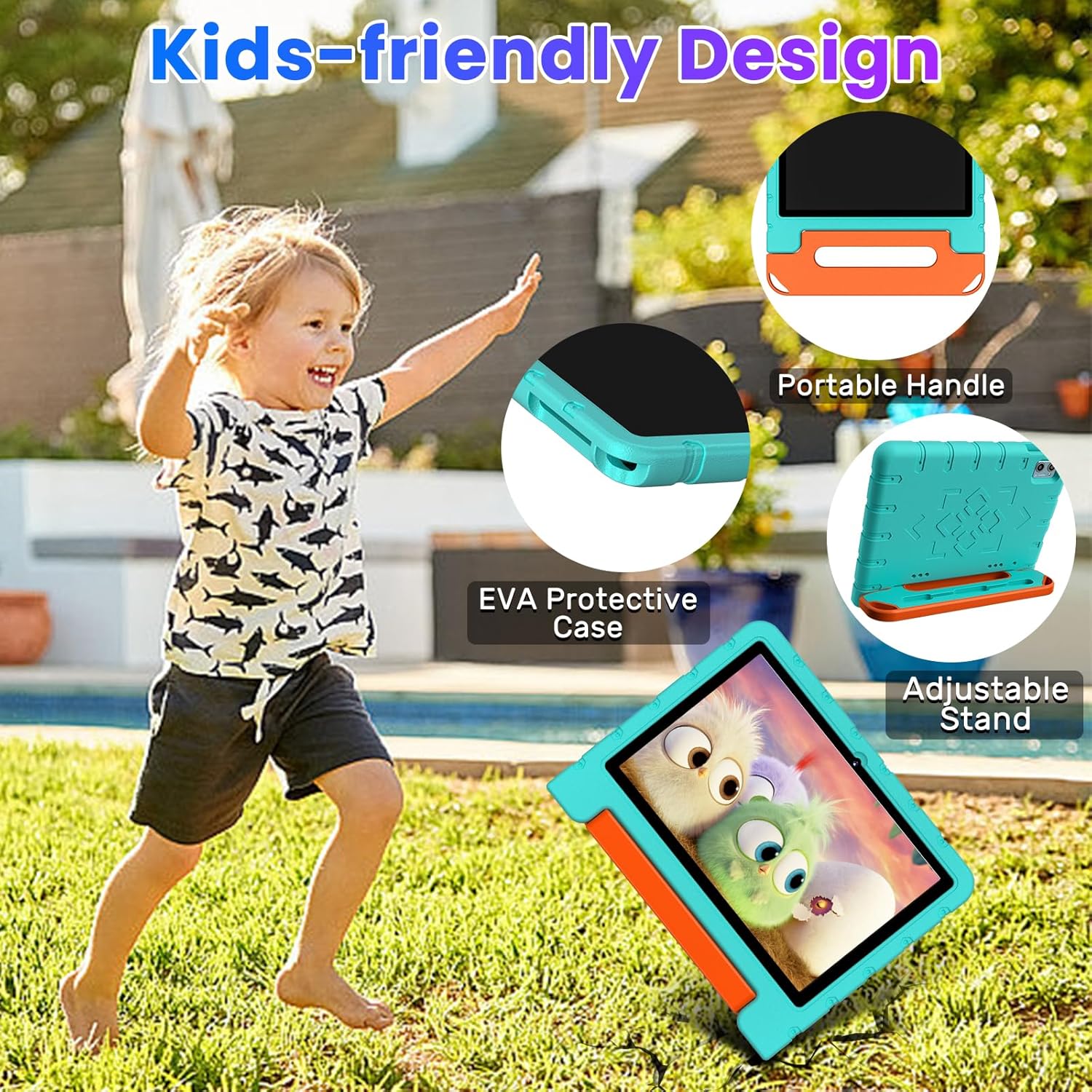
Image: The tablet's charging port and battery capacity.
Connectivity
Equipped with dual-band 2.4G/5G Wi-Fi and Bluetooth 5.0, the tablet ensures stable and fast connectivity for streaming, video calls, and data transfer. Facial recognition provides secure access.
- Dual-Band Wi-Fi: Supports 2.4G for wider coverage and 5G for faster speeds.
- Bluetooth 5.0: For seamless multi-device connectivity.
- Facial Recognition: Secure and convenient unlocking.
Cameras
Capture moments with the 8MP rear camera and 5MP front camera, suitable for photos, video chats, and documenting experiences.

Image: The tablet's front and rear cameras for capturing photos and videos.
Maintenance
- Cleaning: Use a soft, lint-free cloth to clean the screen and tablet body. Avoid abrasive cleaners or solvents.
- Case Care: The EVA case can be wiped clean with a damp cloth. Ensure it is dry before re-attaching to the tablet.
- Software Updates: Regularly check for and install system updates to ensure optimal performance and security. Go to Settings > System > System update.
- Battery Care: To prolong battery life, avoid extreme temperatures and do not let the battery completely drain frequently.
Troubleshooting
| Problem | Solution |
|---|---|
| Tablet does not power on. | Ensure the tablet is fully charged. Connect to the charger and wait a few minutes before attempting to power on again. |
| Wi-Fi connection issues. | Check if your Wi-Fi router is working correctly. Restart the tablet and try reconnecting to the network. Ensure the Wi-Fi password is correct. |
| Apps are not downloading/updating. | Ensure there is sufficient storage space on the tablet. Clear the Google Play Store cache (Settings > Apps > Google Play Store > Storage > Clear Cache). |
| Screen is unresponsive. | Perform a force restart by holding the power button for approximately 10-15 seconds until the tablet reboots. |
| Parental controls are not working as expected. | Verify Family Link settings on both the parent's device and the child's tablet. Ensure both devices are connected to the internet for settings to sync. |
Specifications
| Feature | Detail |
|---|---|
| Brand | ZIOVO |
| Model Name | Z138-15 |
| Operating System | Android 15 |
| Screen Size | 10.1 Inches |
| Screen Resolution | 1280x800 Pixels |
| Processor | Octa-Core (2.0GHz Unisoc T310) |
| RAM | 30GB (8GB Physical + 22GB Virtual) |
| Internal Storage | 64 GB |
| Expandable Storage | Up to 1TB via microSD |
| Front Camera | 5MP |
| Rear Camera | 8MP |
| Battery Capacity | 6000mAh |
| Wireless Type | 802.11a/b/g/n/ax (2.4G/5G Dual-Band WiFi) |
| Bluetooth | Bluetooth 5.0 |
| Dimensions (LxWxH) | 10.43 x 10.43 x 0.98 inches |
| Item Weight | 2.68 pounds |
Warranty and Support
ZIOVO offers a 24-month warranty for this product. For any issues or support inquiries, please contact ZIOVO customer service. Refer to the contact information provided in the original product packaging or on the ZIOVO official website.
Contact Email: ZIOVO-SERVICE@OUTLOOK.COM
For additional support and resources, visit the ZIOVO Store on Amazon.


