
Introduction
Thank you for choosing the ATK VXE Dragonfly R1 Pro Max Wireless Gaming Mouse. This manual provides essential information for setting up, operating, and maintaining your new gaming mouse to ensure optimal performance and longevity. Please read this manual thoroughly before using the product.
Product Overview
The ATK VXE Dragonfly R1 Pro Max is an ultra-lightweight wireless gaming mouse designed for high performance. It features a precision sensor, adjustable polling rates, and versatile connectivity options.

Figure 1: Top view of the ATK VXE Dragonfly R1 Pro Max Wireless Gaming Mouse.
Key Features
- Ultra-Lightweight Design: Weighing approximately 54g, the R1 Pro Max ensures fatigue-free and swift gaming control.
- Precision PAW3395 Sensor: Equipped with the PixArt PAW3395 sensor, offering up to 26,000 DPI for precise tracking.
- Adjustable Polling Rate: Supports 125–4,000Hz polling rate. A separate 4K receiver is required for 4K polling.
- SmartSpeed X Wireless Technology: Provides low-latency 2.4 GHz wireless connectivity. Also supports wired USB-C connection for stable performance.
- Long Battery Life: Offers approximately 150 hours of continuous operating battery life at 1000Hz polling rate.
- Kailh White Blade Switches: Features Kailh White Blade microswitches with a 100 million click lifespan for a balanced and comfortable feel.
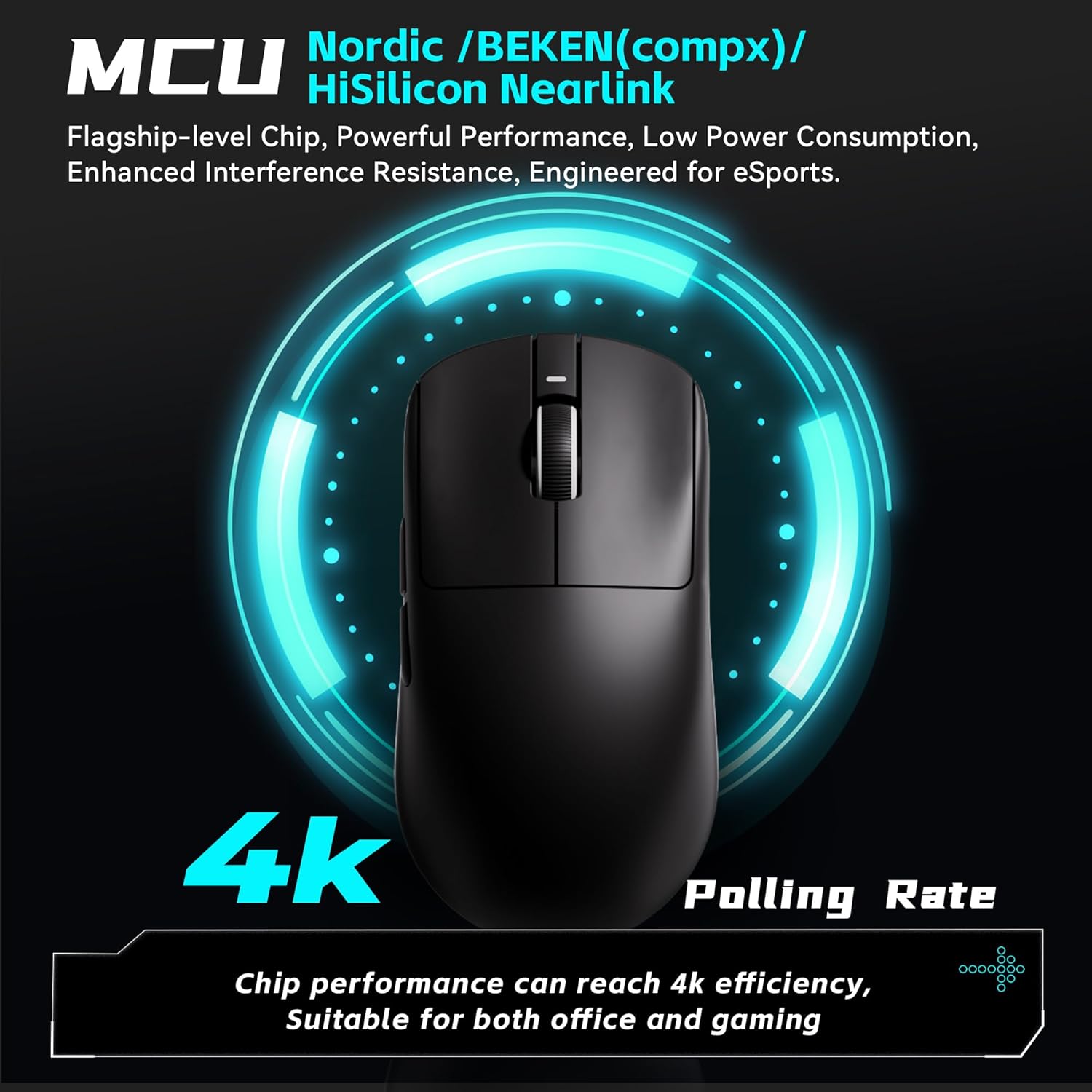
Figure 2: Exploded view showing internal components like the PAW3395 sensor and Kailh switches.

Figure 3: Illustration highlighting the 4K Polling Rate capability of the mouse.

Figure 4: Close-up of the mouse surface, detailing the smooth ice-feeling coating for enhanced glide.
Setup
Unboxing and Initial Inspection
Upon receiving your ATK VXE Dragonfly R1 Pro Max, carefully unbox the mouse and its accessories. Ensure all components are present: the mouse, USB-C charging/data cable, and the 2.4 GHz wireless receiver.
Video 1: Official unboxing video for the ATK R1 Gaming Mouse, demonstrating initial setup and contents.
Connecting Your Mouse
The R1 Pro Max supports 2.4 GHz wireless and wired USB-C connections.
- 2.4 GHz Wireless Connection:
- Locate the 2.4 GHz USB receiver stored in the compartment on the underside of the mouse.
- Plug the USB receiver into an available USB port on your computer.
- Turn on the mouse using the switch on the bottom. The mouse should automatically connect.
- Wired USB-C Connection:
- Connect the provided USB-C cable to the front port of the mouse.
- Connect the other end of the cable to an available USB port on your computer.
- The mouse will function in wired mode and charge simultaneously.

Figure 5: Diagram illustrating the Tri-Mode connectivity options: Bluetooth, 2.4GHz, and Wired USB-C.
Software Installation (ATK Hub)
For advanced customization of DPI, polling rate, button macros, and other parameters, download and install the ATK Hub software from the official ATK website. The software supports Windows 10 and above systems.
Operating Your Mouse
Button Functions
- Left Click (Button 1): Standard primary click function.
- Right Click (Button 2): Standard secondary click function.
- Scroll Wheel (Button 3): Scrolls up/down. Pressing it acts as a middle click.
- Side Buttons (Buttons 4 & 5): Typically configured as forward/back in web browsers and customizable in games via ATK Hub.
- DPI Button (Underside): Cycles through preset DPI levels.
Adjusting DPI and Polling Rate
The DPI button on the underside of the mouse allows for quick cycling through various DPI settings. For fine-tuning DPI, adjusting polling rate (125-4000Hz), and customizing other performance settings, use the ATK Hub software.
Battery Life and Charging
The R1 Pro Max offers up to 150 hours of battery life at 1000Hz polling. When the battery is low, an indicator light on the mouse will illuminate. Connect the mouse using the provided USB-C cable to charge. You can continue to use the mouse in wired mode while it charges.
Maintenance
Cleaning
To maintain optimal performance, regularly clean your mouse. Use a soft, dry cloth to wipe the surface. For stubborn dirt, a slightly damp cloth can be used, ensuring no moisture enters the mouse's internal components. Avoid harsh chemicals or abrasive materials.
Grip Tape Application
The mouse may come with optional grip tape for enhanced handling and customization. To apply, ensure the mouse surface is clean and dry. Carefully peel the backing from the grip tape and align it with the desired areas on the mouse, pressing firmly to secure.
Troubleshooting
- Mouse not responding: Check if the mouse is powered on. Ensure the USB receiver is securely plugged into your computer or the USB-C cable is properly connected. Try a different USB port.
- Lag or Disconnection in Wireless Mode: Ensure the mouse is within range of the USB receiver. Minimize interference from other wireless devices. Update mouse firmware via ATK Hub.
- DPI not changing: Press the DPI button on the underside of the mouse. If using ATK Hub, ensure settings are applied and the software is up to date.
- Battery not charging: Verify the USB-C cable is correctly connected to both the mouse and a power source/computer. Try a different USB port or cable.
Specifications
| Feature | Specification |
|---|---|
| Product Dimensions | 4.72 x 2.51 x 0.1 inches |
| Item Weight | 1.9 ounces (approx. 54g) |
| Item Model Number | ATK R1 Series |
| Batteries | 1 Nonstandard Battery (included) |
| Connectivity Technology | 2.4G Wireless, USB-C Wired |
| Special Features | Lightweight, Programmable Buttons, Rechargeable |
| Movement Detection Technology | Optical (PAW3395 Sensor) |
| DPI Range | Up to 26,000 DPI |
| Polling Rate | 125-4,000Hz (4K requires separate receiver) |
| Battery Life (1000Hz) | ~150 hours (R1 Pro Max) |
Figure 6: Detailed specifications for the VXE Dragonfly R1 Series, including the R1 Pro Max.


