
1. Introduction
This manual provides essential information for the safe and efficient use of your Infinix Smart 10 smartphone. Please read this guide thoroughly before operating your device to ensure optimal performance and longevity. Keep this manual for future reference.
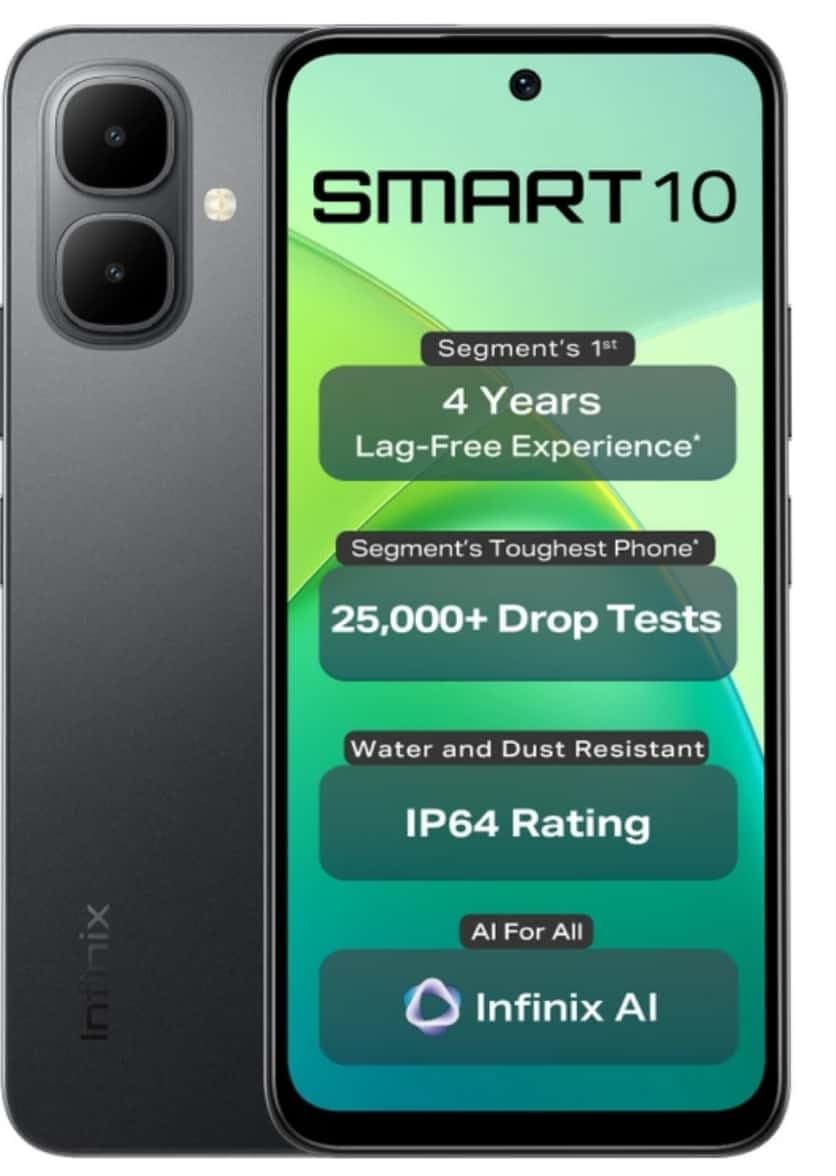
Image: Infinix Smart 10 smartphone, showcasing its design and highlighted features such as durability and performance.
2. Device Overview
Familiarize yourself with the physical components of your Infinix Smart 10.
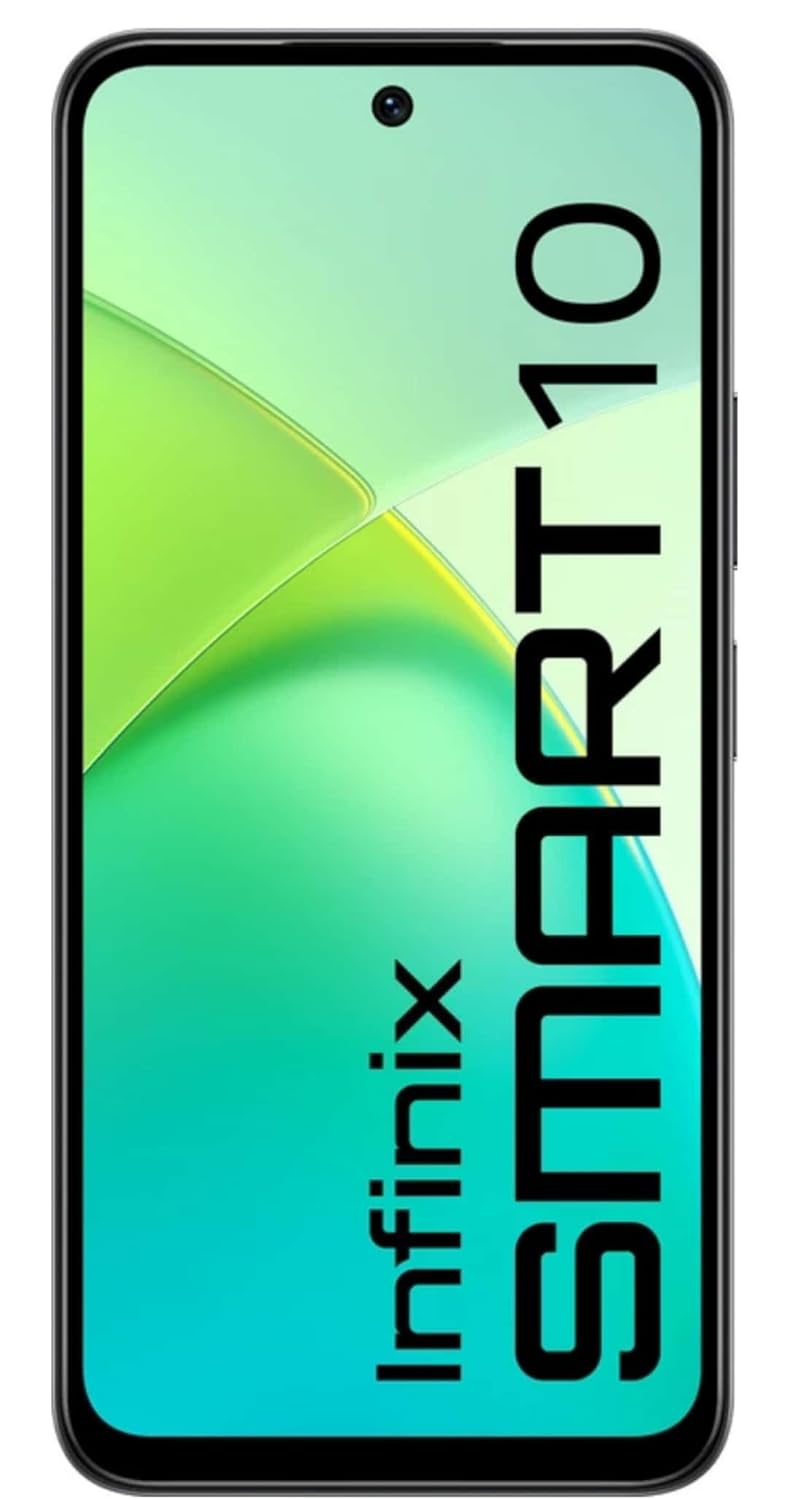
Image: Front view of the Infinix Smart 10, displaying its screen.

Image: Rear view of the Infinix Smart 10, showing the camera setup and branding.
3. Setup
3.1 Unboxing and Package Contents
Upon opening the package, ensure all items are present:
- Infinix Smart 10 Smartphone
- Headset
- Charging Cable (USB)
- Power Adapter
- SIM Ejector Tool
- Quick Start Guide
- Warranty Card
3.2 Inserting SIM and MicroSD Cards
- Locate the SIM tray on the side of the device.
- Insert the SIM ejector tool into the small hole next to the tray and press gently until the tray pops out.
- Place your Nano-SIM card(s) and/or microSD card into the designated slots on the tray, ensuring correct orientation.
- Carefully push the tray back into the device until it is flush with the side.
3.3 Initial Power On and Setup
- Press and hold the Power button until the Infinix logo appears.
- Follow the on-screen instructions to select your language, connect to Wi-Fi, set up your Google account, and configure security settings.
3.4 Charging the Device
Before first use, fully charge your Infinix Smart 10. Connect the USB cable to the charging port on your phone and the power adapter, then plug the adapter into a power outlet. The battery indicator will show charging status.

Image: The Infinix Smart 10 connected to a charger, illustrating its 5000mAh battery.
4. Operating Your Device
4.1 Basic Navigation
Your Infinix Smart 10 uses a touchscreen interface. Common gestures include:
- Tap: Select an item or open an application.
- Swipe: Scroll through screens or lists.
- Pinch: Zoom in or out on images and web pages.
- Long Press: Access contextual menus or move icons.
4.2 Display Features
The device features a 16.94 cm (6.67 inch) HD+ Display with a 120Hz refresh rate, designed for smooth visuals even in bright conditions.

Image: The Infinix Smart 10 display showcasing vibrant visuals and the 120Hz refresh rate.
4.3 Camera Operation
The Infinix Smart 10 is equipped with an 8MP front camera and an 8MP dual rear camera, capable of 2K video recording. It includes a Dual LED Flash, Dual Video Mode for simultaneous front and rear recording, and a Pro Mode for advanced photography.

Image: A user demonstrating the camera features of the Infinix Smart 10, highlighting its various modes and specifications.
4.4 Battery Management
Your device is powered by a 5000 mAh battery, offering extended usage times. To optimize battery life:
- Adjust screen brightness.
- Close unused applications.
- Disable Wi-Fi, Bluetooth, and GPS when not in use.
- Utilize power-saving modes.
4.5 Processor Performance
The Infinix Smart 10 is powered by the UniSoc T7250 Processor, designed for efficient performance and a smooth user experience, certified for 48-month TÜV Fluency.

Image: A visual representation of the UniSoc T7250 processor, highlighting its performance capabilities.
4.6 Connectivity
The device supports Wi-Fi for internet access and Bluetooth for connecting to wireless accessories. Access these settings via the Quick Settings panel or the main Settings menu.
5. Maintenance
5.1 General Care
To maintain your device:
- Clean the screen and body with a soft, lint-free cloth.
- Avoid exposing the phone to extreme temperatures or direct sunlight for prolonged periods.
- Do not use harsh chemicals or abrasive materials for cleaning.
5.2 Durability Features
The Infinix Smart 10 is designed with durability in mind, featuring an IP64 rating for water and dust resistance, and has undergone over 25,000 drop tests, including 1.5-meter 6-sided drop tests.

Image: The Infinix Smart 10 demonstrating its robust build and resistance to drops.
5.3 Software Updates
Regularly check for and install software updates to ensure your device has the latest features, security patches, and performance improvements. Navigate to Settings > System > System update to check for updates.
6. Troubleshooting
If you encounter issues with your device, try the following steps:
- Device not powering on: Ensure the battery is charged. Connect to a charger and wait a few minutes before attempting to power on again.
- Apps crashing or freezing: Close and restart the app. If the issue persists, clear the app's cache (Settings > Apps > [App Name] > Storage > Clear cache).
- Poor network connectivity: Check if Airplane Mode is off. Restart the device. Verify your SIM card is properly inserted.
- Device slow performance: Close background apps. Clear cache and temporary files. Consider a factory reset as a last resort (back up your data first).
6.1 Factory Reset
A factory reset will erase all data from your phone and restore it to its original factory settings. Back up all important data before proceeding. To perform a factory reset, go to Settings > System > Reset options > Erase all data (factory reset).
7. Specifications
| Feature | Specification |
|---|---|
| Model Number | X6725 |
| Operating System | Android 15 |
| RAM | 4 GB |
| Internal Storage | 64 GB ROM |
| Display | 16.94 cm (6.67 inch) HD+ Display, 120Hz |
| Rear Camera | 8MP Dual Camera, 2K Video Recording, Dual LED Flash |
| Front Camera | 8MP, 2K Video Recording |
| Battery | 5000 mAh |
| Processor | UniSoc T7250 |
| Connectivity | Wi-Fi |
| Dimensions (LxWxH) | 8 x 77 x 166 Millimeters |
| Item Weight | 187 g |
| Color | Pulse Green (Note: Color may vary by region/variant) |
| Special Features | IP64 Water and Dust Resistant, 25,000+ Drop Tests |
8. Warranty and Support
8.1 Warranty Information
Your Infinix Smart 10 comes with a standard manufacturer's warranty. Please refer to the warranty card included in your package for specific terms, conditions, and duration. Keep your proof of purchase for warranty claims.
8.2 Customer Support
For technical assistance, service, or further inquiries, please contact Infinix customer support through their official website or the contact information provided in your warranty documentation.


