
1. Introduction
Thank you for choosing the EWEADN V80 Wired TKL RGB Gaming Keyboard. This manual provides essential information for setting up, operating, maintaining, and troubleshooting your new keyboard. The V80 keyboard features an 80% Tenkeyless (TKL) layout, PBT keycaps, quiet membrane switches, 26-key anti-ghosting, and dynamic RGB backlighting, designed for an ergonomic and efficient user experience.
2. Package Contents
- EWEADN V80 Keyboard
- USB Cable
- User Manual
- 2 Year Manufacturer Warranty Information
3. Setup Instructions
The EWEADN V80 keyboard is designed for plug-and-play convenience, requiring no driver installation for basic functionality.
- Connect the USB Cable: Locate the USB-C port on the keyboard (typically on the top edge). Connect one end of the provided USB cable to this port.
- Connect to Your Device: Plug the other end of the USB cable into an available USB-A port on your computer (Laptop, PC, etc.).
- System Recognition: Your operating system (Windows, macOS) should automatically detect and configure the keyboard. A setup assistant may appear on macOS to identify the keyboard type; follow the on-screen prompts.
- Adjust Keyboard Feet: For optimal typing comfort, extend the two-stage adjustable kickstands located on the underside of the keyboard to achieve your preferred typing angle.
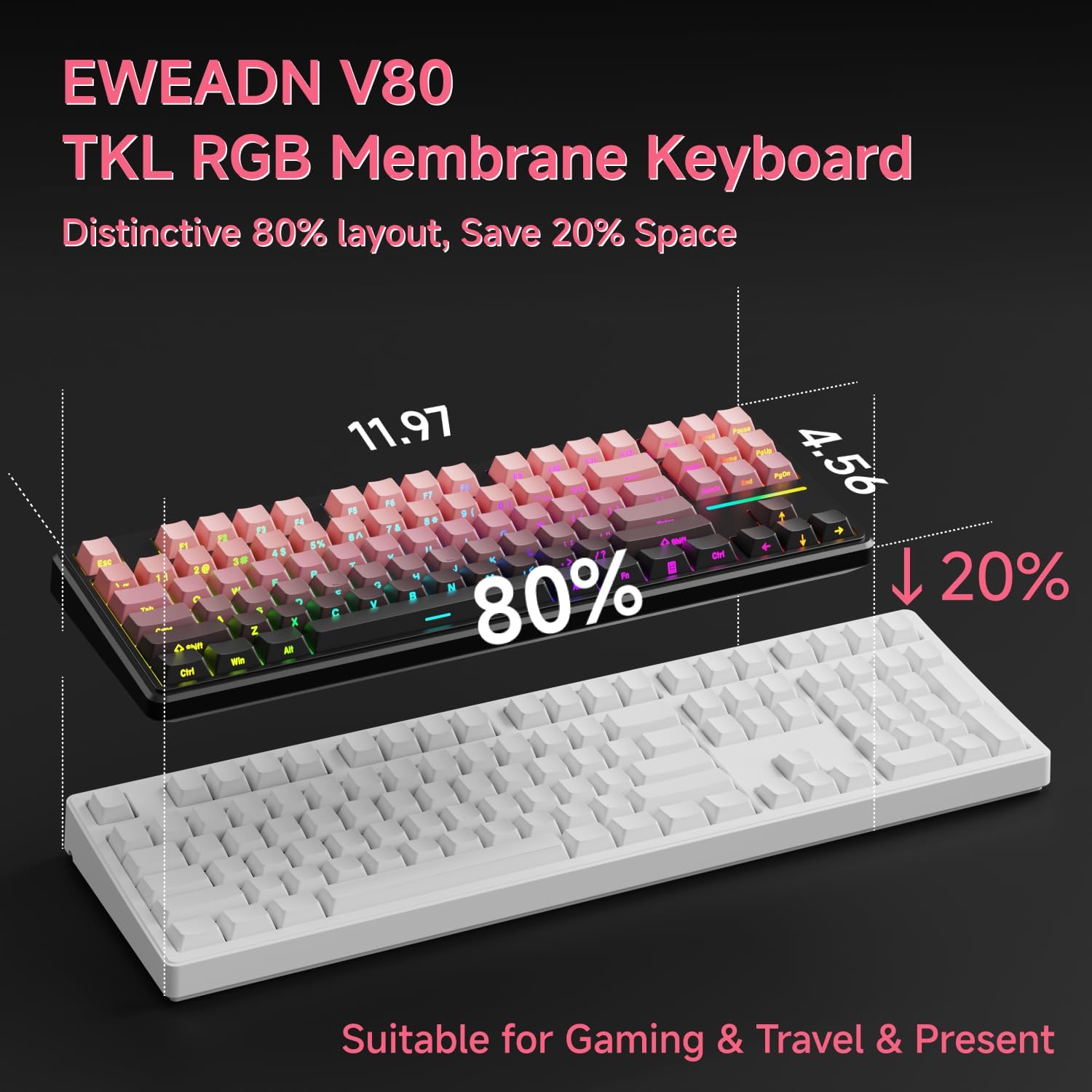
Image: Connecting the USB-C cable to the EWEADN V80 keyboard.

Image: The underside of the EWEADN V80 keyboard with its two-stage adjustable kickstands extended for ergonomic typing.
4. Operating Instructions
4.1 RGB Backlighting Control
The EWEADN V80 features dynamic RGB backlighting with multiple modes and adjustable settings.
- Toggle Backlight On/Off: Press Fn + Backspace.
- Change Lighting Mode: Press Fn + Insert to cycle through 12 dynamic lighting effects.
- Adjust Brightness: Press Fn + PU (Page Up) to increase brightness, and Fn + PD (Page Down) to decrease brightness.
- Adjust Lighting Speed: Press Fn + -= to decrease speed, and =+ to increase speed.
- Light Strip Control: Press Fn + P to control the side light strip.

Image: The EWEADN V80 keyboard showcasing various RGB backlight modes, including static colors, rainbow wave, and cycling ripple effects.
Video: Demonstrates the dynamic RGB lighting effects of the EWEADN V80 keyboard, cycling through different colors and patterns.
4.2 Function Key Combinations
The V80 keyboard utilizes the Fn key for various multimedia and system functions.
| Combination Button | Function |
|---|---|
| Fn + F1 | Screen Brightness- |
| Fn + F2 | Screen Brightness+ |
| Fn + F3 | Convert Window |
| Fn + F4 | Microphone |
| Fn + F5 | Multi-media |
| Fn + F6 | Previous Song |
| Fn + F7 | Next Song |
| Fn + F8 | Volume- |
| Fn + F9 | Volume+ |
| Fn + F10 | Mute |
| Fn + F11 | My Computer |
| Fn + F12 | Calculator |
| Combination Button | Function |
|---|---|
| Fn + F1 | Screen Brightness- |
| Fn + F2 | Screen Brightness+ |
| Fn + F3 | Multitasking Control |
| Fn + F4 | Launchpad |
| Fn + F5 | Previous Song |
| Fn + F6 | Next Song |
| Fn + F7 | Play/Pause |
| Fn + F8 | Volume- |
| Fn + F9 | Volume+ |
| Fn + F10 | Mute |
| Fn + F11 | My Computer |
| Fn + F12 | Calculator |
4.3 Anti-Ghosting
The V80 keyboard features 26-key rollover anti-ghosting, ensuring that every keypress is registered accurately, even when multiple keys are pressed simultaneously during intense gaming or fast typing. This prevents missed inputs and enhances performance.

Image: The EWEADN V80 keyboard illustrating its 26-key anti-ghosting capability, showing multiple simultaneous key presses being registered.
5. Features
- Wired Connectivity & Multi-System Support: The USB-C wired design provides a stable, interference-free connection with zero input lag. It is compatible with Windows and Mac operating systems, offering versatile integration for various devices.
- 80% TKL Layout: The Tenkeyless design saves significant desk space, promoting a cleaner and more efficient setup without sacrificing essential keys for gaming or productivity.
- Quiet Membrane Operation: Equipped with quiet membrane switches, the keyboard delivers tactile, mechanical-like feedback while minimizing noise, ideal for environments where quiet operation is preferred.
- Ergonomic Adjustability: An integrated two-stage kickstand allows users to adjust the typing angle, providing optimal wrist support and reducing strain during prolonged use.
- PBT Keycaps: Durable double-shot injection-molded PBT keycaps feature subtle side-printed legends, crisp backlight transmission, and a matte texture that resists shine and improves grip for extended use.
- 26-Key Anti-Ghosting: Ensures accurate registration of every keypress, even during rapid and simultaneous inputs, crucial for competitive gaming.

Image: The EWEADN V80 keyboard demonstrating its plug-and-play compatibility with various operating systems including Windows, Mac, iOS, and Android.

Image: A detailed view of the EWEADN V80's upgraded side-printed PBT keycaps, emphasizing their durability, matte texture, and aesthetic appeal.

Image: A close-up of the EWEADN V80's membrane gaming switches, illustrating their smooth, silent, and strain-free operation.
Video: A short demonstration of the EWEADN V80 Wired RGB Gaming Keyboard, highlighting its compact design and RGB lighting.
Video: Showcases the EWEADN V80 Cute Pink Silent Keyboard, emphasizing its quiet typing experience and aesthetic appeal.
6. Specifications
| Feature | Detail |
|---|---|
| Brand | EWEADN |
| Model Number | V80 |
| Connectivity Technology | USB-C (Wired) |
| Keyboard Description | Membrane |
| Switch Type | Mechanical-like |
| Number of Keys | 87 |
| Keyboard Layout | QWERTY |
| Keyboard Backlighting | RGB (12 dynamic modes) |
| Anti-Ghosting | 26-Key Rollover |
| Keycaps | Double-shot PBT, Side-Printed Legends |
| Ergonomic Features | Two-stage adjustable kickstand |
| Compatible Devices | Laptop, PC, Smartphone, Tablet (via compatible adapters) |
| Product Dimensions (L x W x H) | 14.37" x 5.47" x 1.53" |
| Material | Plastic |
| Color | BlackBerry Pink |
7. Maintenance
To ensure the longevity and optimal performance of your EWEADN V80 keyboard, follow these maintenance guidelines:
- Regular Cleaning: Use a soft, lint-free cloth to wipe down the keycaps and keyboard surface. For deeper cleaning, a can of compressed air can remove dust and debris from between the keys.
- Avoid Liquids: Do not spill liquids on the keyboard. If a spill occurs, immediately disconnect the keyboard from your device and allow it to dry completely before reconnecting.
- Handle with Care: Avoid dropping the keyboard or subjecting it to excessive force, which can damage internal components or keycaps.
- Cable Management: Ensure the USB cable is not kinked or strained, as this can lead to damage over time.
8. Troubleshooting
If you encounter any issues with your EWEADN V80 keyboard, please refer to the following common solutions:
- Keyboard Not Responding:
- Ensure the USB cable is securely connected to both the keyboard and your computer.
- Try plugging the keyboard into a different USB port on your computer.
- Test the keyboard on another computer to determine if the issue is with the keyboard or your device.
- RGB Backlighting Not Working:
- Ensure the backlight is turned on using Fn + Backspace.
- Adjust brightness levels using Fn + PU/PD.
- Keys Not Registering Correctly (Ghosting):
- The V80 has 26-key anti-ghosting. If you experience issues, ensure your operating system and any gaming software are up to date.
- Clean the affected keys to remove any debris that might be interfering with the switch mechanism.
If these steps do not resolve your issue, please contact customer support.
9. Warranty and Support
The EWEADN V80 Wired TKL RGB Gaming Keyboard comes with a 2-year manufacturer warranty. For any inquiries, technical assistance, or warranty claims, please contact our dedicated customer support team.
Email Support: eweadnkeyboard@outlook.com

Image: EWEADN's commitment to quality and customer support, featuring various products.