
Introduction
This manual provides instructions for the setup, operation, maintenance, and troubleshooting of your ATTACK SHARK V5 Wireless Gaming Mouse. Please read this manual carefully before using the product to ensure optimal performance and longevity.

Image: The ATTACK SHARK V5 Wireless Gaming Mouse, highlighting its 8000Hz wireless polling rate capability.
Setup
Package Contents
- ATTACK SHARK V5 Wireless Gaming Mouse
- USB Receiver (2.4GHz)
- USB-C Charging/Data Cable
- User Manual
Connectivity Modes
The ATTACK SHARK V5 mouse supports three connectivity modes: Wired, 2.4GHz Wireless, and Bluetooth.
- 2.4GHz Wireless Mode: Insert the USB receiver into an available USB port on your computer. The mouse will automatically connect. The transparent LED lighting on the receiver indicates connection status.
- Bluetooth Mode: Switch the mouse to Bluetooth mode. On your computer or device, search for Bluetooth devices and select "ATTACK SHARK V5" to pair.
- Wired Mode: Connect the mouse to your computer using the provided USB-C cable. This mode also charges the mouse.

Image: The ATTACK SHARK V5 mouse connected via its USB-C cable and showing the 2.4GHz wireless receiver, illustrating its triple-mode connectivity.
Driver Installation
The mouse supports cloud-driven technology, which automatically identifies devices upon connection. For advanced customization, independent driver software is available for download from the official ATTACK SHARK website. This software allows for optimization of response speed, accuracy, and programmable features.
Operating Instructions
DPI Adjustment
The PixArt 3950MAX sensor offers a DPI range of up to 42,000. DPI settings can be adjusted in precise 50 DPI increments using the dedicated driver software. The mouse typically has a DPI button for on-the-fly adjustments through preset levels.
Polling Rate
The mouse features an 8000Hz polling rate in wireless mode and a 1000Hz polling rate in wired mode. This high polling rate ensures rapid and responsive cursor movement.
Programmable Buttons and Macros
The ATTACK SHARK V5 has 6 buttons. Utilize the downloadable software to customize button functions, create macros, and adjust other settings such as DPI speed and lighting effects. This software provides a comprehensive interface for personalizing your mouse experience.
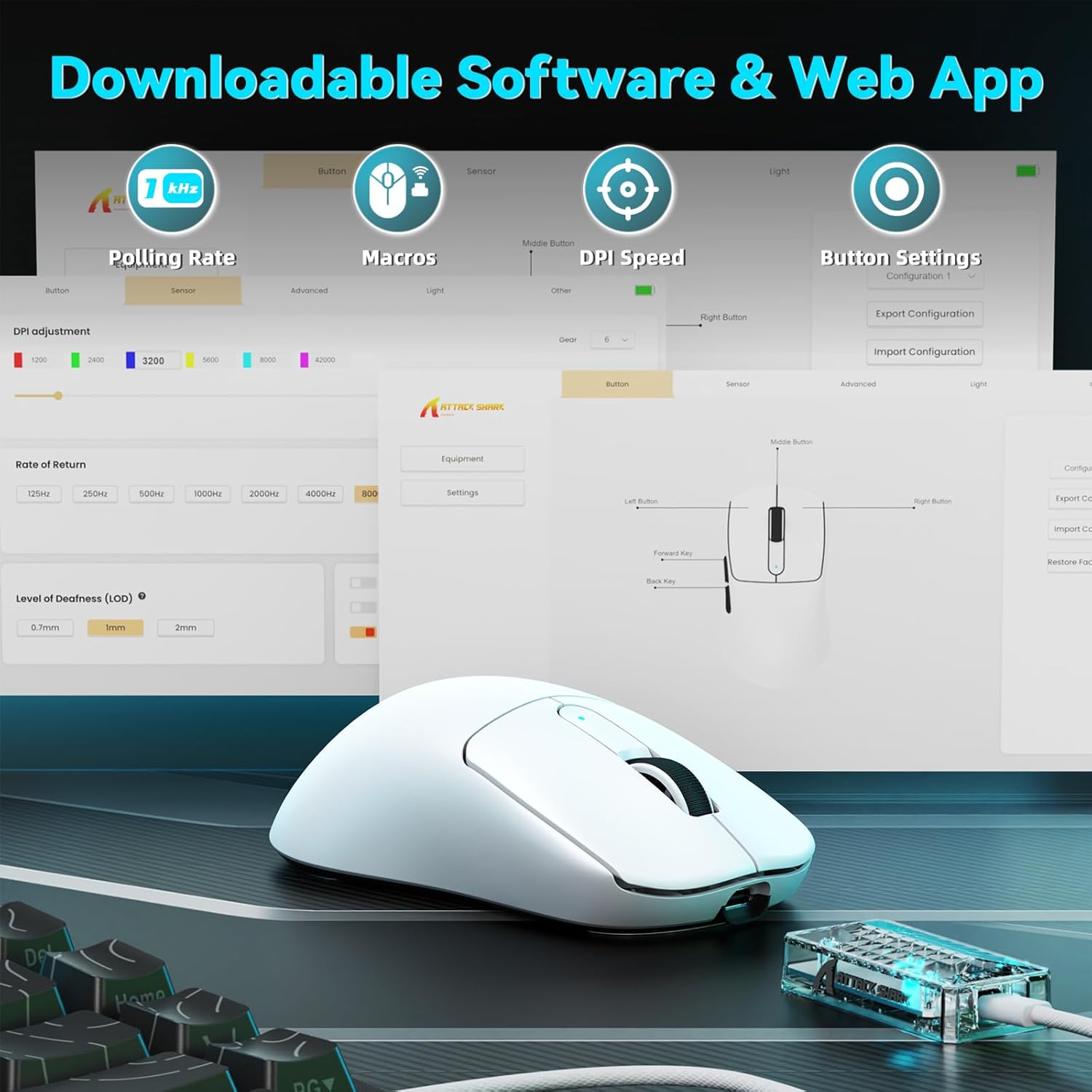
Image: A visual representation of the downloadable software interface, showing options for polling rate, macros, DPI speed, and button settings.
Battery Management
The mouse is equipped with a 500mAh battery, providing extended usage. To charge, connect the mouse using the USB-C cable. The LED indicator on the mouse will show charging status.

Image: An internal view of the ATTACK SHARK V5 mouse, highlighting its high-capacity 500mAh battery.
Maintenance
Cleaning
To maintain optimal performance and appearance, regularly clean your mouse. Use a soft, dry cloth to wipe the surface. For stubborn dirt, a slightly damp cloth can be used, ensuring no moisture enters the internal components. Avoid harsh chemicals or abrasive materials.
Nano Ice-Sense Coating
The mouse features a nano ice-sense coating designed to prevent slippage and ensure a firm grip, even during extended use or with sweaty hands. This coating requires no special maintenance beyond regular cleaning.
Troubleshooting
Mouse Not Responding
- Check Connectivity: Ensure the USB receiver is properly inserted for 2.4GHz mode, or that the USB-C cable is securely connected for wired mode. For Bluetooth, verify the mouse is paired and selected in your device's Bluetooth settings.
- Battery Level: If in wireless mode, check the mouse's battery level. Connect the USB-C cable to charge if the battery is low.
- Restart: Try restarting your computer or device.
- Driver: Ensure the necessary drivers are installed and up to date.
Inconsistent Tracking or Lag
- Surface: Use the mouse on a clean, uniform surface. Avoid highly reflective or transparent surfaces.
- Interference: For wireless modes, ensure there are no strong sources of wireless interference nearby (e.g., other 2.4GHz devices, Wi-Fi routers).
- DPI Settings: Adjust DPI settings via the software to find a comfortable and stable tracking speed.
Specifications
| Feature | Detail |
|---|---|
| Brand | ATTACK SHARK |
| Model | V5 |
| Color | White |
| Connectivity | Wired (USB-C), 2.4GHz Wireless, Bluetooth |
| Sensor | PixArt 3950MAX |
| DPI Range | Up to 42,000 (50 DPI adjustable) |
| Wireless Polling Rate | 8000Hz |
| Wired Polling Rate | 1000Hz |
| Weight | Approximately 55 grams |
| Switches | Optical, 100 million click lifespan |
| Acceleration | 60G |
| Encoder | Richwell's 200W |
| Battery Capacity | 500mAh |
| Number of Buttons | 6 |
| Hand Orientation | Right |
| Compatible Operating Systems | Windows, macOS, Linux (e.g., Mac OS 14 Sonoma, Ubuntu 22.04 Jammy Jellyfish, Windows 11) |
| Wireless Range | 10 meters |
| Material | Plastic |
| UPC | 752010843312 |
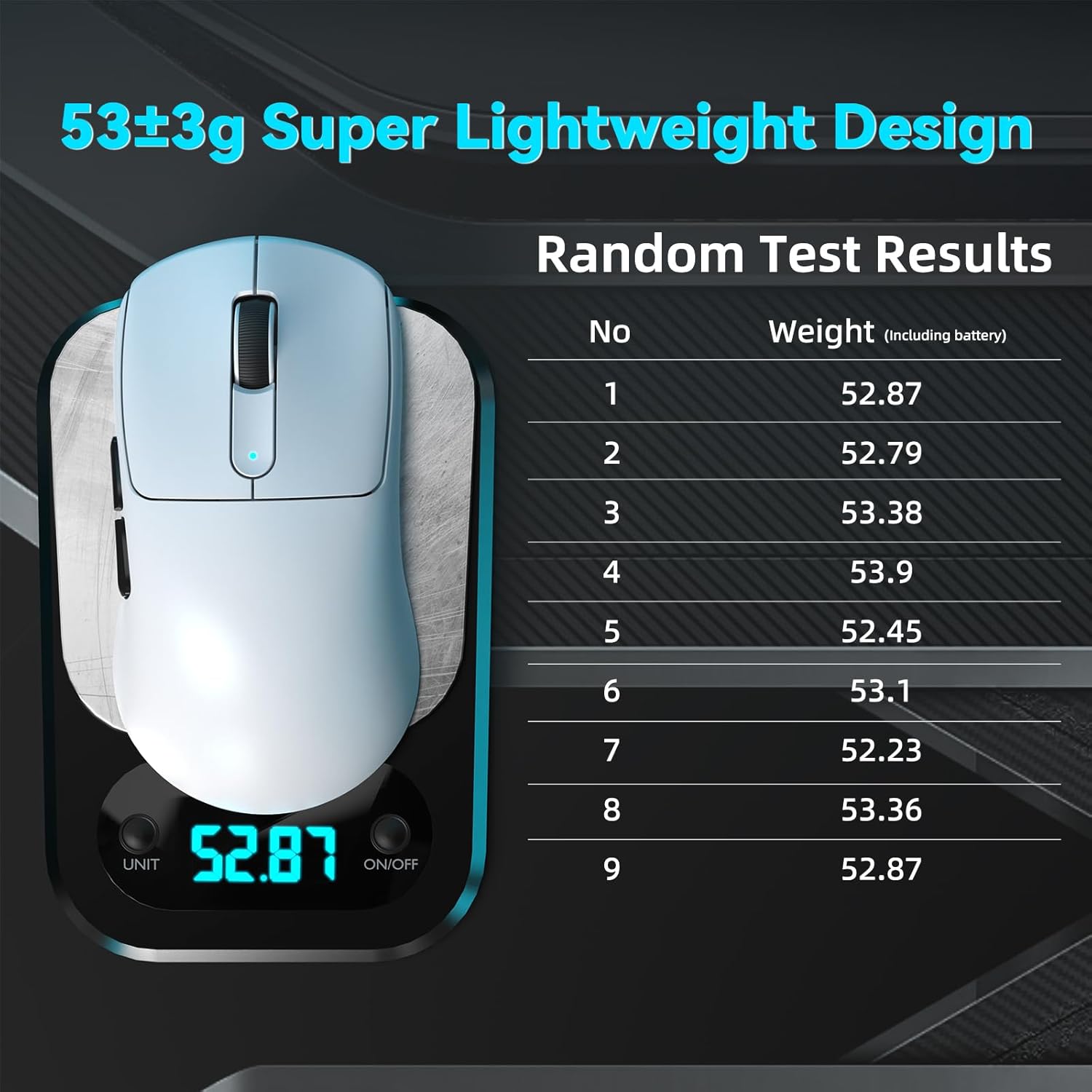
Image: The ATTACK SHARK V5 mouse on a digital scale, demonstrating its ultra-lightweight design at approximately 53 grams.

Image: A detailed view of the Omron Optical Microswitch used in the ATTACK SHARK V5 mouse, known for its durability and precise clicks.
Warranty and Support
Warranty Information
The ATTACK SHARK V5 Wireless Gaming Mouse comes with a 1-Year Manufacturer Warranty. This warranty covers defects in materials and workmanship under normal use. Please retain your proof of purchase for warranty claims.
Customer Support
For technical assistance, troubleshooting, or warranty inquiries, please visit the official ATTACK SHARK website or contact their customer support directly. Refer to the product packaging or the official website for the most current contact information.


