
Blackview Link 8
Blackview Link 8 Android 15 Tablet User Manual
Model: Link 8
1. Introduction
Welcome to the Blackview Link 8 Android 15 Tablet user manual. This guide provides essential information for setting up, operating, and maintaining your device. Please read it carefully to ensure optimal performance and longevity of your tablet.
1.1 Package Contents
Verify that all items are present in your package:
- Blackview Link 8 Tablet
- Bluetooth Keyboard
- Stylus Pen
- Tablet Case
- Screen Protector
- Wireless Mouse
- Charger & Type-C Cable
- Wired Earbuds

Image: The Blackview Link 8 tablet and its included accessories: Bluetooth keyboard, stylus, tablet case, screen protector, wireless mouse, charger, Type-C cable, and wired earbuds.
2. Initial Setup
2.1 Powering On/Off
- To Power On: Press and hold the Power button until the Blackview logo appears.
- To Power Off: Press and hold the Power button, then select 'Power off' from the options on the screen.
- To Restart: Press and hold the Power button, then select 'Restart' from the options.
2.2 Charging the Tablet
Connect the provided Type-C cable to the tablet's charging port and the other end to the charger. Plug the charger into a power outlet. The tablet supports 18W fast charging. A full charge provides approximately 24 hours of average use.
2.3 Initial Configuration
Upon first power-on, follow the on-screen prompts to:
- Select your language.
- Connect to a Wi-Fi network (2.4G/5G WiFi supported).
- Sign in with your Google account or create a new one.
- Set up security features like PIN, pattern, or password.
3. Basic Operation
3.1 Touchscreen Gestures
The Blackview Link 8 tablet responds to standard Android gestures:
- Tap: Select an item or open an application.
- Long Press: Access contextual menus or move icons.
- Swipe: Navigate through screens, scroll lists, or dismiss notifications.
- Pinch-to-Zoom: Zoom in or out on images and web pages.
3.2 Connecting Accessories (Keyboard, Mouse, Pen)
The tablet comes with a Bluetooth keyboard, wireless mouse, and stylus pen for enhanced productivity.
- Bluetooth Keyboard/Mouse: Turn on the accessory and enable Bluetooth on your tablet (Settings > Connected devices > Bluetooth). Select the accessory from the list to pair.
- Stylus Pen: The stylus pen is typically ready for use upon activation or may require a simple pairing process via Bluetooth if it's an active stylus. Refer to the pen's specific instructions if pairing is needed.

Image: The Blackview Link 8 tablet shown with its accompanying Bluetooth keyboard, wireless mouse, and stylus pen, illustrating its versatility as a 2-in-1 device.
3.3 Using the Cameras
The tablet features a 16MP rear camera, a 2MP depth sensor, and a 13MP front camera. Open the Camera application to capture photos and videos.
- Rear Camera: Ideal for high-resolution photos and document scanning.
- Front Camera: Optimized for video calls and selfies.
- Depth Sensor: Enhances portrait mode effects.
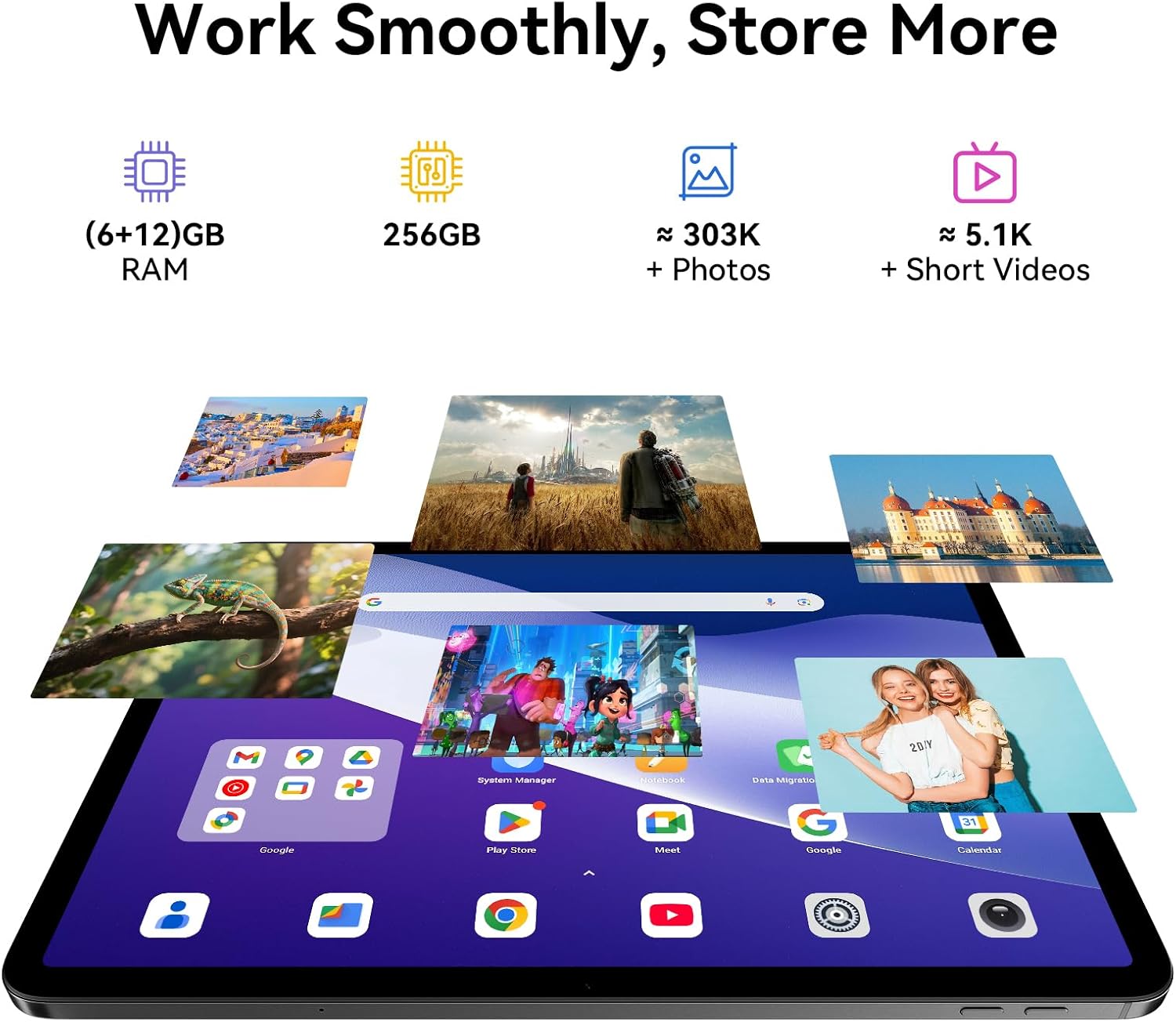
Image: A split image demonstrating the Blackview Link 8 tablet's camera capabilities, showing a person on a video call using the 13MP front camera and an illustration of the 16MP rear and 2MP depth cameras.
3.4 Productivity Features
- Split-Screen 2.0: Allows you to run two applications side-by-side for multitasking. Activate by long-pressing the recent apps button or dragging an app to the side of the screen.
- WPS Office: Preloaded for document creation, editing, and viewing.
4. Key Features
4.1 Immersive Display
The Blackview Link 8 features a 12.7-inch 2K+ (2160×1600) IPS display with a 90Hz refresh rate and 300 nits brightness. It supports Widevine L1 for high-definition streaming content. Four Smart-PA speakers provide cinematic surround sound.

Image: A family watching a movie on the Blackview Link 8 tablet, illustrating its 2K+ display, Widevine L1 support, 90Hz refresh rate, and 4-speaker audio for an immersive experience.
4.2 Performance
Powered by the 6nm Helio G100 octa-core processor (2.2GHz), the tablet offers smooth multitasking and enhanced gaming performance. An intelligent cooling system helps maintain stable operation during intensive tasks.

Image: Hands holding the Blackview Link 8 tablet while playing a racing game, demonstrating the smooth gaming performance powered by the Helio G100 processor.
4.3 Memory and Storage
The tablet is equipped with 6GB physical RAM, expandable with 12GB virtual RAM (total 18GB), and 256GB of internal storage (ROM). This provides ample space for applications, photos, and videos.
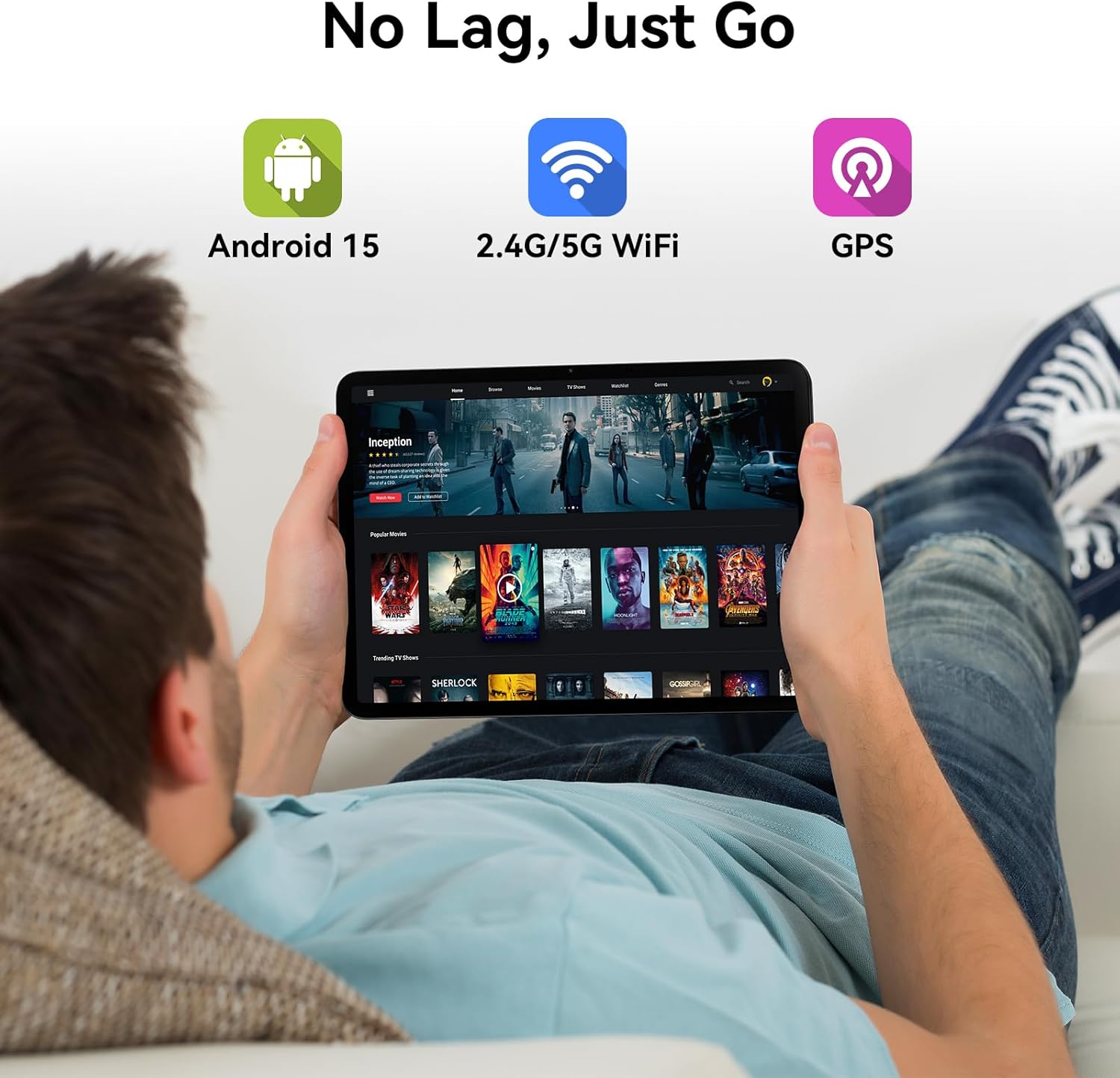
Image: Various apps and images displayed on the Blackview Link 8 tablet screen, representing smooth operation with 18GB RAM and ample 256GB storage for photos and videos.
4.4 Operating System and Connectivity
The tablet runs on Android 15 with DokeOS_P 4.2, offering a refined user interface, enhanced privacy tools, and AI optimization. Connectivity options include dual-band 2.4G/5G WiFi, Bluetooth 5.0, and comprehensive GPS support (GPS/GLONASS/Beidou/Galileo).

Image: A person relaxing on a couch, holding the Blackview Link 8 tablet displaying streaming content, emphasizing Android 15, 5G WiFi, and GPS capabilities.
4.5 Eye-Friendly Modes
The Blackview Link 8 is TÜV Rheinland certified for low blue light emission. It includes dedicated modes to reduce eye strain:
- Reading Mode: Adjusts the screen to a paper-like clarity.
- Night Light Mode: Reduces blue light for comfortable viewing in low light.
- Eye Comfort Mode: Optimizes screen settings to minimize eye fatigue.

Image: Three panels showing the Blackview Link 8 tablet in Reading Mode, Night Light Mode, and Dark Mode, with a TÜV Rheinland certified logo, highlighting its eye-friendly features.
5. Maintenance
5.1 Cleaning Your Tablet
Use a soft, lint-free cloth to clean the screen and body of the tablet. For stubborn smudges, slightly dampen the cloth with water or a screen-cleaning solution. Avoid harsh chemicals or abrasive materials.
5.2 Battery Care
- Avoid extreme temperatures, which can degrade battery life.
- Do not leave the tablet fully discharged for extended periods.
- For long-term storage, charge the battery to around 50% and power off the device.
5.3 Software Updates
Regularly check for system updates (Settings > System > System update) to ensure your tablet has the latest features, security patches, and performance improvements.
6. Troubleshooting
If you encounter issues with your Blackview Link 8 tablet, refer to the following common solutions:
| Problem | Solution |
|---|---|
| Tablet does not power on | Ensure the battery is charged. Connect the charger and wait a few minutes before attempting to power on again. If unresponsive, perform a force restart by holding the Power button for 10-15 seconds. |
| Wi-Fi connection issues | Restart your Wi-Fi router and the tablet. Forget the network in tablet settings and reconnect. Ensure you are within range of the Wi-Fi signal. |
| Slow performance or app crashes | Close unnecessary background apps. Clear cache for problematic apps (Settings > Apps > [App Name] > Storage > Clear cache). Restart the tablet. Ensure sufficient free storage space. |
| Screen is unresponsive | Restart the tablet. If the issue persists, ensure the screen is clean and free of debris. Remove any screen protectors that might be interfering. |
7. Technical Specifications
| Feature | Specification |
|---|---|
| Model Name | Link 8 |
| Operating System | Android 15 (DokeOS_P 4.2) |
| Screen Size | 12.7 Inches |
| Screen Resolution | 2160x1600 Pixels (2K+) |
| Processor | MediaTek Helio G100 Octa-core (2.2 GHz, 6nm) |
| RAM | 6GB + 12GB Virtual RAM (18GB Total) |
| Storage | 256 GB |
| Rear Camera | 16MP Main + 2MP Depth |
| Front Camera | 13MP |
| Battery Capacity | 8400mAh |
| Charging | 18W Fast Charge, OTG Support |
| Wireless Connectivity | 802.11ac (2.4G/5G WiFi), Bluetooth 5.0 |
| Navigation | GPS/GLONASS/Beidou/Galileo |
| Dimensions (LxWxH) | 8 x 11.1 x 0.33 inches |
| Item Weight | 4.77 pounds |
8. Warranty and Support
8.1 Warranty Information
The Blackview Link 8 tablet comes with a 2-year warranty. This warranty covers manufacturing defects and ensures high-quality performance. Please retain your proof of purchase for warranty claims.
8.2 Customer Support
For technical assistance, troubleshooting beyond this manual, or warranty inquiries, please contact Blackview customer service. Refer to the official Blackview website or your purchase documentation for the most current support contact information.
Related documentsLink 8


Ask a question about this manual
Ask about setup, troubleshooting, compatibility, parts, safety, or missing instructions. Manuals+ will review the question and use this page’s manual context to help answer it.