
1. Introduction
Thank you for choosing the KOBANOICA Android 13 Car Radio Stereo. This manual provides detailed instructions for installation, operation, and maintenance of your new car stereo system. Please read this manual thoroughly before installation and use to ensure proper functionality and safety.
1.1 Compatible Car Models
- Jeep Wrangler/Unlimited (2007-2018)
- Jeep Patriot (2009-2016)
- Jeep Grand Cherokee (2005-2011)
- Jeep Compass (2009-2016)
- Jeep Liberty (2008-2011)
- Jeep Commander (2008-2011)
- Chrysler Sebring (2007-2010)
- Town & Country (2007-2010)
- Dodge Grand Caravan (2011-2014)
- Dodge Charger (2008-2010)
- Dodge Ram Pickup 1500/2500/3500 (2009-2012)

Image 1.1: Visual comparison of the dashboard before and after installing the KOBANOICA car radio stereo.
2. Package Contents
Please verify that all items listed below are included in your package:
- Car Radio Head Unit
- Installation Harness (for Jeep)
- Installation Harness (for Chrysler)
- Backup Camera
- GPS Module
- Microphone
- USB Cable (x2)
- Can Bus Decoder
- Video Cable for Backup Camera
- Camera Power Cable
- Antenna Adapter Cable
- Reversing Line
- Screwdriver
- Crowbar
- RCA Cable
- Mounting Screws

Image 2.1: All components included in the KOBANOICA Android 13 Car Radio Stereo package.
3. Setup & Installation
Professional installation is recommended. Ensure the vehicle's battery is disconnected before beginning installation to prevent electrical damage.
3.1 General Wiring Diagram
Refer to the general wiring diagram for connecting the main power, audio, and accessory cables. Ensure all connections are secure.

Image 3.1: Detailed general wiring diagram for the KOBANOICA car radio head unit, showing connections for power, USB, GPS, microphone, and RCA cables.
3.2 Amplifier Connection
If your original radio has a factory amplifier, use the power harness with the AMP-DET wire. Connect the amp cable from the RCA cable to the AMP-DET cable of the power harness. Failure to do so will result in no sound. If your original radio does NOT have a factory amplifier, use the Non-AMP-DET power harness directly.

Image 3.2: Specific wiring instructions for Jeep and Chrysler vehicles, detailing connections for factory amplifiers.
3.3 Backup Camera Installation
Connect the provided backup camera to the designated video input on the head unit. Ensure the camera's power cable is connected to the vehicle's reverse light circuit so it activates automatically when shifting into reverse gear.

Image 3.3: The car radio display showing the backup camera view with parking guidelines, highlighting its wide-angle, waterproof, night vision, and HD display features.
4. Operating Instructions
4.1 Wireless CarPlay & Android Auto
Connect your smartphone wirelessly via Bluetooth to enable CarPlay (for iPhone) or Android Auto (for Android phones). This allows access to navigation, music, messages, and voice assistants directly on the car stereo screen.
- Connection: Enable Bluetooth on your phone and the car stereo. Pair your phone with the stereo. Follow on-screen prompts to activate CarPlay or Android Auto.
- Voice Commands: Use Siri or Google Assistant for hands-free operation.

Image 4.1: The car radio display showing the Wireless CarPlay and Android Auto interface, with two smartphones demonstrating the connection.
4.2 WiFi & GPS Navigation
The unit features built-in WiFi and GPS. Connect to a WiFi hotspot to download navigation apps, stream videos, or browse online. The GPS module provides accurate location services for navigation.
- WiFi Connection: Go to Settings > Network > Wi-Fi to connect to an available network.
- Navigation: Use pre-installed navigation apps or download your preferred ones from the app store.

Image 4.2: The car radio display showing GPS navigation in progress, with icons for various apps like Spotify, YouTube, and Google Maps, illustrating WiFi and GPS capabilities.
4.3 Bluetooth & Steering Wheel Controls (SWC)
Bluetooth allows for hands-free calling and audio streaming. Steering Wheel Controls (SWC) enable safe operation of the stereo without taking your hands off the wheel.
- Bluetooth Pairing: Access the Bluetooth menu on the stereo, search for devices, and pair with your phone.
- SWC Setup: The system supports learning functions for steering wheel controls. Access the SWC settings in the system menu to map your vehicle's steering wheel buttons to stereo functions.
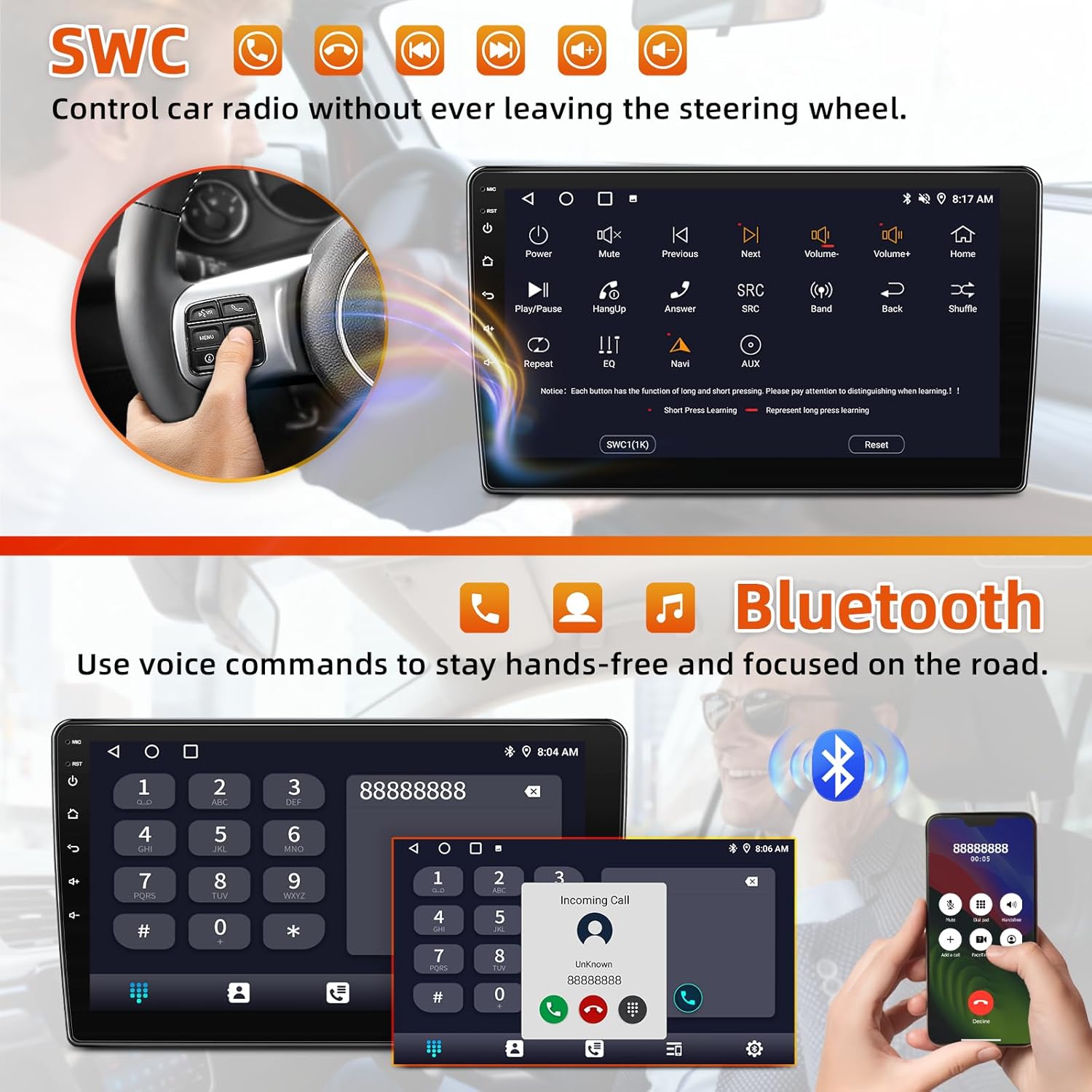
Image 4.3: The car radio display showing the Steering Wheel Control (SWC) learning interface and the Bluetooth dialer, with a hand demonstrating SWC usage.
4.4 FM/AM Radio & EQ Adjust
Enjoy your favorite radio stations with the built-in FM/AM tuner. Customize your audio experience using the Digital Sound Processor (DSP) and Equalizer (EQ) settings.
- Radio Tuning: Select the FM or AM band. Use the scan function or manual tuning to find stations. Save frequently listened stations as presets.
- EQ/DSP: Access the Sound Settings menu to adjust equalizer bands, balance, fader, and other DSP effects for optimal sound quality.

Image 4.4: The car radio display showing the FM/AM radio interface with preset stations and current frequency, indicating available radio bands.

Image 4.5: The car radio display showing the built-in DSP (Digital Sound Processor) interface, allowing users to tune into their favorite music sound modes and adjust audio settings for a superior listening experience.
4.5 Split Screen Functionality
The split-screen feature allows you to run two applications simultaneously on the display, such as navigation and music playback, without switching between apps.
- Activation: Long-press the recent apps button or drag an app to one side of the screen to activate split-screen mode.

Image 4.6: The car radio display demonstrating split-screen functionality, showing navigation on one side and music playback on the other, allowing simultaneous operation of different applications.
5. Maintenance
5.1 Screen Care
To clean the touch screen, use a soft, lint-free cloth. For stubborn smudges, slightly dampen the cloth with water or a screen-safe cleaner. Avoid abrasive materials or harsh chemicals that could damage the screen surface.
5.2 Software Updates
Periodically check for software updates to ensure optimal performance and access to new features. Updates can typically be found through the system settings or the manufacturer's website. Follow the provided instructions carefully when performing updates.
6. Troubleshooting
If you encounter issues with your car stereo, refer to the following common problems and solutions:
- No Power:
- Check all power connections and fuses.
- Ensure the vehicle's ignition is on.
- No Sound:
- Verify speaker connections.
- Check volume levels and mute settings.
- If using a factory amplifier, ensure the AMP-DET wire is correctly connected (refer to Section 3.2).
- GPS Signal Issues:
- Ensure the GPS antenna is properly installed and has a clear view of the sky.
- Check GPS settings in the system menu.
- Bluetooth Connectivity Problems:
- Ensure Bluetooth is enabled on both the stereo and your phone.
- Delete previous pairings and try re-pairing.
- Restart both devices.
- Touch Screen Unresponsive:
- Perform a system reset (refer to the system settings for reset options).
- Ensure the screen is clean and free of debris.
For issues not covered here, or if problems persist, please contact customer support.
7. Specifications
| Operating System | Android 13 |
| Memory Storage Capacity | 64 GB |
| Display Size | 10 Inches |
| Connectivity Technology | Bluetooth, USB, Wi-Fi |
| Special Features | Android Auto, Apple CarPlay, Bluetooth, Built-In Wi-Fi, Touchscreen |
| Audio Output Mode | Stereo |
| Map Type | Worldwide |
| Item Weight | 3.97 pounds |
| Package Dimensions | 11 x 8 x 5 inches |
8. Warranty Information
This KOBANOICA car radio stereo is covered by a 2-Year Manufacturer Warranty from the date of purchase. This warranty covers defects in materials and workmanship under normal use. It does not cover damage caused by improper installation, accident, misuse, abuse, neglect, unauthorized modification, or normal wear and tear.
Please retain your proof of purchase for warranty claims.
9. Customer Support
If you have any questions regarding the installation, operation, or troubleshooting of your KOBANOICA Android 13 Car Radio Stereo, please do not hesitate to contact the seller or manufacturer's customer support. Provide your product model number and purchase details for efficient assistance.