
1. Introduction and Overview
This manual provides essential information for the setup, operation, and maintenance of your Motorola Edge 50 Neo 5G Smartphone. This device is an international version, featuring Dual-SIM capability, 512GB of internal storage (ROM), and 12GB of RAM. Please read this manual thoroughly to ensure optimal use of your device.

Image: Motorola Edge 50 Neo smartphone, displaying its front screen and rear camera design. The device features a sleek profile and a distinctive camera array.
2. What's in the Box
Upon unboxing your Motorola Edge 50 Neo, you should find the following items:
- Motorola Edge 50 Neo Smartphone
- USB Cable
Please inspect all contents for any damage. If any items are missing or damaged, contact your retailer.
3. Setup
3.1. Charging the Device
Before initial use, it is recommended to fully charge your Motorola Edge 50 Neo. Connect the provided USB cable to the phone's charging port and to a compatible power adapter. The device supports 68W TurboPower charging for rapid replenishment of the 4310 mAh battery.

Image: The Motorola Edge 50 Neo screen showing a 100% charge level, indicating fast charging with TurboPower technology. The phone features a 4310 mAh battery.
3.2. Inserting SIM Cards
The Motorola Edge 50 Neo supports Dual-SIM functionality. Locate the SIM tray on the side of the device. Use the SIM ejector tool (not included, typically found with new phones) to open the tray. Carefully place your Nano-SIM cards into the designated slots, ensuring the gold contacts face downwards. Reinsert the tray firmly into the phone.
3.3. Initial Power On and Setup
Press and hold the power button until the Motorola logo appears. Follow the on-screen prompts to select your language, connect to a Wi-Fi network, and set up your Google account. This process will guide you through basic personalization and security settings.
4. Operating Instructions
4.1. Basic Navigation
Your Motorola Edge 50 Neo runs on Android 14. Navigate the interface using touch gestures:
- Tap: Select an item or open an app.
- Swipe: Scroll through screens or lists.
- Pinch: Zoom in or out on photos and web pages.
- Long Press: Access contextual menus or move app icons.
4.2. Calls and Messaging
To make a call, open the Phone app and dial the number or select a contact. To send a message, open the Messages app, tap to compose a new message, enter the recipient and your text.
4.3. Internet Connectivity
Connect to Wi-Fi via Settings > Network & internet > Wi-Fi. For mobile data, ensure your SIM card is active and mobile data is enabled in Settings > Network & internet > Mobile network. The device supports 5G connectivity for fast internet speeds.
4.4. Camera Usage
The Motorola Edge 50 Neo features an advanced camera system. Open the Camera app to capture photos and videos.
- Main Camera: 50 MP with f/1.8 aperture and Optical Image Stabilization (OIS).
- Ultra-Wide/Macro Camera: 13 MP with f/2.2 aperture.
- Front Camera: 32 MP for high-quality selfies.

Image: A detailed view of the Motorola Edge 50 Neo's camera lenses, highlighting the 50 MP main camera, 13 MP ultra-wide/macro lens, and the 32 MP front camera capabilities.
4.5. Storage Management
Your device comes with 512GB of integrated storage and 12GB of RAM, expandable with RAM Boost technology. To manage your storage, go to Settings > Storage. Here you can view usage, free up space, and manage files.

Image: The phone's display showing the storage settings, indicating ample space with 512 GB integrated storage and 12 GB RAM, enhanced by RAM Boost.
5. Maintenance
5.1. Cleaning Your Device
Use a soft, lint-free cloth to clean the screen and body of your phone. Avoid abrasive materials or harsh chemicals. The device has an IP68 rating for water and dust resistance, meaning it can withstand immersion in up to 1.5 meters of fresh water for up to 30 minutes. However, it is not recommended for intentional submersion.
5.2. Software Updates
Keep your device's software up to date to ensure optimal performance and security. You will receive notifications for available updates. You can also check manually in Settings > System > System updates.
5.3. Battery Care
To prolong battery life, avoid extreme temperatures. Use only approved chargers and cables. The 4310 mAh battery is designed for extended use, offering up to 34 hours of battery life.
5.4. Screen Protection
The display is protected by Corning Gorilla Glass 3, offering enhanced durability against scratches and drops. For additional protection, consider a screen protector.

Image: The Motorola Edge 50 Neo showcasing its minimalist design, featuring Corning Gorilla Glass 3 for display protection and an IP68 rating for water resistance.
6. Troubleshooting
If you encounter issues with your device, try the following steps:
- Restart the device: Often, a simple restart can resolve minor software glitches.
- Check connections: Ensure SIM cards are properly inserted and Wi-Fi/mobile data are enabled.
- Clear app cache: If an app is misbehaving, try clearing its cache in Settings > Apps.
- Factory Reset: As a last resort, you can perform a factory reset (Settings > System > Reset options). Warning: This will erase all data on your phone. Back up important data before proceeding.
7. Specifications
| Model Name | Motorola Edge 50 Neo |
| Operating System | Android 14 |
| RAM | 12 GB |
| Memory Storage Capacity | 512 GB |
| Connectivity Technologies | 5G |
| Screen Size | 6.36 Inches |
| Resolution | 1256 x 2760 |
| Battery Capacity | 4310 Milliamp Hours |
| CPU Speed | 2.4 GHz |
| Product Dimensions | 6.07 x 2.8 x 0.32 inches |
| Item Weight | 6 ounces (171 Grams) |
| Water Resistance | IP68 |
| Display Protection | Corning Gorilla Glass 3 |
| Date First Available | August 15, 2025 |
8. Warranty and Support
As a renewed product, this Motorola Edge 50 Neo is covered by the Amazon Renewed Guarantee. This typically includes a right to a refund or replacement within a specified period if the product does not work as expected. For specific details regarding your purchase's warranty and support, please refer to the Amazon Renewed policy on the Amazon website or contact Amazon customer service directly.
9. Amazon Renewed Information
This product is an Amazon Renewed item. Amazon Renewed is a program for pre-owned, refurbished products that are inspected and tested to work and look like new. Products are inspected, undergo full diagnostic tests, thorough cleaning, and are refurbished as necessary to be fully functional.
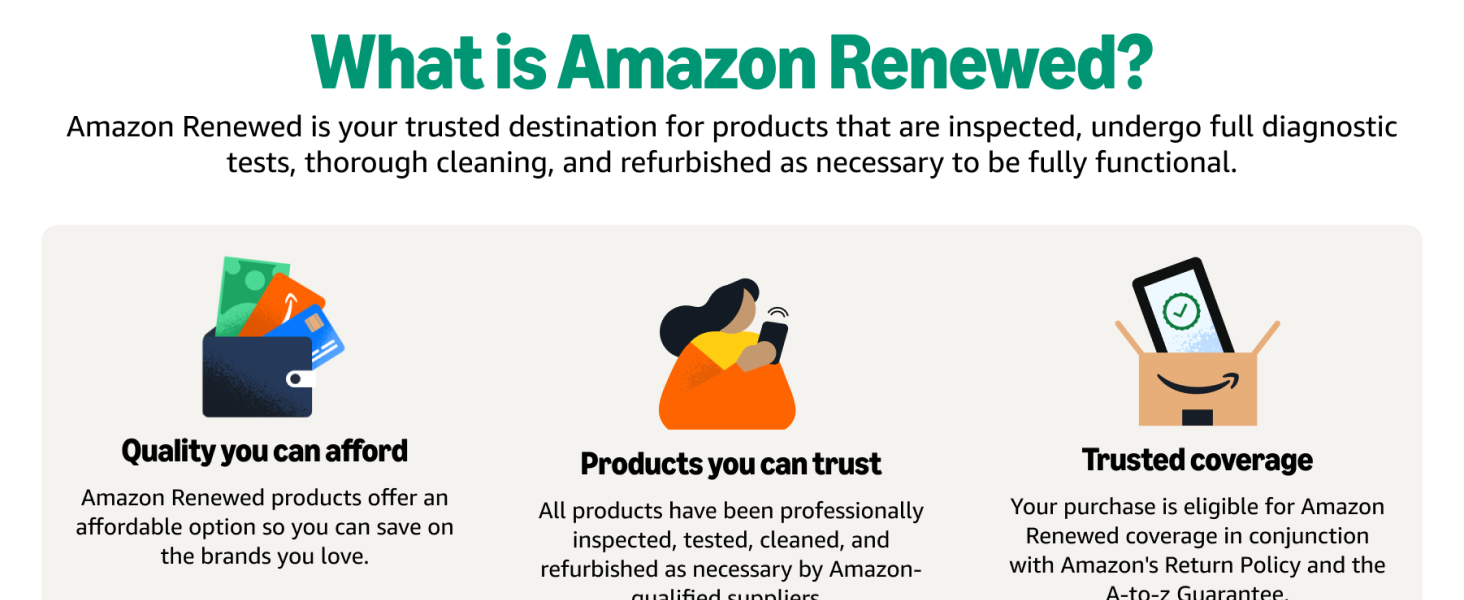
Image: An infographic explaining the Amazon Renewed program, highlighting quality, trust, and coverage for refurbished products.
Refurbished Conditions
All Amazon Renewed refurbished products are fully functional, have generic or original accessories and packaging, and have greater than 80% of the original battery life. The cosmetic condition may vary:
- Excellent: Body may have micro scratches. Screen is in perfect condition.
- Good: Body has light scratches. Screen is in perfect condition.
- Acceptable: Body may have light scratches and dents. Screen may have scratches, invisible when turned on.
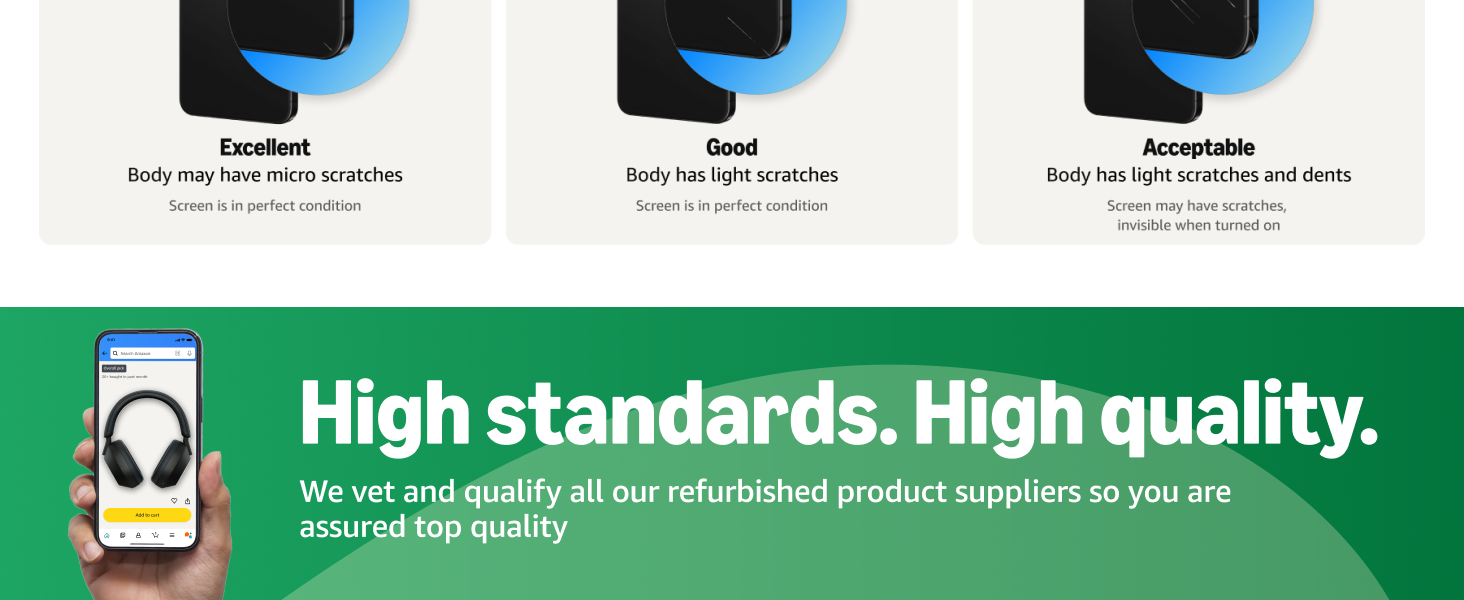
Image: An infographic illustrating the different cosmetic conditions for Amazon Renewed products, categorized as Excellent, Good, and Acceptable.


