
1. Introduction
This manual provides instructions for the operation and maintenance of your LIGE FV26-F Smartwatch. Please read this manual carefully before using the device to ensure proper function and to maximize its features. The smartwatch is designed for women, featuring a round display, silver stainless steel band with diamond accents, and a silicone strap option.
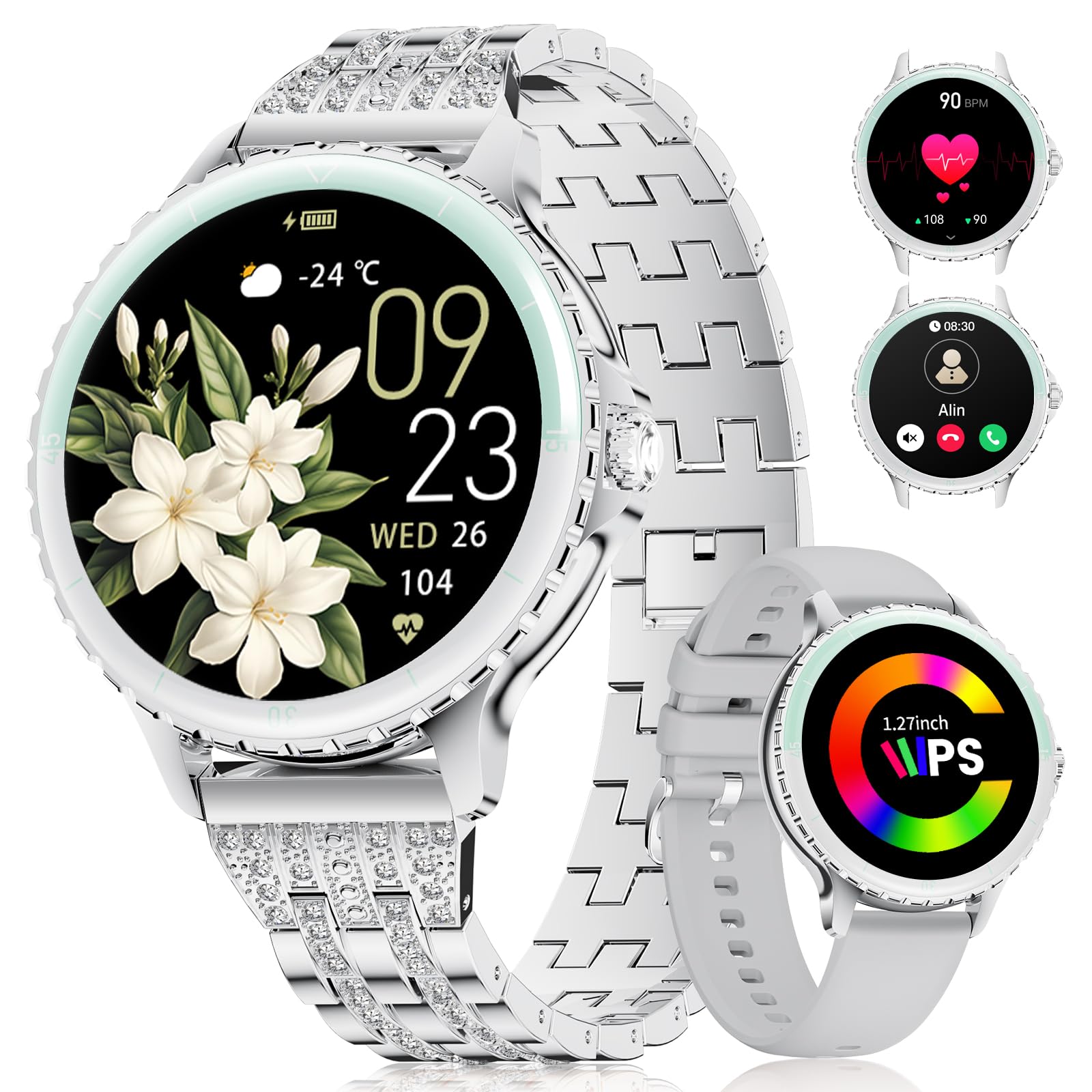
Image: LIGE FV26-F Smartwatch displaying its elegant design with both stainless steel and silicone strap options.
2. Setup
2.1 Charging the Smartwatch
- Connect the charging cable to the charging port on the back of the smartwatch.
- Plug the USB end of the cable into a standard USB power adapter (not included) or a computer's USB port.
- Ensure the charging pins are properly aligned with the smartwatch's contacts.
- A charging indicator will appear on the screen. Allow approximately 2-3 hours for a full charge.
2.2 App Installation and Pairing
- Download the FitcloudPro application from your smartphone's app store (Google Play Store for Android, Apple App Store for iOS).
- Ensure your smartphone meets the compatibility requirements: Android 6.0 or higher, or iOS 9.0 or higher.
- Enable Bluetooth on your smartphone.
- Open the FitcloudPro app and follow the on-screen instructions to create an account or log in.
- In the app, navigate to the device pairing section and search for your LIGE FV26-F smartwatch.
- Select your smartwatch from the list of available devices to initiate the pairing process. Confirm any pairing requests on both your phone and the smartwatch.
Once paired, the smartwatch will synchronize data with the app, and you can customize settings.
3. Operating Instructions
3.1 Basic Navigation
- Touchscreen: Swipe left, right, up, or down to navigate through menus and features. Tap to select an option.
- Side Button: Typically used to return to the home screen or to power on/off the device (long press).
3.2 Bluetooth Calls
- After successful Bluetooth pairing, you can make and receive calls directly from your wrist.
- The smartwatch supports contact uploading from your phone and displays call history.
- Utilize the integrated AI voice assistant for hands-free control of your phone's calling functions.
3.3 Real-time Notifications
- Receive alerts for incoming calls, messages, WhatsApp, and other application activities.
- The smartwatch will gently vibrate to notify you.
- Note for WhatsApp: To ensure WhatsApp notifications are received, set your WhatsApp notification settings on your phone to "Show comments - Always show." If your software is connected to a computer, the watch may not send messages.
3.4 Health Monitoring
- Heart Rate: Continuous 24/7 heart rate measurement.
- SpO2: Blood oxygen saturation measurement (data for reference only).
- Women's Health: Features include menstrual cycle prediction, pregnancy preparation mode, and pregnancy mode.
- Sleep Monitoring: Tracks and analyzes sleep patterns.
- Sedentary Alert: Reminds you to move after periods of inactivity.
- Breathing Exercises: Guided breathing exercises for relaxation.
3.5 Sport Modes
- The smartwatch supports over 100 sport modes.
- Ten built-in sports include yoga, cycling, running, and badminton.
- Use the "Sport Push" function in the FitcloudPro app to transfer additional sport modes to your watch.
- During workouts, the watch provides comprehensive data such as steps, training time, distance, calories burned, and heart rate (data for reference only).
3.6 Camera Remote and Music Control
- Camera Remote: Remotely control your smartphone's camera to take photos.
- Music Control: Play, pause, skip tracks, and adjust volume for music playing on your connected smartphone.
3.7 Customizable Watch Faces
- Personalize your smartwatch by setting photos from your phone (e.g., family, pets) as watch faces through the FitcloudPro app.
4. Maintenance
- Cleaning: Wipe the smartwatch and straps regularly with a soft, dry cloth. Avoid harsh chemicals.
- Battery Care: The 300 mAh battery provides approximately 3 to 5 days of usage depending on feature use. Charge the device before the battery is completely depleted to prolong its lifespan.
- Storage: Store the smartwatch in a cool, dry place when not in use.
5. Troubleshooting
- Connectivity Issues: If the smartwatch disconnects from your phone, ensure Bluetooth is enabled on both devices and that the FitcloudPro app is running in the background. Try restarting both the smartwatch and your phone.
- Notifications Not Received: Verify that app notifications are enabled in your phone's settings and within the FitcloudPro app. For WhatsApp, ensure the specific setting "Show comments - Always show" is active.
- Inaccurate Health Data: Ensure the smartwatch is worn snugly on your wrist, but not too tight. Environmental factors and movement can affect sensor readings. Health data is for reference only and not for medical diagnosis.
- Screen Unresponsive: Try restarting the smartwatch by long-pressing the side button. If the issue persists, ensure the device is charged.
6. Specifications
| Feature | Specification |
|---|---|
| Brand | LIGE |
| Model Number | FV26-F |
| Color | Silver |
| Operating System | iOS, Android |
| Screen Size | 1.27 Inches |
| Shape | Round |
| Connectivity Technology | Bluetooth |
| Wireless Communication Standard | Bluetooth |
| Special Features | Phone Call, Voice Control, Email, Notification, Touchscreen |
| Compatible Devices | Smartphone |
| Battery Capacity | 300 mAh |
| Battery Composition | Lithium-polymer |
| Rechargeable Battery | Yes |
| Memory Storage Capacity | 256 MB |
| GPS | GPS via smartphone |
7. Warranty and Support
Specific warranty information for the LIGE FV26-F Smartwatch is not provided in the product data. Please refer to the manufacturer's official website or your point of purchase for detailed warranty terms and conditions.
For technical support, software updates, or further assistance, please consult the FitcloudPro application or visit the LIGE official support channels.