
1. Introduction
Welcome to the user manual for your Blackview Active 12 Pro Rugged Tablet. This device is engineered for durability and high performance, featuring a powerful processor, a large battery, an integrated projector, and a camping light. This manual provides essential information on setting up, operating, maintaining, and troubleshooting your tablet to ensure optimal performance and longevity.
2. Safety Information
- Water and Dust Resistance: The Active 12 Pro is IP68/IP69K rated for water and dust resistance. Ensure all ports are securely closed before exposing the device to water or dust. Do not intentionally submerge the device beyond specified limits (1.5 meters for 30 minutes).
- Battery Safety: Do not attempt to replace the battery yourself. Use only Blackview-approved chargers and cables. Avoid exposing the device to extreme temperatures or direct sunlight for prolonged periods.
- Operating Temperature: Operate the device within the recommended temperature range to prevent damage.
- Cleaning: Use a soft, damp cloth to clean the device. Avoid harsh chemicals or abrasive materials.
- Disposal: Dispose of the device and its battery responsibly according to local regulations.
3. Setup
3.1 Initial Charging
Before first use, fully charge your Blackview Active 12 Pro using the provided 120W super-fast charger. The device features a 30000mAh battery, offering extended usage times.
3.2 SIM and SD Card Installation
The tablet supports Dual SIM 5G and external SD card expansion up to 3TB. Locate the SIM/SD card tray on the side of the device. Use the provided tool to open the tray, insert your SIM card(s) and/or SD card, and close the tray securely to maintain water and dust resistance.
3.3 Powering On/Off
- To Power On: Press and hold the Power button until the Blackview logo appears.
- To Power Off: Press and hold the Power button, then select 'Power Off' from the options on the screen.
- To Restart: Press and hold the Power button, then select 'Restart' from the options.
3.4 Initial Android 15 Setup
Upon first power-on, follow the on-screen instructions to complete the initial setup of Android 15. This includes selecting your language, connecting to Wi-Fi, setting up your Google account, and configuring security features.
4. Operating the Device
4.1 Display and Navigation
The Active 12 Pro features an 11-inch FHD+ IPS display with a 90Hz refresh rate for smooth visuals. Navigate the Android 15 interface using touch gestures. Swipe, tap, and pinch to interact with apps and content.

Image: The 11-inch FHD+ IPS display offers true-to-life clarity with 207 PPI and a 90Hz refresh rate.
4.2 Integrated Projector
Your tablet includes a 1080P projector capable of projecting a 120-inch image. To activate the projector, locate the dedicated projector button or access it through the quick settings panel. Adjust focus using the autofocus feature or manual controls. Keystone correction (auto/manual, ±20° vertical, ±60° horizontal) allows for optimal image alignment on various surfaces.

Image: The 120-inch colossal projection allows for a large viewing experience, suitable for outdoor movie nights or presentations.
4.3 Camping Light
The tablet features a super-bright 400 lumen camping light with 303 individual LED lights. It offers multiple modes:
- Fixed Light: Provides continuous illumination.
- SOS Mode: Emits an SOS signal for emergencies.
- Rapid Flashing: Produces intense flashes of light.
Control the light via a dedicated button or through the device's software interface. The light also offers 3-level adjustable brightness and a custom timer setting.

Image: The 400 lumen camping light provides wide-angle illumination, ideal for outdoor activities.
4.4 Camera Functions
Capture high-quality photos and videos with the 108MP AI main camera (Samsung HM6 sensor) and the 50MP AI front camera (Samsung JN1 sensor). The camera features AI enhancements for improved image quality, 0.01s autofocus, and 2K UHD 1440p video recording.
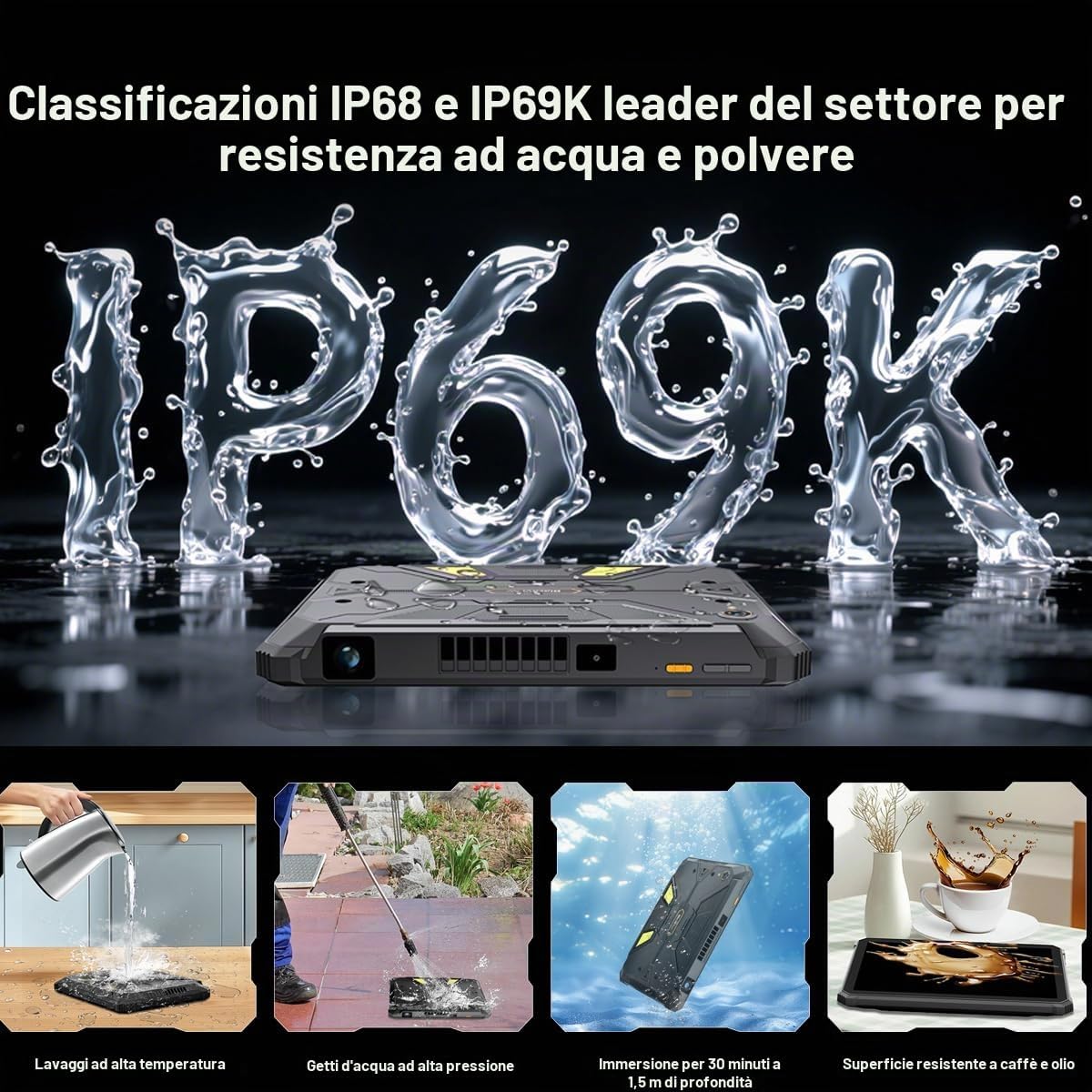
Image: Detailed view of the 108MP main camera and 50MP front camera specifications.
4.5 Connectivity
The Active 12 Pro supports various connectivity options:
- 5G Network: For high-speed mobile data.
- Wi-Fi: Supports 802.11ac and 802.11ax standards for fast wireless internet.
- Bluetooth: For connecting wireless accessories.
- NFC: For contactless payments and quick pairing.
- GPS: Integrated with BeiDou, Glonass, Galileo, and GPS for accurate navigation.
4.6 Battery Management
The 30000mAh battery provides extensive usage. Monitor battery levels through the status bar. Utilize the 120W super-fast charging for quick power replenishment. Expected usage times include 6.75 hours of continuous projection, 20 hours of gaming, and 112 days of standby.

Image: Visual representation of the 30000mAh battery and its estimated usage durations for various activities.
5. Maintenance
5.1 Cleaning Your Device
Regularly clean your tablet to maintain its appearance and functionality. Use a soft, lint-free cloth. For stubborn dirt, slightly dampen the cloth with water. Avoid spraying cleaners directly onto the device or using abrasive materials.
5.2 Water and Dust Resistance
While the Active 12 Pro is rugged and IP68/IP69K rated, proper care is essential. Always ensure all port covers and the SIM/SD card tray are fully sealed before exposing the device to water, dust, or high-pressure jets. After exposure to water, dry the device thoroughly before charging or opening any ports.

Image: Illustrations demonstrating the IP68 and IP69K ratings, including resistance to high-temperature washing, high-pressure water jets, submersion, and spills.
5.3 Software Updates
Keep your tablet's software updated to ensure optimal performance, security, and access to new features. You can check for updates in the device settings under 'System' or 'About tablet'.
5.4 Storage Management
The tablet comes with 1TB of internal storage, expandable up to 3TB with an external SD card. Regularly manage your storage by deleting unnecessary files, uninstalling unused apps, and transferring large media files to cloud storage or an external drive.
6. Troubleshooting
If you encounter issues with your Blackview Active 12 Pro, refer to the following common solutions:
- Device Not Powering On: Ensure the battery is charged. Connect the charger and wait a few minutes before attempting to power on again. If unresponsive, try holding the power button for 10-15 seconds.
- Screen Unresponsive: Restart the device. If the issue persists, perform a force restart by holding the power button for an extended period.
- Connectivity Issues (Wi-Fi/5G): Toggle Wi-Fi or mobile data off and on. Restart your router for Wi-Fi issues. Check your SIM card insertion for 5G problems.
- Projector Not Working: Ensure the projector lens is clean and unobstructed. Check projector settings for focus and keystone correction. Verify that the tablet's battery level is sufficient for projection.
- Camera Issues: Ensure the camera lenses are clean. Restart the camera app or the device. Check app permissions for the camera.
- Slow Performance: Close unused apps running in the background. Clear cache data. Consider uninstalling rarely used applications.
- Factory Reset: As a last resort, if software issues persist, you may perform a factory reset. This will erase all data on your device, so ensure you back up important information first. Go to Settings > System > Reset options > Erase all data (factory reset).
7. Specifications
| Feature | Specification |
|---|---|
| Model Name | Active 12 Pro |
| Operating System | Android 15 |
| Processor | MediaTek Dimensity 7300 (Octa-core, 2.5GHz) |
| RAM | 48GB (16GB Physical + 32GB Virtual) |
| Internal Storage | 1TB |
| Expandable Storage | Up to 3TB via SD card |
| Display | 11-inch FHD+ IPS LCD (1920x1200), 90Hz Refresh Rate |
| Battery Capacity | 30000mAh |
| Charging | 120W Super Fast Charging |
| Rear Camera | 108MP AI (Samsung HM6 sensor) |
| Front Camera | 50MP AI (Samsung JN1 sensor) |
| Video Resolution | 2K UHD 1440p |
| Connectivity | 5G, Wi-Fi (802.11ac, 802.11ax), Bluetooth, NFC, GPS (BeiDou, Glonass, Galileo) |
| Ruggedness | IP68/IP69K |
| Special Features | Integrated 1080P 120" Autofocus Projector, 400lm Camping Lantern |
8. Warranty Information
The Blackview Active 12 Pro comes with a Limited Warranty. For detailed information regarding the terms and conditions of your warranty, including coverage period and service procedures, please refer to the official Blackview website or the warranty card included with your product. Keep your proof of purchase for warranty claims.
9. Support
For further assistance, frequently asked questions, or to contact customer support, please visit the official Blackview website. You can typically find support resources, driver downloads, and contact information in the 'Support' or 'Contact Us' sections of their website.
Official Blackview Website: www.blackview.hk (Please note: URL may vary by region. Refer to your product packaging for the most accurate regional website.)


