
1. Introduction
Thank you for choosing the iPazzPort Mini Wireless Keyboard. This compact device offers dual-mode connectivity (2.4G wireless and Bluetooth), a precision touchpad, 3-color backlighting, and an IR learning remote function. It is designed for versatile use with Smart TVs, Android TV Boxes, PCs, Laptops, Projectors, PS5, Xbox, and other compatible devices. This manual provides detailed instructions for setup, operation, maintenance, and troubleshooting to ensure optimal performance.
2. Package Contents
Please check the package for the following items:
- 1 x iPazzPort Mini Wireless Keyboard
- 1 x USB Dongle (2.4G receiver)
- 1 x USB Charging Cable
- 1 x User Manual
- 1 x Lithium Polymer Battery (pre-installed or separate)
3. Product Overview
The iPazzPort Mini Wireless Keyboard combines multiple functionalities into a single, portable unit. Key features include:
- Dual-Mode Connectivity: Seamlessly switch between 2.4G wireless (via USB dongle) and Bluetooth connections.
- Precision Touchpad: High-sensitivity multi-touch trackpad with gesture support for easy navigation.
- IR Learning Remote: 8 programmable keys to learn functions from your existing TV or projector remote.
- 3-Color Backlight: Adjustable red, green, and blue backlighting for visibility in low-light conditions.
- Rechargeable Battery: Built-in lithium battery, rechargeable via USB.
- Compact Design: Pocket-sized for portability and convenience.

Image: The iPazzPort Mini Wireless Keyboard, showcasing its compact design and layout.
4. Setup
4.1 Charging the Keyboard
- Connect the provided USB charging cable to the keyboard's charging port.
- Connect the other end of the cable to a USB power source (e.g., computer USB port, USB wall adapter).
- The charging indicator light will illuminate. It will turn off or change color when fully charged.
4.2 2.4G Wireless Connection
This mode uses the included USB dongle for a stable wireless connection up to 10 meters.
- Insert the USB dongle into an available USB port on your device (Smart TV, PC, Projector, etc.).
- Turn on the keyboard by sliding the power switch to the 'ON' position.
- The keyboard should automatically connect to the dongle. The indicator light may flash briefly and then turn off, indicating a successful connection.

Image: The iPazzPort keyboard demonstrating its universal compatibility with various devices like laptops, tablets, and smart TVs.
4.3 Bluetooth Connection
This mode allows connection to Bluetooth-enabled devices without a dongle.
- Ensure the keyboard is charged and turned on.
- Press and hold the Fn key and the Bluetooth icon key (usually F1 or a dedicated Bluetooth key) simultaneously for 3-5 seconds until the Bluetooth indicator light starts flashing rapidly. This puts the keyboard into pairing mode.
- On your device, go to Bluetooth settings and search for new devices.
- Select "iPazzPort Keyboard" or a similar name from the list of available devices.
- If prompted, enter the pairing code displayed on your device using the iPazzPort keyboard and press Enter.
- Once paired, the Bluetooth indicator light on the keyboard will stop flashing and turn off.
4.4 IR Learning Function Setup
The keyboard can learn up to 8 infrared (IR) functions from your existing TV or projector remote.
- Place the iPazzPort keyboard and your original remote control head-to-head, approximately 1-3 cm apart.
- Press and hold the SET button on the iPazzPort keyboard for 3-5 seconds until the IR indicator light starts flashing slowly. This indicates learning mode.
- Press the button on the iPazzPort keyboard that you wish to program (e.g., Power button). The IR indicator light will flash rapidly.
- Press the corresponding button on your original remote control (e.g., Power button). The IR indicator light on the iPazzPort keyboard will flash three times and then remain solid, indicating successful learning.
- Repeat steps 3 and 4 for the other 7 programmable IR keys.
- After programming all desired keys, press the SET button again to exit learning mode. The IR indicator light will turn off.

Image: Diagram illustrating the IR learning process, showing the iPazzPort keyboard and an original remote facing each other, with programmable buttons highlighted.
5. Operating Instructions
5.1 Basic Keyboard Functions
- Typing: Use the QWERTY layout for text input.
- Function Keys: Press the Fn key simultaneously with the F1-F12 keys (or other marked function keys) to access their secondary functions (e.g., volume control, media playback).
- Special Characters: Use Shift or Fn in combination with other keys for special characters.
5.2 Touchpad Gestures
The touchpad supports various gestures for navigation:
- Single Finger Tap: Left-click.
- Two Finger Tap: Right-click.
- Single Finger Drag: Move cursor.
- Two Finger Scroll: Scroll up/down or left/right.
- Pinch Zoom: (If supported by device) Use two fingers to zoom in/out.

Image: The iPazzPort keyboard with a hand demonstrating touchpad usage for precise control and navigation.
5.3 Backlight Control
To adjust the backlight:
- Press the Fn key and the F2 key (or the dedicated backlight key) simultaneously to cycle through red, green, blue, and off.

Image: Four views of the iPazzPort keyboard, demonstrating the red, green, and blue backlight options, as well as the unlit state.
5.4 Power Management
- Auto Sleep: The keyboard will enter sleep mode after a period of inactivity to conserve battery. Press any key to wake it up.
- Power Off: Slide the power switch to 'OFF' when not in use for extended periods.
6. Maintenance
6.1 Cleaning
- Turn off the keyboard before cleaning.
- Use a soft, dry cloth to wipe the surface. For stubborn dirt, a slightly damp cloth can be used, followed by a dry cloth.
- Avoid using harsh chemicals, solvents, or abrasive cleaners.
6.2 Battery Care
- Charge the keyboard regularly, especially if it has not been used for a long time.
- Avoid fully discharging the battery frequently, as this can reduce its lifespan.
- Do not expose the keyboard to extreme temperatures (hot or cold).
7. Troubleshooting
| Problem | Possible Cause | Solution |
|---|---|---|
| Keyboard not responding (2.4G) | Low battery; Dongle not properly inserted; Out of range; Driver issue. | Charge keyboard; Re-insert dongle; Move closer to device; Try on another USB port/device. |
| Keyboard not responding (Bluetooth) | Low battery; Not paired; Bluetooth off on device; Out of range. | Charge keyboard; Re-pair the keyboard; Enable Bluetooth on device; Move closer to device. |
| IR learning fails | Remotes too far apart; Incorrect button press; Original remote battery low. | Ensure remotes are 1-3 cm apart; Press buttons firmly; Replace original remote battery. |
| Backlight not working | Backlight turned off; Low battery. | Press Fn+F2 to cycle backlight; Charge keyboard. |
| Touchpad erratic | Dirty touchpad; Interference; Software issue on device. | Clean touchpad; Move away from other wireless devices; Restart device. |
8. Specifications
| Feature | Detail |
|---|---|
| Model Number | 61SM |
| Connectivity | 2.4G RF, Bluetooth |
| Operating Range | Up to 10 meters (33 feet) |
| Backlight Colors | Red, Green, Blue (RGB) |
| Battery Type | Rechargeable Lithium Polymer |
| Charging Port | USB |
| Number of Keys | 92 |
| Weight | 100 Grams |
| Material | Polymer |
| Compatible Devices | Gaming Console, Laptop, PC, Television |
| Keyboard Layout | QWERTY |
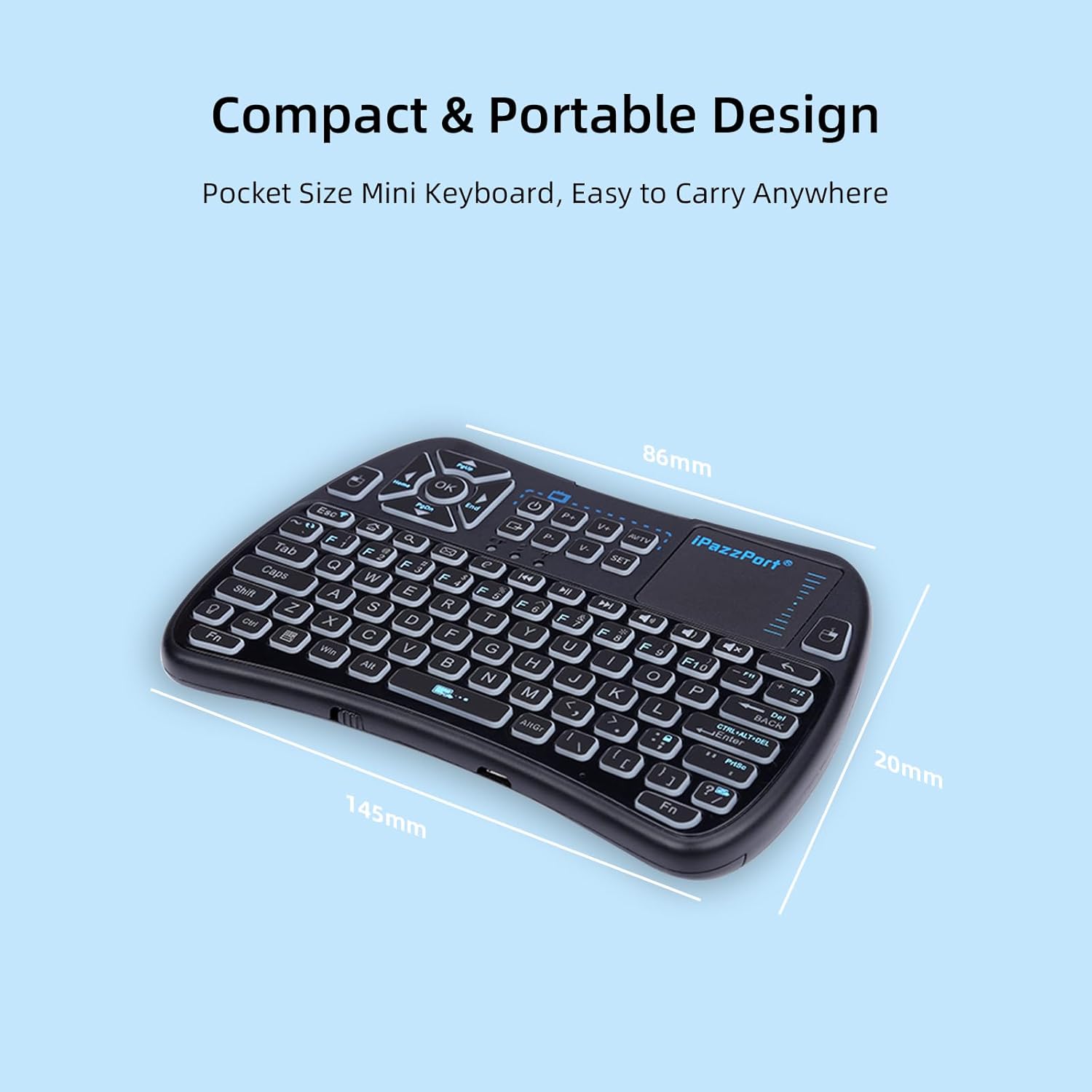
Image: The iPazzPort keyboard with dimensions (145mm x 86mm x 20mm) highlighting its compact and portable design.
9. Warranty Information
This iPazzPort product comes with a 1-year manufacturer's warranty from the date of purchase. The warranty covers defects in materials and workmanship under normal use. It does not cover damage caused by misuse, accidents, unauthorized modifications, or external causes. Please retain your proof of purchase for warranty claims.
10. Support
For technical support, warranty claims, or further assistance, please contact iPazzPort customer service through the retailer's platform or visit the official iPazzPort website. Please have your model number (61SM) and purchase details ready when contacting support.


