
Introduction
Thank you for choosing the Leadfan Car Stereo Radio. This manual provides essential information for the proper installation, operation, and maintenance of your new car stereo system. Please read this manual thoroughly before installation and use to ensure optimal performance and safety.
Compatibility
This car stereo radio is designed for specific Nissan Altima and Teana models. Ensure your vehicle matches the compatibility requirements before proceeding with installation.
- Applicable Models: Nissan Altima 2013, 2014, 2015, 2016, 2017, 2018.
- Important Note: This unit is not compatible with original cars equipped with J.B.L or B.O.S.E premium sound systems or those with a large factory navigation screen.
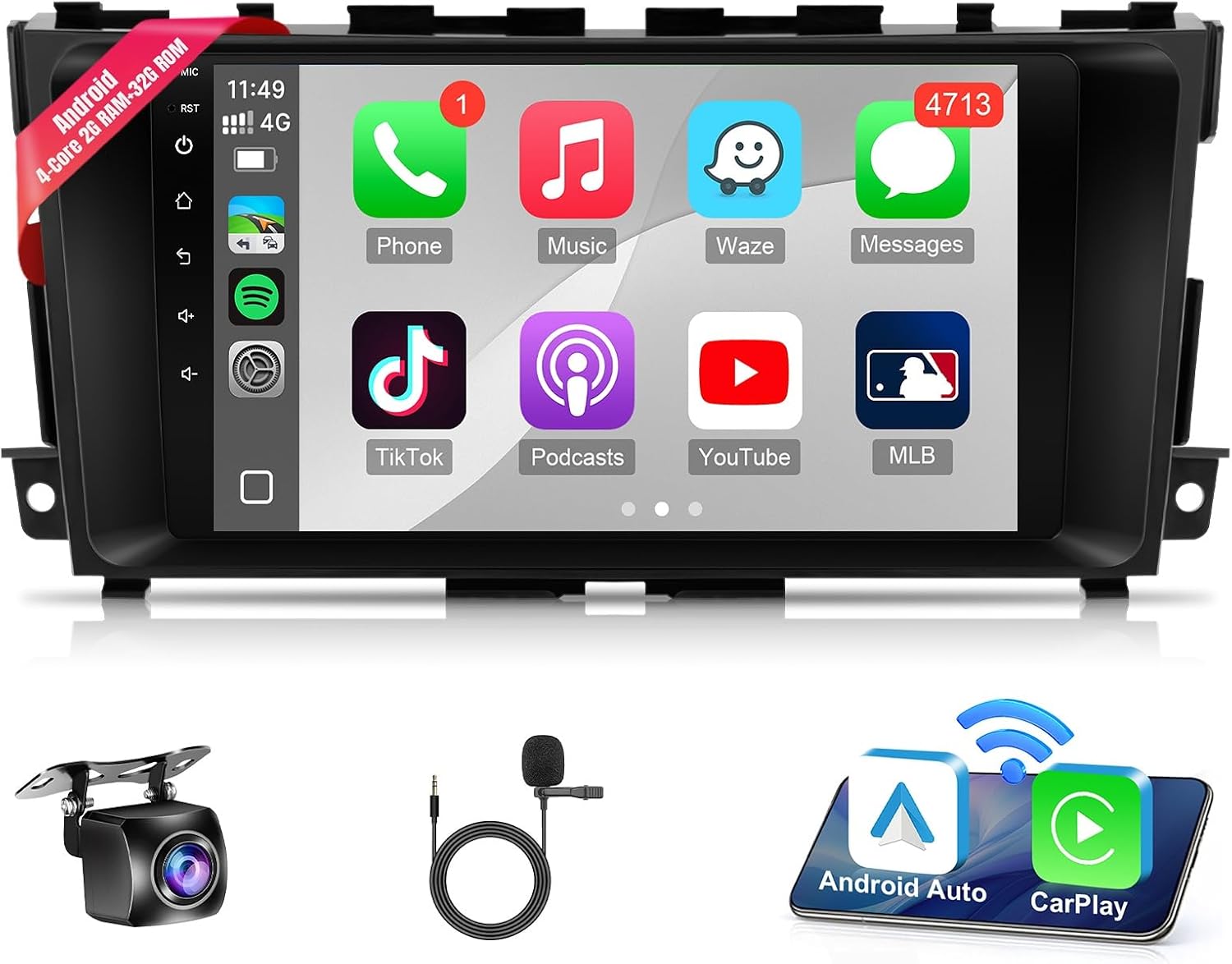
Image: Leadfan Car Stereo after installation in a Nissan Altima dashboard. The image also shows compatibility checks for different dashboard configurations.
Setup and Installation
The Leadfan Car Stereo Radio features a plug-and-play harness for simplified installation. However, professional installation is recommended to ensure correct wiring and functionality.
Package Contents
Verify that all components are present in the package:
- Main Head Unit (9-inch display)
- Power Cable
- GPS Antenna
- USB Cables (x2)
- Backup Camera (if included in package)
- RCA Cables
- Can Bus Decoder (if applicable)
- Mounting Brackets
- User Manual
Wiring Diagram
Refer to the detailed wiring diagram for proper connection of all cables. Ensure all connections are secure before powering on the unit.

Image: Product dimensions and a comprehensive overview of the included accessories and wiring connections.
Operating Instructions
Wireless Carplay and Android Auto
Connect your smartphone wirelessly to access Apple CarPlay or Android Auto. This allows for seamless integration of navigation, music, calls, and messaging directly on the car stereo display. Voice control features (Siri for Apple CarPlay, Google Assistant for Android Auto) enhance safety and convenience.

Image: Visual representation of Apple CarPlay, Android Auto, and Mirror Link functionalities.
GPS Navigation
The unit supports both offline and online GPS navigation. Connect to WiFi or a mobile hotspot for live traffic updates and access to online maps. Offline maps can be used in areas with limited network coverage.
WiFi Connectivity
Connect the stereo to a WiFi network or your phone's hotspot to access the Google Play Store. This enables you to download and install various applications such as YouTube, Netflix, Spotify, and TikTok directly onto the unit.

Image: GPS navigation interface and WiFi connection screen with popular app icons.
FM/RDS Radio
Tune into your favorite FM radio stations. The unit supports RDS (Radio Data System) for displaying station information. You can store an unlimited number of preset stations for quick access to news, music, and talk shows.
Bluetooth Functionality
Pair your mobile device via Bluetooth for hands-free calling and wireless audio streaming. Make and receive calls directly from the stereo, and play music from your phone through the car's speakers.
EQ Settings (Premium Sound)
Customize your audio experience with the advanced Equalizer (EQ) settings. Adjust sound frequencies to your preference or select from various preset modes such as Rock, Pop, Jazz, and Classical.

Image: Bluetooth, FM Radio, and EQ settings interfaces.
Split Screen Function
The split-screen feature allows you to run two applications simultaneously on the display. For example, you can have navigation on one side and a music player on the other.
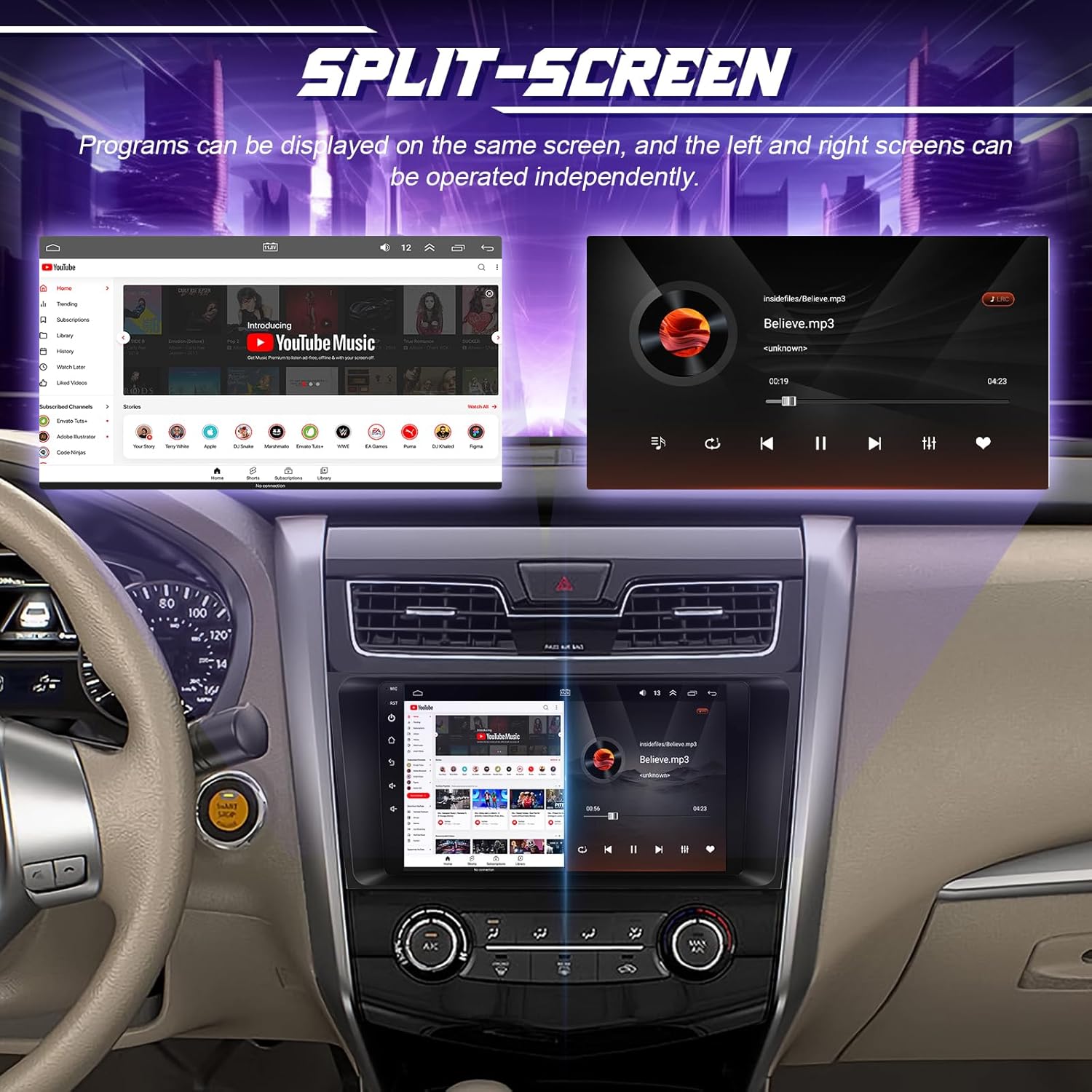
Image: Split-screen functionality displaying two applications concurrently.
Rear Camera and Steering Wheel Control (SWC)
The unit supports a 170-degree ultra-wide-angle rear view camera, providing a 1280*720P AHD image for safer parking. The waterproof backup camera activates automatically when reversing. The stereo also supports the original car's steering wheel controls, allowing you to manage audio and calls without taking your hands off the wheel.

Image: Reverse display from the backup camera and steering wheel control setup screen.
Maintenance
To ensure the longevity and optimal performance of your car stereo, follow these maintenance guidelines:
- Screen Cleaning: Use a soft, lint-free cloth to gently wipe the touchscreen. Avoid abrasive cleaners or harsh chemicals that could damage the display.
- Software Updates: Periodically check for available software updates to ensure you have the latest features and bug fixes. Refer to the manufacturer's website for update instructions.
- Environmental Conditions: Avoid exposing the unit to extreme temperatures, direct sunlight for prolonged periods, or excessive moisture.
Troubleshooting
If you encounter issues with your car stereo, refer to the following common troubleshooting steps:
| Problem | Possible Cause | Solution |
|---|---|---|
| No Power | Loose power connection, blown fuse. | Check power cables and fuse box. Ensure proper connection. |
| No Sound | Volume too low, incorrect audio source, loose speaker wires. | Increase volume, select correct audio input, check speaker connections. |
| GPS Not Working | GPS antenna not connected, poor satellite signal, outdated maps. | Ensure GPS antenna is properly connected and has a clear view of the sky. Update maps if necessary. |
| Bluetooth Connection Issues | Device not in pairing mode, interference, incorrect pairing process. | Ensure both devices are in pairing mode. Delete previous pairings and try again. Move closer to the unit. |
If the problem persists after attempting these solutions, please contact customer support.
Specifications
- Operating System: Android 12
- RAM: 2GB
- ROM: 32GB
- Screen Size: 9 Inches
- Screen Type: IPS Capacitive Touchscreen
- Connectivity: Bluetooth, USB, Wi-Fi
- Special Features: Wireless Carplay, Android Auto, GPS Navigation, FM/RDS Radio, AHD Backup Camera Support, Steering Wheel Control (SWC), Split Screen
- Map Type: Worldwide
- Mounting Type: Dashboard Mount
- Product Dimensions: 5.08 x 5.08 x 5.08 cm
- Product Weight: 1.36 kg
- Manufacturer: Leadfan
- Model Number: US02-QYY-SW480-1
Warranty Information
For detailed warranty information, including coverage period and terms, please refer to the warranty card included with your product or consult your purchase documentation. Keep your proof of purchase for any warranty claims.
Customer Support
If you require technical assistance, have questions about installation, or need further support, please contact your retailer or visit the official Leadfan website for customer service contact information.


