
1. Overview
The SEUNKWANG Q1 Wireless Bluetooth Mouse is a versatile and ergonomic peripheral designed for enhanced productivity across multiple devices. Featuring dual-mode connectivity, a visual LED display for battery and DPI, and silent click buttons, it offers a seamless and quiet user experience.
Key Features:
- Visual LED Power & DPI Display: Minimize battery uncertainty with the integrated LED visual screen, displaying real-time energy percentage and DPI levels.
- Type-C Rechargeable & Smart Energy Saving: Features a high-capacity built-in power cell with universal Type-C charging. Includes an intelligent sleep mode after 1 minute of inactivity and a "Double-Click to Wake" feature.
- Dual-Mode Bluetooth & 2.4G Connectivity: Optimize multi-device workflow with advanced Bluetooth 5.0 and a USB-A receiver, allowing instant switching between devices. Provides a stable, cable-free connection up to 33ft.
- Whisper-Quiet Click & Precise Tracking: Silent mouse technology significantly reduces click noise, ideal for quiet environments. Offers 3 adjustable DPI levels (800-1200-1600) for smooth, responsive navigation.
- 65g Ultra-Lightweight & Ergonomic Comfort: Engineered for maximum mobility, weighing only 65g. The ergonomic shape is tailored for small-to-medium hands, reducing wrist fatigue.
2. Package Contents
Ensure all items are present in the package:
- SEUNKWANG Q1 Wireless Bluetooth Mouse
- USB-A Receiver (stored in the mouse)
- Type-C Charging Cable
- Instruction Manual
3. Specifications
| Feature | Description |
|---|---|
| Brand | SEUNKWANG |
| Model Name | Q1 |
| Connectivity Technology | 2.4G, Bluetooth 5.0 |
| DPI Levels | 800, 1200, 1600 |
| Buttons | 6 (Left, Right, Scroll Wheel, DPI Switch, Forward, Backward) |
| Special Features | Ergonomic, Lightweight (65g), Rechargeable, Silent Click, LED Display (Battery & DPI) |
| Power Source | Battery Powered (Type-C Rechargeable) |
| Compatible Devices | Laptop, PC, Smartphone, Tablet (Windows, macOS, Android, iOS) |
| Operating System | Mac OS 14 Sonoma, Windows 11 (and earlier compatible versions) |
| Material | Plastic |
4. Setup
4.1 Charging the Mouse
Before first use, fully charge the mouse using the provided Type-C cable. The LED display will show the battery percentage.
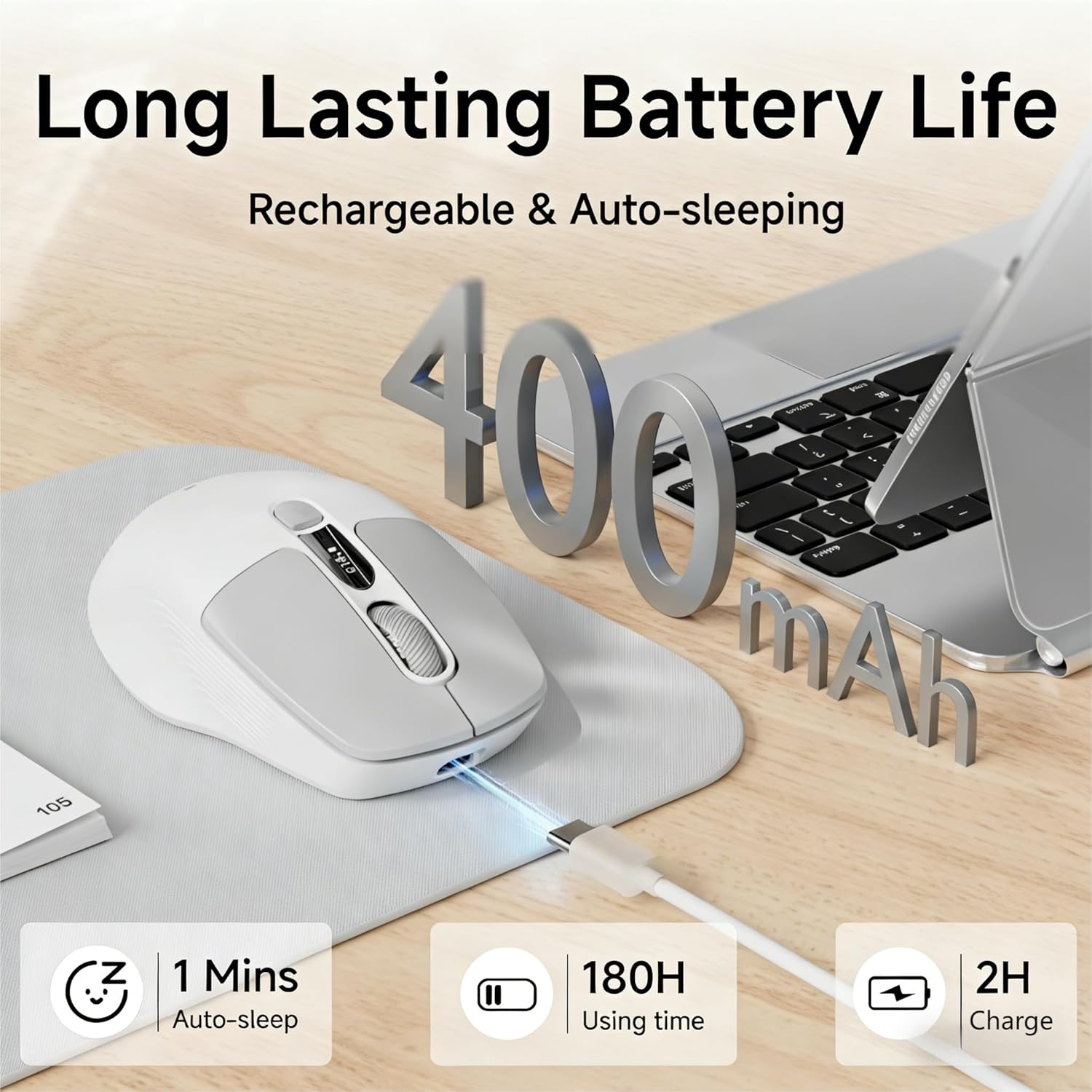
Image: The SEUNKWANG Q1 mouse connected to a Type-C charging cable, highlighting its 400mAh battery, 180H usage time, 1 minute auto-sleep, and 2-hour charge time.
Note: Do not use a fast charger. Use the supplied cable only.
4.2 Connecting the Mouse
The Q1 mouse supports dual-mode connectivity: 2.4G wireless via USB-A receiver and Bluetooth 5.0.
4.2.1 2.4G Wireless Connection
- Locate the USB-A receiver stored in the compartment at the bottom of the mouse.
- Plug the USB-A receiver into an available USB port on your computer.
- Slide the switch on the bottom of the mouse to the '2.4G' position. The mouse should connect automatically.
4.2.2 Bluetooth Connection
- Slide the switch on the bottom of the mouse to the 'BT' position.
- On your device (laptop, tablet, smartphone), go to Bluetooth settings.
- Search for new devices and select 'SEUNKWANG Q1' (or similar) from the list to pair.
- The mouse supports two Bluetooth channels (BT1/BT2). Use the BT1/BT2 switch button on the bottom to toggle between paired Bluetooth devices.
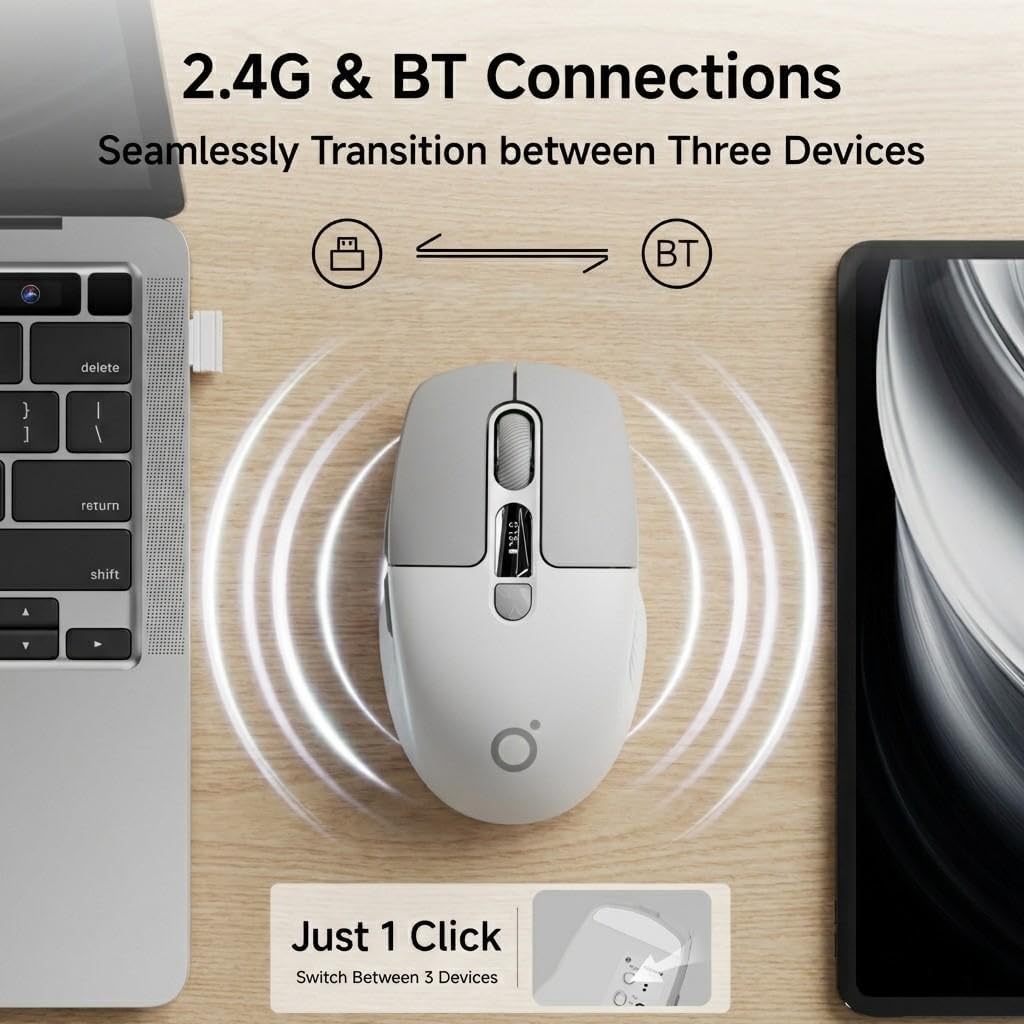
Image: The SEUNKWANG Q1 mouse positioned between a laptop and a tablet, illustrating its dual 2.4G and Bluetooth connectivity for seamless switching between up to three devices with a single click.

Image: An illustration demonstrating the dual-mode connectivity of the SEUNKWANG Q1 mouse, supporting both 2.4GHz wireless and Bluetooth for various operating systems including Android, Windows, macOS, and iOS.
5. Operating Instructions
5.1 Power On/Off
Use the 2.4G/OFF/BT switch on the bottom of the mouse to turn it on or off, and to select your preferred connection mode.
5.2 DPI Adjustment
Press the DPI Switch button (button 5 in the diagram below) to cycle through the 3 adjustable DPI levels: 800, 1200, and 1600. The current DPI level will be shown on the LED display.

Image: A visual representation of the SEUNKWANG Q1 mouse's 3 adjustable DPI levels (800, 1200, 1600), emphasizing its adaptability to various usage scenarios and personalized needs.
5.3 LED Display
The integrated LED screen on the mouse displays the real-time battery percentage and the current DPI level. This allows you to monitor the mouse status at a glance.

Image: The SEUNKWANG Q1 wireless mouse featuring an LED screen display that shows the accurate battery percentage (78%) and selectable DPI levels (800, 1200, 1600).
5.4 Silent Click Buttons
The mouse is designed with silent click technology, significantly reducing operational noise. This feature is beneficial in quiet environments such as libraries, offices, or during late-night work sessions.

Image: A user operating the SEUNKWANG Q1 silent mouse in a quiet environment, demonstrating its 90% noise reduction compared to standard mice, making it ideal for focused work.
5.5 Ergonomic Design
The Q1 mouse features an ultra-lightweight (65g) and ergonomic design, providing comfort and reducing wrist fatigue during extended use. It is suitable for small to medium-sized hands.
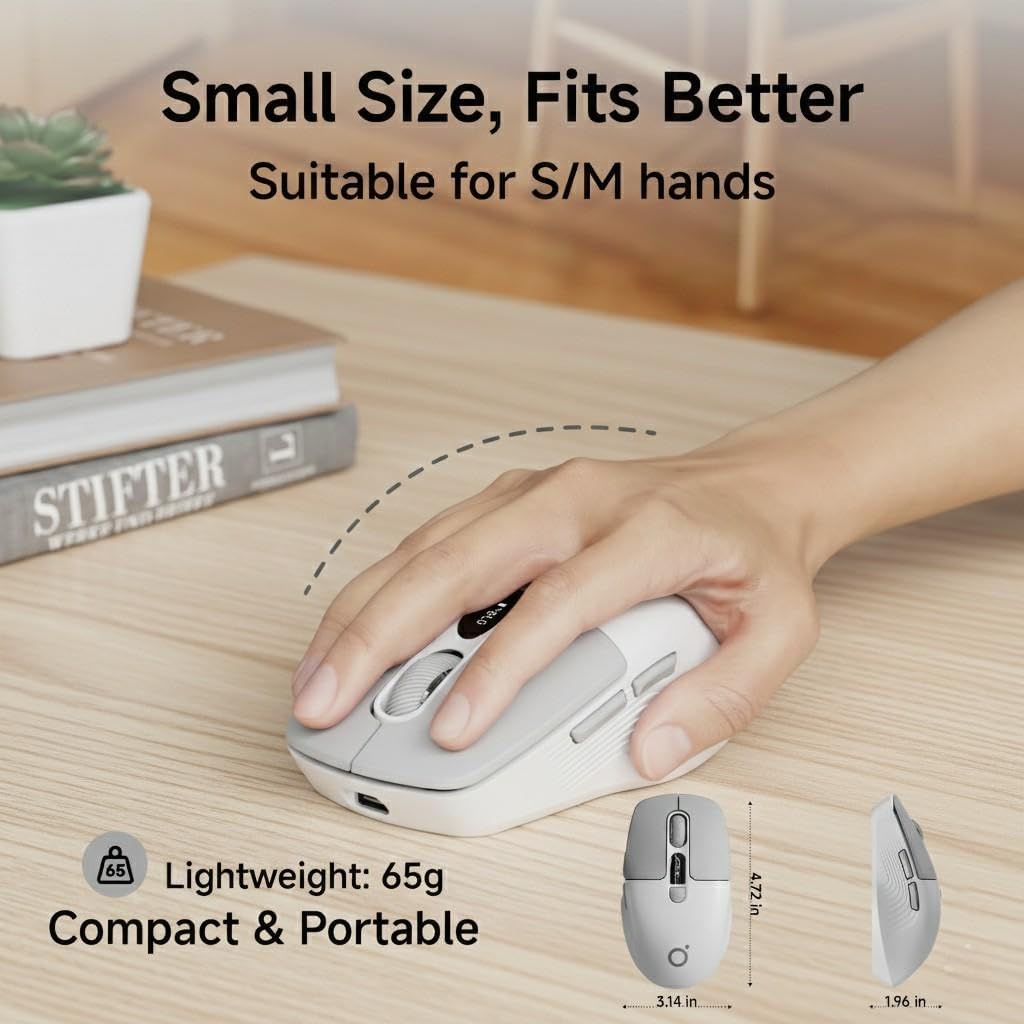
Image: A hand demonstrating the comfortable grip of the SEUNKWANG Q1 mouse, emphasizing its 65g ultra-lightweight, compact, and portable ergonomic design, suitable for small to medium hands.
5.6 Smart Energy Saving
To conserve battery life, the mouse enters an intelligent sleep mode after 1 minute of inactivity. To wake the mouse, simply double-click any button.

Image: A visual guide to the EWEADN-Q1 mouse's fast recharge and auto-sleep functions, detailing the Type-C charging port, 2-3 hours for a full charge, and its automatic entry into sleep mode after 60 seconds of inactivity, with a click to activate.
6. Maintenance
6.1 Cleaning
To clean the mouse, use a soft, dry cloth. Avoid using harsh chemicals or abrasive materials that could damage the surface.
6.2 Battery Care
Regularly charge the mouse using the provided Type-C cable to maintain optimal battery health. Avoid extreme temperatures, which can affect battery performance.
7. Troubleshooting
7.1 Connectivity Issues
- 2.4G Connection: Ensure the USB-A receiver is securely plugged into your device and the mouse switch is set to '2.4G'. Try a different USB port if necessary.
- Bluetooth Connection: Ensure the mouse switch is set to 'BT' and your device's Bluetooth is enabled. Remove any previous pairings and try pairing again.
- Interference: Move the mouse closer to your device and away from other wireless devices that might cause interference.
7.2 Mouse Not Responding
- Battery Low: Check the LED display for battery percentage. If low, charge the mouse.
- Sleep Mode: Double-click any button to wake the mouse from sleep mode.
- Power Cycle: Turn the mouse off and then on again.
8. Warranty & Support
The SEUNKWANG Q1 Wireless Bluetooth Mouse comes with a 2-Year Manufacturer Warranty and 48-month brand support.
For any questions, troubleshooting, or support needs, please contact our expert team:
- Email Support: eweadnkeyboard@outlook.com

Image: An illustration detailing the comprehensive after-sales support provided, including pre-sales Q&A, troubleshooting, accessory reissues, and returns/exchanges, with an email address for support.
Official Product Videos:
Video: A short video showcasing the EWEADN Q1 Wireless Silent Mouse, highlighting its suitability for small to medium-sized hands.
Video: A video demonstrating the Q1 Morandi Green mouse, emphasizing its 90% less click noise with Silent Touch technology.
Video: A video introducing the 2026 Q1 New Upgraded Mouse, showcasing its display for battery and DPI levels.
Video: A video highlighting the EWEADN wireless BT&2.4G silent mouse, suitable for laptops.