
1. Introduction
This manual provides essential information for setting up, operating, and maintaining your Beelink SEi13 Pro Mini PC. Please read it thoroughly before use to ensure optimal performance and longevity of your device.
Package Contents
- 1 x Beelink SEi13 Pro Mini PC
- 1 x HDMI Cable
- 1 x Power Adapter
- 1 x User Manual (this document)
Ensure all items are present and in good condition upon unboxing.
2. Product Overview and Features
The Beelink SEi13 Pro is a compact desktop computer designed for various tasks, from office work to 4K video playback and content creation. It features a powerful Intel Core i7-13620H processor and extensive connectivity options.
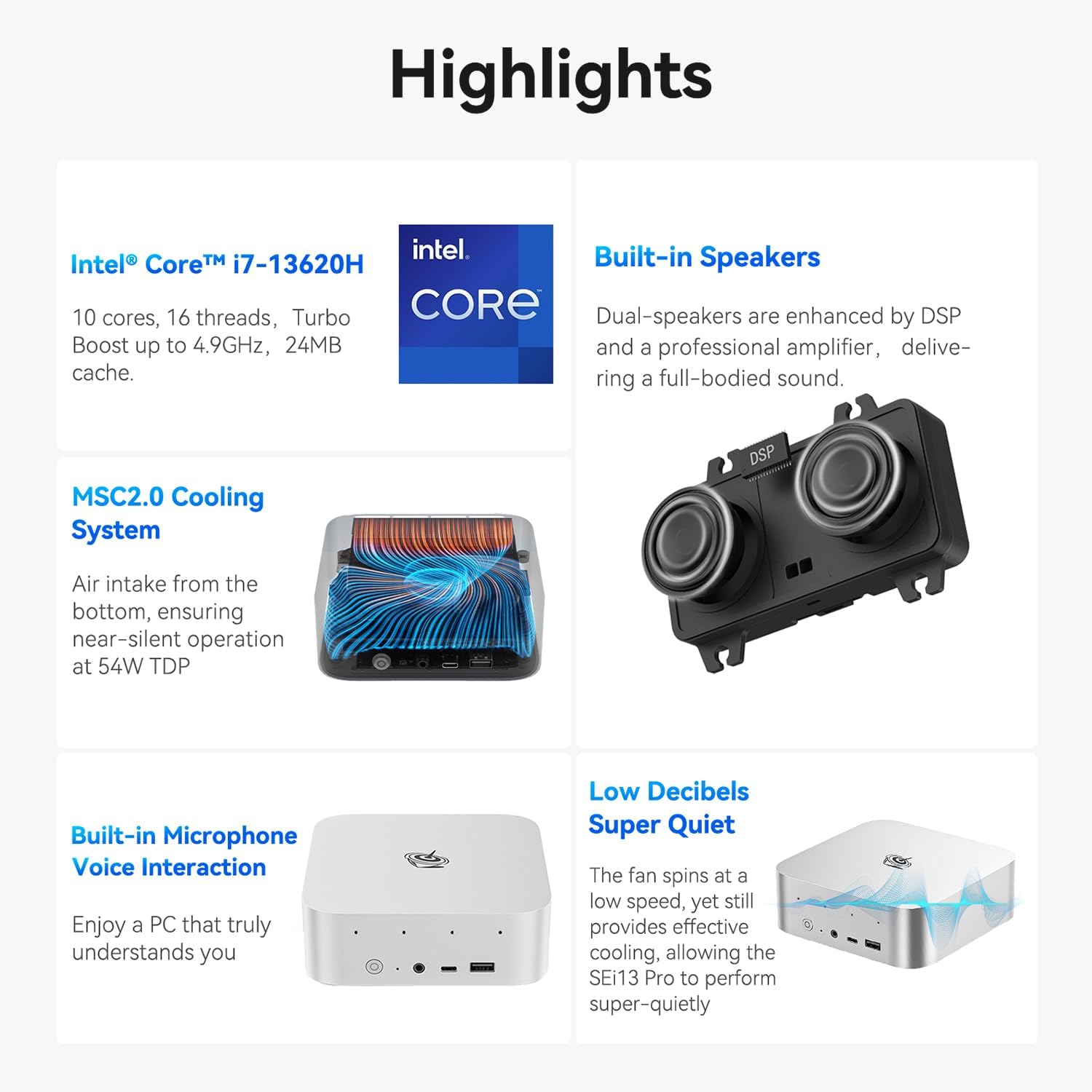
Image: Overview of Beelink SEi13 Pro Mini PC key features including processor, cooling, speakers, microphone, and quiet operation.
Processor
Equipped with an Intel Core i7-13620H processor, featuring 10 cores and 16 threads, with a maximum turbo frequency of 4.9GHz. This hybrid CPU architecture provides efficient performance for multitasking and demanding applications.

Image: Detailed view of the Intel Core i7-13620H processor specifications, highlighting 4.9 GHz max turbo frequency, 10 cores, 16 threads, and 1.50 GHz maximum dynamic GPU frequency.
Memory (RAM)
The system includes 32GB of LPDDR5 RAM, configured for dual-channel operation. This ensures smooth system performance, faster software loading, and enhanced multitasking capabilities.
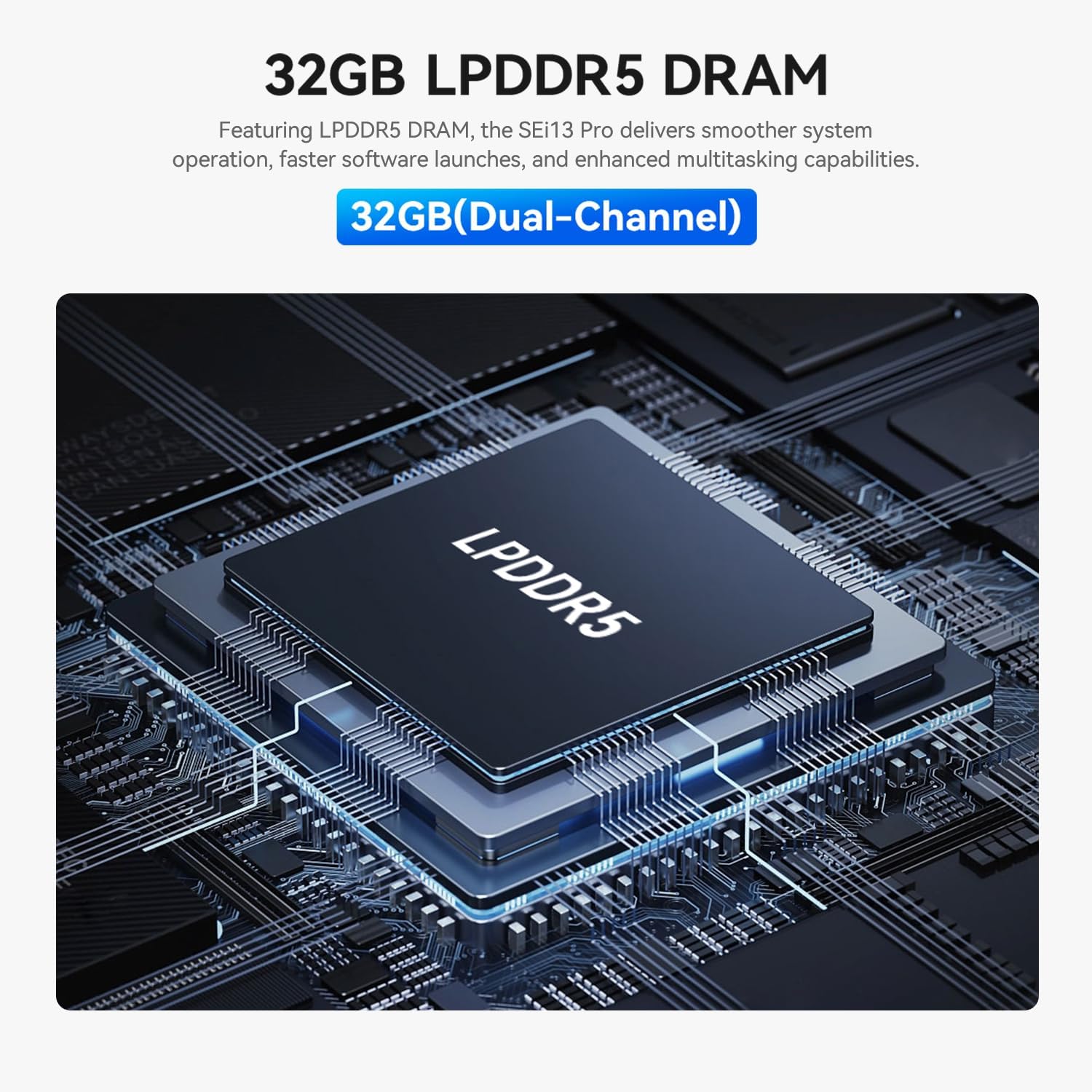
Image: A close-up of an LPDDR5 DRAM module, indicating 32GB (Dual-Channel) memory for the Beelink SEi13 Pro.
Storage
The Beelink SEi13 Pro comes with a 1TB M.2 PCIe NVMe 2280 SSD for high-speed data access. It also features dual M.2 2280 PCIe 4.0 x 4 expansion slots, supporting up to 4TB for each slot, allowing for flexible storage upgrades.

Image: Illustration of dual M.2 SSD PCIe 4.0 modules, emphasizing high-speed storage and the retail unit's 1TB SSD.
Graphics and Display Output
The integrated Intel UHD graphics support triple display output at 4K@60Hz via HDMI, DP1.4, and a rear USB-C port. This configuration is suitable for multitasking across multiple screens.

Image: A Beelink Mini PC connected to three monitors, demonstrating its triple-display output capability via HDMI, DP1.4, and USB-C ports for 4K displays.
Connectivity
- Wireless: WiFi 6 (Intel AX200) for speeds up to 2.4 Gbps and Bluetooth 5.2 for stable connections with wireless accessories.
- Wired: Two 2.5G LAN ports for high-speed wired network connections.

Image: Details on WiFi 6, Bluetooth 5.2, dustproof design, and dual audio jacks of the Beelink SEi13 Pro Mini PC.
Ports and Interfaces
The Mini PC offers a comprehensive set of ports for various peripherals and displays:

Image: Front and rear views of the Beelink SEi13 Pro Mini PC, labeling all available ports including DC IN, USB-C (Data & Video), HDMI, 3.5mm Audio Jack, USB2.0, DP1.4, LAN 2.5G, USB3.2, Power Button, CLR CMOS, and Microphone Array.
- Front: Power Button, CLR CMOS, 3.5mm Audio Jack, USB-C 10Gbps (Data), USB3.2 10Gbps
- Rear: DC IN, USB-C 10Gbps (Data & Video), HDMI 4K 60Hz, 3.5mm Audio Jack, USB2.0 480Mbps, DP1.4 4K 144Hz, LAN 2.5G (x2), USB3.2 10Gbps (x2)
Cooling System
Features an MSC2.0 Cooling System designed for near-silent operation at 54W TDP, ensuring efficient heat dissipation.
Audio
Includes built-in dual speakers enhanced by DSP and a professional amplifier for full-bodied sound. Dual audio jacks are available, with the front jack taking priority when both are connected.
Operating System
Pre-installed with Windows 11 Pro, providing a modern and secure computing environment.
3. Setup Guide
Follow these steps to set up your Beelink SEi13 Pro Mini PC.
Initial Connection
- Connect to Display: Use the provided HDMI cable to connect the Mini PC to your monitor or TV. You can also use a DisplayPort (DP) cable or a USB-C to DisplayPort/HDMI cable for additional displays.
- Connect Peripherals: Plug in your USB keyboard and mouse into the available USB ports.
- Connect to Network: For wired internet, connect an Ethernet cable to one of the 2.5G LAN ports. For wireless internet, ensure your Wi-Fi network is available during initial setup.
- Connect Power: Plug the power adapter into the DC IN port on the Mini PC, then plug the adapter into a power outlet.
- Power On: Press the power button on the front of the Mini PC. The system will boot up.
Windows 11 Setup
Upon first boot, follow the on-screen instructions to complete the Windows 11 Pro setup, including language selection, network connection, account creation, and privacy settings.
4. Operating Instructions
Basic Operation
- Power On/Off: Press the power button to turn the PC on. To turn off, use the Windows Shut Down option or press and hold the power button for 5 seconds.
- Restart: Use the Windows Restart option.
- Sleep: Use the Windows Sleep option.
Triple Display Setup
To utilize the triple display output, connect up to three monitors using the HDMI, DP1.4, and rear USB-C (Data & Video) ports. Once connected, Windows will automatically detect the displays. You can configure display settings (e.g., extend, duplicate) via Windows Display Settings.
BIOS Access
To enter the BIOS settings, press the Delete key repeatedly immediately after powering on the device. To access the boot options menu, press the F7 key repeatedly immediately after powering on.
Software Usage
The Beelink SEi13 Pro is suitable for a variety of applications:

Image: Examples of software applications the Beelink SEi13 Pro can handle, including graphic design (AI, PS, DW), light office work (Word, PowerPoint, OneNote, Excel), and video editing/streaming (CapCut, Premiere, After Effects, Audition).
- Graphic Design/Web Development/Programming: Supports applications like Adobe Illustrator, Photoshop, Dreamweaver.
- Light Office Work: Compatible with Microsoft Office suite (Word, PowerPoint, OneNote, Excel).
- Video Editing/Live Streaming/Content Creation: Capable of running software such as CapCut, Adobe Premiere, After Effects, and Audition.
5. Maintenance
Dust Prevention
The Mini PC features a dustproof design with a mesh filter at the bottom to prevent dust accumulation. Regularly inspect and clean the exterior of the device to maintain optimal airflow and prevent dust-related issues.
Storage Expansion
The device supports storage expansion via its dual M.2 2280 PCIe 4.0 x 4 expansion slots. Refer to the detailed instructions for opening the chassis and installing additional M.2 SSDs if needed. Ensure the device is powered off and unplugged before performing any internal maintenance or upgrades.
6. Troubleshooting
- No Display: Ensure all display cables are securely connected and the monitor is powered on and set to the correct input source. Try a different cable or port.
- No Power: Verify the power adapter is correctly connected to both the Mini PC and a working power outlet.
- System Slowdown: Check for background applications consuming resources. Ensure sufficient free storage space. Consider updating drivers or performing a system scan for malware.
- Network Issues: For Wi-Fi, ensure the correct password is entered and the router is functioning. For wired, check the Ethernet cable connection and router status.
- BIOS Access: If you encounter issues entering BIOS, ensure you are pressing the Delete key immediately and repeatedly after pressing the power button.
For persistent issues, refer to the Warranty and Support section for contact information.
7. Specifications
| Feature | Detail |
|---|---|
| Brand | Beelink |
| Model | SEi/13620H/32G/1TB |
| Processor | Intel Core i7-13620H (10 Cores, 16 Threads, up to 4.9 GHz) |
| Graphics | Intel UHD Graphics (Integrated) |
| RAM | 32GB LPDDR5 |
| Storage | 1TB NVMe M.2 PCIe 4.0 SSD (Expandable via dual M.2 slots) |
| Operating System | Windows 11 Pro |
| Video Output | HDMI, DP1.4, USB-C (rear) - Supports Triple 4K@60Hz Display |
| Wireless Connectivity | WiFi 6 (Intel AX200), Bluetooth 5.2 |
| Wired Connectivity | 2 x 2.5G LAN ports |
| USB Ports | 1 x USB2.0, 3 x USB3.2 10Gbps, 1 x USB-C 10Gbps (Data), 1 x USB-C 10Gbps (Data & Video) |
| Audio Ports | 2 x 3.5mm Audio Jacks |
| Cooling Method | MSC2.0 Air Cooling System |
| Power Plug Type | Type A - 2 pin (North American) |
8. Warranty and Support
Warranty Information
The Beelink SEi13 Pro Mini PC comes with a 3-year manufacturer's warranty, ensuring coverage against defects in materials and workmanship under normal use.
Technical Support
Beelink offers lifetime technical support and 24-hour customer service. If you have any questions or encounter issues with your Mini PC, please do not hesitate to contact us. Our support team is available to assist you.
For support, please visit the official Beelink website or contact customer service through your purchase platform.


