
1. Introduction
This manual provides essential information for setting up, operating, maintaining, and troubleshooting your Lenovo Yoga 7i 2-in-1 Laptop. The Yoga 7i is designed for flexibility and performance, featuring a 16-inch FHD+ 2K touchscreen display and a robust 360-degree hinge, allowing it to function as a traditional laptop, tent, stand, or tablet.
Key features include an Intel Core Ultra 7 155U processor, 16GB LPDDR5X RAM, and a 1TB PCIe NVMe M.2 SSD, ensuring efficient performance for various tasks. The device runs on Windows 11 Home and includes a backlit keyboard, fingerprint reader, and multiple connectivity options.
2. Product Overview
2.1. Design and Flexibility
The Lenovo Yoga 7i features a versatile 2-in-1 design with a durable 360-degree hinge, enabling seamless transitions between laptop, tent, stand, and tablet modes. This adaptability supports various usage scenarios, from productivity to entertainment.
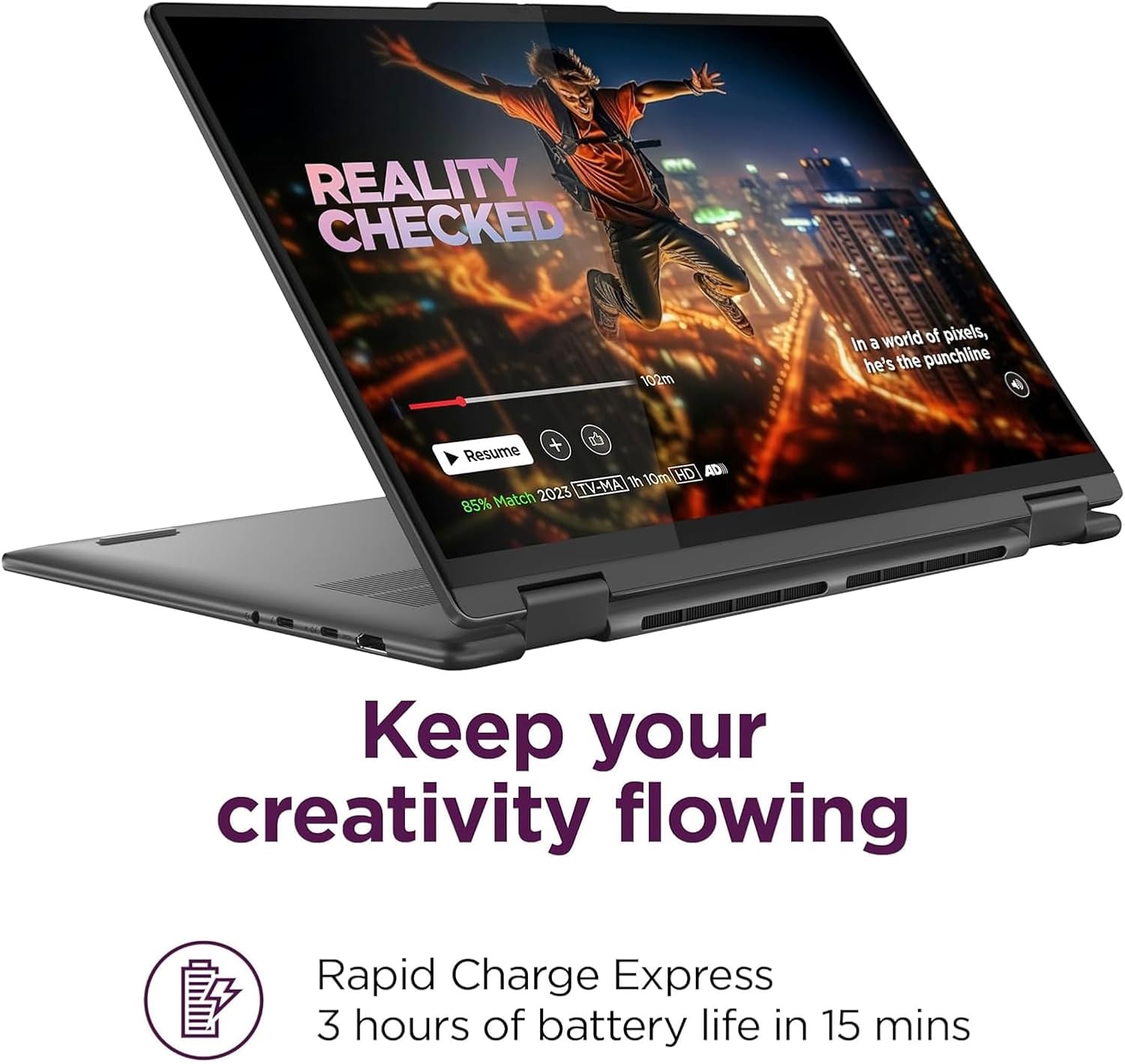
Image: The Lenovo Yoga 7i demonstrating its 2-in-1 capabilities, shown in laptop, tent, stand, and tablet configurations, highlighting its flexible hinge.

Image: A detailed view of the laptop's robust 360-degree hinge, emphasizing its durability and design for multi-mode use.
2.2. Display and Audio
Experience clear visuals on the 16-inch WUXGA (1920x1200) IPS touchscreen display, featuring 300 nits brightness, Dolby Vision, and TÜV Low Blue Light certification for comfortable viewing. The display supports 10-point multi-touch input.

Image: The Lenovo Yoga 7i's 16-inch WUXGA IPS touchscreen display, showcasing vibrant imagery and indicating 300 nits of brightness and Dolby Vision support.
The laptop is equipped with 2x speakers optimized by Dolby Atmos, providing an immersive audio experience.

Image: The Lenovo Yoga 7i with visual representations of sound waves, illustrating the optimized audio experience provided by its Dolby Atmos speakers.
2.3. Ports and Connectivity
The Yoga 7i offers comprehensive connectivity options:
- 1x USB-A (USB 5Gbps / USB 3.2 Gen 1)
- 1x USB-A (USB 5Gbps / USB 3.2 Gen 1), Always On
- 2x USB-C (Thunderbolt 4 / USB4 40Gbps), with USB PD 3.1 and DisplayPort 2.1
- 1x HDMI 2.1, up to 4K/60Hz
- 1x Headphone / microphone combo jack (3.5mm)
- 1x microSD card reader
Wireless connectivity includes Wi-Fi 6E (802.11ax 2x2) and Bluetooth 5.3.
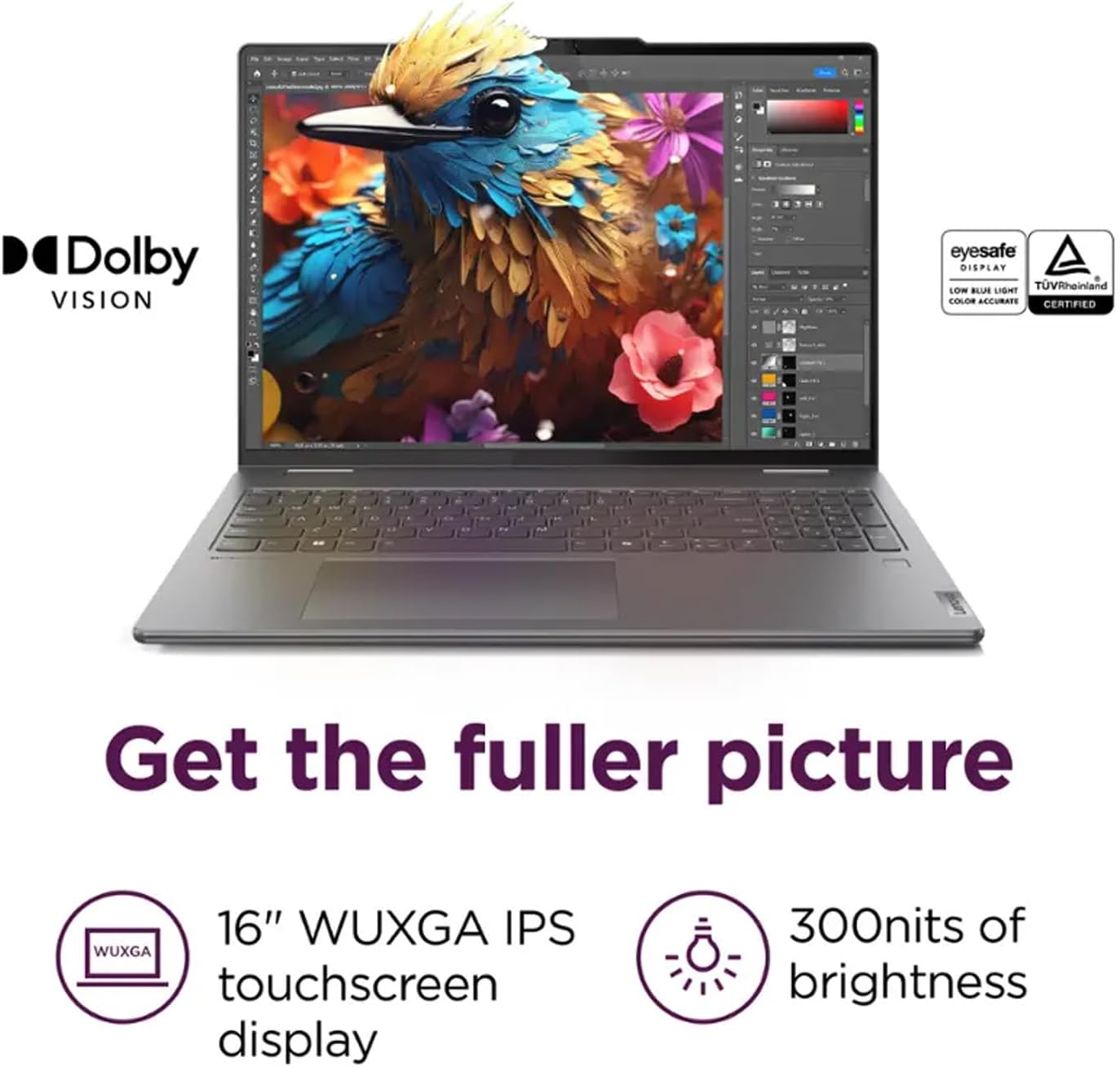
Image: A visual guide to the ports on the Lenovo Yoga 7i, including USB-A, USB-C (Thunderbolt 4), HDMI 2.1, audio combo jack, and microSD card reader, illustrating how to 'Stay truly connected'.
2.4. Security and Camera
The laptop features a fingerprint reader for secure access and a 1080p FHD IR camera with 2 Voice ID mics and Smart Noise Cancelling for clear video conferencing and secure logins.
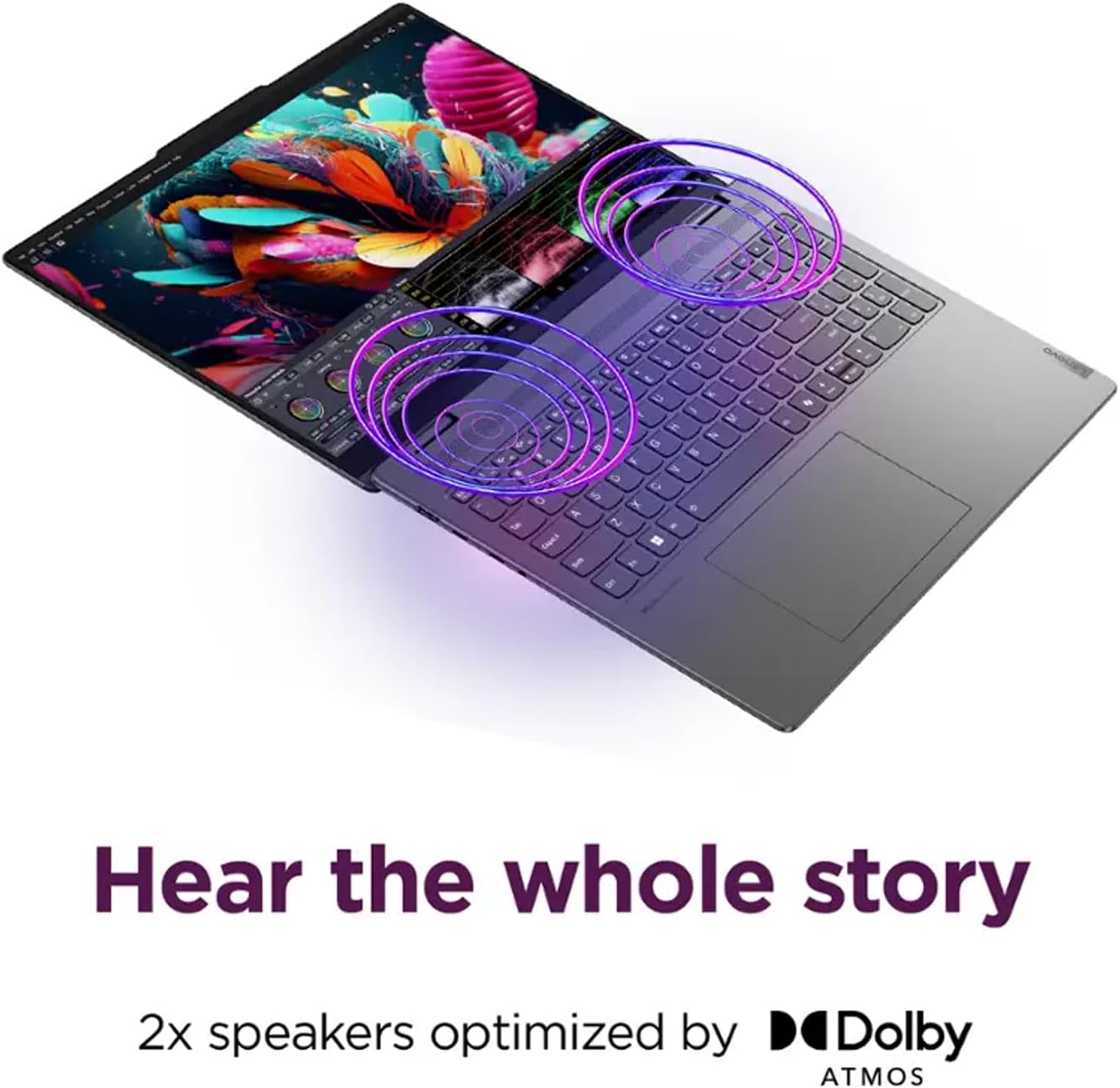
Image: The Lenovo Yoga 7i highlighting its 1080p FHD IR camera, 2 Voice ID microphones with Smart Noise Cancelling, and secure access via Smart Login, ensuring 'Clear? Crystal.' communication.
2.5. Included Accessories
The product includes a 16GB USB Pen for additional storage or data transfer.

Image: The 16GB USB Pen included with the Lenovo Yoga 7i, illustrating its design and functionality as a portable storage device.
3. Setup
3.1. Initial Power On
- Unpack the laptop and all accessories from the box.
- Connect the 65W USB-C power adapter to the laptop's USB-C port and then to a power outlet.
- Open the laptop lid. The system may power on automatically, or you may need to press the power button located on the side.
- Follow the on-screen instructions to complete the initial Windows 11 Home setup, including language selection, network connection, and user account creation.
3.2. Fingerprint Reader Setup
During the Windows setup or later via Windows Settings, configure the fingerprint reader for secure and convenient login. This enhances security and speeds up access to your device.
4. Operating Instructions
4.1. Using 2-in-1 Modes
The 360-degree hinge allows for four primary modes:
- Laptop Mode: Standard laptop configuration for typing and traditional computing.
- Tent Mode: Fold the display back to form an inverted 'V' shape. Ideal for watching videos or presentations in confined spaces.
- Stand Mode: Fold the display back further, resting the keyboard face down. Suitable for touch-based applications and media consumption.
- Tablet Mode: Fold the display completely back against the base. The keyboard and touchpad are automatically disabled, and the device functions as a large tablet.
4.2. Touchscreen and Touchpad
The 10-point multi-touch glass panel allows for intuitive interaction with Windows 11. Use gestures like pinch-to-zoom, swipe, and tap. The buttonless glass surface multi-touch touchpad supports Precision TouchPad (PTP) for accurate cursor control and multi-finger gestures.

Image: The Lenovo Yoga 7i in tablet mode, emphasizing its responsive 10-point multi-touch glass panel for direct interaction, captioned 'All fingers on deck'.
4.3. Backlit Keyboard
The keyboard features backlighting for comfortable typing in low-light conditions. Adjust the backlight intensity using the dedicated function keys (Fn + Spacebar, typically).
4.4. Connecting Peripherals
- USB Devices: Connect USB-A devices (e.g., mouse, external drive) to the USB-A ports. Use the included 16GB USB Pen for portable storage.
- USB-C/Thunderbolt Devices: Use the USB-C/Thunderbolt 4 ports for high-speed data transfer, power delivery (charging), and connecting external displays via DisplayPort 2.1.
- HDMI Display: Connect an external monitor or TV using the HDMI 2.1 port for resolutions up to 4K/60Hz.
- Audio: Plug headphones or an external microphone into the 3.5mm headphone/microphone combo jack.
- MicroSD Card: Insert a microSD card into the card reader for additional storage or transferring files from cameras/phones.
4.5. Wireless Connections
- Wi-Fi: Connect to wireless networks via Wi-Fi 6E (802.11ax) for fast internet access. Manage Wi-Fi settings through Windows 11.
- Bluetooth: Pair Bluetooth devices (e.g., headphones, speakers, mouse) using Bluetooth 5.3. Access Bluetooth settings in Windows 11.
5. Maintenance
5.1. Cleaning the Laptop
- Use a soft, lint-free cloth slightly dampened with water or a screen cleaner to clean the display. Avoid harsh chemicals.
- For the keyboard and chassis, use a soft, dry cloth. A can of compressed air can help remove dust from between keys.
- Ensure the laptop is powered off and unplugged before cleaning.
5.2. Battery Care
- To maximize battery lifespan, avoid fully discharging the battery frequently.
- Store the laptop in a cool, dry place if not used for extended periods.
- The laptop supports Rapid Charge Express, providing 3 hours of battery life from a 15-minute charge.
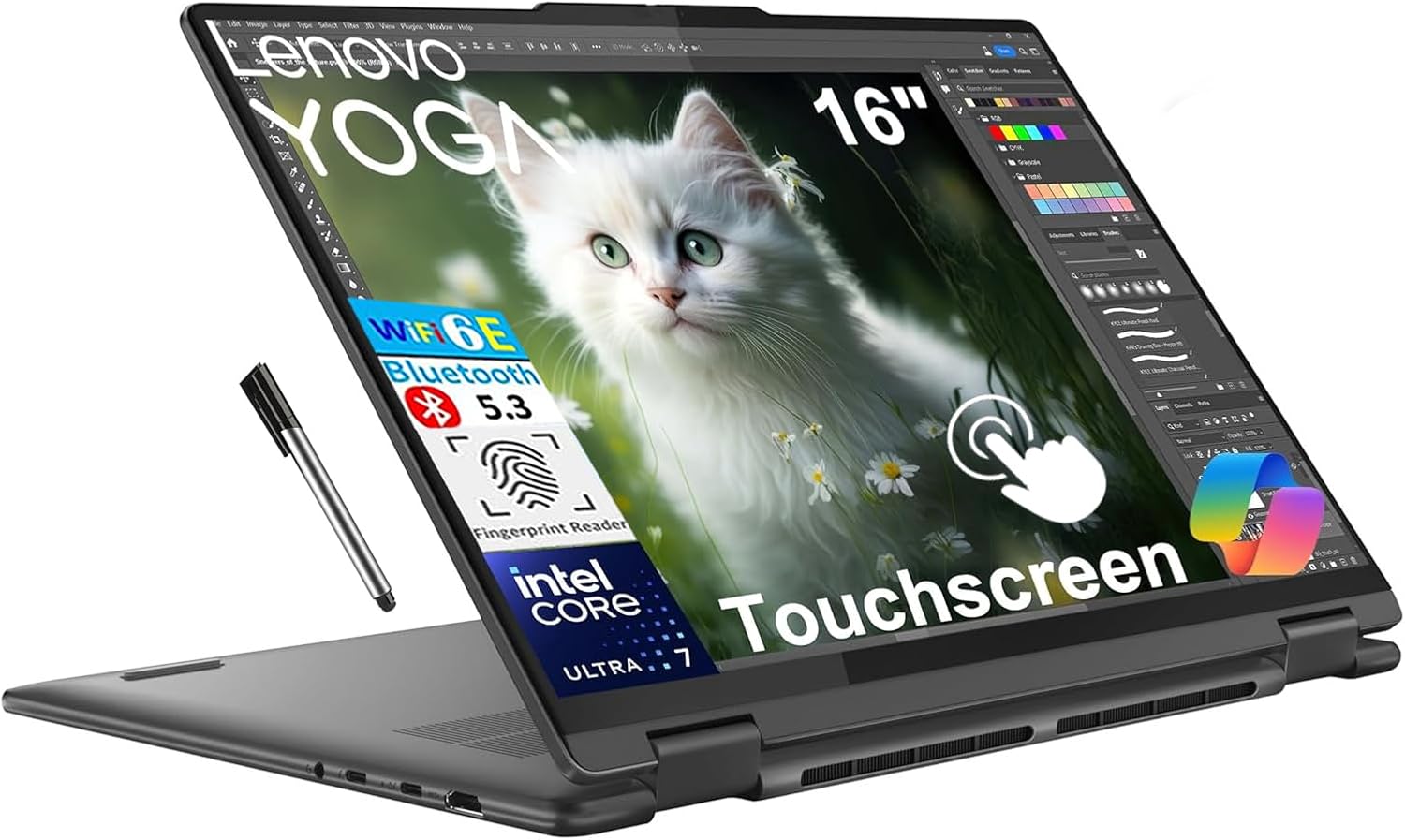
Image: The Lenovo Yoga 7i in use, highlighting its 'Rapid Charge Express' feature which provides 3 hours of battery life from a 15-minute charge, ensuring creativity keeps flowing.
5.3. Software Updates
Regularly update Windows 11 and Lenovo drivers to ensure optimal performance, security, and compatibility. Check for updates through Windows Settings and the Lenovo Vantage application.
6. Troubleshooting
6.1. Power Issues
- Laptop does not turn on: Ensure the power adapter is securely connected and the outlet is functional. Try pressing the power button for 10-15 seconds to perform a hard reset.
- Battery not charging: Verify the power adapter is correctly connected. Check for any damage to the cable or adapter.
6.2. Display Problems
- No display: Connect an external monitor to check if the issue is with the laptop's internal display. If the external monitor works, the internal display or its connection may be faulty.
- Touchscreen unresponsive: Restart the laptop. Ensure the display is clean and free of debris. Check for driver updates.
6.3. Connectivity Issues
- Wi-Fi not connecting: Ensure Wi-Fi is enabled in Windows settings. Restart your router and the laptop. Check for Wi-Fi driver updates.
- Bluetooth device not pairing: Ensure the Bluetooth device is in pairing mode and within range. Remove and re-add the device in Windows Bluetooth settings.
6.4. System Performance
- Slow performance: Close unnecessary applications. Check Task Manager for processes consuming high CPU or RAM. Ensure sufficient free space on the SSD.
- Overheating: Ensure ventilation vents are not blocked. Use the laptop on a hard, flat surface.
7. Specifications
| Feature | Specification |
|---|---|
| Brand | Lenovo |
| Model Name | Lenovo Yoga 7i |
| Processor | Intel Core Ultra 7 155U (12 Cores, 14 Threads, up to 4.8GHz) |
| Graphics | Integrated Intel Graphics |
| Display | 16.0" WUXGA (1920x1200) IPS Touchscreen, 300nits, Glossy / Anti-fingerprint, 60Hz, Dolby Vision, TÜV Low Blue Light |
| Memory | 16GB Soldered LPDDR5x-7467 RAM |
| Storage | 1TB PCIe NVMe M.2 SSD |
| Operating System | Windows 11 Home |
| Audio | High Definition (HD) Audio, Realtek ALC3306 codec, 2x speakers optimized by Dolby Atmos |
| Webcam | 1080p FHD IR camera with 2 Voice ID mics and Smart Noise Cancelling |
| Ports | 2x USB-A 3.2 Gen 1 (one Always On), 2x USB-C (Thunderbolt 4 / USB4 40Gbps with PD 3.1 & DP 2.1), 1x HDMI 2.1, 1x Headphone/Mic Combo Jack, 1x microSD Card Reader |
| Wireless | Wi-Fi 6E (802.11ax 2x2), Bluetooth 5.3 |
| Keyboard | Backlit, English (US) |
| Security | Fingerprint reader, Privacy camera |
| Battery Life | Up to 13 Hours |
| Dimensions (WxDxH) | 14.24 x 9.84 x 0.67 inches |
| Weight | 4.39 lbs |
| Color | Storm Grey |
8. Warranty and Support
Your Lenovo Yoga 7i 2-in-1 Laptop comes with a 1-Year Limited Warranty. For detailed warranty terms and conditions, please refer to the warranty card included in your product packaging or visit the official Lenovo support website.
For technical assistance, driver downloads, or service requests, please visit the Lenovo Support website or contact Lenovo customer service. Have your product's serial number ready when seeking support.


