
Introduction
This manual provides comprehensive instructions for setting up, operating, and maintaining your Fusion5 10.1" Windows 11 Professional Tablet PC, Model FWIN232 PRO NEO. Please read this manual carefully before using your device to ensure proper function and longevity. Keep this manual for future reference.
What's in the Box
Verify that all items are present in the package:
- Fusion5 10.1" Windows 11 Professional Tablet PC (FWIN232 PRO NEO)
- 36W Type-C Fast Charger
- User Manual (this document)
Product Overview
Familiarize yourself with the physical components and ports of your tablet.

Image: Overview of the Fusion5 FWIN232 PRO NEO tablet, highlighting the headphone jack, volume buttons, power button, 2x USB Type-C ports, Micro HDMI port, Micro SD slot, and docking keyboard connection.
- Headphone Jack: For connecting wired headphones or external audio devices.
- Volume Buttons: Adjust the audio output level.
- Power Button: Press to turn the tablet on/off or put it to sleep/wake it up.
- USB Type-C Ports (x2): Used for charging, data transfer, and connecting compatible peripherals. One port is dedicated for charging, the other for data transfer.
- Micro HDMI Port: Connect to an external display or TV.
- Micro SD Slot: Insert a Micro SD card for expandable storage up to 512GB.
- Docking Keyboard Connection: Magnetic connector for an optional docking keyboard (sold separately).
- Front Camera: For video calls and selfies.
- Rear Camera: For taking photos and videos.
Setup
- Charging the Tablet:
Before first use, fully charge your tablet using the provided 36W Type-C fast charger. Connect the charger to one of the USB Type-C ports and plug it into a power outlet. The charging indicator will illuminate.
- Powering On:
Press and hold the Power Button for a few seconds until the Fusion5 logo appears on the screen.
- Initial Windows 11 Setup:
Follow the on-screen prompts to complete the initial Windows 11 Professional setup. This includes selecting your region, language, connecting to a Wi-Fi network, and setting up your Microsoft account.
- Inserting a Micro SD Card (Optional):
If you wish to expand storage, carefully insert a Micro SD card into the Micro SD slot until it clicks into place. The tablet supports up to 512GB Micro SD cards.
Operating the Tablet
Windows 11 Professional
Your tablet runs on Windows 11 Professional, offering a full desktop operating system experience. This provides access to a wide range of applications and features, including advanced tools and built-in security.
Touchscreen Navigation
The 10.1" Full HD IPS touchscreen supports multi-touch gestures. Use familiar gestures like tapping, swiping, pinching, and zooming to navigate the interface, open applications, and interact with content.

Image: A hand interacting with the tablet's touchscreen, illustrating the instant touch response feature.
Tablet Mode vs. Laptop Mode
The tablet can be used in two primary modes:
- Tablet Mode: Ideal for media consumption, browsing, and touch-based interactions.
- Laptop Mode: When connected to an optional docking keyboard (sold separately), the tablet transforms into a laptop-like experience, suitable for typing and productivity tasks.

Image: A split image showing the tablet being used handheld in tablet mode and connected to a keyboard in laptop mode.
Connectivity
Your Fusion5 tablet offers various connectivity options:
- Dual-Band Wi-Fi (2.4GHz & 5GHz): Connect to wireless networks for internet access. Go to Settings > Network & internet > Wi-Fi to manage connections.
- Bluetooth 5.0: Pair with Bluetooth-enabled devices such as headphones, speakers, or keyboards. Go to Settings > Bluetooth & devices to manage connections.
- USB Type-C: Use the USB Type-C ports for connecting external storage, charging, or other compatible accessories.
- Micro HDMI: Connect an HDMI cable to an external monitor or TV to extend or duplicate your display.

Image: A person using the tablet for a video call, illustrating the fast Wi-Fi and Bluetooth connectivity.
Storage and Performance
The FWIN232 PRO NEO is equipped with:
- Processor: Intel 13th Gen Alder Lake N100 Quad-Core CPU (up to 3.4GHz) for efficient performance.
- RAM: 16GB RAM for smooth multitasking.
- Internal Storage: 512GB SSD for fast boot times and application loading.
- Expandable Storage: A Micro SD card slot supports up to 512GB additional storage.

Image: The tablet displaying "No lag. Just power" with icons for Intel 13th Gen, Quad-Core CPU, 16GB RAM, and 512GB SSD.

Image: Multiple tablet screens layered, representing ample storage with 16GB RAM, 512GB SSD, and 512GB Micro SD expansion.
Display and Audio
- Display: 10.1" Full HD (1920x1200) IPS touchscreen with 400 nits brightness for clear and vibrant visuals.
- Audio: Upgraded dual speakers provide enhanced sound quality for media consumption and video calls.
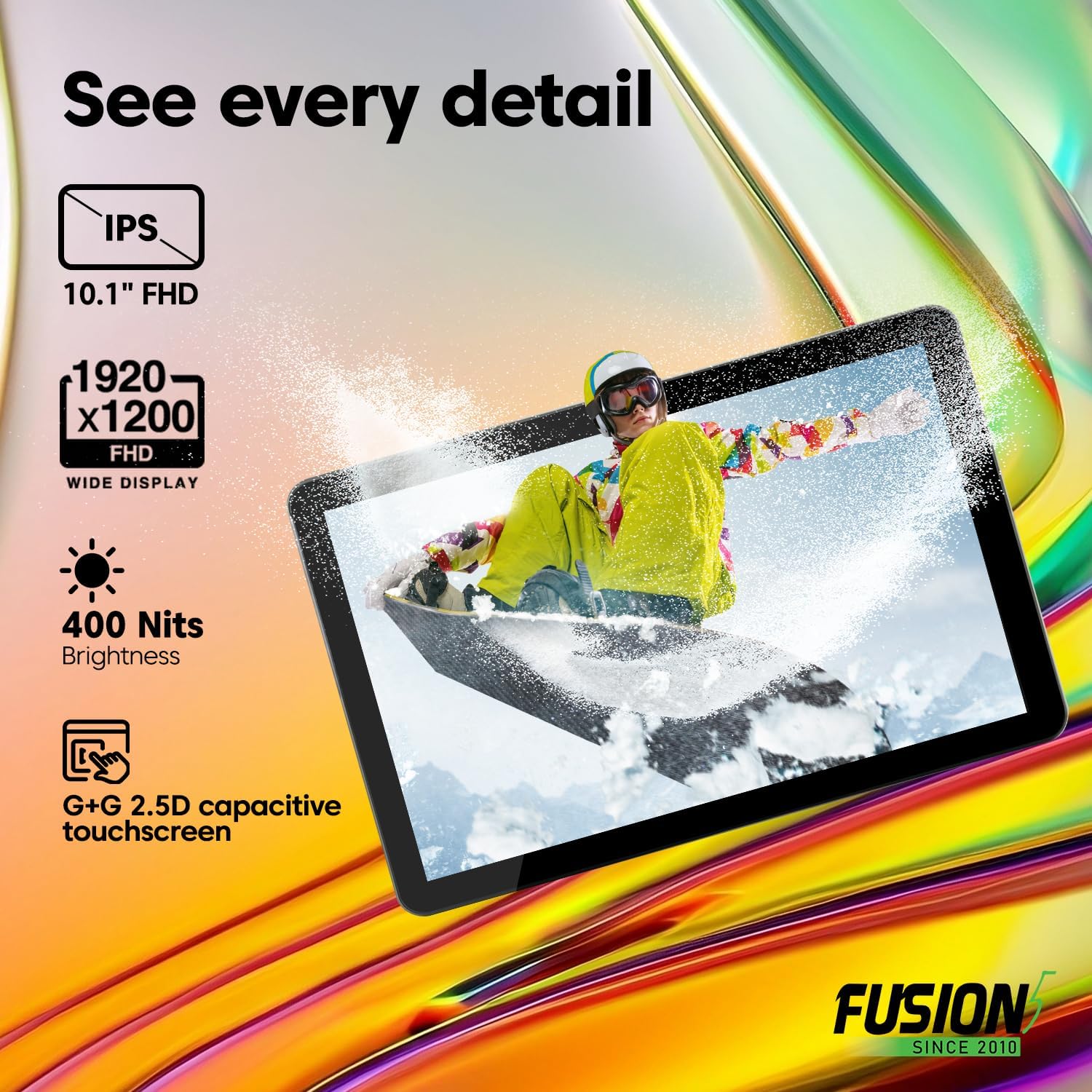
Image: The tablet displaying "See every detail" with icons for IPS 10.1" FHD, 1920x1200 FHD, 400 Nits Brightness, and G+G 2.5D capacitive touchscreen.
Cameras
The tablet features dual cameras:
- Front Camera: 5MP for video conferencing and self-portraits.
- Rear Camera: 2MP for capturing photos and videos.

Image: A close-up of the tablet's camera with example photos, illustrating the ability to capture moments with front and rear cameras.
Battery and Charging
Your tablet is equipped with an 8000mAh battery for extended use. It supports FusionCharge fast charging with the included 36W Type-C fast charger. A full charge provides approximately 5 hours of average battery life.

Image: The tablet resting on a desk, highlighting the 8000mAh long-lasting battery and FusionCharge fast charging with a 36W Type-C charger.
Maintenance
- Cleaning: Use a soft, lint-free cloth to clean the screen and body. Avoid abrasive cleaners or solvents.
- Storage: Store the tablet in a cool, dry place away from direct sunlight and extreme temperatures.
- Software Updates: Regularly check for and install Windows updates to ensure optimal performance and security. Go to Settings > Windows Update.
- Battery Care: To prolong battery life, avoid fully discharging the battery frequently. Charge the tablet when the battery level is low.
Troubleshooting
| Problem | Possible Solution |
|---|---|
| Tablet does not power on. | Ensure the tablet is charged. Connect the charger and wait a few minutes before attempting to power on again. If unresponsive, perform a hard reset by holding the power button for 10-15 seconds. |
| Screen is unresponsive. | Restart the tablet. If the issue persists, ensure the screen is clean and free of debris. |
| Wi-Fi connection issues. | Check if Wi-Fi is enabled in settings. Restart your router and the tablet. Ensure you are within range of the Wi-Fi network. |
| Slow performance. | Close unnecessary applications. Check for and install any pending Windows updates. Ensure sufficient free storage space. |
| Battery drains quickly. | Adjust screen brightness. Close background applications. Disable Wi-Fi or Bluetooth when not in use. Check battery usage in Windows settings to identify power-hungry apps. |
Specifications
| Feature | Detail |
|---|---|
| Model | FWIN232 PRO NEO |
| Operating System | Windows 11 Professional |
| Screen Size | 10.1 Inches |
| Screen Resolution | 1920 x 1200 Pixels (Full HD IPS) |
| Processor | Intel 13th Gen Alder Lake N100 Quad-Core (up to 3.4 GHz) |
| Graphics Coprocessor | Intel UHD Graphics |
| RAM | 16 GB |
| Internal Storage | 512 GB SSD |
| Expandable Storage | Micro SD slot (up to 512 GB) |
| Wireless Type | 802.11ac (Dual-Band Wi-Fi 2.4GHz & 5GHz) |
| Bluetooth | Bluetooth 5.0 |
| Ports | 2x USB Type-C, Micro HDMI, 3.5mm Headphone Jack |
| Rear Webcam Resolution | 2 MP |
| Front Webcam Resolution | 5 MP |
| Battery Capacity | 8000 mAh |
| Average Battery Life | 5 Hours |
| Charger | 36W Type-C Fast Charger |
| Item Weight | 1.43 pounds |
| Product Dimensions (LxWxH) | 9.5 x 6.37 x 0.37 inches |
Warranty and Support
Your Fusion5 FWIN232 PRO NEO Tablet PC comes with a 2-Year Full Warranty, which includes protection for up to two accidental screen damage claims. Additionally, a 30-Day No Quibble Return policy is in effect.
For support, warranty registration, or to speak with a representative, please refer to the contact information provided with your device or visit the official Fusion5 website.
Video: An official product video from LSElectronics (Seller) showcasing the 10.1" Windows 11 Pro Tablet PC, highlighting its features like 16GB RAM and 512GB SSD. This video provides a visual overview of the product's capabilities and design.


