
Fusion5 FWIN232 PRO N5
Fusion5 FWIN232 PRO N5 Windows Tablet PC User Manual
Model: FWIN232 PRO N5
Introduction
This manual provides essential information for setting up, operating, maintaining, and troubleshooting your Fusion5 FWIN232 PRO N5 Windows Tablet PC. Please read this manual thoroughly before using your device to ensure optimal performance and longevity.
The Fusion5 FWIN232 PRO N5 is a high-performance 10.1-inch Windows 11 Professional tablet, featuring an Intel 13th Gen processor, 12GB RAM, and 512GB SSD storage. It is designed for professionals, students, and everyday users requiring a powerful and portable computing solution.
What's in the Box
- Fusion5 FWIN232 PRO N5 Tablet PC
- 36W Fast Charger
- User Manual (this document)
Product Overview
Front and Rear View
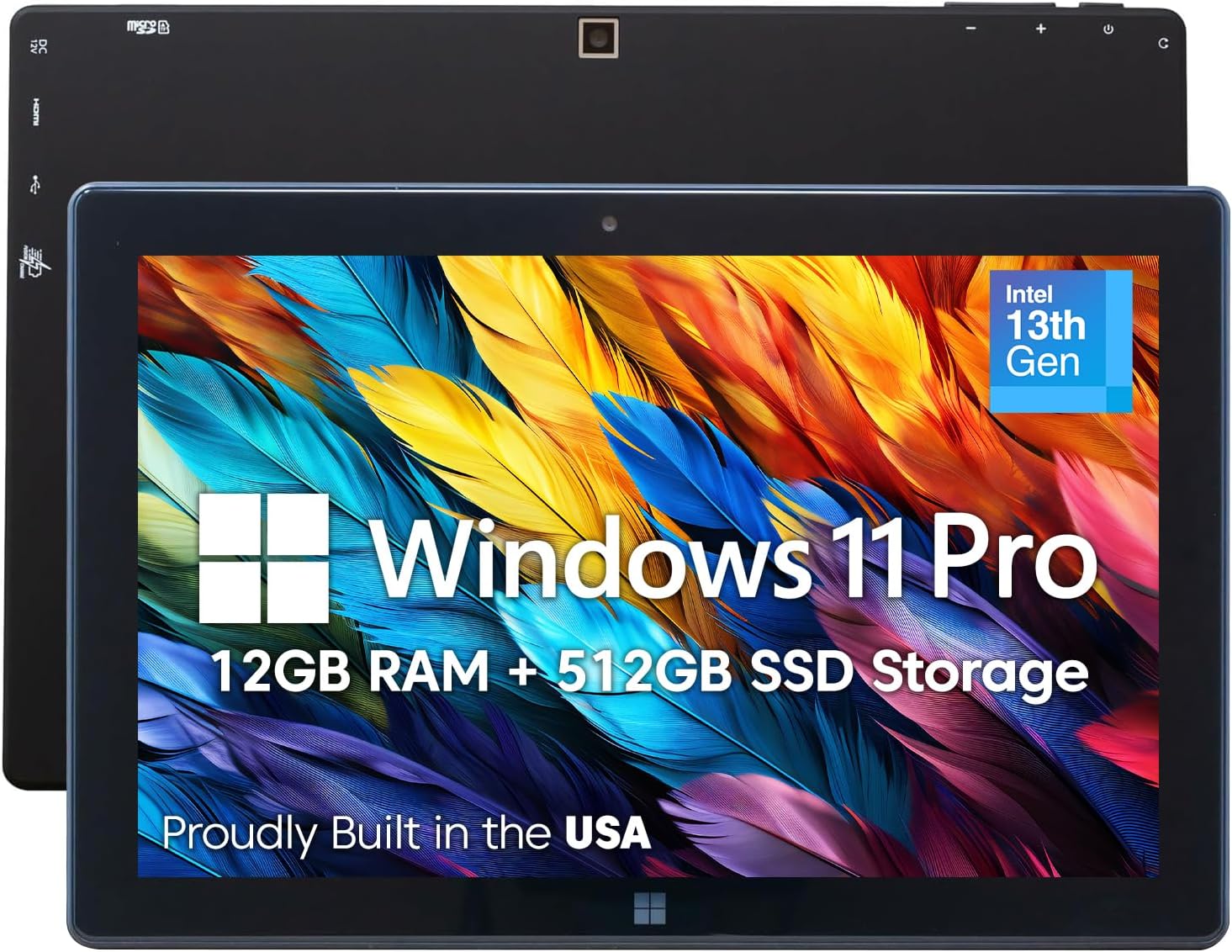
This image displays the Fusion5 FWIN232 PRO N5 tablet from both the front and rear. The front shows the 10.1-inch display with "Windows 11 Pro" and "12GB RAM + 512GB SSD Storage" prominently displayed, along with the Intel 13th Gen logo. The rear view shows the camera and various ports, including a microSD slot and HDMI port.
Side View and Ports

This image highlights the various ports and buttons on the Fusion5 FWIN232 PRO N5 tablet. Labeled features include the Volume button, Power button, Headphone jack, Micro SD slot, DC 12V power input, Micro HDMI port, USB 3.0 port, USB Type-C port, and a docking keyboard connection point.
Key Features:
- Operating System: Windows 11 Professional
- Processor: Intel 13th Gen (Alder Lake N100 Quad-Core CPU, up to 3.4GHz)
- Memory: 12GB RAM
- Storage: 512GB SSD (expandable via MicroSD card slot and internal SSD expansion)
- Display: 10.1-inch Full HD (1920x1080) IPS Touchscreen with 500 nits brightness
- Cameras: Dual Full HD Cameras (Front and Rear)
- Connectivity: Dual-Band WiFi (2.4GHz & 5GHz), Bluetooth 5.0
- Ports: USB-C, USB-A, Micro HDMI, Headphone Jack, DC 12V
- Battery: 6000mAh with FusionCharge fast charging
- Dimensions: 10.03 x 6.69 x 0.43 inches
- Weight: 1.4 pounds
Setup Guide
1. Initial Charging
Before first use, fully charge your tablet using the included 36W Fast Charger. Connect the charger to the DC 12V port on the tablet and plug it into a power outlet. The charging indicator light will show the charging status.
2. Powering On
Press and hold the Power button (located on the side, as shown in the Product Overview) for a few seconds until the Fusion5 logo appears on the screen. The tablet will then boot into Windows 11 Professional.
3. Initial Windows Setup
Follow the on-screen prompts to complete the Windows 11 Professional setup. This includes selecting your region, language, connecting to a Wi-Fi network, accepting the license agreement, and creating a user account.
4. Connecting to Wi-Fi
- During initial setup, select your preferred Wi-Fi network from the list and enter the password if required.
- To connect later, go to Settings > Network & Internet > Wi-Fi. Turn Wi-Fi on, select your network, and click Connect.
5. Inserting a MicroSD Card (Optional)
To expand storage, locate the Micro SD slot on the side of the tablet. Gently insert a compatible MicroSD card until it clicks into place. Ensure the card is inserted in the correct orientation.
Operating Your Tablet
Basic Navigation
- Touchscreen: Use gestures like tap, swipe, pinch-to-zoom for navigation and interaction.
- Start Menu: Tap the Windows icon on the taskbar to access applications, settings, and power options.
- Action Center: Swipe in from the right edge of the screen (or click the notification icon) to access quick settings and notifications.
Power Management
- Sleep Mode: Briefly press the Power button to put the tablet into sleep mode. Press again to wake it up.
- Shut Down: Click the Windows icon > Power icon > Shut down.
- Restart: Click the Windows icon > Power icon > Restart.
Connecting Peripherals
- USB Devices: Connect USB flash drives, external hard drives, or other USB peripherals to the USB-A or USB-C ports.
- External Display: Use the Micro HDMI port to connect your tablet to an external monitor or TV. An appropriate Micro HDMI to HDMI cable (not included) is required.
- Bluetooth Devices: Go to Settings > Bluetooth & devices to pair Bluetooth headphones, keyboards, or mice.
- Docking Keyboard: The tablet supports an optional docking keyboard (sold separately) that connects via the dedicated port for a laptop-like experience.
Work on the Go

This image shows the Fusion5 FWIN232 PRO N5 tablet being used with an optional docking keyboard, demonstrating its capability to function as a portable workstation. The screen displays a spreadsheet application, highlighting its productivity features.
Maintenance and Care
- Cleaning: Use a soft, lint-free cloth to clean the screen and body of the tablet. For stubborn smudges, slightly dampen the cloth with water or a screen cleaner. Avoid harsh chemicals.
- Temperature: Operate the tablet within recommended temperature ranges. Avoid extreme heat or cold.
- Storage: When not in use for extended periods, store the tablet in a cool, dry place. If storing for a long time, ensure the battery is charged to about 50% to preserve battery health.
- Software Updates: Regularly check for and install Windows updates to ensure your system has the latest security patches and performance improvements. Go to Settings > Windows Update.
- Data Backup: Periodically back up important data to an external drive or cloud storage to prevent data loss.
Troubleshooting
| Problem | Possible Cause | Solution |
|---|---|---|
| Tablet does not power on. | Low battery; Power button not pressed long enough; Hardware issue. | Connect the charger and wait a few minutes before trying to power on again. Ensure the charger is properly connected. Press and hold the Power button for 10-15 seconds. If the issue persists, contact support. |
| Wi-Fi connection issues. | Wi-Fi turned off; Incorrect password; Router issue; Signal interference. | Check if Wi-Fi is enabled in Settings. Re-enter Wi-Fi password. Restart your router and tablet. Move closer to the Wi-Fi router. |
| Screen is unresponsive. | Temporary software glitch; Excessive pressure; Physical damage. | Restart the tablet. Ensure your hands are clean and dry. If the screen is physically damaged, refer to warranty information. |
| Tablet runs slowly. | Too many applications open; Low storage space; Outdated software. | Close unnecessary applications. Check available storage and free up space. Run Windows Update. Consider a factory reset as a last resort (back up data first). |
Specifications
| Brand | Fusion5 |
| Model Name | FWIN232 PRO N5 |
| Operating System | Windows 11 Professional |
| Screen Size | 10.1 Inches |
| Screen Resolution | 1920 x 1080 Pixels (Full HD IPS) |
| Processor | Intel 13th Gen (Alder Lake N100 Quad-Core, 3.4 GHz) |
| Graphics Coprocessor | Intel UHD Graphics |
| RAM | 12 GB |
| Storage | 512 GB SSD (Flash Memory Size) |
| Wireless Type | 802.11ac (Dual-Band Wi-Fi), Bluetooth 5.0 |
| Average Battery Life | 5 Hours (6000mAh battery) |
| Item Weight | 1.4 pounds |
| Product Dimensions | 10.03 x 6.69 x 0.43 inches |
| Color | Black |
| Rear Webcam Resolution | 2 MP |
Warranty and Support
Your Fusion5 FWIN232 PRO N5 Tablet PC comes with a comprehensive 2-year full warranty. This warranty includes coverage for up to two accidental damage incidents, providing peace of mind against common mishaps like drops or liquid spills. No activation steps are required for this coverage.
For warranty claims, technical assistance, or any product-related inquiries, please contact Fusion5 customer support. Refer to the official Fusion5 website or product packaging for the most current contact information.
Warranty Coverage Details

This image illustrates the Fusion5 2-year full warranty and accidental damage coverage. It highlights covered incidents such as damaged screens (up to 2 claims), equipment failure due to power surges, mechanical & electrical malfunctions, liquid spills, and accidental drops. It also mentions a 30-day hassle-free return policy and zero contact support.
Related documentsFWIN232 PRO N5


Ask a question about this manual
Ask about setup, troubleshooting, compatibility, parts, safety, or missing instructions. Manuals+ will review the question and use this page’s manual context to help answer it.