
1. Introduction
Thank you for choosing the KTC H32S5 31.5-inch QHD Curved Gaming Monitor. This manual provides essential information for setting up, operating, and maintaining your monitor to ensure optimal performance and longevity. Please read this manual thoroughly before using the product.
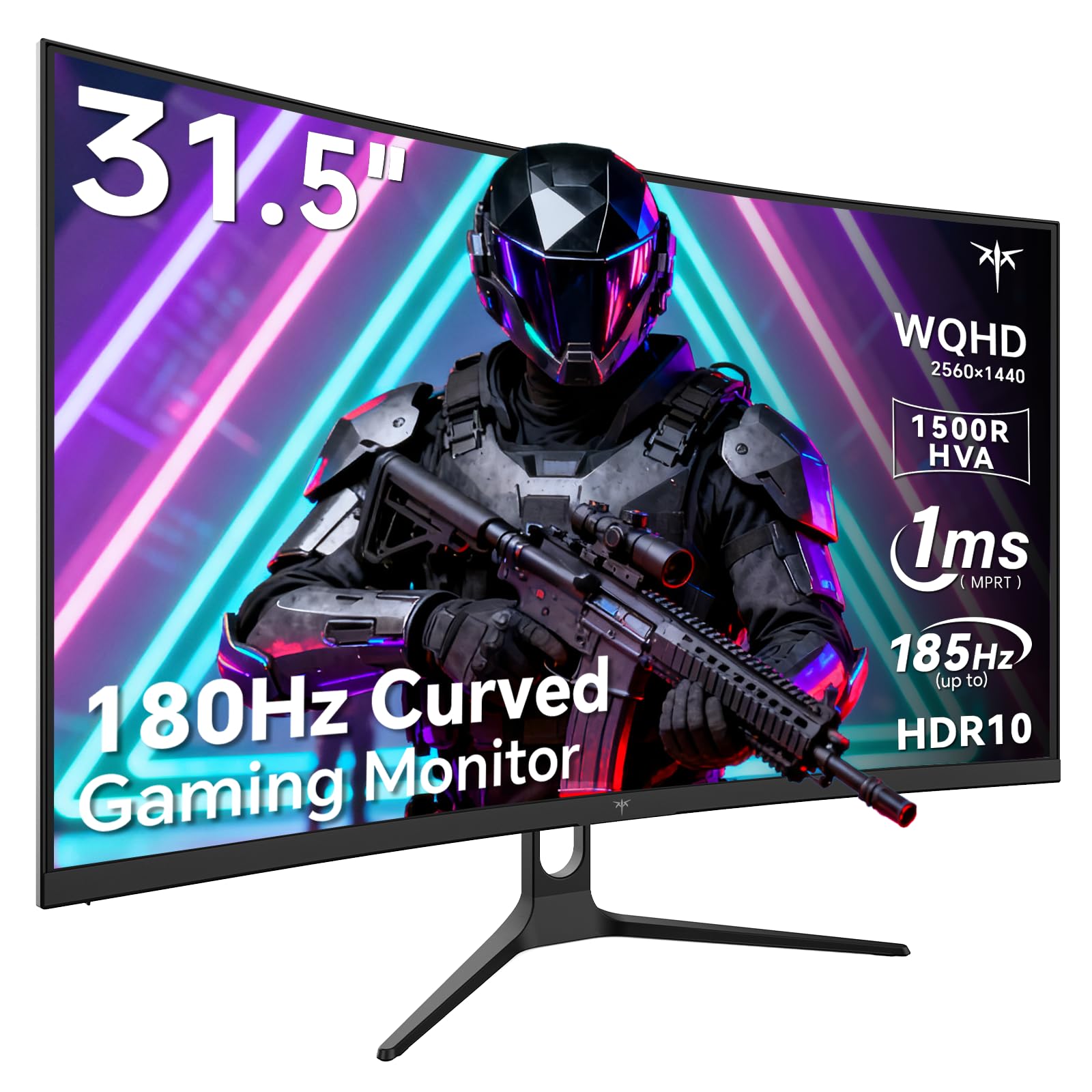
Image 1: KTC H32S5 31.5-inch QHD Curved Gaming Monitor.
2. Package Contents
Verify that all items are present in the package:
- 31.5" 2K Curved Monitor x1
- Monitor Stand x1
- Quick Start Guide (QSG) x1
- DP Cable x1
- Power Adapter x1
3. Monitor Setup
3.1 Attaching the Stand
Carefully attach the monitor stand to the back of the monitor following the instructions in the Quick Start Guide. Ensure all screws are tightened securely.
3.2 VESA Wall Mount Installation
The monitor supports VESA 100mm x 100mm mounting. If you prefer to wall-mount the monitor, remove the stand and attach a compatible VESA mount (not included) to the designated holes on the back of the monitor. Ensure the wall mount can support the monitor's weight (approximately 16.87 pounds).

Image 2: Rear view of the monitor showing connectivity ports and VESA mount area.
3.3 Connecting to Devices
Connect your devices using the available ports:
- DisplayPort 1.4 (x2): For connecting to PCs and other devices supporting up to 185Hz refresh rate.
- HDMI 2.0 (x2): For connecting to gaming consoles, laptops, and desktops supporting up to 144Hz refresh rate.
- USB 2.0 (x2): For connecting peripherals (upgrade only).
- Headphone Jack: For audio output.
- DC Power Input: Connect the provided power adapter.
3.4 Initial Power-On
After connecting all necessary cables, press the power button to turn on the monitor. The monitor will automatically detect the input signal. If no signal is detected, ensure your device is powered on and the correct input source is selected on the monitor.
4. Operating Instructions
4.1 On-Screen Display (OSD) Menu
The OSD menu allows you to adjust various monitor settings. Refer to the Quick Start Guide for detailed instructions on navigating the OSD menu using the monitor's control buttons.
4.2 Display Settings
- Resolution: The monitor features WQHD (2560 x 1440) resolution for sharp and detailed images.
- Refresh Rate: Enjoy a smooth visual experience with a 180Hz refresh rate, overclockable to 185Hz via DisplayPort.
- Response Time: A 1ms MPRT response time minimizes motion blur, ideal for fast-paced gaming.
- Adaptive Sync: Adaptive FreeSync technology eliminates screen tearing and stuttering for fluid gameplay.
- Color Gamut: Experience vivid and realistic colors with 99% sRGB color gamut coverage, 126% sRGB color volume, and a 5000:1 contrast ratio. HDR10 support provides enhanced contrast and a wider color palette.
- Eye Care: Features like Low Blue Light and Flicker-Free technology help reduce eye strain during extended use.

Image 3: Visual representation of the monitor's high refresh rate for smoother gaming.

Image 4: Demonstration of Adaptive Sync technology eliminating screen tearing.

Image 5: Illustration of the 1500R curved display for an immersive viewing experience.
4.3 GamePlus Mode
Activate GamePlus mode for in-game enhancements such as a customizable crosshair, on-screen timer, and display modes optimized for FPS (First-Person Shooter) and RTS (Real-Time Strategy) games.

Image 6: Overview of GamePlus features including Crosshair, Timer, FPS, and RTS modes.
5. Maintenance
To ensure the longevity and optimal performance of your KTC H32S5 monitor, follow these maintenance guidelines:
- Cleaning the Screen: Gently wipe the screen with a soft, lint-free cloth. For stubborn marks, lightly dampen the cloth with water or a mild, non-abrasive screen cleaner. Avoid using alcohol, ammonia, or abrasive cleaners.
- Cleaning the Exterior: Use a soft, dry cloth to clean the monitor casing.
- Handling: Avoid touching the screen directly with your fingers or sharp objects. Do not place heavy objects on the monitor.
- Ventilation: Ensure adequate ventilation around the monitor to prevent overheating. Do not block the ventilation openings.
- Power Off: Always turn off the monitor and unplug it from the power outlet before cleaning or if it will be unused for an extended period.
6. Troubleshooting
If you encounter any issues with your monitor, refer to the following common troubleshooting steps:
- No Display/Black Screen:
- Ensure the power cable is securely connected to both the monitor and the power outlet.
- Verify that the video cable (DP or HDMI) is firmly connected to both the monitor and your computer/device.
- Check if the correct input source is selected on the monitor via the OSD menu.
- Restart your computer/device.
- Flickering or Distorted Image:
- Check the video cable for any damage or loose connections. Try a different cable if available.
- Adjust the refresh rate in your computer's display settings.
- Ensure Adaptive Sync is enabled in both the monitor's OSD and your graphics card settings.
- Color Issues:
- Reset the monitor's color settings to factory defaults via the OSD menu.
- Adjust color temperature or gamma settings in the OSD.
- No Audio:
- Ensure headphones are properly connected to the headphone jack.
- Check audio settings on your connected device and the monitor's OSD.
If the issue persists after trying these steps, please contact customer support.
7. Product Specifications
| Feature | Specification |
|---|---|
| Brand | KTC |
| Model Number | H32S5 |
| Screen Size | 31.5 Inches |
| Resolution | 2560 x 1440 Pixels (QHD Wide 1440p) |
| Aspect Ratio | 16:9 |
| Curvature | 1500R |
| Refresh Rate | 180Hz (up to 185Hz via DP) |
| Response Time | 1ms MPRT |
| Panel Type | HVA |
| Color Gamut | 99% sRGB coverage, 126% sRGB volume |
| Contrast Ratio | 5000:1 |
| Image Brightness | 300 Candela |
| HDR Support | HDR10 |
| Connectivity | DisplayPort 1.4 x2, HDMI 2.0 x2, USB 2.0 x2 |
| Audio | Headphone Jack |
| Adjustability | Tilt adjustment (-5° to 20°) |
| VESA Mount | 100mm x 100mm |
| Product Dimensions | 5.8 x 27.9 x 20.4 inches |
| Item Weight | 16.87 pounds |
| Voltage | 19 Volts (DC) |
8. Warranty Information
This product is subject to a 30-day return/replacement policy. For detailed warranty terms and conditions, please refer to the documentation provided with your purchase or contact the seller directly.
9. Customer Support
For any questions, technical assistance, or support regarding your KTC H32S5 monitor, please contact the seller, KTC-Official, through the Amazon messaging system. They are available to assist you with product inquiries and troubleshooting.
You can also visit the KTC Store on Amazon for more information and products.
10. Official Product Video
Watch this official product video from KTC-Official for a closer look at the KTC 32 Inch 2K 180Hz Curved Gaming Monitor.


