
Selore&S-Global 17-in-1 Laptop Docking Station
Selore 17-in-1 Laptop Docking Station User Manual
Model: 17-in-1 Laptop Docking Station (B0FLY12CCT)
Brand: Selore&S-Global
1. Introduction
This manual provides detailed instructions for the Selore 17-in-1 Laptop Docking Station. This universal docking station is designed to expand your laptop's connectivity, supporting triple 4K displays, high-speed data transfer, and various peripherals for both Windows and macOS systems.
2. Package Contents
The package includes the following items:
- 17-in-1 Triple Display Docking Station
- 1 × USB-C to USB-A Cable
- 1 × USB-C to USB-C Cable
- User Manual
Note: Charger is not included. Please use an 87W+ charger for optimal functionality.

Image: Selore 17-in-1 Docking Station and included cables.
3. Product Overview
The Selore 17-in-1 Docking Station offers extensive connectivity and features:
- 17-in-1 Ultimate Expansion: Includes 3 HDMI, 2 DisplayPort (DP), 2 USB-C, 4 USB-A ports, 100W Power Delivery (PD) charging, Gigabit Ethernet, 3.5mm audio, and SD/microSD slots.
- Efficient Triple 4K Display: Supports stunning 4K resolution across three external displays for Windows and macOS.
- Screen Lock Button: A dedicated button for instant screen shutoff to protect privacy.
- Smart LCD Digital Display: Shows real-time charging power, display resolutions, and individual port connection status.
- 10Gbps Data Transmission: USB 3.1 Gen 2 ports (1 USB-C & 1 USB-A) enable rapid file transfers.
Port Layout

Image: Detailed port diagram of the Selore 17-in-1 Docking Station.
- Front: Power Button, 2x USB 2.0 (480Mbps), 2x USB 3.0 (5Gbps), Audio (3.5mm).
- Side: SD/TF Card Reader (104MB/s), USB-C Port (USB3.1+3.0, 10Gbps+5Gbps), USB-A Port (USB3.1+3.0, 10Gbps+5Gbps).
- Rear: Display 3 (DP 2 + HDMI 3, 4K@60Hz driver-based), Display 2 (DP 1 + HDMI 2, 4K@60Hz driver-based), Display 1 (HDMI 1, 4K@60Hz plug-and-play), Gigabit Ethernet (1000Mbps), PD 100W (Power Delivery input).
4. Setup and Installation
4.1 Power Connection
- Connect a PD charger (87W+ recommended, not included) to a power outlet.
- Connect the other end of the PD charger plug to the PD 100W port on the docking station.
- Long press the Power Button on the top of the docking station to turn it on. The LCD display will light up.
Video: Quick Start Guide for Selore Triple Display MST Docking Station, demonstrating initial power connection and setup.
4.2 Connecting to Your Laptop
Use the appropriate cable provided to connect the docking station to your laptop:
- For USB-C laptops: Use the USB-C to USB-C cable.
- For USB-A laptops: Use the USB-C to USB-A cable.

Image: Connecting the docking station to a laptop via USB-C or USB-A.
4.3 Driver Installation for Multi-Screen (MST) Function
Display 1 (HDMI 1) supports plug-and-play and requires your laptop to support video output. However, Display 2 and Display 3 ports require driver installation for full functionality on Windows and macOS.
- Download the Driver:
- Visit www.siliconmotion.com/downloads/SM770-drivers.html.
- Navigate to PRODUCTS → USB Display → Downloads.
- Find the SM770 Driver Download and select the appropriate version for your operating system (Windows or macOS).
- Install the Driver:
- Open the downloaded file and follow the on-screen prompts to install.
- For macOS, you may need to grant "Screen Recording" permission in System Settings > Privacy & Security > Screen Recording.
- For Windows 10/11, the system may handle the driver automatically via Windows Update. Check for updates in Settings > Windows Update.
Video: Instructions on how to install the Selore MST Docking Station driver for Windows and macOS.

Image: Driver installation guide for Windows and macOS.
5. Operating Instructions
5.1 Connecting External Displays
Connect your external monitors to the HDMI and DisplayPort (DP) ports on the docking station. Display 1 (HDMI 1) is plug-and-play. For Display 2 (DP 1 + HDMI 2) and Display 3 (DP 2 + HDMI 3), ensure drivers are installed as per Section 4.3.
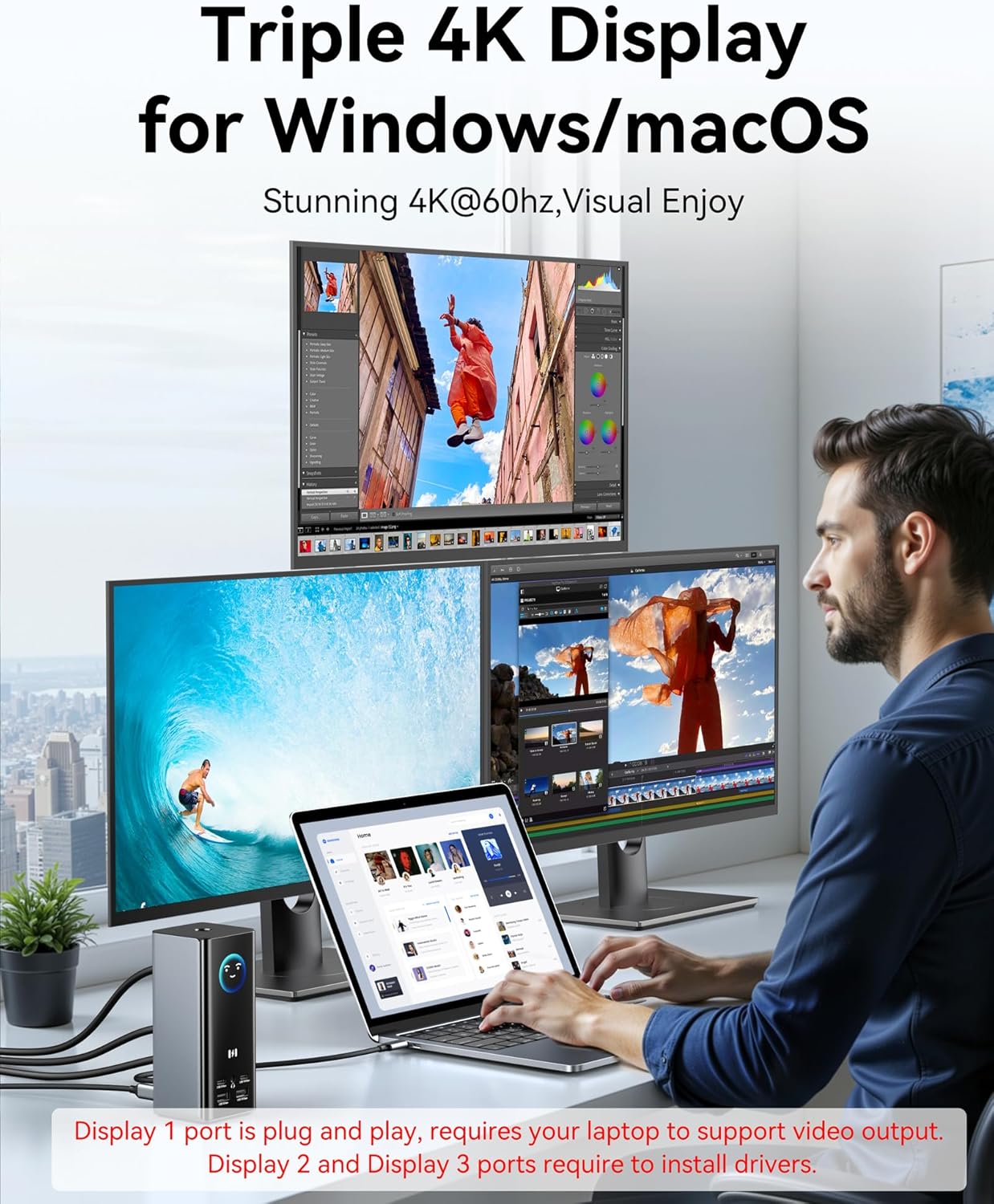
Image: Triple 4K display setup for Windows/macOS.
Display Modes (Windows/macOS)
The docking station supports various display configurations:
- Triple Display Mode:
- HDMI1 + HDMI2 + DP2
- HDMI1 + HDMI2 + HDMI3
- HDMI1 + DP1 + DP2
- HDMI1 + DP1 + HDMI3
- Dual Display Mode:
- HDMI1 + HDMI2
- HDMI1 + DP1
- HDMI1 + DP2
- HDMI1 + HDMI3
- HDMI2 + DP2
- HDMI2 + HDMI3
- DP1 + DP2
- DP1 + HDMI3
- Single Display Mode: Connect to any single HDMI or DP port.
Video: Instructions for using buttons and display modes on the Selore Docking Station.
5.2 Smart LCD Digital Display
The built-in LCD screen provides real-time monitoring of various parameters. Click the power button to cycle through different display screens, showing charging power, display resolutions, and individual port connection status.

Image: Smart LCD Digital Display showing real-time monitoring.
5.3 Screen Lock Button
Double-tap the power button to instantly turn off all connected screens, safeguarding your privacy. Long press the button to turn the docking station on or off.

Image: Demonstrating the convenient screen-lock button.
5.4 Data Transfer
Utilize the USB 3.1 Gen 2 ports (1 USB-C & 1 USB-A) for data transfer speeds up to 10Gbps. The SD/microSD card slots support speeds up to 104MB/s.
- Connect hard drives or other storage devices to the USB-C or USB-A ports.
- Insert SD or microSD cards into the dedicated slots for quick access.
- Connect your keyboard and mouse to the USB 2.0 ports.

Image: Ultra-Fast Data Transfer capabilities.
Video: Overview of USB-C Docking Station features for MacBook Pro/Air and Windows, including data transfer.
5.5 Network Connection
Connect an Ethernet cable to the Gigabit Ethernet port on the docking station for a stable and fast wired network connection (up to 1000Mbps).

Image: Stable and Faster Network connection via Ethernet port.
5.6 Audio Connection
Connect headphones or speakers to the 3.5mm audio port for immersive, high-fidelity sound.

Image: Perfect Audio-Visual Sync with 3.5mm combo port.
6. Specifications
| Feature | Detail |
|---|---|
| Brand | Selore&S-Global |
| Model Number | 17-in-1 Laptop Docking Station |
| Color | Gray |
| Number of Ports | 17 |
| Hardware Interface | DisplayPort, Ethernet, HDMI, USB 2.0 Type A, USB 3.0 Type C, USB 3.1 Type A, USB 3.1 Type C |
| Total USB Ports | 6 (2x USB 2.0, 2x USB 3.0, 2x USB 3.1) |
| Total HDMI Ports | 3 |
| Total DisplayPort | 2 |
| Wattage (Power Delivery) | 100W (Input) |
| Compatible Devices | macOS, Windows, and Ubuntu |
7. Troubleshooting
If you encounter issues with your docking station or monitor connection, consider the following:
- Ensure you are using the provided USB-C to USB-A or USB-C to USB-C cable to connect the dock to your laptop.
- Verify that your laptop supports video output for Display 1 (HDMI 1) as it is plug-and-play.
- Confirm that drivers are correctly installed for Display 2 and Display 3 ports, as they require driver installation. Refer to Section 4.3 for driver installation instructions.
- Download the latest "InstantView App" from www.siliconmotion.com/downloads/SM770-drivers.html, choosing the proper application according to your system.
- If problems persist, please contact Selore support for assistance.
Video: Troubleshooting tips for your docking station and monitor connection.
8. Warranty and Support
The product comes with a standard warranty. For specific warranty details, please refer to the documentation included with your purchase or contact Selore customer support.
Contact Support
For any questions, technical support, or warranty claims, please visit the official Selore website or contact their customer service team. You can also refer to the Selore&S-Global Store on Amazon for additional resources.
Related documents17-in-1 Laptop Docking Station


Ask a question about this manual
Ask about setup, troubleshooting, compatibility, parts, safety, or missing instructions. Manuals+ will review the question and use this page’s manual context to help answer it.