Introduction
This instruction manual provides detailed guidance for the safe and effective use of your Mgaolo Kids Smart Phone W5. Please read this manual thoroughly before operating the device and retain it for future reference. This device is designed to offer a blend of educational content and entertainment for children.

Image: Front and back view of the Mgaolo Kids Smart Phone W5, showcasing its design and the silicone protective case.
Package Contents
Before first use, please verify that all items are present in the package:
- Mgaolo Kids Smart Phone W5
- Silicone Protective Case
- 32GB TF Card (pre-installed or separate)
- USB Charging Cable
- Portable Lanyard

Image: Illustration of the Mgaolo Kids Smart Phone W5 package contents, including the phone, silicone case, 32GB TF card, charging cable, and lanyard.
Setup
1. Charging the Device
The device comes with a built-in rechargeable battery. For optimal performance, fully charge the device before its first use.
- Connect the small end of the USB charging cable to the charging port on the phone.
- Connect the larger end of the USB cable to a compatible USB power adapter (not included) or a computer's USB port.
- The charging indicator on the screen will show the charging status. A full charge typically takes 2-3 hours.
2. Powering On/Off
- To power on: Press and hold the power button (usually located on the side) until the screen illuminates.
- To power off: Press and hold the power button until the power-off options appear on the screen, then select 'Power Off'.
3. Inserting the TF Card
The device supports a 32GB TF card for expanded storage. If not pre-installed, locate the TF card slot (often under a protective cover on the side or back) and gently insert the card until it clicks into place.
4. Attaching the Lanyard
Thread the portable lanyard through the designated loop on the phone or silicone case to enhance portability and prevent accidental drops.
Operating Instructions
1. Basic Navigation
The Mgaolo Kids Smart Phone W5 features a 2.8-inch touchscreen. Navigate by tapping icons, swiping across the screen, and using the back/home buttons if present.
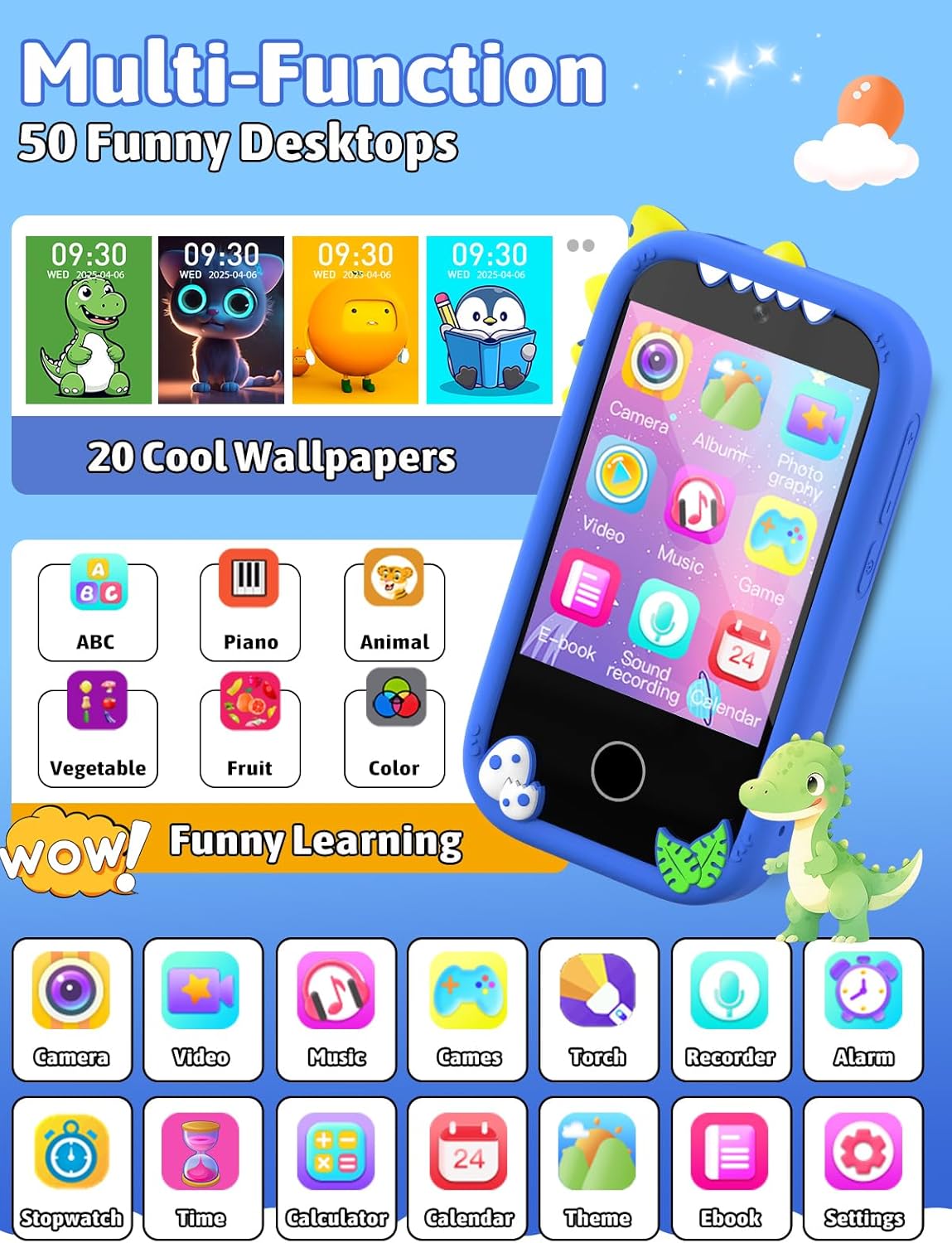
Image: The phone's interface displaying multiple application icons and customizable desktop wallpapers.
2. Camera Functions
The device is equipped with dual cameras for capturing photos and videos.
- Taking Photos: Tap the 'Camera' icon to open the camera application. Frame your shot and tap the shutter button on the screen.
- Recording Videos: Within the camera app, switch to video mode and tap the record button to start/stop recording.
- Photo Stickers: Enhance photos with various built-in stickers. Select a sticker from the options within the camera interface before or after taking a picture.

Image: The phone's camera interface demonstrating photo and video recording capabilities, along with various decorative photo frames.
3. Educational Learning Features
Access a variety of learning applications designed to engage children in educational content.
- ABC Learning: Interactive lessons for recognizing letters and basic phonics.
- Colors & Animals: Applications to learn about different colors and animal names/sounds.
- Calendar & Alarm: Tools to develop time awareness and establish daily routines.
- Piano: A simple piano application for musical exploration.
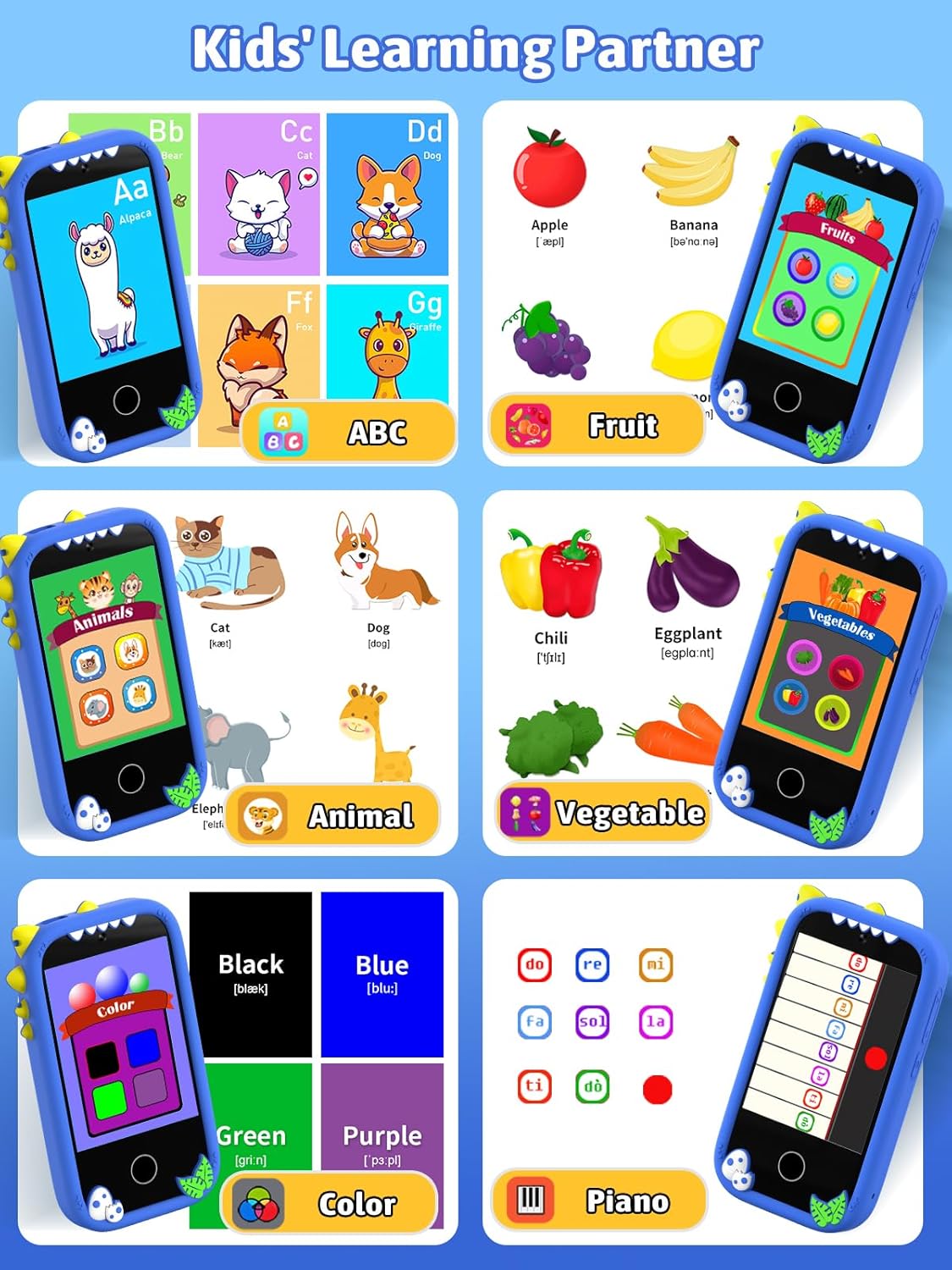
Image: Screenshots of the phone's learning applications, including ABCs, fruits, animals, vegetables, colors, and a piano interface.
4. Entertainment Features
- Games: The device includes 18 pre-installed games. Access them via the 'Games' icon. Parental controls are available to manage game time.
- Music Player: Supports MP3 format music files. Transfer music files to the 32GB TF card. Connect headphones (not included) via the 3.5mm audio jack for private listening.
- Video Player: Play pre-loaded or transferred video files.

Image: The phone displaying a game in progress and the music player interface with playback controls.
5. Customization
Personalize the device's appearance:
- Wallpapers & Desktops: Choose from over 20 wallpapers and 50 desktop themes to customize the home screen. Access these options in the 'Settings' menu.

Image: A selection of over 20 wallpapers and 50 desktop themes available for customization on the phone.
6. File Management
Connect the device to a computer to transfer music, stories, and pictures.
- Connect the phone to a computer using the provided USB cable.
- The phone should appear as a removable storage device on your computer.
- Drag and drop files to and from the phone's storage (specifically the TF card).

Image: The Mgaolo Kids Smart Phone W5 connected to a laptop, illustrating the process of transferring music, stories, and pictures.
Maintenance
- Cleaning: Use a soft, dry cloth to clean the screen and exterior of the device. Avoid using harsh chemicals or abrasive materials.
- Battery Care: To prolong battery life, avoid fully discharging the battery frequently. Charge the device regularly.
- Storage: When not in use for extended periods, store the device in a cool, dry place.
- Durability: The device is constructed from ABS material and includes a silicone case for drop resistance. While designed to be durable, avoid excessive force or impact.

Image: The phone's design highlighting features like raised screen edges and its inherent drop resistance due to the silicone case and ABS construction.
Troubleshooting
- Device not turning on: Ensure the battery is charged. Connect the charger and wait a few minutes before attempting to power on again.
- Screen unresponsive: Try restarting the device by holding the power button for an extended period (e.g., 10-15 seconds) until it powers off, then power it on again.
- Cannot transfer files: Ensure the USB cable is securely connected to both the phone and the computer. Check if the computer recognizes the device as a storage drive.
- Sound issues: Check the volume settings. Ensure headphones are properly plugged in if using them.
Specifications
| Model Number | W5 |
| Material Type | Acrylonitrile Butadiene Styrene (ABS) |
| Product Dimensions | 10 x 5 x 1.6 cm |
| Item Weight | 160 g |
| Batteries Required | Yes (Included) |
| Screen Size | 2.8 inches (Touchscreen) |
| Storage | Supports 32GB TF Card |
Warranty and Support
For warranty information and customer support, please refer to the contact details provided with your purchase or visit the official Mgaolo website. Keep your proof of purchase for any warranty claims.


