
Introduction
Thank you for choosing the Redragon K744 GB PRO 99 Keys Wireless Gasket RGB Gaming Keyboard. This manual provides essential information for setting up, operating, and maintaining your new keyboard. Please read it thoroughly to ensure optimal performance and longevity of your device.
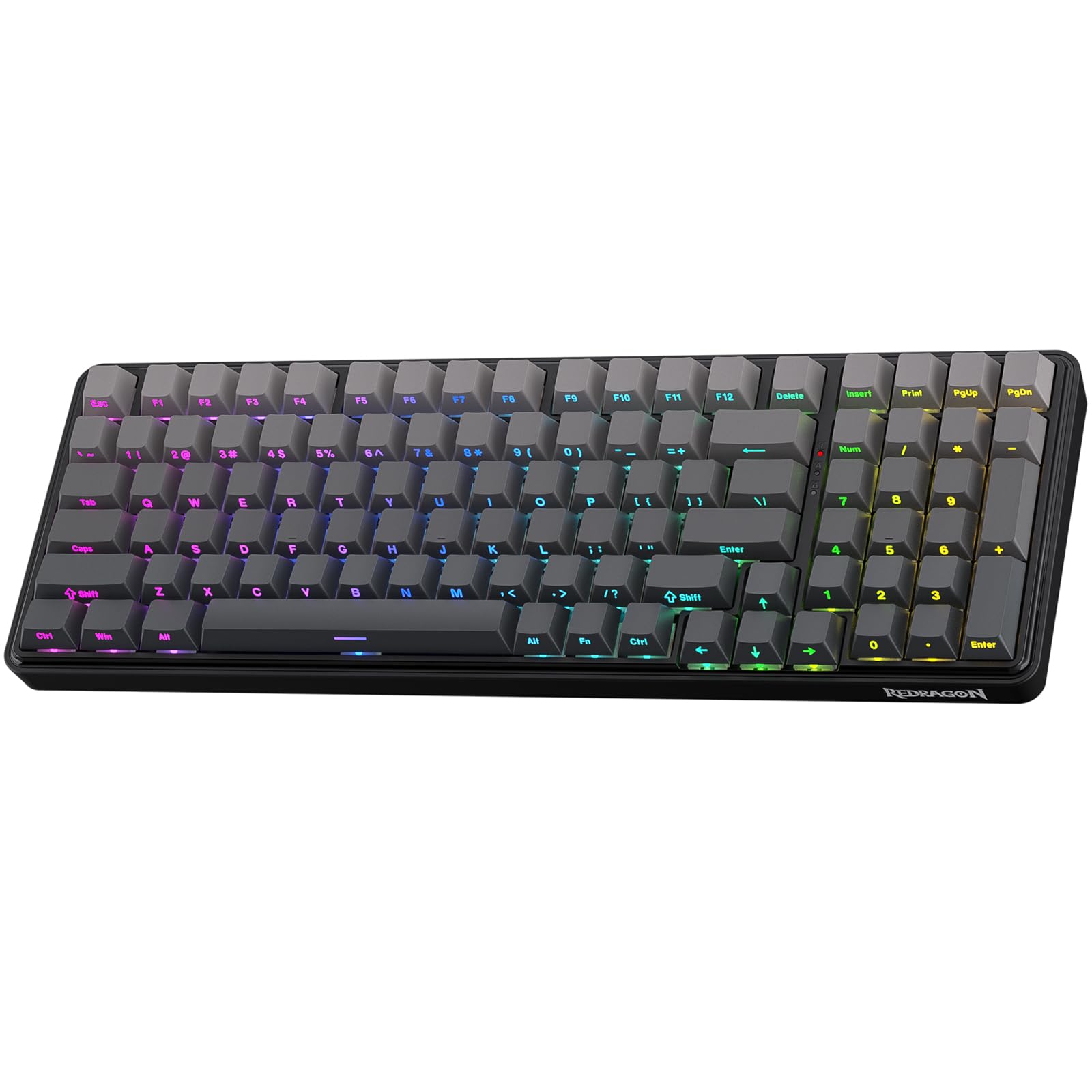
Figure 1: Redragon K744 GB PRO Keyboard Overview
Package Contents
- Redragon K744 GB PRO Keyboard
- USB-C Cable
- Key/Switch Puller
- Replacement Switches
- Dust Proof Keyboard Cover
- User Manual (this document)
Product Features
- Gasket Design: Precision-locked covers with gaskets for noise reduction and flexibility, providing a crisp and softer typing feel.
- 3-Mode Connection: Supports USB-C wired, Bluetooth 3.0/5.0, and 2.4Ghz wireless modes for versatile use.
- Custom Mint Mambo Switches: Thick-lubed linear switches with cushioned, creamy typing feedback. Hot-swap sockets compatible with 3/5-pin switches.
- 5-Layer Noise Dampening: Includes PO foam, IXPE switch foam, PET sound pad, bottom socket foam, and silicone bottom pad for ultra-clean acoustics.
- Tactical 99 Keys: Compact layout retaining 100% functionality. Features side-printed gradient PBT keycaps with south-facing RGB LEDs.
- Pro Software Supported: Customize modes, effects, macros, and keybindings for enhanced work and gaming.
Setup and Connectivity
Connection Modes
The Redragon K744 GB PRO supports three connection modes:
- USB-C Wired: Direct connection via the included USB-C cable.
- 2.4Ghz Wireless: Connects via the included USB dongle.
- Bluetooth (BT 3.0/5.0): Wireless connection to compatible devices.

Figure 2: 3-Mode Silky Connection Overview
Switching Modes
Locate the mode switch on the back of the keyboard:
- Slide the switch to the left for 2.4Ghz wireless mode.
- Slide the switch to the middle for USB-C wired mode (OFF position).
- Slide the switch to the right for Bluetooth mode.
Operating System Compatibility
The keyboard supports both Windows and Mac operating systems. Use the switch located near the mode switch to select between 'MAC' and 'WIN' for optimal key mapping.
Battery Level Check
To check the current battery level, press Fn + Right Menu Key. The number keys F1-F12 will light up to indicate the charge level (e.g., F8 for 80%). The keyboard has a 4000 mAh battery, lasting approximately 10 days with lights on and 45 days with lights off.
Operating Instructions
RGB Lighting Control
The K744 GB PRO features customizable RGB backlighting. You can control lighting effects directly from the keyboard or via the Pro Software.
- Change Lighting Mode: Press Fn + Del to cycle through various lighting modes.
- Adjust Brightness: Press Fn + Up Arrow to increase brightness, Fn + Down Arrow to decrease brightness.
- Adjust Effect Speed: Press Fn + Left Arrow to decrease speed, Fn + Right Arrow to increase speed.

Figure 3: RGB Backlight Modes and Controls
Keycap and Switch Replacement
The keyboard features hot-swappable switches, allowing for easy customization and maintenance without soldering.
- Use the included keycap puller to gently remove the desired keycap.
- Use the included switch puller to carefully remove the switch from its socket.
- Align the pins of the new switch with the socket and press gently until it clicks into place.
- Place the keycap back onto the new switch.

Figure 4: Hot-Swap Sockets and Mint Mambo Switches
Pro Software Customization
Download the dedicated software from the Redragon website to unlock advanced customization options, including:
- Macro editing and assignment.
- Advanced RGB backlight effects and color customization.
- Key redefinition and remapping.
- Music rhythm effects.

Figure 5: Pro Software Interface for Customization
Maintenance
To ensure the longevity and optimal performance of your keyboard, follow these maintenance guidelines:
- Cleaning: Use a soft, dry cloth to wipe down the keyboard regularly. For deeper cleaning, remove keycaps and use compressed air to clear debris.
- Spills: In case of liquid spills, immediately unplug the keyboard, wipe off excess liquid, and allow it to dry completely in a well-ventilated area before reconnecting.
- Storage: When not in use, store the keyboard in a dry, cool place. Use the included dust cover to protect it from dust and debris.
Troubleshooting
| Issue | Solution |
|---|---|
| Keyboard not responding in wireless mode | Ensure the 2.4Ghz dongle is properly inserted into your computer or Bluetooth is paired correctly. Check battery level. |
| RGB lighting not working or dim | Check battery level. Adjust brightness using Fn + Up/Down Arrow keys. Ensure lighting mode is selected. |
| Keys not registering or double-typing | Try replacing the switch using the included switch puller and spare switches. Ensure the switch is fully seated. |
| Software not detecting keyboard | Ensure keyboard is connected via USB-C cable. Restart the software and/or your computer. |
Specifications
| Feature | Detail |
|---|---|
| Model Number | K744 GB PRO |
| Connectivity | USB-C, Bluetooth 3.0/5.0, 2.4Ghz Wireless |
| Number of Keys | 99 |
| Switch Type | Custom Mint Mambo Linear Switch (Hot-Swappable 3/5-pin) |
| Keycap Material | Gradient PBT |
| Backlighting | RGB (South-facing LEDs) |
| Battery | 1 Lithium Polymer (4000 mAh) |
| Dimensions | 42.01 x 17.81 x 6.6 cm |
| Weight | 1.17 kg |
| Compatible Devices | PC, Laptop |
Warranty and Support
Redragon products are designed for durability and performance. For warranty information, technical support, or service inquiries, please visit the official Redragon website or contact your local retailer. Keep your purchase receipt for warranty claims.


