
HP OMEN 16 MAX Gaming-4
HP OMEN 16 MAX Gaming Laptop User Manual
Model: OMEN 16 MAX Gaming-4
1. Introduction
This manual provides essential information for setting up, operating, maintaining, and troubleshooting your HP OMEN 16 MAX Gaming Laptop. Please read this guide thoroughly to ensure optimal performance and longevity of your device.
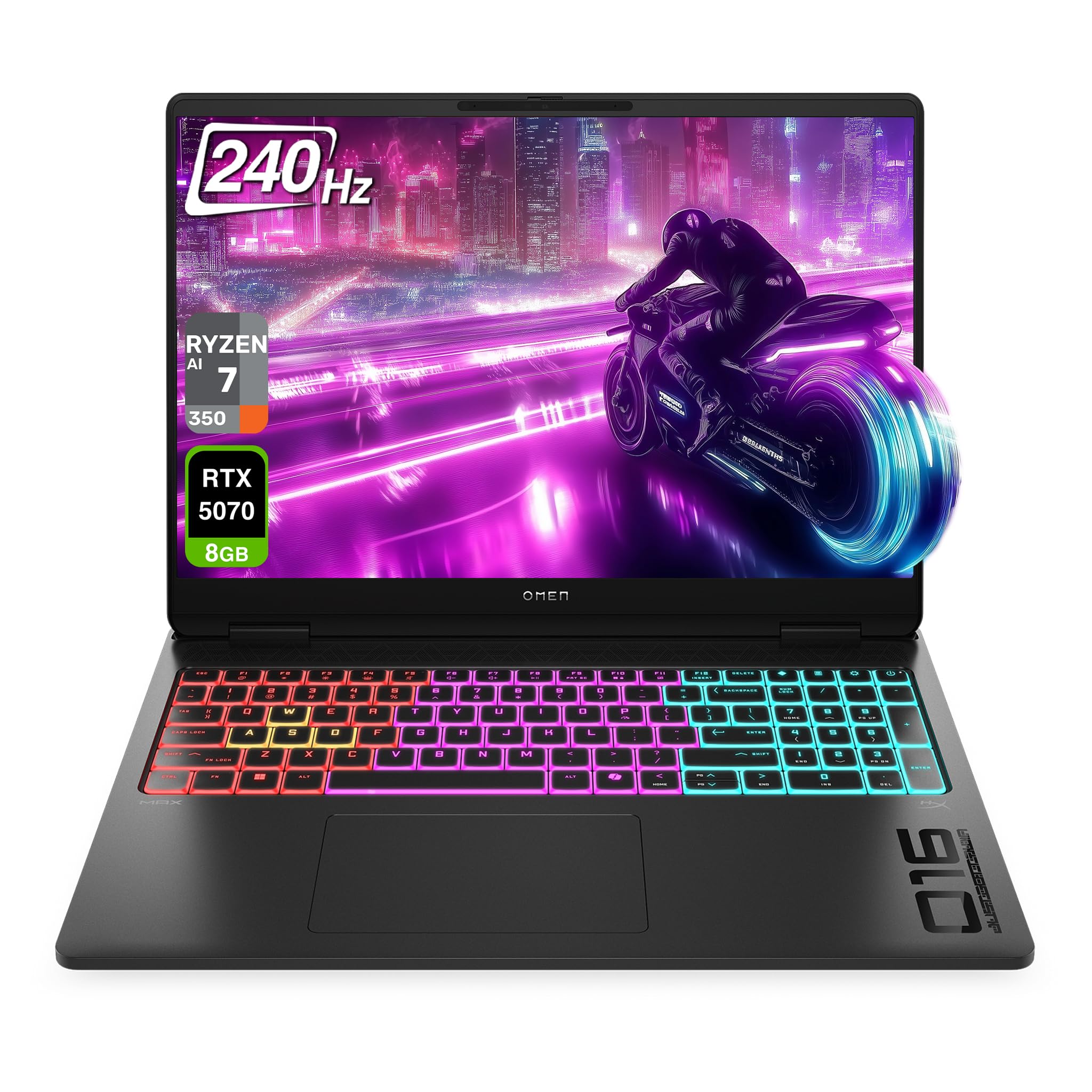
Figure 1.1: HP OMEN 16 MAX Gaming Laptop, showcasing its sleek design and RGB backlit keyboard.
2. Initial Setup
2.1 Unpacking and First Boot
- Carefully remove the laptop and all accessories from the packaging.
- Connect the AC adapter to the laptop's AC smart pin port and then to a power outlet.
- Open the laptop lid and press the power button to turn on the device.
- Follow the on-screen instructions to complete the Windows 11 Home setup. This includes selecting your region, connecting to a network, and creating a user account.
2.2 Connecting Peripherals
The HP OMEN 16 MAX offers various ports for connecting external devices:

Figure 2.1: Side view of the laptop highlighting the USB Type-A, HDMI, RJ-45, AC Smart pin, USB Type-C, and headphone/microphone combo ports.
- USB Type-A (10Gbps signaling rate): Connect external storage, mice, or other USB accessories.
- HDMI 2.1: Connect to an external display or TV for high-resolution video output.
- RJ-45: For wired network connections.
- USB Type-C (40Gbps signaling rate, USB Power Delivery 3.1, DisplayPort 2.1, HP Sleep and Charge): Versatile port for data transfer, charging, and video output.
- Headphone/microphone combo: Connect a headset for audio input and output.
3. Key Features
3.1 Display
The laptop features a 16-inch WQXGA (2560 x 1600) display with a 60–240 Hz refresh rate and 3 ms response time. It utilizes an IPS panel with micro-edge design, anti-glare coating, and Low Blue Light technology. The display offers 500 nits brightness and 100% sRGB color gamut for vibrant and accurate visuals.

Figure 3.1: The 16-inch WQXGA display provides crisp images and a high refresh rate for smooth visuals.
3.2 Performance Hardware
- Processor: AMD Ryzen AI 7 H 350 (up to 5.0 GHz max boost clock, 16 MB L3 cache, 8 cores, 16 threads).
- Graphics: NVIDIA GeForce RTX 5070 Laptop GPU (8 GB GDDR7 dedicated).
- RAM: 32 GB DDR5 RAM.
- Storage: 2 TB PCIe SSD.
3.3 Cooling System
The OMEN Tempest Cooling PRO architecture is designed to maintain optimal temperatures for all components, even under heavy load, preventing thermal throttling. This system includes:
- Fan Cleaner: Self-cleaning fan technology to reduce performance degradation and minimize maintenance.
- OMEN Cryo Compound: An upgraded hybrid material applied to the CPU and GPU for enhanced heat dissipation and extended device longevity.
- OMEN IR Sensor: Dynamically adjusts and optimizes thermal and acoustic performance in real-time.
3.4 Keyboard and Connectivity
- Keyboard: 4-Zone RGB Backlit Keyboard for customizable lighting.
- Wireless: Wi-Fi 7 BE200 (2x2) and Bluetooth 5.4 wireless card for high-speed and reliable connections.

Figure 3.2: The 4-Zone RGB backlit keyboard offers customizable lighting effects.
4. Operating Instructions
4.1 OMEN Gaming Hub
The OMEN Gaming Hub is your central control panel for optimizing your laptop's performance and customizing settings. It includes features such as:
- Unleashed Mode: Allows manual overclocking of your device beyond factory limits, leveraging OMEN Tempest Cooling PRO for stable performance. Access this mode under Performance Control.
- Lighting Control: Customize the 4-Zone RGB backlit keyboard and other lighting elements.
- System Vitals: Monitor CPU, GPU, and RAM usage, along with temperature readings.
- Network Booster: Prioritize network traffic for gaming applications.
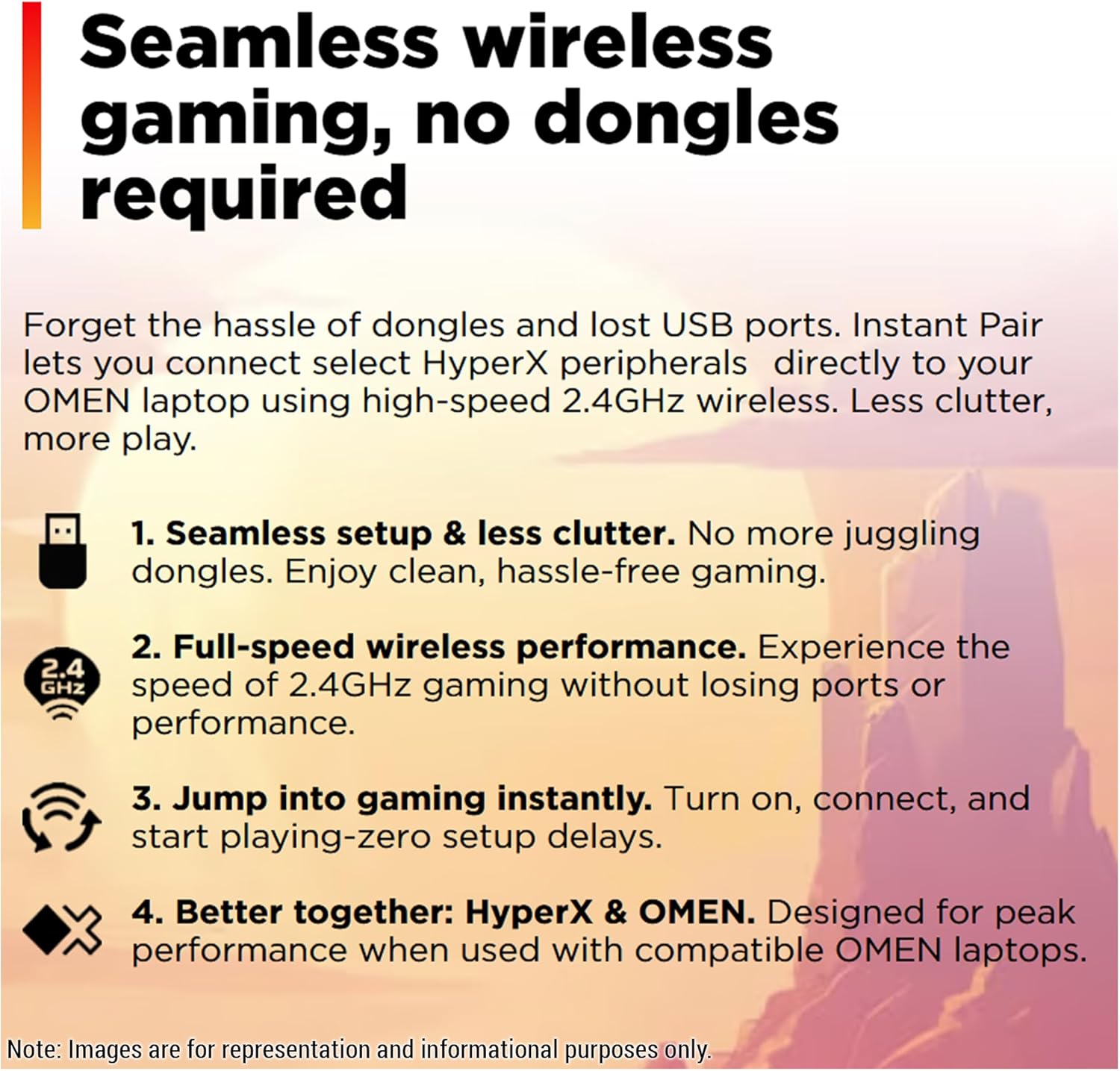
Figure 4.1: OMEN Gaming Hub interface, demonstrating the Unleashed Mode for performance tuning.
4.2 Wireless Connectivity
The laptop supports Wi-Fi 7 and Bluetooth 5.4. For seamless wireless gaming with compatible HyperX peripherals, Instant Pair technology allows direct connection without dongles, reducing clutter and ensuring full-speed performance.

Figure 4.2: Instant Pair technology simplifies connecting HyperX peripherals for a clutter-free gaming experience.
5. Maintenance
5.1 Cleaning Your Laptop
- Use a soft, lint-free cloth to clean the screen and exterior surfaces.
- For stubborn smudges, slightly dampen the cloth with water or a screen-safe cleaner.
- Avoid spraying liquids directly onto the laptop.
- Regularly clean the keyboard with compressed air to remove dust and debris.
5.2 Software Updates
Keep your operating system, drivers, and OMEN Gaming Hub software updated to ensure optimal performance, security, and access to the latest features. Windows Update will handle most system updates, while OMEN Gaming Hub can manage specific HP and gaming-related software.
5.3 Fan Maintenance
The OMEN Tempest Cooling PRO system includes a Fan Cleaner feature. While designed to be self-cleaning, occasional checks for excessive dust buildup in the vents are recommended. If significant dust is observed, use compressed air to clear the vents. Do not attempt to disassemble the laptop for fan cleaning unless you are a qualified technician.
6. Troubleshooting
6.1 Common Issues and Solutions
- Laptop not powering on: Ensure the AC adapter is securely connected to both the laptop and a working power outlet. Try a different outlet if necessary.
- Screen is blank: Check if the laptop is powered on. If connected to an external display, ensure the correct input source is selected on the external display. Try pressing Fn + F4 (or the corresponding display toggle key) to switch display outputs.
- Performance issues (lag, low frame rates):
- Verify that the laptop is connected to power and running in a high-performance power plan.
- Check OMEN Gaming Hub for Unleashed Mode activation and monitor system vitals for overheating.
- Ensure graphics drivers are up to date.
- Close unnecessary background applications.
- Wi-Fi connectivity problems:
- Restart your router and modem.
- Ensure Wi-Fi is enabled on the laptop (check Windows settings).
- Update wireless adapter drivers.
7. Specifications
| Feature | Detail |
|---|---|
| Brand | HP |
| Model Name | HP OMEN 16 MAX Gaming-4 |
| Screen Size | 16 Inches |
| Screen Resolution | 2560 x 1600 pixels (WQXGA) |
| Max Screen Resolution | 2560x1600 Pixels |
| Processor | AMD Ryzen AI 7 H 350 (up to 5.0 GHz max boost, 8 cores, 16 threads) |
| RAM | 32 GB DDR5 SO-DIMM |
| Hard Drive | 2 TB SSD (PCIe x 4 interface) |
| Graphics Coprocessor | Nvidia GeForce RTX 5070 Laptop GPU |
| Graphics Card Ram Size | 8 GB GDDR7 |
| Wireless Type | Wi-Fi 7 BE200 (802.11ax), Bluetooth 5.4 |
| Operating System | Windows 11 Home |
| Item Weight | 5.48 pounds |
| Product Dimensions | 14.04 x 10.59 x 0.9 inches |
| Color | Shadow Black |
| Special Feature | Backlit Keyboard (4-Zone RGB) |
8. Warranty and Support
For detailed warranty information and technical support, please refer to the official HP website or the documentation included with your product. You can also visit the HP Store on Amazon for additional resources.
What's in the Box:
- HP OMEN 16 MAX Gaming Laptop
- AC Power Adapter
- Keyboard (integrated)
9. Video Resources
9.1 A Deep Dive on the HP OMEN MAX 16
Video 9.1: This video provides an in-depth look at the HP OMEN MAX 16, covering its design, performance benchmarks, port configurations, display capabilities, and internal hardware. It highlights the laptop's ability to handle demanding gaming and creative tasks without performance drops, showcasing its sleek appearance and powerful specifications.
Related documentsOMEN 16 MAX Gaming-4


Ask a question about this manual
Ask about setup, troubleshooting, compatibility, parts, safety, or missing instructions. Manuals+ will review the question and use this page’s manual context to help answer it.