
1. Product Overview
The DEVO G1 Video Smart Lock offers a comprehensive security solution with multiple access methods and integrated video capabilities. This manual provides detailed instructions for installation, operation, and maintenance to ensure optimal performance and security.
- 6-in-1 Unlocking Methods: Fingerprint, app remote control, IC card, passcode, traditional key, and voice control (compatible with Alexa and Google Voice Assistant).
- Integrated Camera & Doorbell: Features an HD camera for real-time monitoring and two-way audio communication.
- Remote Management: Control your lock, generate temporary passwords, and receive real-time notifications via the TUYA APP.
- Long-Lasting Battery: Equipped with a 10,000 mAh rechargeable battery for extended operation.
- Enhanced Durability: IP65 water resistance and operational in temperatures from 5°F to 122°F.

Image: The DEVO G1 Video Smart Lock highlighting its six unlocking methods and integrated camera/doorbell features.
2. Setup and Installation
2.1 Door Compatibility
The DEVO G1 Smart Lock is designed to fit most standard US doors. Ensure your door meets the following specifications:
- Door Thickness: 1" to 2¾" (35mm to 55mm)
- Cross Bore Diameter: 2⅛" or 1½" (38mm or 54mm)
- Door Hole Diameter: 1" (25mm)
- Backset: 2⅜" or 2¾" (60mm or 70mm)

Image: Diagram illustrating the required door dimensions for installing the DEVO G1 Smart Lock.
2.2 Physical Installation
Installation typically takes about 15 minutes with a screwdriver and requires no drilling for most standard setups. Refer to the included measuring cardboard for precise alignment.

Image: A person installing the DEVO G1 Smart Lock on a door using a screwdriver, demonstrating the ease of DIY installation.
2.3 App Connection (TUYA APP)
To utilize the smart features of your DEVO G1 lock, connect it to the TUYA APP. Ensure your phone's Bluetooth and Wi-Fi are enabled.
- Download the "Tuya Smart" APP from your device's app store.
- Wake the lock screen, press the confirm button (usually '0' or a house icon) to enter settings.
- Enter the admin password (default is 123456, or your custom password) and press confirm.
- Follow voice prompts: press '3' for network settings, then '1' for network configuration.
- When the '0' key flashes on the lock, open the Tuya app, tap the add device icon (usually a '+' in the top right corner), and wait for the lock to be detected.
- Tap to connect and follow the on-screen instructions to complete the setup.
Video: A tutorial demonstrating how to connect the DEVO G1 Smart Lock to Wi-Fi and the Tuya Smart APP for remote control and management.
3. Operating Instructions
3.1 Unlocking Methods
The DEVO G1 Smart Lock offers six convenient ways to unlock your door:
- Fingerprint: Place your registered fingerprint on the sensor.
- Passcode: Enter your numerical passcode on the keypad.
- IC Card: Tap the provided IC card on the designated area.
- Traditional Key: Use the physical key as a backup.
- App Remote Control: Unlock remotely via the Tuya Smart APP.
- Voice Control: Integrate with Alexa or Google Voice Assistant for hands-free unlocking.

Image: Visual representation of the six different unlocking methods available for the DEVO G1 Smart Lock, including fingerprint, passcode, IC card, key, app, and voice.
Video: Demonstration of various unlocking methods for the DEVO G1 Video Smart Lock, including physical key, passcode, IC card, fingerprint, and remote app control.
3.2 Remote Control and Monitoring
Through the Tuya Smart APP, you can:
- Remotely lock/unlock your door.
- Generate one-time or temporary passwords for guests.
- Manage user access and permissions.
- Receive real-time notifications for door activity.
- Monitor your doorstep with the HD camera and two-way audio.
- Access video storage (free for the first month, then subscription-based).

Image: Screenshot of the Tuya Smart App showing various control options for the DEVO G1 Smart Lock, including remote unlock, passcode generation, and user management.

Image: Illustration of the DEVO G1 Smart Lock's HD camera with motion detection and night vision capabilities, showing both day and night views.
3.3 Anti-Peeping Keypad
To enhance security, the anti-peeping feature allows you to enter random digits before or after your actual passcode. This prevents others from observing your correct entry sequence.
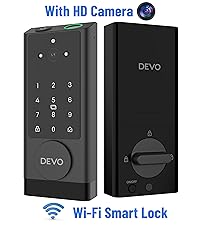
Image: Diagram explaining the anti-peeping function, where random digits can be entered before or after the real passcode to obscure it.
4. Maintenance
4.1 Battery Management
The DEVO G1 is powered by a 10,000 mAh rechargeable battery. For optimal performance, fully charge the battery before first use. The Tuya Smart APP provides real-time battery status and low battery alerts.

Image: The DEVO G1 Smart Lock showing its 10,000mAh rechargeable battery and emergency Type-C power port.
4.2 Weather Resistance
The lock has an IP65 water resistance rating, making it suitable for outdoor use. It is designed to withstand temperatures from 5°F to 122°F (-15°C to 50°C).

Image: Graphic illustrating the DEVO G1 Smart Lock's IP65 water resistance and its ability to operate in extreme temperatures.
5. Troubleshooting
If you encounter any issues with your DEVO G1 Smart Lock, consider the following general troubleshooting steps:
- Lock Not Responding: Ensure the battery is charged. If the battery is low, use the emergency Type-C power port.
- App Connection Issues: Verify your phone's Bluetooth and Wi-Fi are active. Ensure the lock is within range of your Wi-Fi router. Restart the Tuya Smart APP and try reconnecting.
- Fingerprint/Passcode Not Working: Ensure your fingerprint is clean and properly placed on the sensor. Double-check the passcode entry. If issues persist, re-register your fingerprint or reset the passcode via the app.
- Door Not Locking/Unlocking Properly: Check for any obstructions in the door frame or deadbolt mechanism. Ensure the lock is correctly calibrated (refer to app settings for lock calibration).
- Voice Assistant Issues: Confirm proper integration with Alexa or Google Voice Assistant through the Tuya Smart APP settings. Ensure your voice assistant device is online and connected.
For persistent problems, refer to the detailed troubleshooting section in the Tuya Smart APP or contact customer support.
6. Specifications
| Feature | Detail |
|---|---|
| Brand | Devo |
| Model Number | G1 |
| Lock Type | Biometric, Combination Lock, Deadbolt, Keypad |
| Special Features | Auto-Lock, Fingerprint, Fob Unlock, Touchscreen, Weather Resistant |
| Material | Aluminum |
| Item Dimensions (L x W x H) | 2.99 x 1.19 x 7.24 inches |
| Battery Capacity | 10,000 mAh |
| Water Resistance Rating | IP65 |
| Operating Temperature | 5°F to 122°F (-15°C to 50°C) |
| Included Components | Smart Lock X 1, Keys X 2, IC Card X 2, Manual X 1, Measuring Cardboard X 1 |
7. Warranty and Support
DEVO is committed to providing top-notch service and support for your G1 Video Smart Lock. If you have any questions, require assistance with installation, or encounter any issues, please contact our customer support team promptly.
Refer to the product packaging or the official DEVO website for specific warranty details and contact information.


