
CarpodGo T3 Pro
CarpodGo T3 Pro Portable Wireless Carplay User Manual
Model: T3 Pro
Brand: CarpodGo
1. Introduction
The CarpodGo T3 Pro is a portable 8.9-inch wireless CarPlay and Android Auto display designed to enhance your in-car entertainment and navigation experience. Featuring a fully laminated 1920x720 IPS touch screen, it offers seamless integration with your smartphone, supporting both wireless CarPlay and Android Auto functionalities. Its innovative design includes a magnetic base for flexible mounting and a Display-Only Bluetooth Mode for optimized audio routing through your vehicle's existing sound system.

Figure 1.1: CarpodGo T3 Pro Portable Display with CarPlay Interface.
2. Safety Information
- Always ensure the device is securely mounted and does not obstruct your view or interfere with vehicle controls.
- Do not attempt to disassemble or modify the device. This may void the warranty and pose a safety risk.
- Avoid exposing the device to extreme temperatures, direct sunlight for prolonged periods, or excessive moisture.
- Use only the provided power adapter and cables to prevent damage or fire hazards.
- Operate the device responsibly. Distracted driving can lead to accidents.
3. What's in the Box
Carefully unpack the box and ensure all items are present and in good condition. If any items are missing or damaged, please contact customer support.

Figure 3.1: Package Contents of CarpodGo T3 Pro.
- CarpodGo T3 Pro Portable Display Unit
- Magnetic Base
- Fixed Console Mount
- 9V Power Cord (Car Charger)
- OTG Adapter
- User Manual
- Central Control Seamless Mounts (complementary)
- Suction Cup Mount (for glass)
- Optional Accessories (may be sold separately): Backup Camera, Bluetooth Aux Receiver
4. Setup
4.1 Mounting the Device
The CarpodGo T3 Pro features a strong magnetic base for secure attachment. It is compatible with a 17mm ball head mount and includes complementary central control seamless mounts and a suction cup mount for glass surfaces.
- Choose a Mounting Location: Select a location on your dashboard or windshield that does not obstruct your view of the road, airbags, or vehicle controls.
- Attach the Mount:
- For Dashboard (Seamless Mounts): Clean the dashboard surface thoroughly. Attach the central control seamless mount to the desired location.
- For Windshield (Suction Cup Mount): Clean the windshield surface. Press the suction cup firmly against the glass and engage the lever to secure it.
- For Fixed Console Mount: Secure the fixed console mount to a suitable flat surface using adhesive or screws (if applicable and safe).
- Attach the Magnetic Base: Connect the magnetic base to the chosen mount (e.g., 17mm ball head).
- Secure the T3 Pro Display: Align the back of the T3 Pro display with the magnetic base. The strong magnets will firmly hold the display in place. Ensure it is stable and does not wobble.

Figure 4.1: Magnetic Base and Mount.
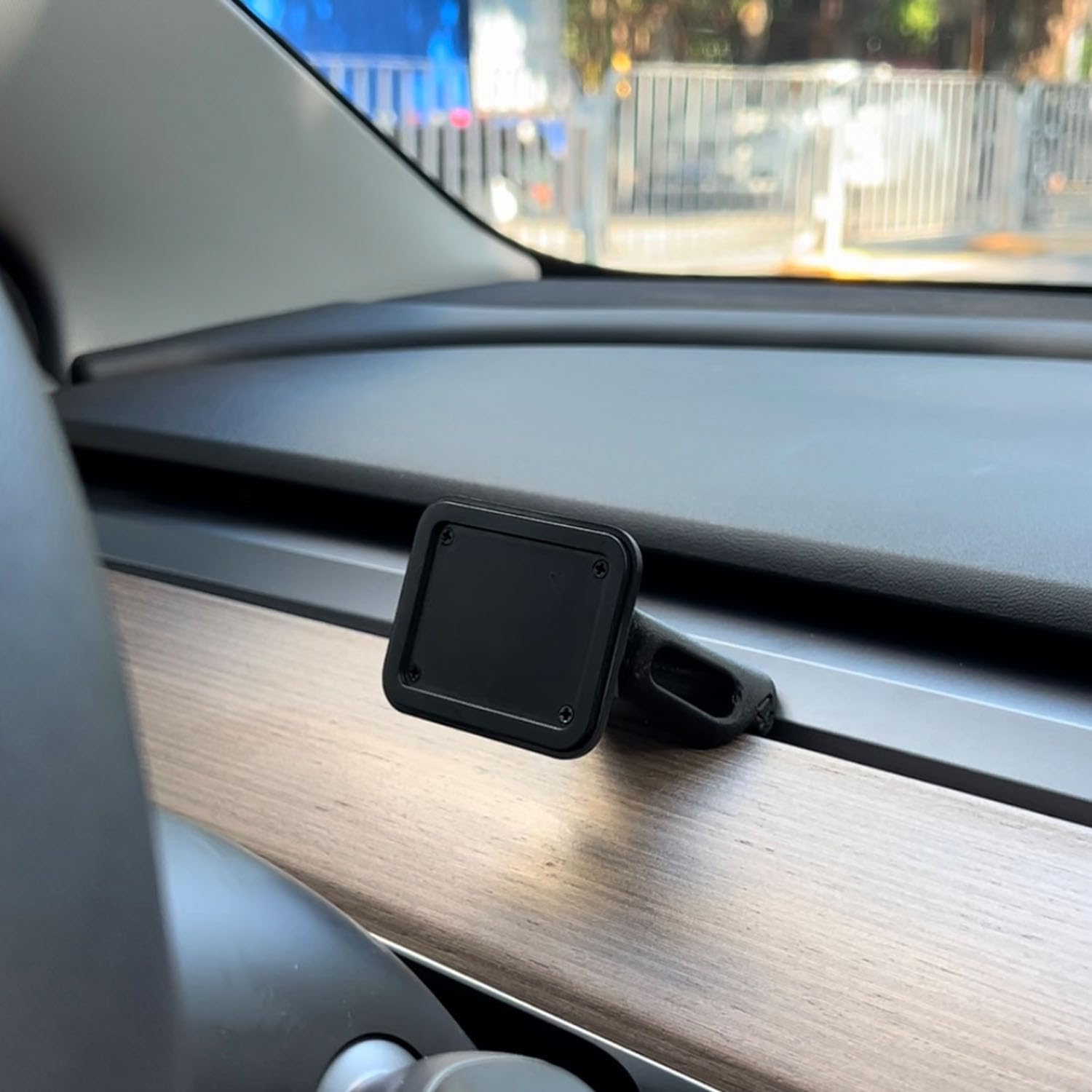
Figure 4.2: Magnetic Base Installed on Dashboard.
4.2 Power Connection
Connect the provided 9V power cord to the "Power" port on the side of the T3 Pro unit and plug the other end into your vehicle's 12V accessory outlet (cigarette lighter socket).
4.3 Initial Boot-Up
Once powered, the device will automatically boot up. The multi-core Linux system is designed for fast startup, typically displaying the CarPlay interface within 12 seconds.

Figure 4.3: Fast Boot-Up and Connectivity.
5. Operating Instructions
5.1 Wireless CarPlay / Android Auto Connection
The T3 Pro supports wireless CarPlay and Android Auto for seamless smartphone integration.
- On the T3 Pro, navigate to the CarPlay or Android Auto icon on the main screen.
- On your smartphone, enable Bluetooth and Wi-Fi.
- Search for the T3 Pro's Bluetooth name (usually "CarpodGo T3 Pro" or similar) on your phone and pair with it.
- Once paired via Bluetooth, your phone will automatically establish a Wi-Fi connection for CarPlay/Android Auto.
- The T3 Pro supports 60fps wireless CarPlay for smoother scrolling and responsiveness. This can typically be adjusted in the device settings if needed.
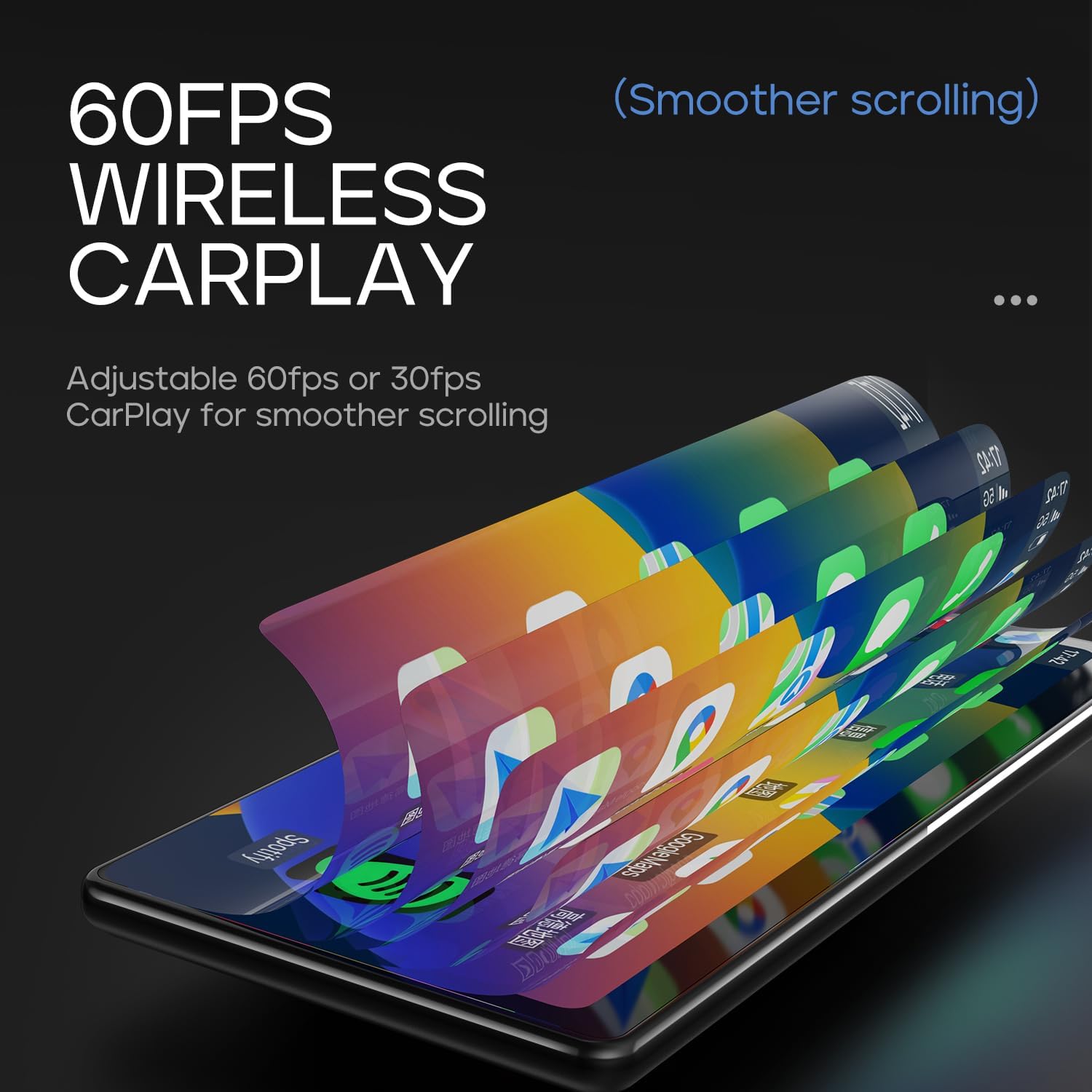
Figure 5.1: 60fps Wireless CarPlay for Smooth Operation.
5.2 Display-Only Bluetooth Mode
This mode allows you to route audio (maps, music, calls) through your car's existing Bluetooth system, utilizing your car's speakers and microphone, while the T3 Pro handles the display.
- On the T3 Pro, activate "Display-Only Bluetooth Mode" in the settings. Refer to the on-screen interface for the exact location of this setting.
- Connect your smartphone directly to your car's Bluetooth system.
- The T3 Pro will continue to display CarPlay/Android Auto, but all audio will be managed by your car's Bluetooth connection. This mode also supports steering wheel controls for audio and calls, provided your car's Bluetooth system is compatible.

Figure 5.2: Display-Only Bluetooth Mode Configuration.
5.3 User Interface (UI) Navigation
The T3 Pro features a new Carpod interface UI with a line neomorphism style, designed for intuitive use. Navigate through menus and applications using the touch screen. Swipe gestures and taps are used for interaction.

Figure 5.3: CarpodGo T3 Pro User Interface Examples.
6. Maintenance
- Cleaning: Use a soft, lint-free cloth to clean the screen and body of the device. Do not use abrasive cleaners, alcohol, or solvents.
- Storage: If storing the device for an extended period, disconnect it from power and store it in a cool, dry place away from direct sunlight.
- Software Updates: Periodically check the manufacturer's website or the device settings for available firmware updates to ensure optimal performance and new features.
7. Troubleshooting
| Problem | Possible Cause | Solution |
|---|---|---|
| Device does not power on. | No power connection or faulty power cord. | Ensure the 9V power cord is securely plugged into the device and the car's 12V outlet. Check if the car's outlet is functioning. |
| Wireless CarPlay/Android Auto not connecting. | Bluetooth/Wi-Fi issues, phone settings. |
|
| No audio or poor audio quality. | Audio routing issue, volume settings. |
|
| Screen is unresponsive or frozen. | Temporary software glitch. | Perform a soft reset by disconnecting and reconnecting the power. If the issue persists, contact customer support. |
8. Specifications
| Feature | Detail |
|---|---|
| Model Number | T3 Pro |
| Display Size | 8.9 Inch |
| Screen Resolution | 1920 x 720 IPS |
| Display Technology | Fully Laminated Screen, 16.7 million colors, 700nit highlight |
| Wireless Connectivity | Wireless CarPlay, Wireless Android Auto, Wi-Fi, Bluetooth |
| Bluetooth Mode | Display-Only Bluetooth Mode |
| Frame Rate | Supports 60fps Wireless CarPlay |
| Mounting | Magnetic design, compatible with 17mm ball head mount, central control seamless mounts, suction cup mount |
| Controller Type | Push Button, Steering Wheel Controls (via Display-Only BT Mode) |
| Audio Output Mode | Stereo |
| Connector Type | 3.5mm Jack, HDMI, USB |
9. Warranty and Support
CarpodGo products are designed for reliability and performance. For warranty information, technical support, or service inquiries, please refer to the warranty card included in your package or visit the official CarpodGo website. Keep your purchase receipt as proof of purchase for warranty claims.
Contact Information: Please refer to the contact details provided in your product packaging or on the official CarpodGo website for the most up-to-date support information.
Related documentsT3 Pro


Ask a question about this manual
Ask about setup, troubleshooting, compatibility, parts, safety, or missing instructions. Manuals+ will review the question and use this page’s manual context to help answer it.