
1. Introduction
This manual provides comprehensive instructions for the installation, operation, and maintenance of your WOWiViD 10.4 Inch Car Radio. Please read this manual thoroughly before using the product to ensure proper functionality and to prevent damage. Keep this manual for future reference.
2. Product Overview
Key Features
- Octa-core Android 13 operating system with 4GB RAM + 64GB storage.
- 10.4-inch IPS HD display.
- Wireless/Wired CarPlay and Android Auto support.
- Voice control functionality.
- Bluetooth 5.2 for hands-free calls and music streaming.
- Built-in Wi-Fi for internet connectivity and app downloads.
- GPS navigation with 2D and 3D map support.
- Customizable EQ settings for audio optimization.
- FM/RDS radio tuner.
- Backup camera input for enhanced safety.
- Steering Wheel Control (SWC) compatibility.
What's in the Box
- WOWiViD Car Radio Unit
- Power Cable
- RCA Cable
- 2 USB Cables
- GPS Antenna
- Reversing Input Cable
- OBD Cable (if included)
- Key Adapter Wire
- Backup Camera
- Microphone
- Camera Cable
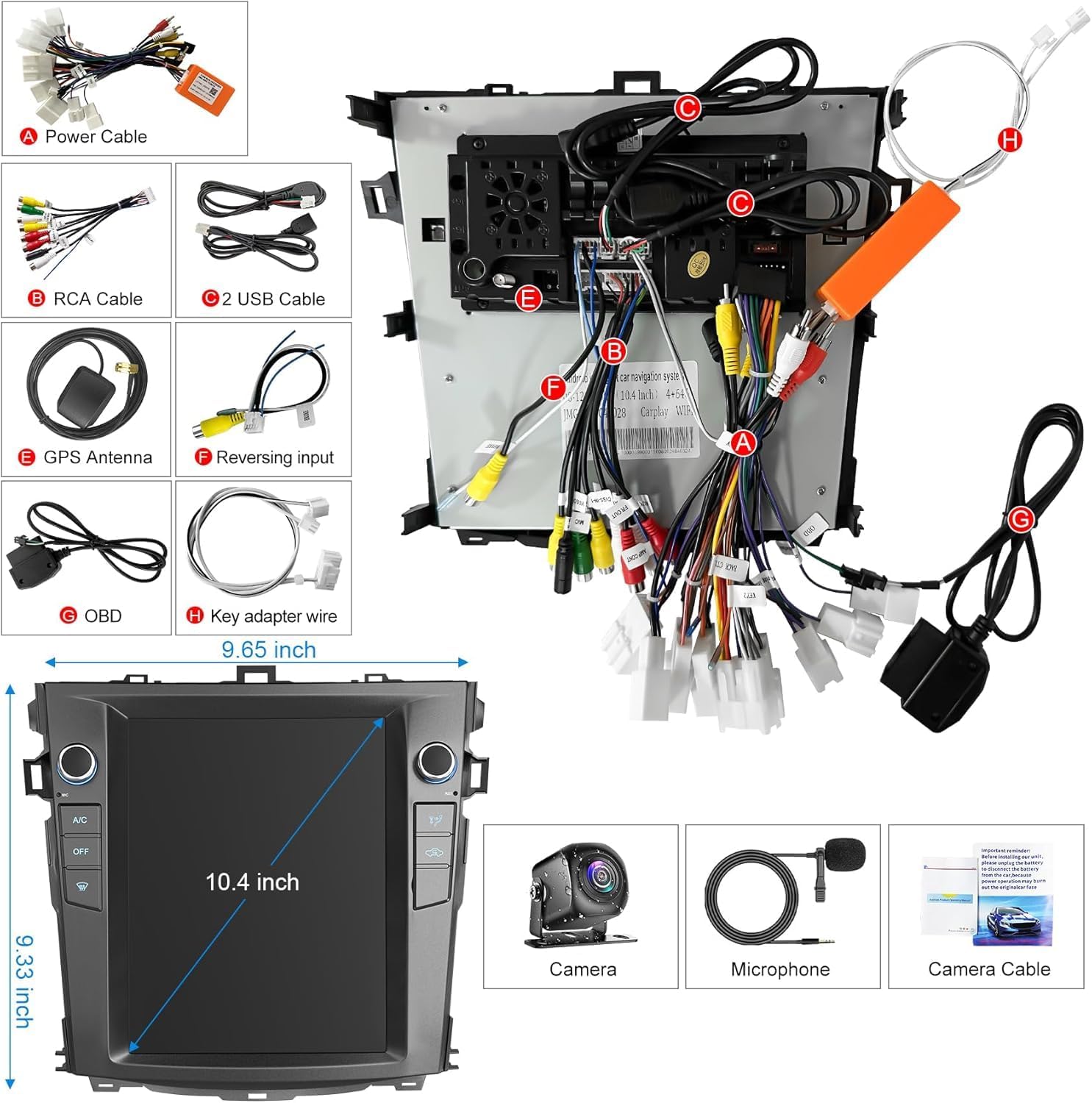
The package includes the main car radio unit and all necessary cables and accessories for installation and operation.
3. Compatibility
This car stereo receiver is designed for Toyota Corolla models manufactured between 2008 and 2013. Before purchasing and installing, it is crucial to verify the shape and dimensions of your vehicle's media console to ensure a proper fit. Refer to the image below for visual guidance on compatible and incompatible console types.

4. Setup & Installation
4.1 Pre-Installation Check
- Unpack all components and verify against the 'What's in the Box' list.
- Ensure your vehicle's ignition is off and the battery is disconnected before starting installation.
- Confirm compatibility with your Toyota Corolla model (2008-2013) and dashboard configuration.
4.2 Wiring Diagram
Refer to the detailed wiring diagram provided in Figure 2.1 (or the separate wiring diagram sheet included in your package) for correct connections. Improper wiring can lead to malfunction or damage. Professional installation is recommended.
4.3 Mounting
Carefully remove your existing car radio. Connect all necessary cables (power, speaker, antenna, USB, GPS, backup camera, etc.) to the new WOWiViD unit. Secure the unit into the dashboard opening using the provided mounting brackets and screws. Ensure all connections are firm and no wires are pinched.
5. Operating Instructions
5.1 Power On/Off
The unit will typically power on automatically with the vehicle's ignition. To manually power off or restart, press and hold the power button on the unit.
5.2 Wireless CarPlay & Android Auto
To use Wireless CarPlay or Android Auto:
- Ensure Bluetooth and Wi-Fi are enabled on your smartphone.
- On the car radio, navigate to the CarPlay or Android Auto application.
- Follow the on-screen prompts to pair your phone via Bluetooth. Once paired, the system will automatically establish a Wi-Fi connection for wireless functionality.
- For wired connection, connect your smartphone to the unit via a USB cable.

5.3 GPS Navigation
The unit supports both online and offline navigation. Ensure the GPS antenna is properly installed and positioned for optimal signal reception.
- Online Navigation: Connect the unit to Wi-Fi (via hotspot) to use real-time map services.
- Offline Navigation: Pre-download maps to the unit's storage for navigation without an internet connection.

5.4 Bluetooth 5.2
Bluetooth 5.2 provides stable and fast connectivity for hands-free communication and audio streaming.
- Enable Bluetooth on your phone and the car radio.
- Search for available devices on the car radio and select your phone.
- Confirm the pairing code on both devices.
- Once connected, you can make/receive calls, access your phonebook, and stream music.

5.5 Wi-Fi Connection
Connect the car radio to a Wi-Fi hotspot (e.g., from your smartphone) to access online features and download applications from the app store.
- Go to 'Settings' on the car radio and select 'Wi-Fi'.
- Turn on Wi-Fi and select your desired network from the list.
- Enter the password if prompted.

5.6 FM/RDS Radio
Access the FM radio application to listen to local stations. RDS (Radio Data System) provides additional information like station name and song title where available.
- Tune to stations manually or use the auto-scan feature.
- Save your favorite stations as presets for quick access.
5.7 EQ Settings
Customize your audio experience using the built-in Equalizer (EQ). Adjust frequency bands to fine-tune the sound output to your preference.

5.8 Steering Wheel Control (SWC)
If your vehicle supports it, you can program the car radio to respond to your steering wheel controls. This allows for safe operation of audio functions without taking your hands off the wheel.
- Go to 'Settings' and find the 'Steering Wheel Control' option.
- Follow the on-screen instructions to map your steering wheel buttons to the desired functions (e.g., volume up/down, track skip, answer call).

5.9 Backup Camera
When properly installed, the backup camera automatically displays a clear rearview on the screen when the vehicle is shifted into reverse. This feature aids in parking and reversing maneuvers by providing a wide-angle view and often includes dynamic guidelines.
5.10 Split-Screen Mode
The split-screen feature allows you to run two applications simultaneously on the 10.4-inch display, such as navigation on one side and music playback on the other. To activate, drag an app icon to one side of the screen or use the dedicated split-screen button if available.

6. Maintenance
- Cleaning: Use a soft, dry cloth to clean the screen and unit exterior. Avoid abrasive cleaners or solvents.
- Software Updates: Periodically check for software updates via the unit's settings menu to ensure optimal performance and access to new features. Connect to Wi-Fi for updates.
- Temperature: Avoid exposing the unit to extreme temperatures.
7. Troubleshooting
| Problem | Possible Cause | Solution |
|---|---|---|
| No Power | Loose power connection, blown fuse, vehicle battery issue. | Check power cables and fuse. Ensure vehicle battery is charged. |
| No Sound | Speaker wires disconnected, volume too low, incorrect audio source. | Verify speaker connections. Adjust volume. Select correct audio source. |
| GPS Signal Lost | GPS antenna obstructed or disconnected. | Ensure GPS antenna has a clear view of the sky and is securely connected. |
| Bluetooth Not Connecting | Bluetooth off on phone/unit, incorrect pairing. | Ensure Bluetooth is enabled on both devices. Re-pair the devices. |
| Touchscreen Unresponsive | System freeze, dirt on screen. | Restart the unit. Clean the screen. |
If problems persist, consult a qualified technician or contact customer support.
8. Specifications
| Feature | Specification |
|---|---|
| Operating System | Android 13 |
| Processor | Octa-core |
| RAM | 4GB |
| Internal Storage | 64GB |
| Display Size | 10.4 Inches |
| Display Type | IPS HD Touchscreen |
| Bluetooth Version | 5.2 |
| Connectivity | Bluetooth, Wi-Fi, USB |
| Special Features | Wireless CarPlay, Android Auto, GPS, SWC, EQ, FM/RDS, Backup Camera |
| Item Weight | 1.5 pounds |
| Package Dimensions | 9 x 8 x 7 inches |
9. Warranty & Support
This WOWiViD Car Radio comes with a 2-year warranty from the date of purchase, covering manufacturing defects. Please retain your proof of purchase for warranty claims.
For technical support, troubleshooting assistance, or warranty inquiries, please contact WOWiViD customer service through the retailer's platform or the official brand website. Provide your product model number and purchase details for efficient service.