
1. Introduction
Thank you for choosing the Poounur Smart Watch KW281A. This device is designed to enhance your daily life with features such as Bluetooth calling, a vibrant 2.01-inch AMOLED curved display, comprehensive fitness tracking, and health monitoring capabilities. This manual provides detailed instructions for setup, operation, and maintenance to ensure optimal performance and user experience.

Image 1.1: Poounur Smart Watch KW281A, featuring a black strap and a large, clear display.
2. What's in the Box
- Poounur Smart Watch (KW281A)
- Instruction Manual
- Magnetic Charging Cable
- Packaging Box
3. Product Overview
The Poounur Smart Watch KW281A features a 2.01-inch HD curved AMOLED screen, offering a resolution of 410*502 for clear visuals. It includes a side button and a rotating crown for navigation. The watch is equipped with a comfortable silicone strap and a magnetic charging port on the back.
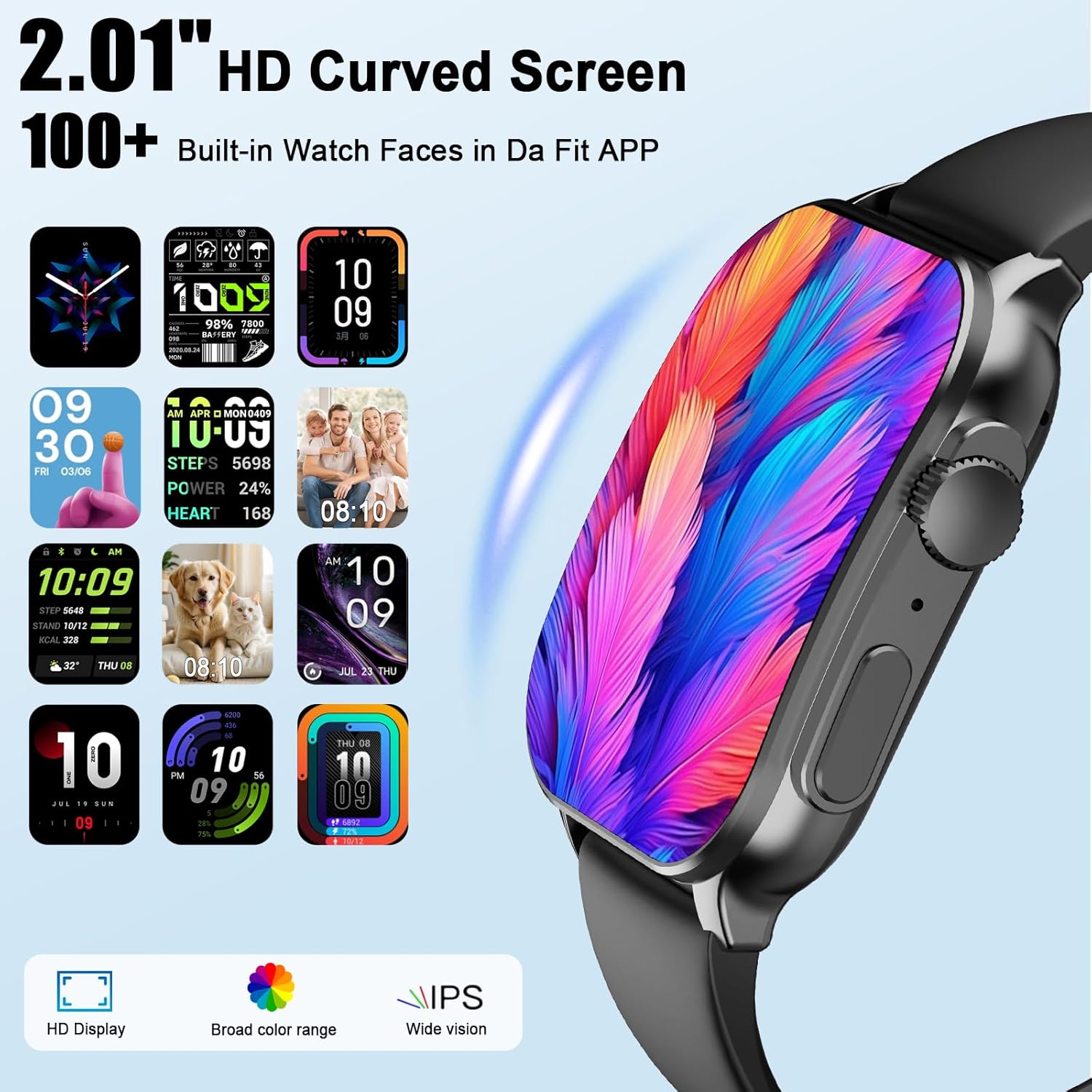
Image 3.1: Close-up of the smartwatch display, highlighting the 2.01-inch HD curved screen and various watch face options.

Image 3.2: Diagram illustrating the 2.01-inch HD curved touch screen with 410*502 resolution and 1000 Nits Peak Brightness.
4. Setup Guide
4.1 Charging the Smart Watch
Before initial use, fully charge your smartwatch. Connect the magnetic charging cable to the charging contacts on the back of the watch and plug the USB end into a power adapter (not included) or a computer USB port. A full charge typically takes approximately 2 hours. The watch has a 350mAh battery, providing 5-7 days of active use and up to 30 days on standby.
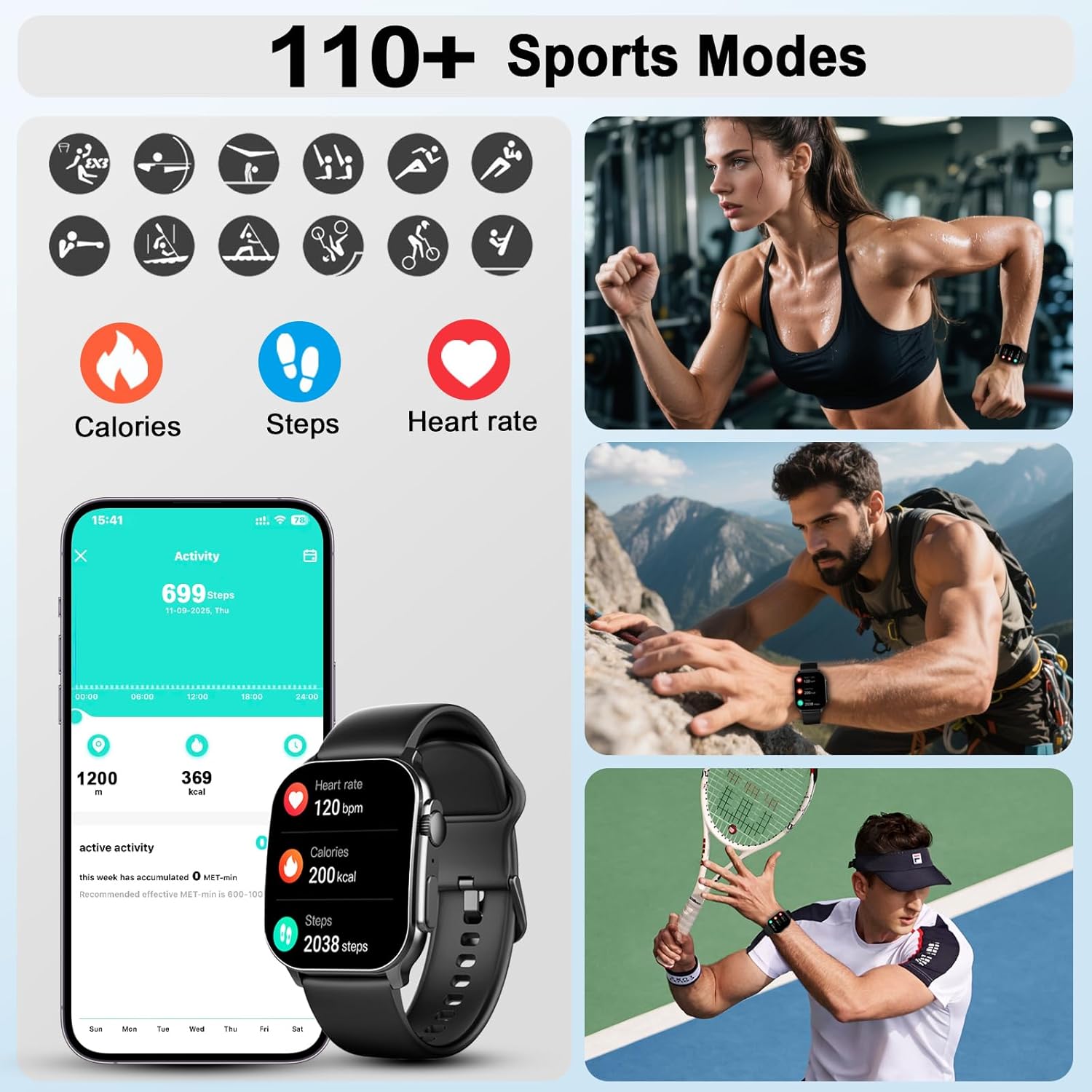
Image 4.1: Illustration of the magnetic charging process and battery life indicators: 15 days standby, 4-5 days battery life, 2 hours charging time.
4.2 App Installation (Da Fit)
To unlock the full potential of your smartwatch, download and install the 'Da Fit' application on your smartphone. The app is compatible with iOS 9.0+ and Android 5.0+ devices.
- Scan the QR code provided in the watch's interface or the quick start guide, or search for 'Da Fit' in your phone's app store (App Store for iOS, Google Play Store for Android).
- Alternatively, you can download the app directly from http://plus.crrepa.com/app-download/dafit.
- Follow the on-screen instructions to complete the installation.

Image 4.2: Visual guide for installing the Da Fit app and initiating the pairing process with the smartwatch.
4.3 Pairing with Your Smartphone
After installing the Da Fit app, follow these steps to pair your smartwatch:
- Ensure Bluetooth is enabled on your smartphone.
- Open the 'Da Fit' app and navigate to the 'Device' section.
- Tap 'Add Device' and select 'KW281A' from the list of available devices.
- Confirm the pairing request on both your phone and the watch.
- Allow the smartwatch to display notifications when prompted.
5. Operating Instructions
5.1 Basic Navigation
- Power On/Off: Press and hold the side button to power the watch on or off.
- Wake Screen: Raise your wrist or press the side button.
- Swipe Up/Down: Access quick settings or notifications.
- Swipe Left/Right: Navigate through widgets and main functions.
- Tap: Select an item or enter a function.
- Side Button/Crown: Press to return to the home screen or rotate to scroll through menus.
5.2 Bluetooth Call Functionality
Once paired, the smartwatch supports Bluetooth calls, allowing you to make and receive calls directly from your wrist.
- Answering Calls: When a call comes in, tap the green answer icon on the watch screen.
- Making Calls: Access the 'Phone' function on the watch to dial numbers or select contacts from your synced list.
- Call Rejection: Tap the red hang-up icon to reject an incoming call.

Image 5.1: A user interacting with the smartwatch to manage calls and notifications, showing icons for call list, phone function, and contacts.

Image 5.2: Visual representation of the smartwatch's interface for dialing, receiving, and managing Bluetooth calls.
5.3 Smart Notifications
Receive real-time notifications from various applications directly on your watch. Please note that you cannot reply to messages directly from the watch.
- Ensure notification permissions are granted to the Da Fit app on your smartphone.
- Configure which app notifications you wish to receive through the Da Fit app settings.

Image 5.3: A user viewing various app notifications (Facebook, WhatsApp, Twitter, etc.) on the smartwatch screen.
5.4 Watch Faces
Customize your watch's appearance with over 100 available watch faces through the Da Fit app. You can also personalize watch faces using your own photos.
Image 5.4: Display of various watch face designs and options for personalization.
5.5 Multifunctional Features
The smartwatch includes several utility functions:
- Music Control: Play, pause, skip tracks on your phone.
- Camera Control: Remotely trigger your phone's camera shutter.
- Alarm Clock: Set alarms directly from the watch.
- Timer/Stopwatch: For various activities.
- Calculator: Basic arithmetic functions.
- Weather Forecast: View current weather conditions.
- Find Phone: Locate your paired smartphone.
- Sedentary Reminder: Prompts you to move after periods of inactivity.
- Water Drinking Reminder: Helps maintain hydration.

Image 5.5: Collage showing various smartwatch functions including music control, camera control, alarm clock, timer, and calculator.
6. Health Monitoring
6.1 Heart Rate Monitoring
The smartwatch continuously tracks your heart rate throughout the day. View real-time data on the watch or detailed historical data in the Da Fit app.

Image 6.1: Visual representation of heart rate monitoring, showing a user wearing the watch during exercise and a graph of heart rate data.
6.2 Blood Oxygen Monitoring (SpO2)
Monitor your blood oxygen levels directly from your wrist. This feature provides insights into your overall respiratory health.
Image 6.2: Display of blood oxygen percentage on the smartwatch screen, alongside a user engaged in physical activity.
6.3 Sleep Tracking
The watch automatically tracks your sleep patterns, including deep sleep, light sleep, and awake times. Analyze your sleep quality and adjust your schedule for better rest.
Image 6.3: A user sleeping while wearing the smartwatch, with an overlay showing a graph of sleep stages (deep, light, REM, awake).
6.4 Women's Menstrual Tracker
For female users, the watch offers a menstrual cycle tracking feature to record and predict menstrual periods, ovulation, and fertile windows.
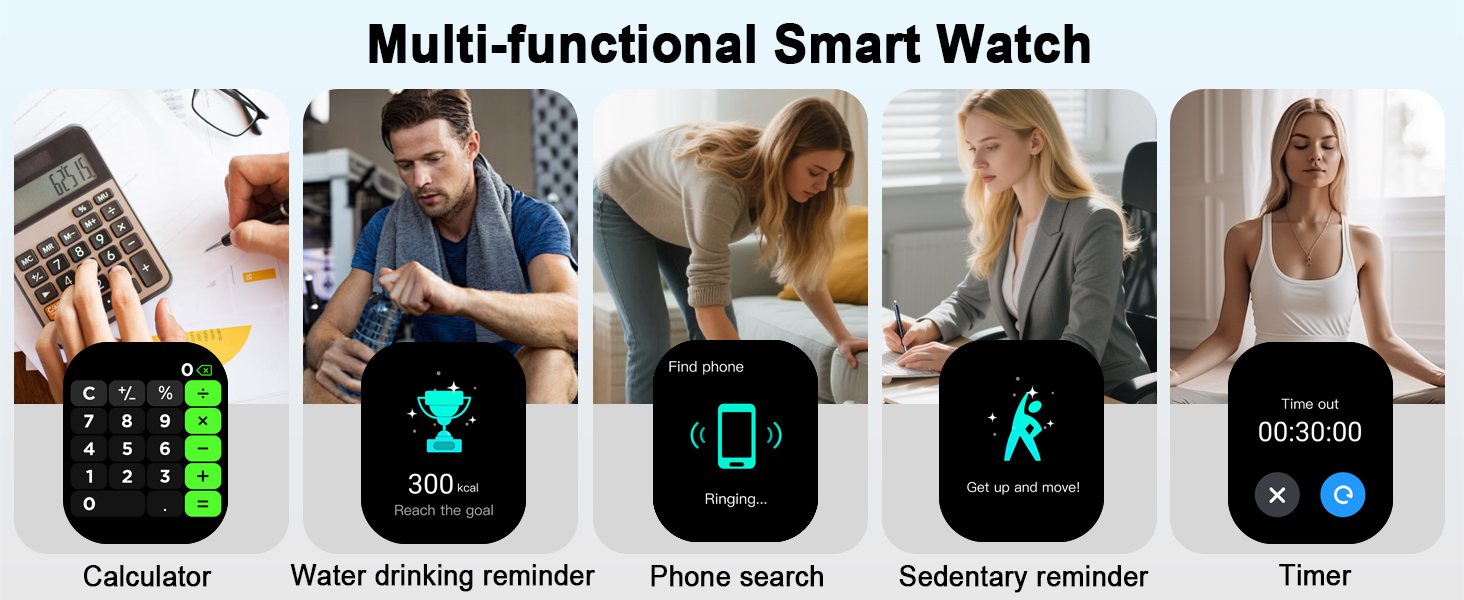
Image 6.4: A woman smiling while holding a cup, with an overlay showing a calendar interface for menstrual cycle tracking.
6.5 Stress Monitoring
Understand your body's response to different stressors with the stress monitoring function, providing insights into your stress levels throughout the day.
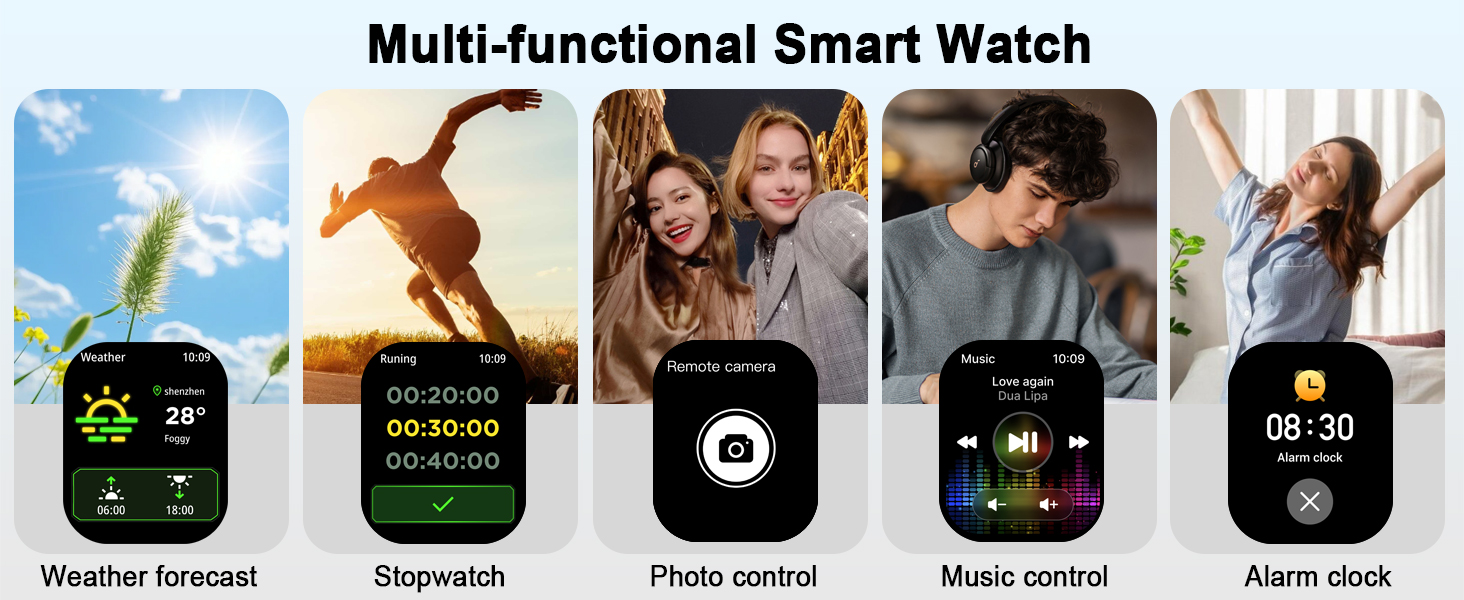
Image 6.5: A man at a desk, with an overlay showing a graph illustrating stress level fluctuations.
7. Fitness Tracking
7.1 Sports Modes
The smartwatch offers over 100 sports modes, including walking, running, cycling, swimming, yoga, and more. It accurately records activity data such as steps, distance, calories burned, and active minutes.
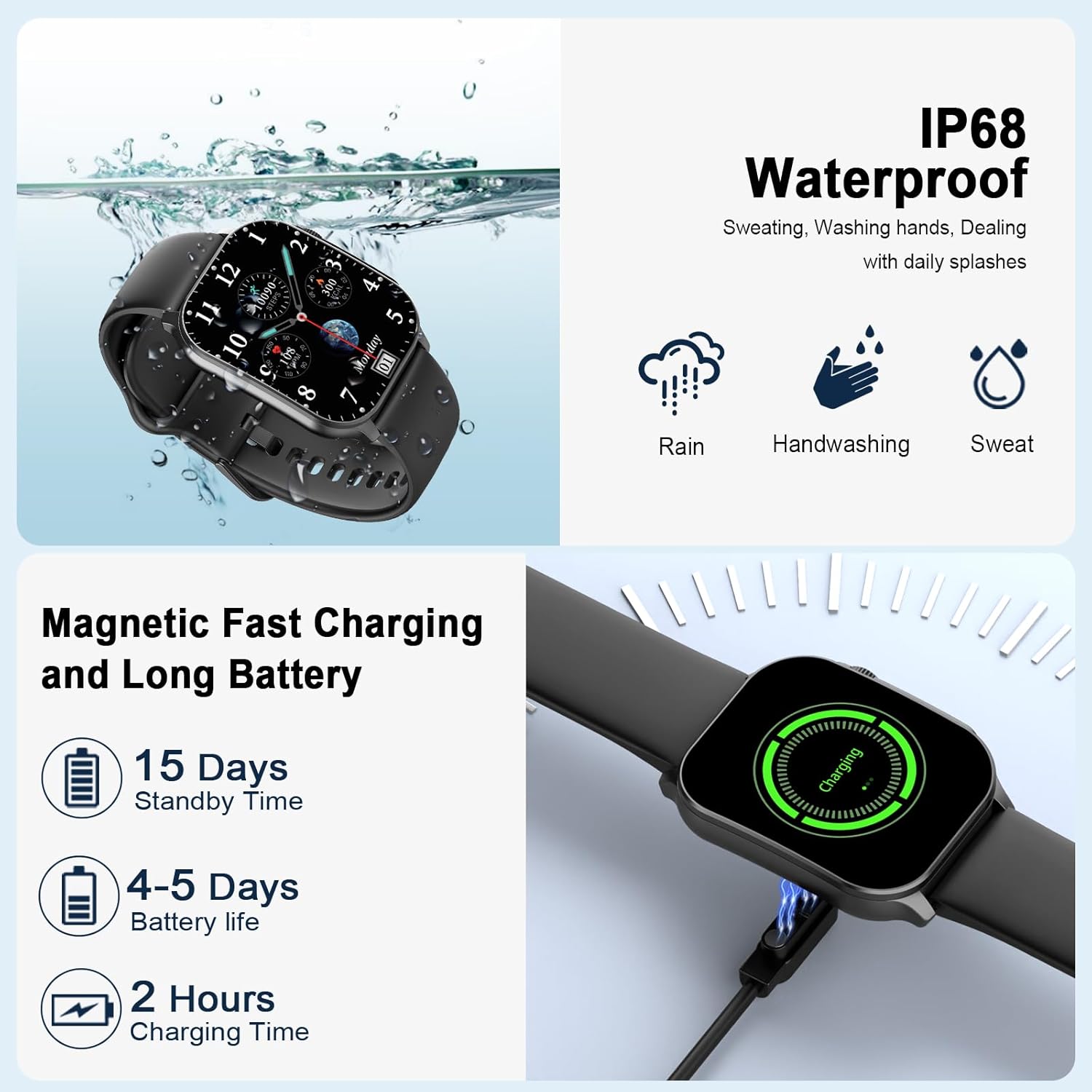
Image 7.1: Icons representing various sports modes, alongside images of individuals engaging in activities like running, climbing, and playing tennis.
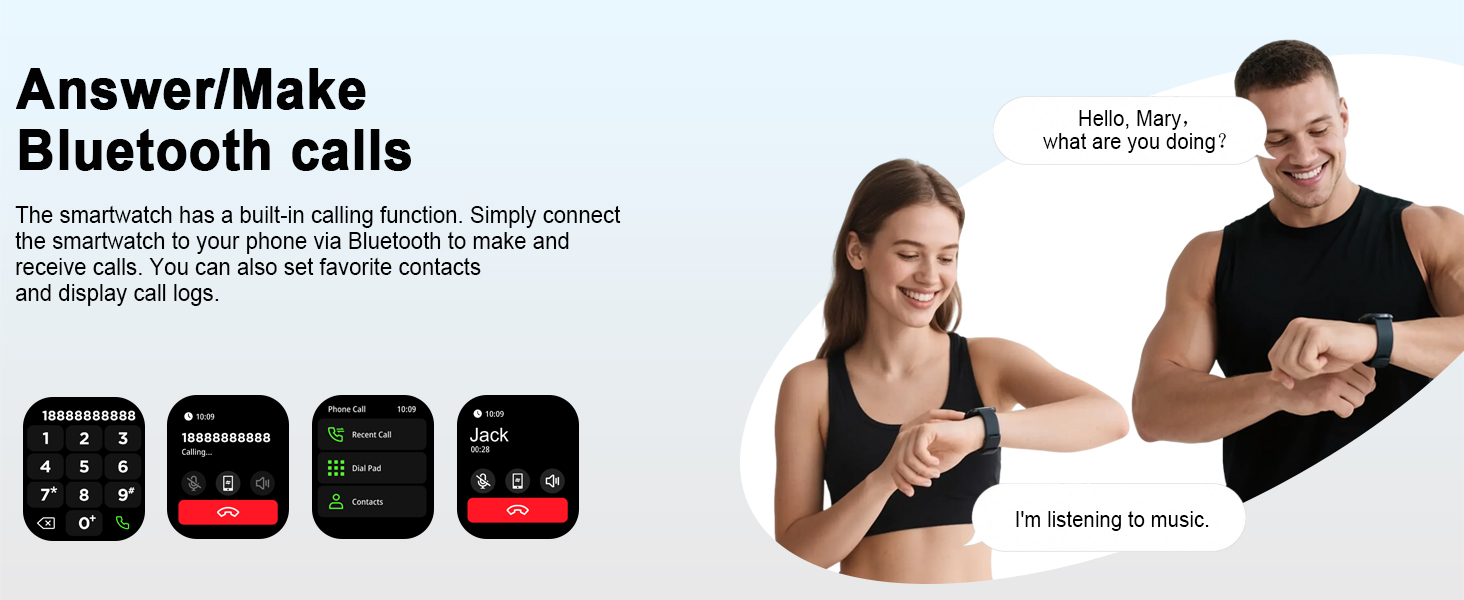
Image 7.2: Illustration of the smartwatch tracking calories, steps, distance, and heart rate during various sports activities.
8. Water Resistance
The Poounur Smart Watch KW281A is IP68 waterproof, meaning it is resistant to dust and can withstand immersion in water up to 1.5 meters for 30 minutes. It is suitable for daily use, including handwashing, sweating during exercise, and exposure to rain. It can also be worn during swimming and bathing.

Image 8.1: The smartwatch submerged in water, demonstrating its IP68 waterproof capability, suitable for rain, handwashing, and sweat.
9. Maintenance
9.1 Cleaning the Watch
- Regularly clean the watch screen and strap with a soft, dry cloth.
- For stubborn dirt, use a slightly damp cloth and then dry thoroughly.
- Avoid using harsh chemicals or abrasive materials, as these can damage the watch.
9.2 Charging and Battery Care
- Use only the provided magnetic charging cable.
- Avoid exposing the watch to extreme temperatures, which can affect battery life.
- Do not attempt to disassemble or replace the battery yourself.
10. Troubleshooting
If you encounter issues with your Poounur Smart Watch KW281A, please refer to the following common solutions:
| Issue | Possible Solution |
|---|---|
| Watch does not power on | Ensure the watch is fully charged. Press and hold the side button for several seconds. |
| Unable to pair with phone | Ensure Bluetooth is enabled on your phone. Restart both the watch and phone. Make sure the Da Fit app has necessary permissions. Check if the watch is already paired with another device. |
| Notifications not received | Verify Bluetooth connection. Check notification settings in the Da Fit app and your phone's system settings. Ensure the app is running in the background. |
| Inaccurate health/fitness data | Ensure the watch is worn snugly on your wrist. Clean the sensor on the back of the watch. Calibrate settings in the Da Fit app if available. Note that smartwatches are not medical devices. |
| Short battery life | Reduce screen brightness. Turn off unnecessary features like continuous heart rate monitoring if not needed. Limit frequent screen wake-ups. |
If the issue persists, please contact customer support.
11. Specifications
| Feature | Detail |
|---|---|
| Model Number | KW281A |
| Screen Size | 2.01 Inches |
| Display Type | AMOLED Curved Display |
| Resolution | 410*502 |
| Connectivity | Bluetooth |
| Water Resistance | IP68 |
| Battery Capacity | 350 mAh (approx. 300 Amp Hours listed in specs) |
| Battery Life | 5-7 days (active use), up to 30 days (standby) |
| Charging Time | Approx. 2 hours |
| Operating System Compatibility | Android 5.0+ / iOS 9.0+ |
| Item Weight | 3.52 ounces |
| Package Dimensions | 7.72 x 6.06 x 1.1 inches |
12. Warranty and Support
For warranty information and customer support, please refer to the documentation included with your purchase or contact the retailer. Keep your purchase receipt as proof of purchase for any warranty claims.
For further assistance, you may visit the official Poounur store on Amazon: Poounur Store.


