
1. Introduction
The Guermok 4K HDMI Capture Card (Model Z73-jp) is designed for high-quality video and audio capture, offering advanced features for streamers, gamers, and content creators. This device supports up to 4K@60Hz video input and passthrough, with compatibility for high-frame-rate inputs like 1080P@240FPS and 1440P@144FPS. Its robust aluminum body ensures efficient cooling, and multiple audio input/output options provide comprehensive sound integration.
This manual provides detailed instructions for setting up, operating, and troubleshooting your capture card to ensure optimal performance.
2. What's in the Box
- Video Capture Card
- USB-C to USB-A Adapter
- User Manual

Video: Unboxing and overview of the Guermok 4K HDMI Capture Card and its accessories.
3. Product Overview
3.1 Key Features
- USB 3.0 High-Speed Capture: Supports up to 4K@60Hz video capture, 1080P@240FPS, and 1440P@144FPS input with low latency.
- 4K@60Hz HDMI Loop-Out: Enables real-time video output to an external monitor with near-zero latency.
- Dual Audio Inputs: Includes 3.5mm Mic In and Line In ports for voice commentary and external audio sources.
- 4-Way Audio Output: Offers simultaneous audio output via capture device, HDMI passthrough, Audio Out, and Speaker Out.
- Efficient Cooling: Durable all-aluminum casing ensures stable performance without a fan.
- Touch LED: Touch-sensitive power button with soft blue ambient lighting.
3.2 Device Layout and Ports
The Guermok 4K HDMI Capture Card features a robust design with clearly labeled ports for easy connection.

Image: Front and rear view of the capture card highlighting USB Out, Line In, Mic In, Line Out/Speaker Out, HD Out, and HD In ports.
- USB OUT (4K 60Hz): Connects to your computer for video capture.
- Line (In): 3.5mm audio input for external audio sources.
- Mic (In): 3.5mm audio input for microphones.
- Line (Out) / Speaker (Out): 3.5mm audio output for headphones or speakers.
- HD OUT (4K 60Hz): HDMI output for passthrough to a display.
- HD IN (4K 60Hz): HDMI input for your source device (e.g., game console, camera).

Image: The capture card's touch-sensitive LED and ventilation for passive cooling.
4. Setup Guide
4.1 Basic Connection Steps
- Connect your HDMI source (e.g., game console, camera) to the HD IN port on the capture card using an HDMI cable.
- Connect the HD OUT port on the capture card to your display (e.g., TV, monitor) using another HDMI cable for passthrough.
- Connect the USB OUT port on the capture card to your computer's USB 3.0 port using the provided USB-A/C cable. Ensure you use a USB 3.0 or higher port for optimal performance (USB 2.0 ports only support up to 1080P resolution).
- If using external audio, connect your microphone to Mic (In) and/or other audio sources to Line (In). Connect headphones or speakers to Line (Out) / Speaker (Out) for monitoring.

Image: Example setup for gaming and streaming with the Guermok 4K HDMI Capture Card.
4.2 Software Setup (OBS Studio / Streamlabs)
For Windows and macOS, OBS Studio and Streamlabs are recommended for capturing and streaming.
- Download and install OBS Studio or Streamlabs Desktop.
- Launch the software. In the 'Sources' panel, click the '+' icon.
- Select 'Video Capture Device' and click 'Add Source'. Name it (e.g., 'Guermok Capture Card').
- From the device list, select your capture card (e.g., 'Guermok USB3 Video').
- Set the resolution to 1920x1080 or 1280x720, and frame rate to 60 fps if available.
- In the Audio Mixer, check if your capture card has audio input. If not, right-click your video source, go to 'Properties', and enable 'Use custom audio device'. Select the appropriate audio device.
- Start recording or streaming by clicking 'Start Recording' or 'Go Live'.

Image: Visual guide for setting up the capture card in Streamlabs Desktop.
4.3 Mobile Device Setup (iPad / Android)
For iPad, MoniCon is recommended. For Android, use USB Camera (Orange version for stability).
- Connect the capture card's USB-A/C cable to your iPad or Android device.
- Download and open the recommended application (MoniCon for iPad, USB Camera for Android).
- The application should automatically detect the capture card. Adjust video and audio settings as needed.

Image: Nintendo Switch connected to an iPad via the capture card for dual-screen gaming.
Video: Demonstrates connecting various devices for dual-screen gaming and streaming, including a Nintendo Switch to an iPad.
5. Operating Instructions
5.1 Video Capture and Passthrough
- The capture card supports various resolutions and frame rates for both input and capture. For optimal quality, ensure your source device and software settings match the desired output.
- The HDMI loop-out provides a direct, low-latency signal to your external display, allowing you to play games or monitor content without delay while simultaneously capturing on your computer.
5.2 Audio Management
- Mic In: Connect a 3.5mm microphone for live commentary during streams or recordings.
- Line In: Connect external audio devices like music players or instruments to integrate their sound into your capture.
- 4-Way Audio Output: Audio is transmitted simultaneously to the Mic Out, Speaker Out, capture device, and loop-out display, allowing for flexible recording, real-time monitoring, and shared playback.
5.3 Touch LED Functionality
- The touch-sensitive area on the top of the device controls the blue ambient lighting. Tap to turn the light on or off.
6. Compatibility
The Guermok 4K HDMI Capture Card is widely compatible with various operating systems and software.
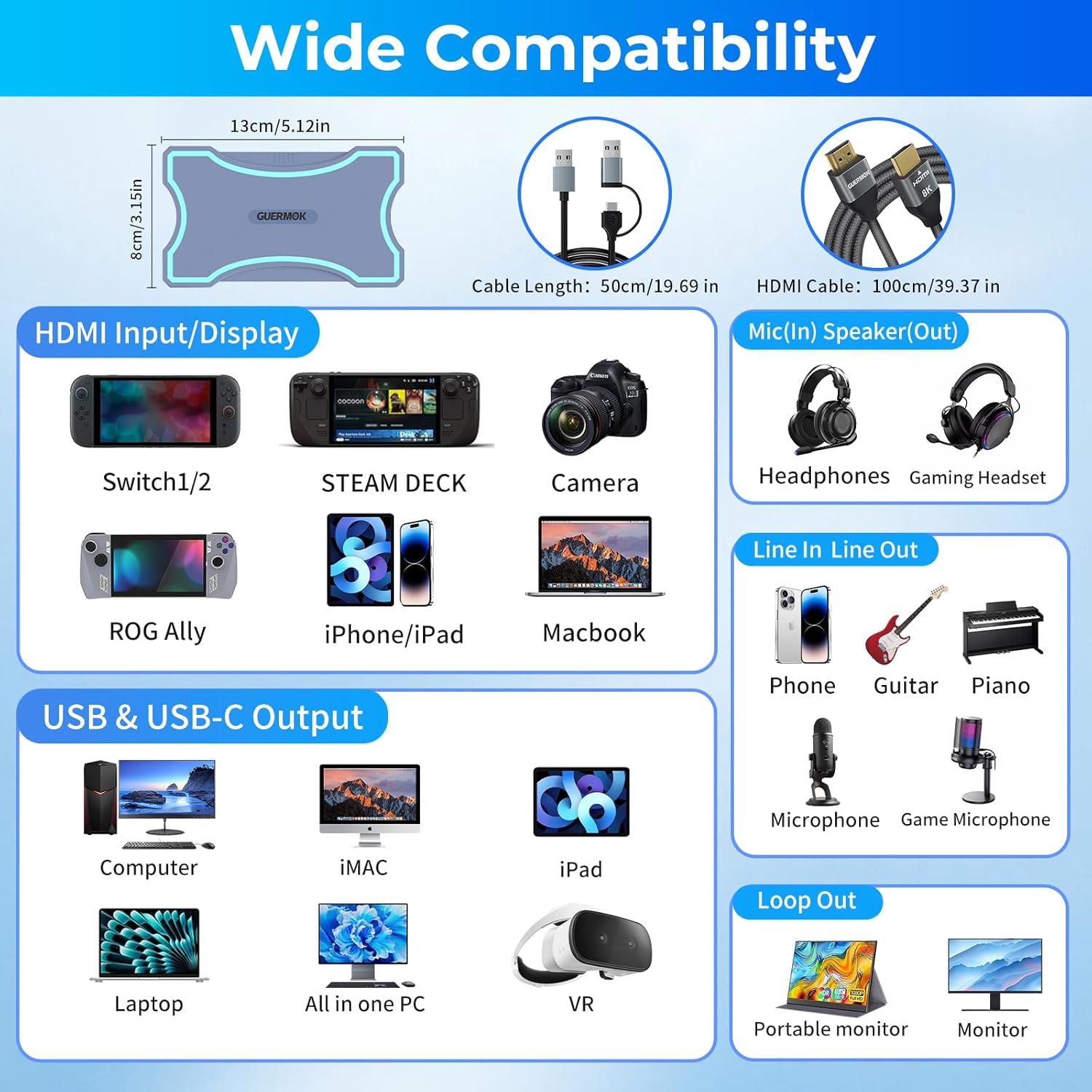
Image: Illustrates wide compatibility with various HDMI input sources and USB/USB-C output devices.
6.1 Supported Operating Systems
- Windows 10, Windows 11
- macOS
- Android
- Linux
6.2 Recommended Software
- Windows / macOS: OBS Studio, Streamlabs, VLC, PotPlayer
- iPad: MoniCon, EpocCam
- Android: USB Camera, XRecorder, AZ Screen Recorder
- VR Headsets: HDMI LINK, Air Link, Virtual Desktop

Image: Overview of compatible software applications across different platforms.
7. Troubleshooting
If you encounter issues, refer to the solutions below. For further assistance, please contact customer support.
7.1 No Video or Distorted Screen
- Check Connections: Ensure all HDMI and USB cables are securely connected to the correct ports.
- USB 3.0 Port: Verify the capture card is connected to a USB 3.0 or higher port. USB 2.0 ports may result in lower resolution (max 1080P) or no signal. If using a USB-C adapter, try flipping it or using the other side to ensure USB 3.0 recognition.
- Cable Quality: Use high-quality HDMI cables that support 4K resolution.
- HDCP Settings: Some source devices (e.g., PS5) may require disabling HDCP (High-bandwidth Digital Content Protection) in their settings for the capture card to function properly.
- Software Resolution: Ensure the resolution and frame rate settings in your capture software (OBS, Streamlabs, MoniCon, USB Camera) are compatible with your source and the capture card's capabilities. Try setting to 1080P 60FPS for stability.
- System Updates: Ensure your operating system and graphics drivers are up to date.
7.2 No Audio or Distorted Audio
- Audio Sample Rate: The capture card supports 96KHz/24-bit audio. Some software or devices (especially live streaming or USB camera apps) may only support 48KHz/16-bit audio. If you experience crackling or no audio, manually set the input sample rate in your system audio settings to 48KHz or 96KHz.
- Software Compatibility: Use capture software that supports 96KHz audio (e.g., OBS, MoniCon). For HarmonyOS, use the Orange USB Camera app.
- Audio Output Settings: In your capture software, ensure the correct audio input device is selected and enabled. Check the audio mixer for fluctuating bars to confirm signal presence.
- System Privileges (macOS): Ensure OBS has microphone privileges in System Settings > Privacy & Security.
Video: Provides troubleshooting steps for common audio and video issues, including black screen and distorted sound, with specific advice for HarmonyOS and iOS users.

Image: Detailed compatibility notice and recommended solutions for audio and video synchronization issues.
7.3 Device Not Recognized (Windows)
- Check Device Manager: Press Win + X, select Device Manager. Look for 'Unknown devices' or 'USB Device with yellow exclamation mark'. Right-click, uninstall device, unplug, restart PC, then plug in again.
- Run OBS as Administrator: Right-click the OBS icon and select 'Run as administrator'.
- Disable USB Selective Pause: Go to Control Panel > Power Options > Change Advanced Power Settings. Expand USB Settings > USB Selective Pause Settings > Set to 'Disabled'. Save and reboot.
- Replace Cables/Ports: Try a different data cable or USB port on your computer.

Image: Troubleshooting guide for Windows users experiencing device recognition issues.
8. Specifications
| Brand | Guermok |
| Model Number | Z73-jp |
| Hardware Interface | HDMI, USB 2.0, USB 3.0 |
| Video Capture Resolution | 1080p, 4K |
| Operating System Compatibility | Windows 10, Windows 11 |
| Recommended Uses | Game Streaming, Live Streaming, Video Recording |
| Item Weight | 14.1 ounces |
| Product Dimensions | 5.03 x 2.91 x 0.83 inches |
| Color | Silver |
9. Warranty and Support
Guermok products come with a standard manufacturer's warranty. For specific warranty details, please refer to the documentation included with your purchase or visit the official Guermok website.
If you require technical assistance, have questions about your product, or need to report an issue, please contact Guermok customer support through the following channels:
- Online Support: Visit the Guermok official website for FAQs, drivers, and support contact information.
- Email Support: Refer to your product packaging or the official website for the customer service email address.
Please have your product model number (Z73-jp) and purchase information ready when contacting support.