Introduction
This manual provides essential information for the setup, operation, and maintenance of your Sony BRAVIA XR8B 55-inch OLED 4K Ultra HD Smart Google TV. The BRAVIA XR8B offers a pristine OLED picture, cinematic sound, and an elevated design. Experience inky blacks and vibrant colors that reveal astonishing textures, detail, and realism. The unique Acoustic Surface Audio+ technology transforms the screen into a speaker, providing an immersive sound experience where audio follows the on-screen action.
What's in the Box
Upon unboxing your Sony BRAVIA XR8B TV, please ensure all the following components are present:
- Power Cable
- Remote Control
- TV Stand
- Instruction Manuals

Image: Front view of the Sony BRAVIA XR8B 55-inch OLED TV.
Setup
1. Unboxing and Stand Installation
Carefully remove the TV from its packaging. It is recommended to have at least two people for this process due to the size and weight of the television. Attach the included stand to the bottom of the TV following the instructions in the separate setup guide provided in the box. Ensure the stand is securely fastened before placing the TV on a stable surface.
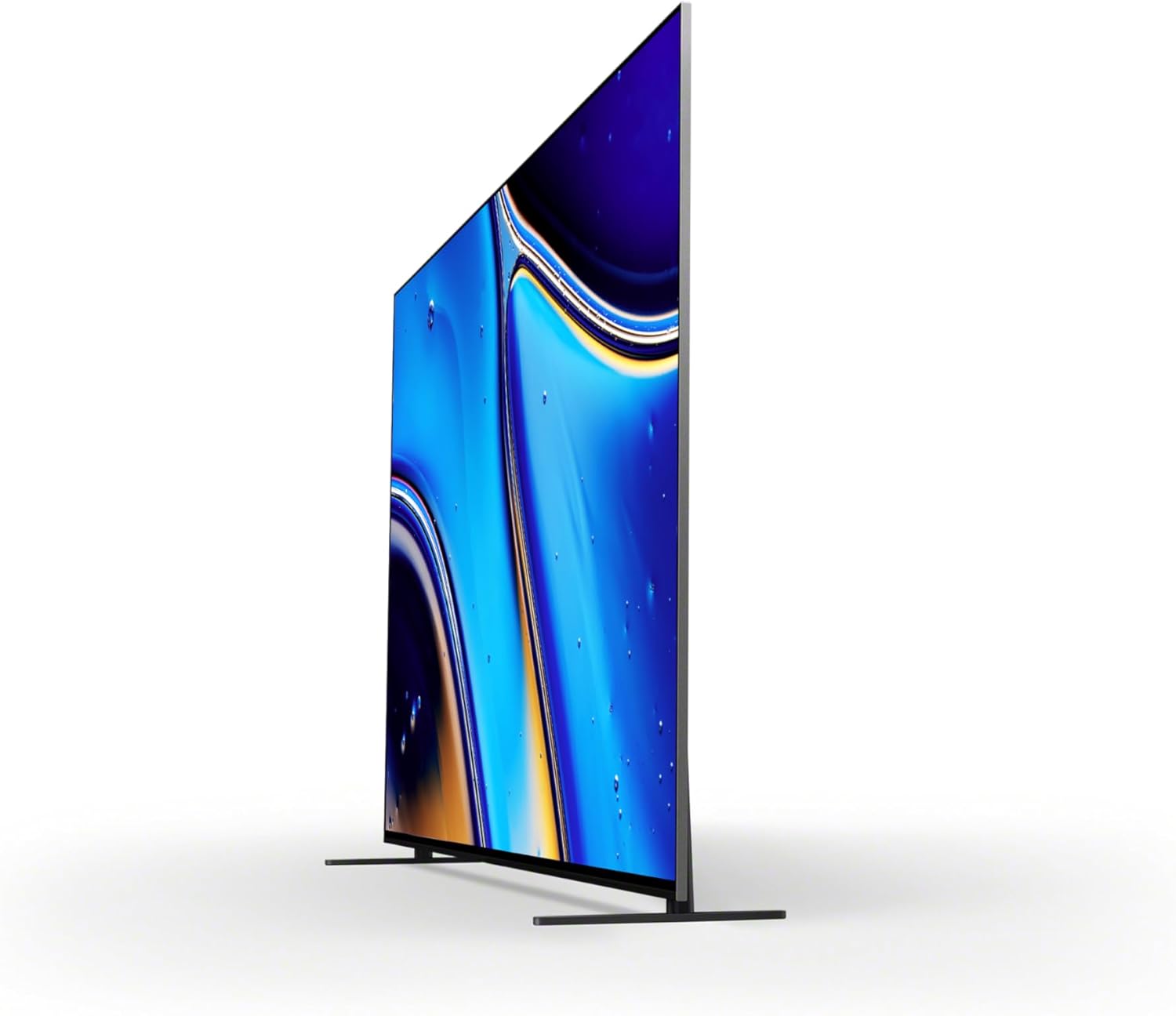
Image: The Sony BRAVIA XR8B TV with its stand installed, viewed from the front.
2. Connecting Peripherals
Connect your external devices such as gaming consoles, Blu-ray players, sound systems, and cable/satellite boxes to the TV's input ports. The BRAVIA XR8B supports multiple HDMI inputs, USB ports, Ethernet, and Wi-Fi connectivity.
- HDMI: For high-definition video and audio devices.
- USB: For connecting USB storage devices or other compatible accessories.
- Ethernet (LAN): For a wired internet connection.
- Wi-Fi: For wireless internet connectivity.
- Bluetooth: For connecting wireless headphones or other Bluetooth devices.

Image: Rear view of the Sony BRAVIA XR8B TV, highlighting the various input and output ports.
3. Initial Power On and Google TV Setup
Plug the power cable into the TV and a wall outlet. Press the power button on the remote control. Follow the on-screen instructions to complete the initial setup, including connecting to your Wi-Fi network and configuring Google TV. This process will guide you through signing into your Google account and setting up voice control with Google Assistant.

Image: The Google TV interface displayed on the Sony BRAVIA XR8B, showing various streaming apps.
Operating Instructions
Basic Operation
- Power On/Off: Use the power button on the remote control or the TV itself.
- Input Selection: Press the 'Input' button on the remote to switch between connected devices (HDMI 1, HDMI 2, etc.).
- Volume Control: Use the volume up/down buttons on the remote.
- Navigation: Use the directional pad and 'Enter' button on the remote to navigate menus.

Image: The remote control for the Sony BRAVIA XR8B TV, showing various buttons for navigation and control.
Google TV Features
Your BRAVIA XR8B TV comes with Google TV, providing access to a wide range of streaming services and smart features:
- Streaming Apps: Access Netflix, Prime Video, Disney+, YouTube, Apple TV app, Crunchyroll, and more directly from the home screen.
- Google Assistant: Use your voice to search for content, control smart home devices, and ask questions.
- Chromecast Built-in & Apple AirPlay 2: Effortlessly stream content from your smartphone or tablet to the TV.
Picture and Sound Settings
Optimize your viewing and listening experience through the TV's settings menu:
- Studio Calibrated Picture Modes: Enjoy picture quality as intended by creators with modes specifically designed for Netflix, Prime Video, and SONY PICTURES CORE.
- Dolby Vision & Atmos: Experience a truly cinematic viewing experience with enhanced HDR and immersive audio.
- Acoustic Surface Audio+: The screen itself acts as a speaker, providing sound that precisely matches the on-screen action.

Image: A movie scene displayed on the Sony BRAVIA XR8B, highlighting support for Dolby Vision, Atmos, IMAX Enhanced, and DTS:X.
Gaming Features
The BRAVIA XR8B is designed to enhance your PlayStation 5 gaming experience:
- Auto HDR Tone Mapping: Automatically optimizes HDR settings for your PS5.
- Auto Genre Picture Mode: Switches to game mode automatically when playing games, reducing input lag.
- Game Menu: Access all your gaming settings and assist features in one place.

Image: A PlayStation 5 game displayed on the Sony BRAVIA XR8B, showcasing the exclusive gaming features like Auto HDR Tone Mapping and Auto Genre Picture Mode.
Key Features
- Pure Black OLED Contrast: Over 8 million self-lit pixels precisely controlled for pure black with high brightness.
- Powerful TV Processing: XR Processor intelligently enhances color, contrast, and clarity in real-time.
- Google TV Integration: Access all your favorite streaming apps in one place with Google Assistant voice control.
- Effortless Streaming: Supports Apple AirPlay 2 and Google Cast for easy content sharing.
- Studio Calibrated Picture: Picture modes optimized for Netflix, Prime Video, and SONY PICTURES CORE.
- Perfect for PlayStation 5: Exclusive features like Auto HDR Tone Mapping and Auto Genre Picture Mode for optimized gaming.
- Immersive Movie Experience: Supports Dolby Vision, Dolby Atmos, IMAX Enhanced, and DTS:X.
- Crystal Clear Picture: XR Clear Image upscales HD and digital content, restoring lost detail.
- Blur-Free Action: XR OLED Motion ensures smooth picture quality for fast-moving scenes.

Image: A visual representation of the pure black OLED contrast and vibrant colors on the Sony BRAVIA XR8B.
Specifications
| Feature | Detail |
|---|---|
| Brand | Sony |
| Model Number | K55XR8B |
| Screen Size | 55 Inches |
| Display Technology | OLED |
| Resolution | 4K (3840 x 2160) |
| Refresh Rate | 120 Hz |
| Aspect Ratio | 16:9 |
| Connectivity Technology | Bluetooth, Ethernet, HDMI, USB, Wi-Fi |
| Product Dimensions | 9.88"D x 48.38"W x 27.88"H |
| Item Weight | 52.8 pounds |
| Special Features | Studio Calibrated Modes (Prime Video, Netflix Adaptive), Acoustic Surface Audio+, Exclusive features for PlayStation 5, Google TV with Google Assistant, AirPlay 2, Game Menu |
Maintenance
Proper maintenance ensures the longevity and optimal performance of your Sony BRAVIA XR8B TV.
- Cleaning the Screen: Gently wipe the screen with a soft, dry microfiber cloth. For stubborn smudges, slightly dampen the cloth with water or a screen-specific cleaning solution (avoid harsh chemicals).
- Cleaning the Frame: Use a soft, dry cloth to wipe the TV frame and stand.
- Software Updates: Ensure your TV's software is up-to-date. The TV will typically prompt you for updates, or you can manually check in the settings menu. Regular updates provide performance improvements and security enhancements.
- Ventilation: Ensure adequate airflow around the TV. Do not block ventilation openings on the back of the TV.
Troubleshooting
If you encounter issues with your TV, refer to the following common troubleshooting steps:
- No Power: Check if the power cable is securely connected to both the TV and the wall outlet. Try plugging another device into the same outlet to confirm it has power.
- No Picture/Sound: Verify that the correct input source is selected. Check all cable connections (HDMI, audio) between the TV and external devices.
- Poor Picture Quality: Adjust picture settings (brightness, contrast, color) in the TV menu. Ensure the content source is high-quality (e.g., 4K content for 4K TV).
- No Internet Connection: For Wi-Fi, check your router and ensure the TV is within range. For Ethernet, ensure the cable is securely connected to both the TV and the router. Restart your router and TV.
- Remote Control Not Responding: Replace the batteries in the remote control. Ensure there are no obstructions between the remote and the TV.
For more detailed troubleshooting or persistent issues, please consult the full user manual or contact Sony customer support.
Warranty and Support
Your Sony BRAVIA XR8B TV is covered by a manufacturer's warranty. Please refer to the warranty card included in your product packaging for specific terms, conditions, and duration of coverage. For technical support, service, or additional information, please visit the official Sony support website or contact their customer service hotline. Keep your proof of purchase for warranty claims.


