
Introduction
Thank you for purchasing the UPERFECT 23.8-inch 120Hz Portable Touch Monitor. This device is designed to enhance your productivity and entertainment experience with its large display, high refresh rate, and versatile connectivity. Please read this manual carefully before use to ensure proper operation and to maximize the monitor's potential.
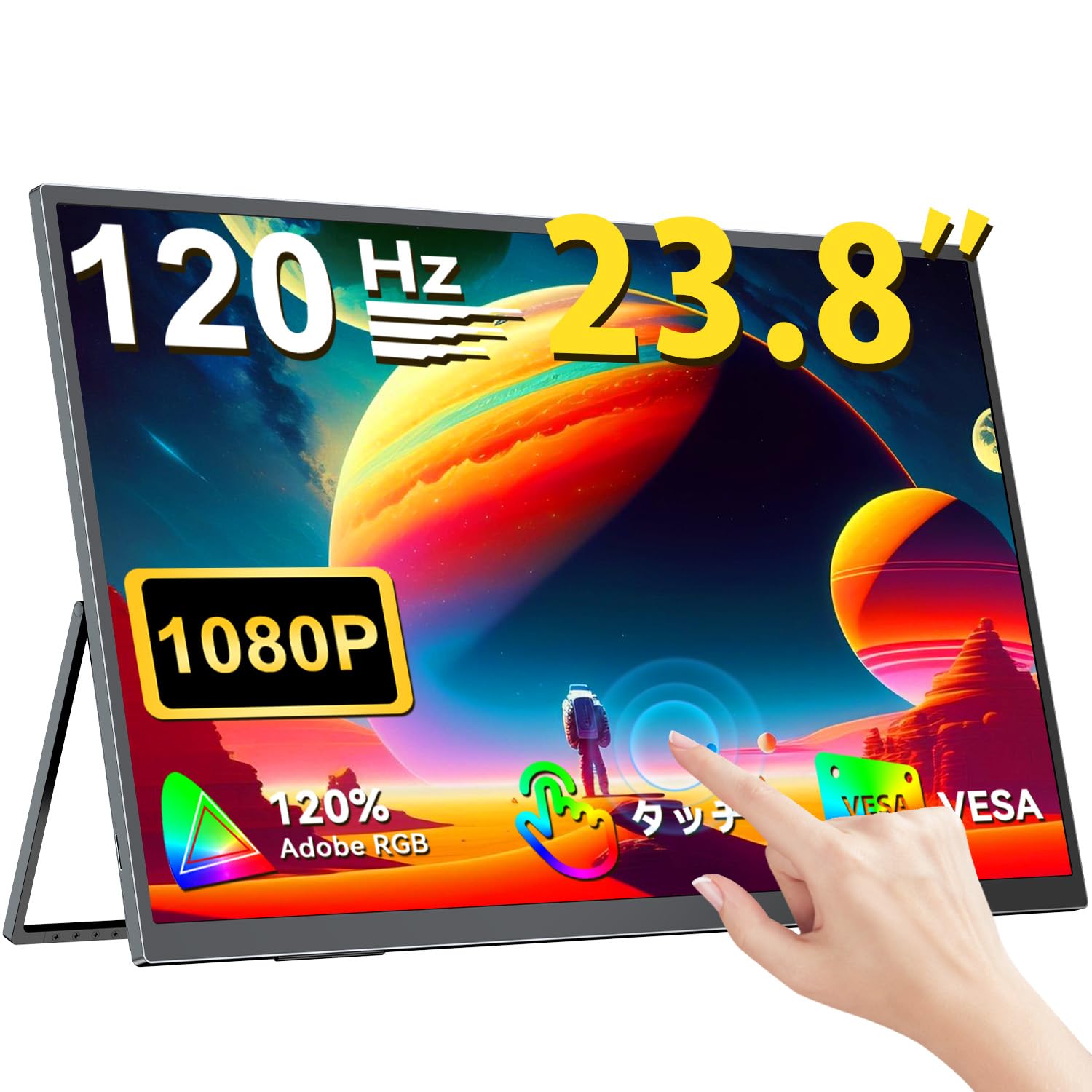
The UPERFECT 23.8-inch 120Hz Portable Touch Monitor.
Safety Information
To prevent damage and ensure safe operation, observe the following precautions:
- Do not expose the monitor to rain, moisture, or extreme temperatures.
- Avoid placing heavy objects on the monitor.
- Use only the provided power adapter and cables.
- Do not attempt to disassemble or repair the monitor yourself. Contact customer support for assistance.
- Ensure proper ventilation around the monitor to prevent overheating.
- When adjusting the stand, ensure the monitor is stable to prevent tipping.

Recommended ergonomic viewing angles for comfortable use. Avoid upward viewing angles to prevent tipping and eye strain.
Package Contents
Verify that all items are present in the package:
- UPERFECT 23.8-inch Portable Touch Monitor
- Power Adapter
- USB Type-C Cable (Full-featured)
- Mini HDMI to HDMI Cable
- USB-A to USB-C Cable (for power/OTG)
- User Manual
Product Overview
Monitor Features
- 23.8-inch IPS Panel: Large display with 178° wide viewing angles.
- 120Hz Refresh Rate: Provides smooth visuals, ideal for gaming and fast-paced content.
- 10-Point Multi-Touch: Intuitive interaction with supported devices.
- 120% sRGB Color Gamut: Delivers vibrant and accurate colors.
- Integrated Stand: Adjustable from 0° to 180° for flexible viewing positions.
- VESA Mount Compatible: Supports 75x75mm VESA standard for alternative mounting options.
- Non-Glare Screen: Reduces reflections for comfortable long-term use.
- Built-in Speakers: For audio output.
Ports and Buttons

Overview of the monitor's ports and control buttons.
- Earphone Jack: 3.5mm audio output.
- Menu Button: Accesses the On-Screen Display (OSD) menu.
- Plus/Minus Buttons: Navigate OSD menu, adjust volume/brightness.
- Power Indicator: Shows power status.
- Power/Return Button: Powers the monitor on/off, or returns to previous OSD menu.
- Type-C Ports (x2): Full-featured USB-C for power, video, and touch signal.
- Mini HDMI Port: Video input.
- Micro USB-B OTG Port: For connecting peripherals like mouse or keyboard.
Setup
Connecting to Devices
The monitor supports various devices including laptops, desktops, smartphones, and gaming consoles (PS4, PS5, Xbox, Nintendo Switch).

The monitor can be connected to various devices using a single Type-C cable for power and display, provided the device supports DP Alt Mode.
- USB Type-C Connection: Connect a full-featured USB Type-C cable from your device (laptop, smartphone, Switch) to one of the monitor's Type-C ports. If your device supports DP Alt Mode, a single cable can transmit video, audio, touch, and power. If your device does not support DP Alt Mode, or for stable power delivery, connect the included power adapter to the other Type-C port.
- Mini HDMI Connection: Connect a Mini HDMI to HDMI cable from your device (PC, game console) to the monitor's Mini HDMI port. For power, connect the included power adapter to one of the monitor's Type-C ports.
- OTG Port: Use the Micro USB-B OTG port to connect a mouse or keyboard for enhanced control, especially when using the monitor with a smartphone in desktop mode.
Important Note:
- For optimal performance, especially when increasing contrast, brightness, or color saturation, always connect the monitor to an external power source using the provided power adapter.
- If your device's USB-C port does not support DP Alt Mode, a Type-C cable alone cannot transmit video. Refer to your device's specifications for compatibility.
Stand Adjustment and VESA Mounting

The monitor features a smart integrated stand for flexible positioning and VESA compatibility for arm mounts.
- Integrated Stand: The monitor features a durable aluminum alloy integrated stand. Adjust the viewing angle freely within a 0° to 180° range. The base includes anti-slip rubber pads for stability.
- VESA Mounting: The monitor is compatible with VESA 75x75mm mounts (M4*4mm screw holes). This allows for attachment to monitor arms or wall brackets for a customized setup.
Operating Instructions
Power On/Off
Press the Power/Return button to turn the monitor on or off.
On-Screen Display (OSD) Menu
Press the Menu button to access the OSD menu. Use the Plus/Minus buttons to navigate and adjust settings such as brightness, contrast, color temperature, and input source.
Touch Functionality

The monitor supports 10-point multi-touch gestures for intuitive control. For MacBook connections, 2-point gestures (pinch zoom/rotate) are supported.
The monitor supports 10-point multi-touch for Windows and Android devices. For MacBook connections, 2-point gestures (pinch zoom/rotate) are fully supported. This allows for direct interaction with the screen for tasks like sketching, document navigation, and presentations.
Display Modes

Easily switch between horizontal (landscape) and vertical (portrait) display modes to suit your content and workflow. Portrait mode settings are configured on your PC.
The monitor supports various display modes to suit your needs:
- Extended Mode: Extend your PC desktop across both screens for increased workspace.
- Duplicate Mode: Mirror your PC screen for presentations or shared viewing.
- Portrait Mode: Rotate the monitor vertically for document review or coding. (Settings for portrait mode are typically configured on the connected PC).
Gaming Features

The monitor supports FreeSync technology to eliminate screen tearing and stuttering during gaming.
- 120Hz Refresh Rate: Experience smoother gameplay and action sequences compared to standard 60Hz displays.
- FreeSync Support: Compatible with FreeSync technology to reduce screen tearing and stuttering, providing a more fluid gaming experience.
- Fast Response Time: Enjoy a quick response time of 1ms, minimizing motion blur.
Maintenance
Follow these guidelines to maintain your monitor:
- Cleaning the Screen: Gently wipe the screen with a soft, lint-free cloth. For stubborn marks, slightly dampen the cloth with water or a screen-cleaning solution. Do not spray liquid directly onto the screen.
- Cleaning the Casing: Use a soft, dry cloth to clean the monitor casing. Avoid abrasive cleaners or solvents.
- Storage: When not in use for extended periods, store the monitor in a cool, dry place, away from direct sunlight and extreme temperatures.
- Fingerprint Resistance: The screen features an anti-fingerprint coating to help maintain cleanliness in business environments.
Troubleshooting
If you encounter issues, refer to the following common problems and solutions:
| Problem | Possible Cause | Solution |
|---|---|---|
| No display/No signal | Incorrect input source selected; Cable not connected properly; Device not outputting signal; Insufficient power. | Check cable connections; Select correct input source via OSD; Ensure device is powered on and configured to output to external display; Connect external power adapter to monitor. |
| Touch function not working | USB-C cable not full-featured; Device does not support touch output; Driver issue (Windows); Cable connection issue. | Ensure a full-featured USB-C cable is used; Verify device compatibility with touch output; Reconnect USB-C cable; For Windows, ensure touch drivers are installed (usually automatic). |
| Screen flickering/Unstable image | Cable issue; Graphics card issue; Refresh rate mismatch; Insufficient power. | Try a different cable; Update graphics drivers; Adjust refresh rate in device settings; Ensure external power is connected. |
| No audio from monitor speakers | Volume too low; Muted; Incorrect audio output selected on device. | Adjust monitor volume via OSD; Check device's audio output settings. |
| Monitor keeps restarting | Insufficient power. | Ensure the monitor is connected to the provided power adapter for stable power delivery. |
Specifications
| Feature | Specification |
|---|---|
| Brand | UPERFECT |
| Model Number | M238T02 |
| Screen Size | 23.8 inches |
| Resolution | FHD 1080p (1920 x 1080) |
| Aspect Ratio | 16:9 |
| Panel Type | IPS LCD |
| Screen Surface | Non-glare |
| Contrast Ratio | 1000:1 |
| Refresh Rate | 120 Hz |
| Response Time | 1 ms |
| Viewing Angle | 178 degrees |
| Color Gamut Value | 120% sRGB |
| Connectivity | 2x USB Type-C (Full-featured), 1x Mini HDMI, 1x Micro USB-B (OTG), 1x 3.5mm Audio Jack |
| VESA Compatibility | 75x75mm (M4*4mm screws) |
| Dimensions (D x W x H) | 1.7 x 54.5 x 32.7 cm |
| Adaptive Sync | FreeSync |
Warranty and Support
UPERFECT provides comprehensive support for your product:
- Manufacturer's Warranty: This product comes with a 2-year manufacturer's warranty.
- 90-Day Satisfaction Guarantee: If you are not completely satisfied within 90 days, a full refund is available.
- Dedicated Support: Contact our dedicated support team for any questions or issues.
- Free Accessory Replacement: Genuine cables and adapters are provided free of charge for life.
- PSE Certified: The product is PSE certified, ensuring safety standards.
For any inquiries or if you encounter an initial defect within the warranty period, please contact us through your order history. We are committed to providing the best possible assistance.


