
1. Product Overview
The Xiaomi Portable Photo Printer Pro is a compact and lightweight device designed for printing photos directly from your smartphone or other compatible devices. It utilizes advanced printing technology to produce high-quality, vibrant prints.
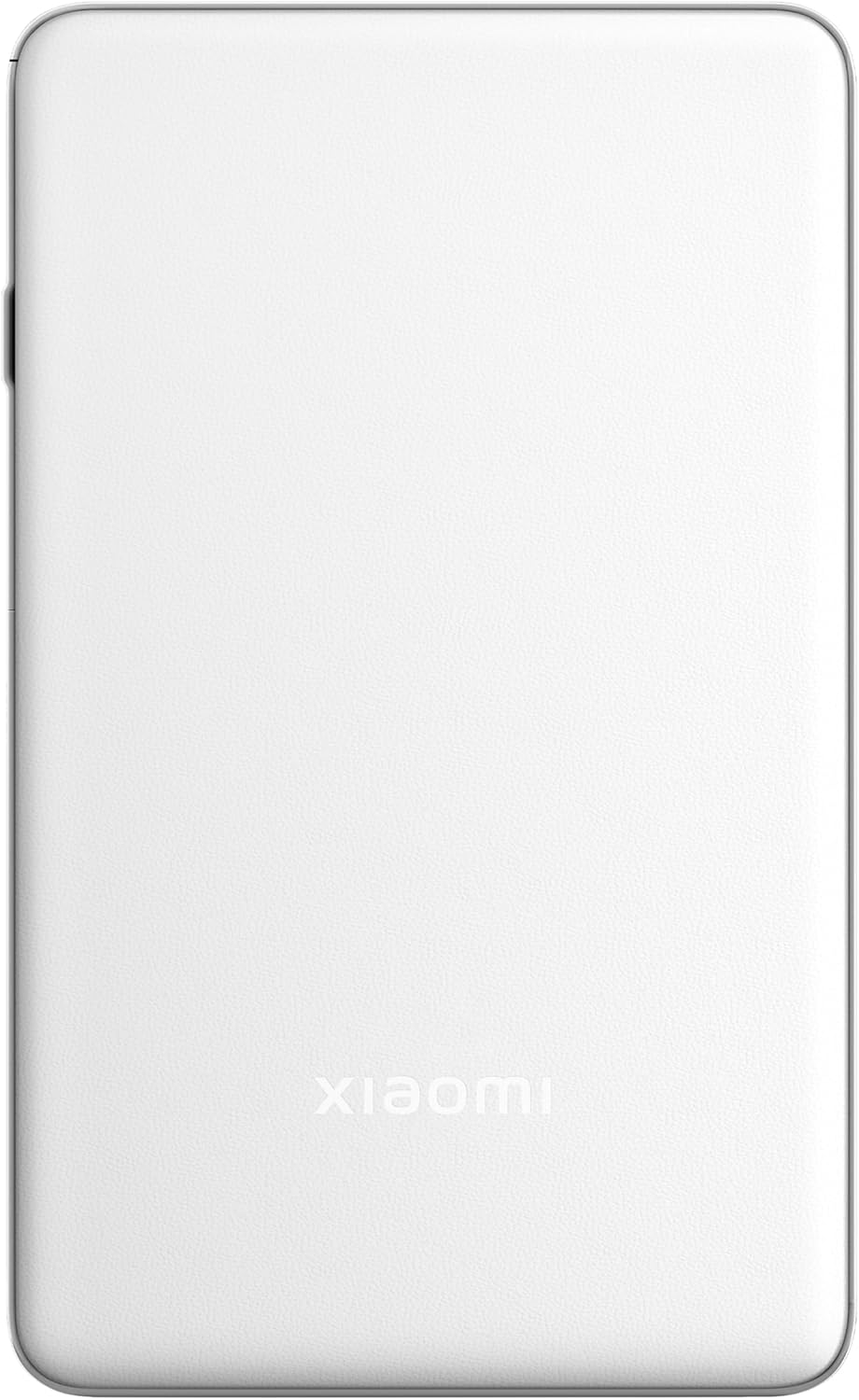
Image 1.1: Top view of the Xiaomi Portable Photo Printer Pro, showcasing its minimalist design and compact form factor.

Image 1.2: Side view of the Xiaomi Portable Photo Printer Pro, highlighting its slim profile and power button location.
2. Setup
2.1 Charging the Printer
Before initial use, fully charge the printer. Connect the provided USB charging cable to the printer's charging port and a compatible power adapter. The indicator light will show charging status.
2.2 Loading Photo Paper
- Open the paper tray cover on the printer.
- Insert the photo paper stack into the tray with the glossy side facing up. Ensure the paper is aligned correctly.
- Close the paper tray cover securely.

Image 2.1: The Xiaomi Portable Photo Printer Pro with photo paper being inserted into the paper tray, demonstrating the correct orientation.
2.3 Installing the Companion App
Download and install the official Xiaomi Home app (or designated printer app) from your device's app store. This app is required for connecting to the printer and managing print jobs.
2.4 Connecting via Bluetooth
- Ensure the printer is powered on.
- Enable Bluetooth on your smartphone or tablet.
- Open the Xiaomi Home app and follow the on-screen instructions to add a new device. Select the Xiaomi Portable Photo Printer Pro from the list of available devices.
- Confirm the pairing request on both your device and the printer if prompted.
3. Operating Instructions
3.1 Powering On/Off
- To Power On: Press and hold the power button for approximately 3 seconds until the indicator light illuminates.
- To Power Off: Press and hold the power button for approximately 3 seconds until the indicator light turns off.
3.2 Printing Photos
- Ensure the printer is powered on and connected to your device via Bluetooth.
- Open the Xiaomi Home app and select the photo you wish to print.
- Adjust any print settings (e.g., size, filters) within the app.
- Tap the 'Print' button. The printer will feed the paper and begin printing.

Image 3.1: The Xiaomi Portable Photo Printer Pro positioned on a wooden table, actively printing a photo, with the printed image emerging from the top slot.

Image 3.2: The Xiaomi Portable Photo Printer Pro being held in a hand, illustrating its portability and ease of handling for on-the-go printing.
4. Maintenance
4.1 Cleaning the Printer
- Ensure the printer is powered off before cleaning.
- Use a soft, dry, lint-free cloth to wipe the exterior of the printer.
- Do not use liquid cleaners or abrasive materials, as these can damage the device.
4.2 Replacing Photo Paper
When the printer runs out of paper, follow the steps in Section 2.2 to load a new stack of photo paper. Use only genuine Xiaomi photo paper for optimal print quality and to prevent damage to the printer.
4.3 Battery Care
- Avoid exposing the printer to extreme temperatures.
- If storing the printer for an extended period, ensure it is partially charged (around 50%) to prolong battery life.
- Recharge the battery regularly, even if not in frequent use.
5. Troubleshooting
- Printer Not Powering On: Ensure the battery is charged. Connect the printer to a power source and try again.
- Cannot Connect via Bluetooth:
- Ensure Bluetooth is enabled on your device and the printer.
- Restart both the printer and your device.
- Forget the device in your phone's Bluetooth settings and attempt to pair again through the app.
- Poor Print Quality:
- Check if the photo paper is loaded correctly with the glossy side up.
- Ensure you are using genuine Xiaomi photo paper.
- The image resolution might be too low. Try printing a higher-resolution image.
- Paper Jam:
- Power off the printer immediately.
- Carefully open the paper tray cover and gently remove any jammed paper. Avoid tearing the paper inside the mechanism.
- Close the cover and power on the printer.
- Printer Not Responding: Try performing a soft reset by pressing and holding the power button for 10-15 seconds until the printer restarts.
6. Specifications
| Feature | Specification |
|---|---|
| Model | KDRSHDY03HT |
| Product Dimensions | 14.25 x 8.68 x 2.68 cm |
| Item Weight | 308 Grams |
| Max Input Sheet Capacity | 20 sheets |
| Print Media | Glossy photo paper, Plain paper |
| Printer Output | Colour |
| Special Features | Portable |
| Batteries | 1 x 12V battery (included) |
| Connectivity | Bluetooth |
7. Warranty and Support
7.1 Warranty Information
The Xiaomi Portable Photo Printer Pro comes with a standard manufacturer's warranty. Please refer to the warranty card included in the product packaging for specific terms, conditions, and duration. Keep your proof of purchase for warranty claims.
7.2 Customer Support
For technical assistance, troubleshooting beyond this manual, or warranty inquiries, please contact Xiaomi customer support. Visit the official Xiaomi website for contact details and support resources.
You can find more information and support at the official XIAOMI Store.


