
1. Introduction
This manual provides detailed instructions for the installation, operation, and maintenance of your AMprime Android 15 Car Radio Stereo. Please read this manual thoroughly before using the product to ensure proper function and safety. This unit is designed for specific VW, Volkswagen, Seat, Golf, Passat, Jetta, Beetle, Tiguan, Touran, and EOS models.
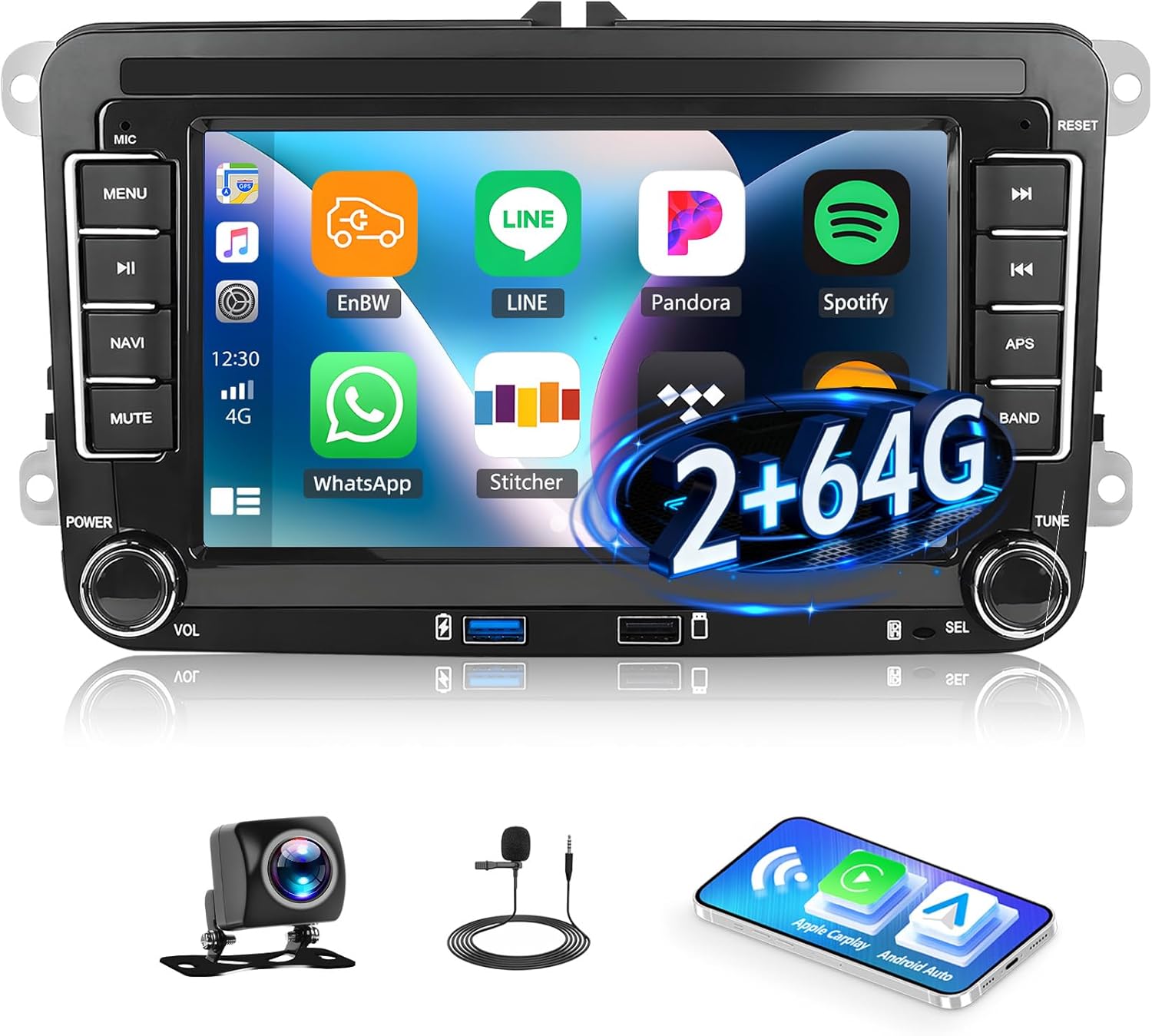
Image 1.1: AMprime Android 15 Car Radio Stereo with included accessories.
2. Product Overview and Features
The AMprime Android 15 Car Radio Stereo features a 7-inch capacitive touch screen with 1024*600 high resolution. It operates on the Android 15 system with 2GB RAM and 64GB ROM, ensuring smooth performance. Key features include:
- Wireless CarPlay & Android Auto: Seamless integration with your smartphone for navigation, calls, and music.
- Mirror Link: Supports both iOS and Android devices for screen mirroring.
- GPS Navigation: Built-in WiFi module supports online and offline maps, including a pre-installed North America offline map.
- FM/RDS Radio: Automotive-level chipset for optimal radio signal reception with 18 preset stations.
- Bluetooth 5.0: Stable connection for hands-free calling and music streaming.
- Steering Wheel Control (SWC): Compatible with existing vehicle steering wheel controls for convenient operation.
- AHD Rear View Camera Support: Includes a waterproof AHD camera with 170° ultra-wide field of view for enhanced safety during reversing.
- EQ Sound Effects: Various equalizer settings for customized audio experience.
Applicable Car Models
This car stereo is compatible with various models from Seat, VW, and Skoda. Please refer to the image below for specific model and year compatibility.

Image 2.1: Applicable car models for the AMprime car stereo.
3. Package Contents
Verify that all items listed below are included in your package:
- AMprime Android Car Radio Stereo Unit
- Power Cable (x2)
- 6-pin USB Cable
- Rear Camera Input Cable
- Radio Antenna
- AHD Rear View Camera
- RCA Cable
- Canbus Decoder
- GPS Antenna
- User Manual
- External Microphone

Image 3.1: Visual representation of the package contents and unit dimensions.
4. Installation Guide
Professional installation is recommended. Ensure the vehicle's power is disconnected before beginning installation.
4.1. Removing the Old Radio
- Carefully lift the top panel above the existing radio to expose two screws.
- Remove these two T20 screws.
- Gently pry off the entire panel surrounding the radio.
- Remove the four T20 screws securing the old radio.
- Slide the old radio out and disconnect all harnesses and the antenna cable from its rear.
4.2. Connecting the New Stereo
Connect the provided wiring harness to the vehicle's existing harness. Ensure all connections are secure. Plug in the antenna adapter and then the vehicle's antenna into the adapter. Connect any external accessories such as the rear-facing camera, external microphone, and USB ports as desired.
4.3. Installing the New Stereo
- Carefully slide the new AMprime stereo unit into the dashboard opening, ensuring all cables are tucked away and not pinched.
- Secure the new stereo unit with the four T20 screws.
- Reinstall the surrounding panel, ensuring it clicks securely into place.
- Reinstall the two T20 screws at the top and snap the top panel back down.
For a visual guide on the installation process, please refer to the video below:
Video 4.1: Demonstration of removing an old car radio and installing a new unit in a 2008 Jetta.

Image 4.1: Comparison of the dashboard before and after installing the AMprime car stereo.
5. Operating Instructions
5.1. Initial Power-On and Main Interface
Upon first power-on, the unit will boot up and display the main interface. The interface is customizable, allowing you to add or remove application shortcuts to your homepage. The display is a 7-inch touchscreen.
5.2. Wireless CarPlay & Android Auto
This stereo supports both Wireless CarPlay and Android Auto. Connect your smartphone via Bluetooth to project its content onto the stereo's large screen. This allows for easy access to calls, navigation, music, and other applications through voice controls (Siri/Google Assistant).

Image 5.1: Wireless CarPlay and Android Auto functionality.
5.3. Bluetooth Connectivity
Bluetooth 5.0 provides a stable connection for hands-free calls and audio streaming. To connect your phone, enable Bluetooth on your device, scan for available devices, and select the stereo (typically named 'AON' or similar). Enter the pairing code (usually 0000 or 1234) if prompted.
Video 5.2: Demonstration of Bluetooth connectivity, including calls and music playback. (Note: This video features an Android 9.1 unit, but the Bluetooth functionality is similar).

Image 5.2: FM/RDS Radio and Bluetooth hands-free calling.
5.4. GPS Navigation & WiFi
The built-in WiFi module allows you to connect to a hotspot (e.g., from your phone) to access online maps and download applications from the Application Store. The unit also supports offline navigation with pre-installed North American maps.

Image 5.3: WiFi/Hotspot connectivity and GPS navigation with voice control.
5.5. FM/RDS Radio
Enjoy clear radio reception with the FM/RDS function. You can scan for stations and save up to 18 presets. The unit supports both AM and FM bands.
5.6. Steering Wheel Control (SWC)
The car radio supports your vehicle's steering wheel controls, allowing you to manage songs, adjust volume, and answer calls without taking your hands off the wheel. Refer to the settings section for learning/calibration.
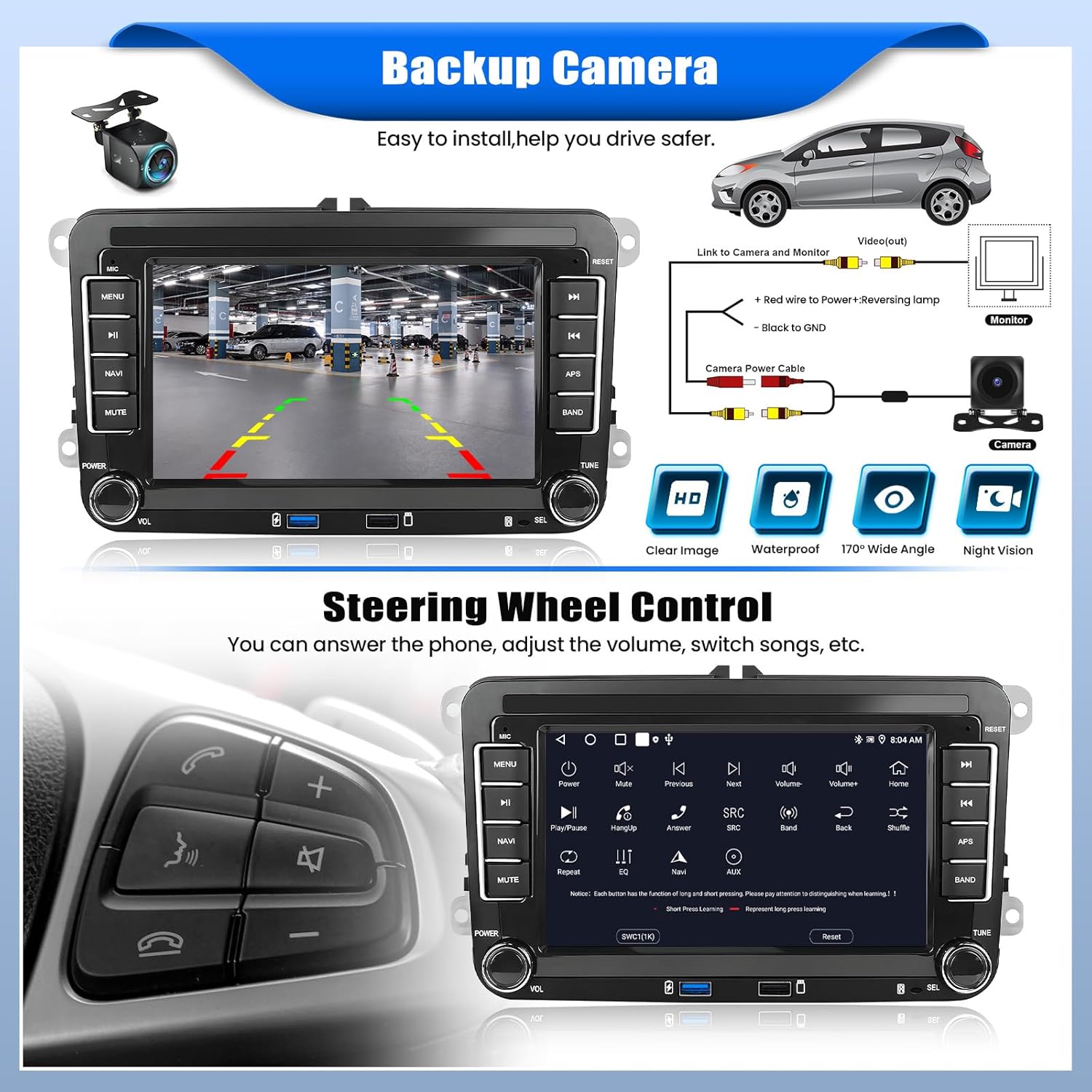
Image 5.4: Backup camera display and steering wheel control interface.
5.7. Rear View Camera
When the vehicle is shifted into reverse, the AHD rear view camera image will automatically display on the touchscreen, providing a 170° ultra-wide field of view and excellent night vision for safer reversing.
5.8. Multiple UI Styles & EQ Function
The stereo offers multiple user interface styles for personalization. Additionally, it includes an EQ function with various sound effects and a 15-band equalizer to fine-tune your audio output.

Image 5.5: Multiple UI styles and EQ sound settings.
6. Settings and Customization
The Android operating system allows for extensive customization. Access the settings menu to configure network connections, device preferences, personal settings (like date and time), and system updates.
6.1. Display Settings
Adjust brightness, screen dimming (automatic with headlights), and choose from various wallpapers. You can also change the colors of the physical buttons on the unit.
6.2. Steering Wheel Control Learning
If your vehicle has steering wheel controls, navigate to the 'Steering Wheel Learning' section in the settings to program the buttons to control the stereo functions.
6.3. Factory Reset
To erase all data and restore the stereo to its original factory settings, locate the 'Reset' option within the system settings. This is useful if you are selling the vehicle or encountering persistent software issues.
Video 6.1: Overview of key features and connectivity options. (Note: This video features an Android 14 unit, but many settings and features are similar).
7. Maintenance
To ensure the longevity and optimal performance of your AMprime car stereo, follow these maintenance guidelines:
- Cleaning: Use a soft, dry cloth to clean the touchscreen and exterior. Avoid abrasive cleaners or solvents.
- Software Updates: Periodically check for system updates via the settings menu to ensure you have the latest features and security patches.
- Temperature: Avoid exposing the unit to extreme temperatures, as this can affect performance and lifespan.
- Connections: Ensure all wiring connections remain secure and free from corrosion.
8. Troubleshooting
If you encounter any issues with your AMprime car stereo, refer to the following common troubleshooting steps:
- No Power: Check all power connections and the 15A fuse located on the back of the head unit. Ensure the vehicle's ignition is on.
- No Sound: Verify speaker connections, check volume levels, and ensure the mute function is not activated. Check EQ settings.
- Bluetooth Connection Issues: Ensure Bluetooth is enabled on both the stereo and your phone. Try unpairing and re-pairing the devices.
- GPS Signal Loss: Ensure the GPS antenna is properly installed and has a clear view of the sky. Check WiFi connection for online maps.
- Touchscreen Unresponsive: Try restarting the unit. If the issue persists, a factory reset may be necessary (refer to Section 6.3).
- Rear Camera Not Displaying: Check the camera's power and video input connections. Ensure the reverse gear signal wire is correctly connected.
If these steps do not resolve the issue, please contact customer support.
9. Specifications
| Feature | Specification |
|---|---|
| Operating System | Android 15 |
| RAM | 2 GB |
| Internal Storage | 64 GB |
| Screen Size | 7 Inches |
| Display Resolution | 1024*600 |
| Touch Screen Type | Capacitive |
| Connectivity Technology | Bluetooth 5.0, WiFi |
| Map Type | Worldwide (North America offline map included) |
| Vehicle Service Type | Car |
| Manufacturer | AMprime |
| Parcel Dimensions | 22 x 17 x 10 cm; 1.1 kg |
10. Warranty Information
This AMprime Car Radio Stereo comes with a 1-year warranty. For returns or replacements, a 31-day duration is typically offered from the date of purchase. Please retain your proof of purchase for any warranty claims.
11. Support
For online customer support and further instructions, please contact:
AmprimeTechSupport@yeah.net

Image 11.1: AMprime Customer Support Contact Information.