
Introduction
This manual provides detailed instructions for the installation, operation, and maintenance of your PGST Wireless Home Security System. This system offers comprehensive home security without recurring monthly fees, utilizing WiFi and optional 4G SIM connectivity for real-time alerts and remote control via the Smart Life or Tuya app. It is designed for easy DIY installation and is expandable to suit various security needs.
Package Contents
- 1x Keypad Base Station
- 8x Contact Sensors (Door/Window Sensors)
- 2x Motion Sensors
- 3x Remote Controls
- 1x PTZ Camera
- Power Adapter and USB Cable
- Mounting Hardware (screws, self-adhesive pads)
- User Manual (this document)
Safety Information
- Ensure the power adapter is connected to a suitable power outlet.
- Do not expose the devices to extreme temperatures, humidity, or direct sunlight.
- Keep the devices away from water or other liquids.
- Do not attempt to disassemble or repair the devices yourself. Contact customer support for assistance.
- Use only the specified battery types for sensors and remotes.
- Keep small parts and batteries out of reach of children.
- The alarm siren can reach 120dB. Avoid prolonged exposure to prevent hearing damage.
Setup
Keypad Base Station Initial Setup
- Connect to Power: Connect the provided power adapter to the Keypad Base Station and plug it into a wall outlet. Ensure the battery power switch on the side of the unit is turned ON.
- Disarm the System: Press the "Disarm" button on the keypad, then enter the default code (usually 6666), followed by '#' and '00', then '#'. This disarms the system for initial setup.
- Download App: Download and install the "Smart Life" or "Tuya" app from your smartphone's app store.
- Add Device: Open the app, register or log in, and click the "+" icon to "Add Device". Follow the in-app instructions to add your security system.
- Connect to Wi-Fi: Ensure your smartphone is connected to a 2.4GHz Wi-Fi network. Enter your Wi-Fi password in the app to connect the Keypad Base Station.
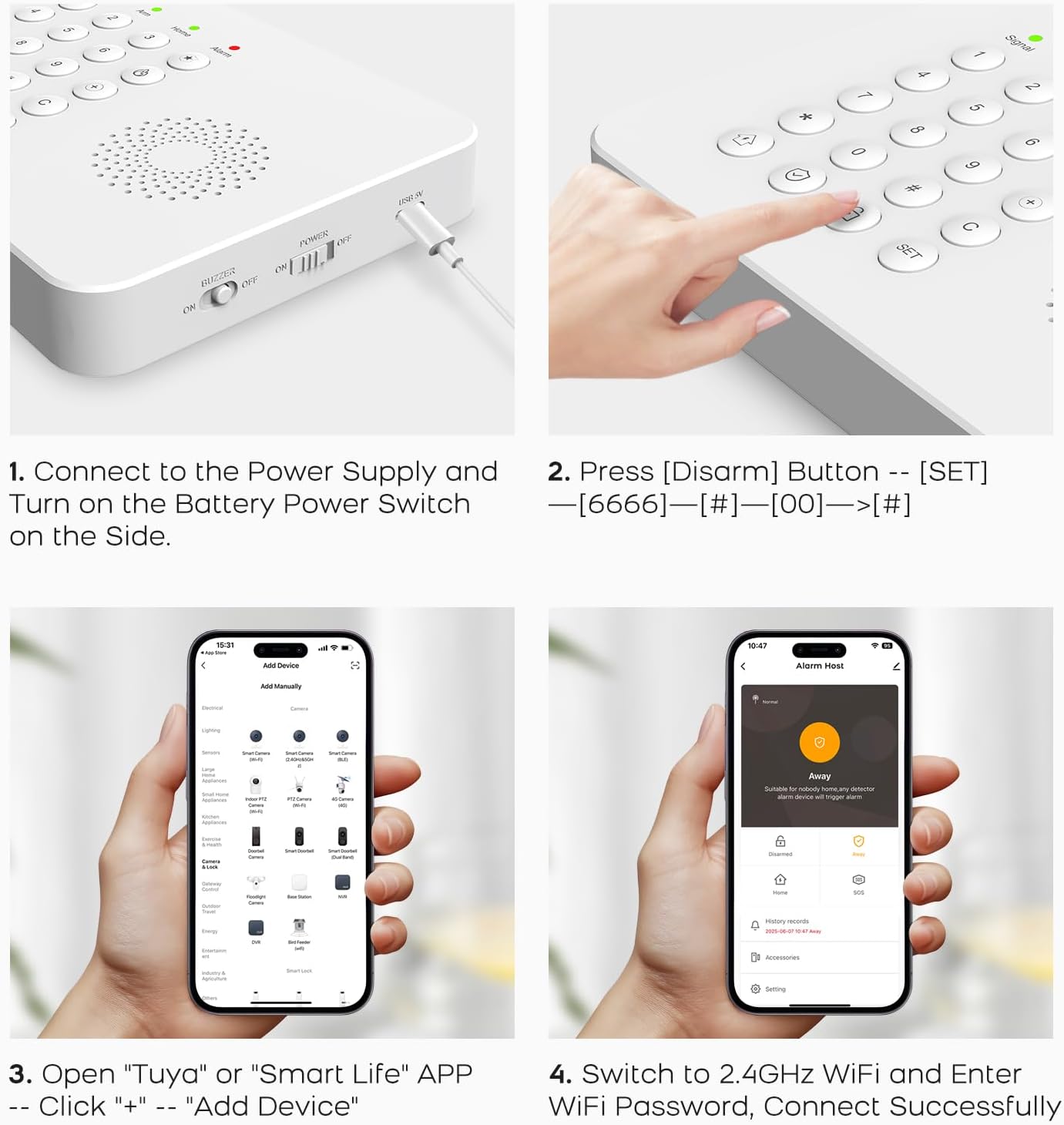
Figure 1: Keypad Base Station Initial Setup Steps
Sensor Installation
The system includes door/window contact sensors and motion sensors. These sensors are wireless and can be easily installed using the provided self-adhesive pads or screws.
- Door/Window Contact Sensors: Mount the two parts of the sensor on the door/window frame and the door/window itself. Ensure they are aligned and within 0.6 inches of each other when the door/window is closed. An alarm will trigger if the distance exceeds this when the system is armed.
- Motion Sensors: Install motion sensors in areas where movement detection is critical. Position them to cover the desired area, typically in corners or high vantage points. The motion sensor provides 110° coverage up to 12 meters.

Figure 2: Door and Window Contact Sensor Installation

Figure 3: Motion Detector Installation
PTZ Camera Setup
The included PTZ (Pan-Tilt-Zoom) camera provides 360° coverage (320° horizontal and 70° vertical viewing angle) and integrates with the Smart Life/Tuya app for remote viewing and control.
- Power On: Connect the PTZ camera to its power source.
- Add to App: Open the Smart Life/Tuya app, click "+" to add a new device, and select the camera from the list. Follow the on-screen instructions to pair the camera with your Wi-Fi network.
- Positioning: Place the camera in a central location to maximize its 360° coverage.

Figure 4: PTZ Camera Features

Figure 5: PTZ Camera 360° Coverage
Operating the System
Arming and Disarming
The system can be armed or disarmed using the keypad or the remote controls.
- Arm (Away Mode): Press the "Arm" button on the keypad or the locked padlock icon on the remote. This arms all indoor and outdoor sensors.
- Home Arm (Stay Mode): Press the "Home" button on the keypad or the house icon on the remote. This arms outdoor sensors while disarming indoor sensors, allowing free movement within the home.
- Disarm: Press the "Disarm" button on the keypad and enter your code, or press the unlocked padlock icon on the remote.
- SOS/Panic Button: Press the SOS button on the remote or the keypad to immediately trigger the alarm and send emergency notifications.

Figure 6: Remote Control Functions
App Control (Smart Life/Tuya)
The Smart Life or Tuya app provides complete control and customization of your security system from anywhere.
- Dashboard: View the current status (Armed, Disarmed, Home) and access quick controls.
- History Records: Review event logs, including arming/disarming times and triggered alarms.
- Device Management: Add, remove, or configure individual sensors and the PTZ camera.
- Smart Scenes: Create automated scenarios, such as arming the system when you leave home or turning on lights when an alarm is triggered.

Figure 7: Smart Life App Interface
Voice Control
Integrate your PGST security system with Amazon Alexa or Google Assistant for hands-free control using simple voice commands.
- Enable Skill/Action: In the Alexa or Google Home app, search for and enable the "Smart Life" or "Tuya" skill/action.
- Link Account: Link your Smart Life/Tuya account to your voice assistant account.
- Voice Commands: Use commands like "Alexa, arm my home" or "Hey Google, disarm the security system" (you may need to set up a voice PIN for disarming).

Figure 8: Voice Control Integration
Alert Notifications
When a sensor is triggered while the system is armed, you will receive immediate alerts through multiple channels:
- Audible Alarm: The Keypad Base Station will emit a loud 120dB siren.
- App Alerts: Instant push notifications will be sent to your smartphone via the Smart Life/Tuya app.
- SMS and Phone Calls: If a 4G SIM card is installed in the base station, the system can send SMS messages and make phone calls to pre-configured emergency contacts.

Figure 9: Call and SMS Notification
Maintenance
- Battery Replacement: Sensors and remotes are battery-powered. The app will provide a "Sensor low battery reminder" when batteries need replacement. Refer to individual sensor manuals for specific battery types and replacement procedures. The Keypad Base Station has a built-in Lithium Ion battery with approximately 8 hours of backup power during outages.
- Cleaning: Use a soft, dry cloth to clean the surfaces of the devices. Do not use liquid cleaners or abrasive materials.
- Firmware Updates: Periodically check the Smart Life/Tuya app for available firmware updates for your devices to ensure optimal performance and security.

Figure 10: Sensor Low Battery Reminder
Troubleshooting
| Issue | Possible Cause | Solution |
|---|---|---|
| System not connecting to Wi-Fi | Incorrect Wi-Fi password, 5GHz Wi-Fi network, weak signal. | Ensure you are connecting to a 2.4GHz Wi-Fi network. Verify the Wi-Fi password. Move the base station closer to the router. |
| Sensors not triggering alarm | Sensor not paired, low battery, incorrect installation, system disarmed. | Check sensor battery status in the app. Re-pair the sensor if necessary. Ensure door/window sensors are aligned correctly. Verify the system is armed. |
| No app notifications | App permissions, notification settings, internet connectivity. | Check app notification permissions on your smartphone. Ensure your phone has internet access. Verify app settings for alerts. |
| Remote control not working | Low battery, out of range. | Replace the remote control battery. Ensure you are within the operating range of the base station. |
| False motion alarms | Incorrect sensor placement, pets, drafts. | Adjust motion sensor sensitivity settings in the app. Reposition the sensor to avoid areas with pets or strong air currents. |
Specifications
| Feature | Detail |
|---|---|
| Brand | PGST |
| Model Number | PG-A02 |
| Connectivity Technology | Wireless (2.4GHz Wi-Fi, 4G SIM support) |
| Power Source | Battery Powered / Power Cord Supply |
| Base Station Battery | 1x Lithium Ion (included), 8 hours battery life |
| Compatible Apps | Smart Life App, Tuya APP |
| Control Methods | App, Push Button (Keypad), Remote Control, Voice Control (Alexa, Google Assistant) |
| Alert Type | Audible (120dB), Mobile Notification (App, SMS, Phone Call) |
| Maximum Range | 1000 Feet (wireless sensor range) |
| Expandability | Supports up to 200 wireless sensors and 10 remotes |
| Motion Sensor Coverage | 110° at up to 12 meters |
| PTZ Camera Coverage | 320° Horizontal, 70° Vertical |
| Installation Type | Self-Adhesive | Mount with Screws |
| Item Dimensions (L x W x H) | 10 x 6.5 x 7 inches |
| Item Weight | 16 ounces (1 pound) |
Warranty and Support
Your PGST Wireless Home Security System is covered by a manufacturer's warranty. For specific warranty details, please refer to the warranty card included in your package or visit the official PGST website. For technical support, troubleshooting assistance, or to inquire about additional accessories, please contact PGST customer service through the contact information provided on their website or within the Smart Life/Tuya app.


