
1. Introduction
This manual provides detailed instructions for the installation, operation, and maintenance of your AWESAFE Android 13.0 Car Radio. This device is specifically designed for Seat Leon MK2 models manufactured between 2005 and 2012, offering a 9-inch touchscreen with advanced features including wireless CarPlay, Android Auto, GPS navigation, WiFi, Bluetooth, DSP, RDS, USB, FM radio, and MirrorLink functionality. Please read this manual thoroughly before installation and use to ensure proper function and safety.
2. Safety Information
- Professional Installation Recommended: Due to the complexity of vehicle electrical systems, professional installation is highly recommended to prevent damage to the unit or your vehicle.
- Power Supply: Ensure the car radio is connected to a 12V DC power supply with negative grounding. Incorrect voltage can cause damage.
- Wiring: Double-check all wiring connections before powering on the unit. Incorrect wiring can lead to short circuits or malfunction.
- Driving Safety: Do not operate the device in a way that distracts you from driving. Always prioritize road safety.
- Temperature: Avoid exposing the unit to extreme temperatures or direct sunlight for prolonged periods.
- Moisture: Keep the unit dry. Exposure to moisture can cause electrical hazards and damage.
3. Package Contents
Upon opening the package, verify that all components are present and undamaged. The standard package includes:
- AWESAFE Android 13.0 Car Radio Unit
- Power Harness (with CAN bus decoder for Seat Leon MK2)
- GPS Antenna
- USB Cables (typically two, for data and charging/CarPlay)
- RCA Cables (for audio/video output, subwoofer, amplifier)
- External Microphone (for hands-free calling)
- User Manual (this document)
4. Setup & Installation
This section outlines the general steps for installing your AWESAFE car radio. Specific vehicle disassembly instructions are not included and may require consulting a vehicle-specific guide or professional assistance.
4.1 Pre-Installation Checks
- Disconnect the vehicle's battery to prevent electrical shorts.
- Remove the original car radio and trim panel.
- Inspect the vehicle's wiring harness for compatibility.
4.2 Wiring Connections
Connect the provided wiring harness to the car radio and the vehicle's existing harness. Ensure all connections are secure.
- Power Harness: Connect the main power harness. For Seat Leon MK2, this typically includes a CAN bus decoder to integrate with vehicle systems like steering wheel controls and ignition power. Ensure the white pin connector for steering wheel controls is connected if applicable.
- GPS Antenna: Connect the GPS antenna and route it to a location with a clear view of the sky (e.g., dashboard, A-pillar).
- USB Cables: Connect both USB cables. One is typically for data transfer and CarPlay/Android Auto, while the other can be used for media storage or charging. Route them to a convenient location (e.g., glove compartment, center console).
- External Microphone: Connect the external microphone for improved call quality and route it to a suitable position (e.g., near the sun visor).
- Rear Camera (Optional): If installing a rear camera, connect its video input and power trigger wire to the designated ports on the radio harness.
- Antenna Adapter: Connect the vehicle's radio antenna to the unit using the appropriate adapter if necessary.
4.3 Mounting the Unit
Carefully slide the AWESAFE car radio into the dashboard opening. Ensure all wires are tucked away and not pinched. Secure the unit using the vehicle's mounting brackets or screws. The trim panel may require minor adjustments for a perfect fit.
4.4 Initial Power-On
Reconnect the vehicle's battery. Turn on the ignition. The car radio should power on. Follow any on-screen prompts for initial setup.

Figure 4.1: Visual comparison of the original Seat Leon MK2 dashboard before and after installing the AWESAFE Android car radio.
5. Operating Instructions
5.1 Basic Controls
- Power On/Off: The unit typically powers on with the vehicle's ignition. A long press on the power button (if available) can turn the screen off or put the unit into standby.
- Volume Control: Adjust volume using the on-screen controls, steering wheel buttons, or physical knobs if present.
5.2 Touchscreen Interface
The 9-inch capacitive touchscreen allows for intuitive control. Navigate through menus, launch applications, and adjust settings by tapping, swiping, and pinching.
5.3 FM Radio with RDS
Access the FM Radio application to tune into radio stations. The RDS (Radio Data System) feature displays station information, song titles, and traffic announcements where available.

Figure 5.1: FM Radio interface and Digital Sound Processor (DSP) settings.
5.4 Bluetooth Connectivity
Pair your smartphone via Bluetooth for hands-free calling and audio streaming.
- Go to the Bluetooth settings on the car radio.
- Enable Bluetooth on your smartphone and search for available devices.
- Select the car radio's Bluetooth name (e.g., "AWESAFE") from your phone's list and confirm pairing.
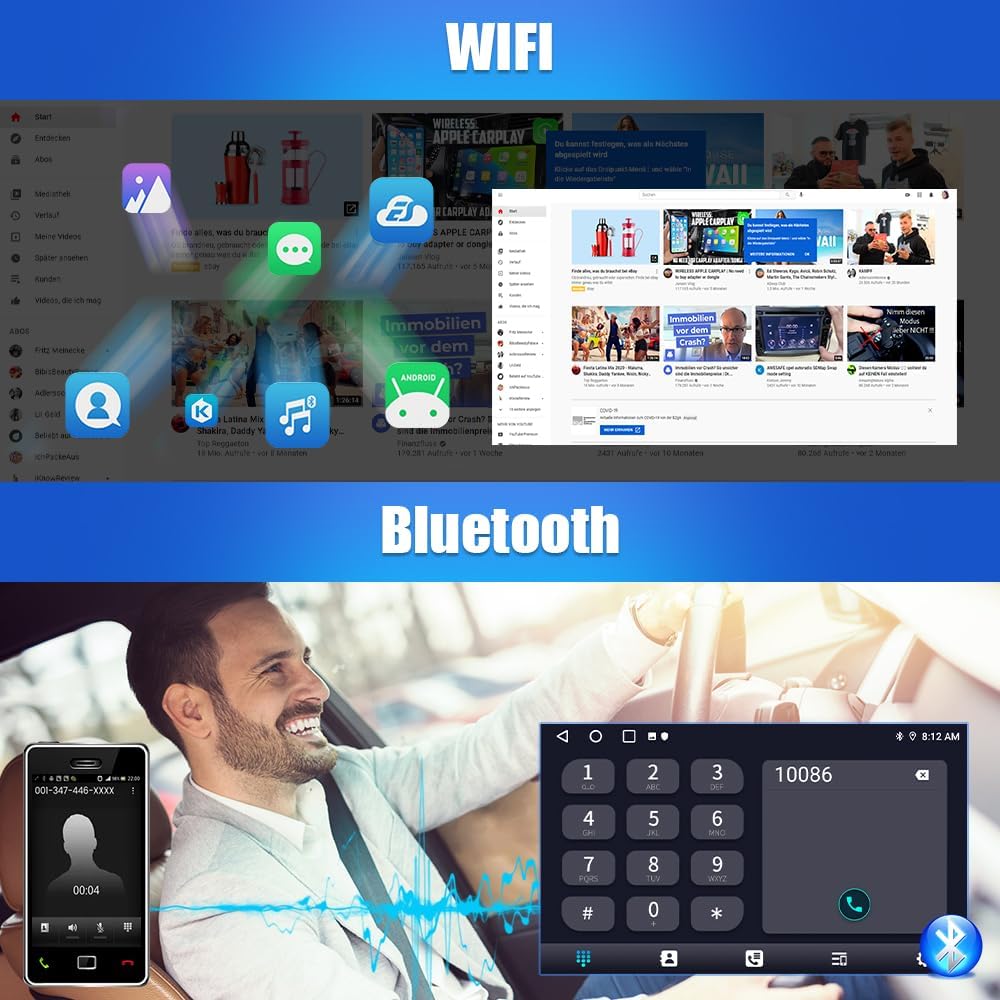
Figure 5.2: WiFi connectivity and Bluetooth phone interface.
5.5 Wireless CarPlay / Android Auto
Connect your iPhone or Android smartphone wirelessly for seamless integration of navigation, music, calls, and messages.
- Ensure your phone's Wi-Fi and Bluetooth are enabled.
- On the car radio, open the CarPlay or Android Auto application.
- Follow the on-screen instructions to pair your device. For some devices, a wired connection via USB may be required for initial setup or for more stable performance.
5.6 GPS Navigation
The unit supports both online and offline GPS navigation. Pre-installed maps or downloadable map applications can be used. Ensure the GPS antenna is properly installed for optimal signal reception.
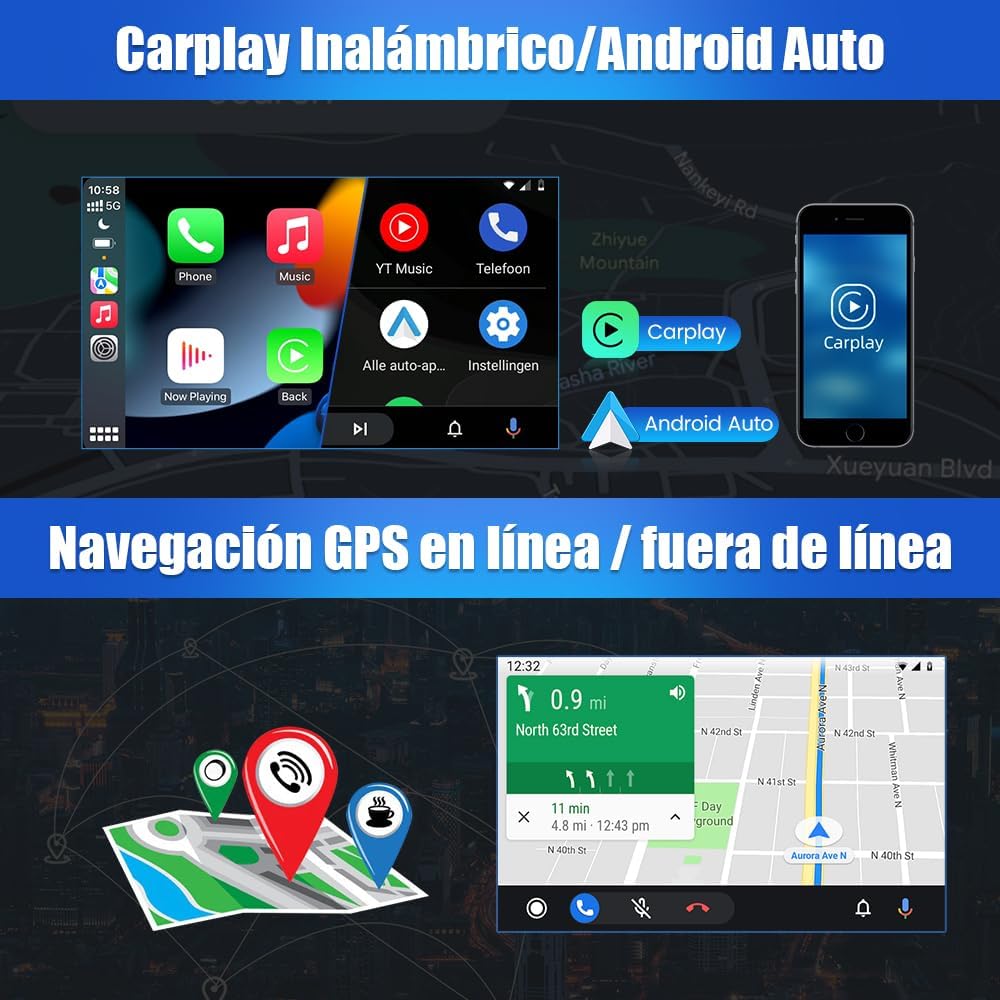
Figure 5.3: Wireless CarPlay/Android Auto and GPS navigation display.
5.7 WiFi Connectivity
Connect the car radio to a Wi-Fi hotspot (e.g., from your smartphone) to access online features, download apps, and browse the internet.
5.8 Digital Sound Processor (DSP)
Utilize the built-in DSP to customize your audio experience. Adjust equalizer settings, balance, fader, and surround sound modes to match your preferences and vehicle acoustics.
5.9 Split Screen Function
The split-screen feature allows you to run two applications simultaneously, such as navigation on one side and music playback on the other.

Figure 5.4: Split screen functionality and examples of multiple UI interfaces.
5.10 Steering Wheel Control
The unit supports integration with your vehicle's existing steering wheel controls, allowing you to manage audio, calls, and other functions without taking your hands off the wheel. Configuration may be required in the settings menu.
5.11 Rear Camera Input
When a compatible rear camera is connected, the display automatically switches to the camera view when the vehicle is put into reverse gear.

Figure 5.5: Rear camera display and steering wheel control interface.
5.12 Multiple UI Interfaces
The car radio offers various user interface themes and layouts, allowing you to personalize the look and feel of your system.
6. Maintenance
- Screen Cleaning: Use a soft, lint-free cloth slightly dampened with water or a screen cleaner specifically designed for electronics. Avoid abrasive materials or harsh chemicals.
- Software Updates: Periodically check for software updates through the system settings or the manufacturer's website. Updates can improve performance, add features, and fix bugs.
- General Care: Keep the unit free from dust and debris. Ensure proper ventilation around the unit to prevent overheating.
7. Troubleshooting
If you encounter issues with your AWESAFE car radio, refer to the following common problems and solutions:
| Problem | Possible Cause | Solution |
|---|---|---|
| Unit does not power on. | Loose power connection, blown fuse, incorrect wiring. | Check all power cables and connections. Inspect vehicle fuses and the unit's fuse. Ensure the ignition wire is correctly connected. |
| No sound or poor sound quality. | Speaker wires disconnected, volume too low, DSP settings misconfigured. | Verify speaker connections. Adjust volume. Check DSP equalizer and balance settings. |
| GPS signal is weak or inaccurate. | GPS antenna improperly installed or obstructed. | Ensure the GPS antenna is mounted in a location with a clear view of the sky, away from metal obstructions. |
| Bluetooth connection issues. | Phone not in pairing mode, incorrect pairing process, interference. | Ensure Bluetooth is enabled on both devices. Delete previous pairings and try again. Move closer to the unit. |
| Wireless CarPlay/Android Auto unstable. | Wi-Fi interference, phone software issues, unit software issues. | Try a wired connection via USB. Restart both the phone and the car radio. Ensure both devices have the latest software updates. |
| Steering wheel controls not working. | CAN bus connection issue, incorrect configuration. | Verify the CAN bus decoder and its white pin connector are correctly installed. Access the steering wheel control settings in the unit's menu to program the buttons. |
| Unit drains car battery when off. | Incorrect ACC (ignition) wire connection. | Ensure the ACC wire is connected to a switched 12V source that powers off with the ignition. Consult a professional if unsure. |
| Frame does not fit perfectly. | Minor manufacturing tolerance, vehicle variations. | Small adjustments or light sanding of the trim panel edges may be required for a flush fit. |
8. Specifications
| Feature | Detail |
|---|---|
| Brand | AWESAFE |
| Model Number | 0759973263508 |
| Operating System | Android 13.0 |
| RAM | 2GB |
| Internal Storage | 64GB |
| Screen Size | 9 Inches |
| Display Type | Touchscreen |
| Connectivity Technology | USB, RCA, FM/RDS, Bluetooth, WiFi |
| Special Features | GPS Navigation, CarPlay/Android Auto, DSP, MirrorLink |
| Compatible Devices | Smartphone, Tablet, Rear Camera, Subwoofer, Amplifier |
| Audio Output Mode | Stereo, Surround, Mono |
| Surround Sound Channel Configuration | 5.1 |
| Video Encoding | 4K, H.264, H.265/HEVC |
| Product Dimensions | 33.7 x 19.6 x 13 cm |
| Product Weight | 1.59 kg |
9. Warranty & Support
Your AWESAFE car radio is covered by a standard manufacturer's warranty. For specific warranty terms, duration, and to register your product, please refer to the warranty card included in your package or visit the official AWESAFE website. For technical support, troubleshooting assistance beyond this manual, or service inquiries, please contact AWESAFE customer service through the contact information provided on their website or your purchase platform.


