
1. Introduction
This manual provides detailed instructions for the installation, operation, and maintenance of your AWESAFE 1 DIN/2 DIN Android 13 Car Stereo. Please read this manual thoroughly before using the product to ensure proper functionality and to prevent damage. Keep this manual for future reference.
2. Safety Information
- Do not operate the device in a manner that distracts you from driving. Always prioritize road safety.
- Ensure all wiring connections are secure and properly insulated to prevent short circuits and electrical hazards.
- Installation should be performed by a qualified professional if you are unsure about the process.
- Avoid exposing the device to extreme temperatures, direct sunlight for prolonged periods, or excessive moisture.
- Do not attempt to disassemble or modify the unit. This may void the warranty and cause damage.
3. Package Contents
Verify that all items listed below are included in your package. If any items are missing or damaged, please contact customer support.

Image: Diagram showing the package contents including the head unit, RCA cable connector, external frame, disassembly tools, and user manual.
- AWESAFE Car Stereo Head Unit
- Power Cable
- GPS Antenna
- USB Cables
- RCA Cable Connector
- External Frame (for 2-DIN installation)
- Disassembly Tools
- User Manual
4. Product Overview & Features
The AWESAFE Car Stereo is an advanced in-car entertainment and navigation system designed for universal 1 DIN and 2 DIN dashboard compatibility. It runs on Android 13, offering a responsive and stable user experience.
Key Features:
- Android 13 Operating System: Optimized for fast and stable performance with 1GB RAM and 32GB ROM for applications, music, and videos.
- 7-Inch HD Touch Screen: High-resolution capacitive display for a fluid and intuitive interface.
- Integrated GPS & WiFi: Supports online and offline navigation (e.g., Maps, Waze). WiFi connectivity for app downloads, updates, and multimedia streaming.
- CarPlay & Android Auto Support: Seamless integration with your smartphone for navigation, calls, messages, and music.
- Bluetooth Connectivity: Hands-free calling and wireless audio streaming.
- FM/RDS Radio: High-quality radio with automatic station search and 18 presets.
- Steering Wheel Control Support: Learn steering wheel buttons for easy control of volume, calls, and navigation.
- Rear View Camera Input: Supports a rearview camera (not included) with automatic display when reversing.
- Multi-mode Audio Equalizer: Adjust sound settings (Rock, Pop, Jazz, Classic) for optimal audio experience.
- RGB Button Lights: Customizable colored button illumination.
5. Installation Guide
The AWESAFE car stereo is designed for universal 1 DIN / 2 DIN installation. It measures 180mm in length and 100mm in height. Refer to the wiring diagram below for proper connections.

Image: Detailed wiring diagram for the AWESAFE car stereo, showing connections for power, speakers, USB, GPS antenna, and camera input.
Wiring Definitions:
| Pin No. | Wire Color | Function |
|---|---|---|
| 1 | GND (Black) | Ground |
| 2 | ACC (Red) | Accessory Power (connect to ignition switch) |
| 3 | BACK (Brown) | Reverse Gear Signal (connect to reverse light) |
| 4 | KEY1 (Orange) | Steering Wheel Control 1 |
| 5 | FR- (White/Black) | Front Right Speaker Negative |
| 6 | FR+ (White) | Front Right Speaker Positive |
| 7 | FL- (Green/Black) | Front Left Speaker Negative |
| 8 | FL+ (Green) | Front Left Speaker Positive |
| 9 | B+ (Yellow) | Constant 12V Power |
| 10 | ILL (Orange) | Illumination (connect to dashboard light) |
| 11 | KEY2 (Gray) | Steering Wheel Control 2 |
| 12 | ANT-12V (Blue) | Antenna Power Output |
| 13 | RL- (Purple/Black) | Rear Left Speaker Negative |
| 14 | RL+ (Purple) | Rear Left Speaker Positive |
| 15 | RR- (Gray/Black) | Rear Right Speaker Negative |
| 16 | RR+ (Gray) | Rear Right Speaker Positive |
Important: Ensure the vehicle's battery is disconnected before starting installation. Connect the GPS antenna to the designated port. For steering wheel controls, connect KEY1 and KEY2 wires as per your vehicle's wiring. If your vehicle has a CANBUS system, additional adapters may be required (not included).
6. Initial Setup
6.1 Power On/Off
Press the power button (usually labeled 'PWR' or indicated by a power icon) to turn the unit on or off. A short press typically mutes/unmutes, while a long press powers the unit off.
6.2 Language and Time Settings
Upon first boot, you may be prompted to select your preferred language. Navigate to Settings > System > Languages & input to change the language. For time settings, go to Settings > System > Date & time.
6.3 Wi-Fi Connection
To access online features, connect to a Wi-Fi network:
- Go to Settings > Network & internet > Wi-Fi.
- Turn on Wi-Fi.
- Select your desired network from the list.
- Enter the password if prompted and tap Connect.
7. Operating Instructions
7.1 CarPlay and Android Auto
This unit supports both wired and wireless CarPlay and Android Auto for seamless smartphone integration.

Image: Screen display showing CarPlay and Android Auto interfaces, with icons for voice assistant, Bluetooth calls, music, maps, and messages.
To use CarPlay or Android Auto:
- Ensure your phone's Bluetooth is on and paired with the car stereo.
- For wired connection, connect your phone to the USB port.
- For wireless connection, open the 'CarPlay' or 'Android Auto' app on the head unit and follow the on-screen instructions to connect your phone.
- Once connected, you can access navigation, make calls, send messages, and play music directly from your phone's interface on the car stereo screen.
7.2 AutoLink and Airplay
The unit also supports AutoLink for Android devices and Airplay for iOS devices, allowing screen mirroring.

Image: Screen display showing AutoLink and Airplay functionality, mirroring a smartphone screen onto the car stereo.
To use AutoLink/Airplay:
- Open the 'AutoLink' or 'Airplay' application on the head unit.
- Follow the instructions provided within the app to connect your Android or iOS device for screen mirroring.
7.3 Bluetooth Calls and Music
Connect your Android or iPhone via Bluetooth for hands-free calls and wireless audio streaming.

Image: Screen displays for Bluetooth music playback and a phone dialer interface for making calls.
Pairing:
- Go to the Bluetooth application on the head unit.
- Enable Bluetooth on your smartphone and search for available devices.
- Select 'AWESAFE' (or similar name) from your phone's Bluetooth list and confirm pairing.
Making/Receiving Calls: Use the on-screen dialer or your phone's contact list (synced via Bluetooth) to make calls. Incoming calls will display on the screen, allowing you to answer or reject.
Music Streaming: Once paired, open your phone's music player, and audio will stream wirelessly to the car stereo.
7.4 FM/RDS Radio
Access high-quality FM radio with RDS functionality.

Image: Screen displays for FM radio tuning with station presets and a graphic equalizer interface.
Tuning: Open the 'Radio' app. Use the on-screen controls to manually tune or perform an automatic search for stations. You can save up to 18 preset stations.
RDS: Radio Data System (RDS) displays information such as station name, program type, and traffic announcements where available.
7.5 Steering Wheel Control (SWC)
The unit supports learning steering wheel buttons for convenient control.
Configuration:
- Go to Settings > Car settings > Steering Wheel Control.
- Press and hold a function button on the screen (e.g., Volume+, Next Track).
- While holding the screen button, press the corresponding button on your steering wheel. The system will learn the command.
- Repeat for all desired steering wheel buttons.
7.6 Rear View Camera Support
The unit automatically displays the rearview camera feed when the vehicle is in reverse gear.
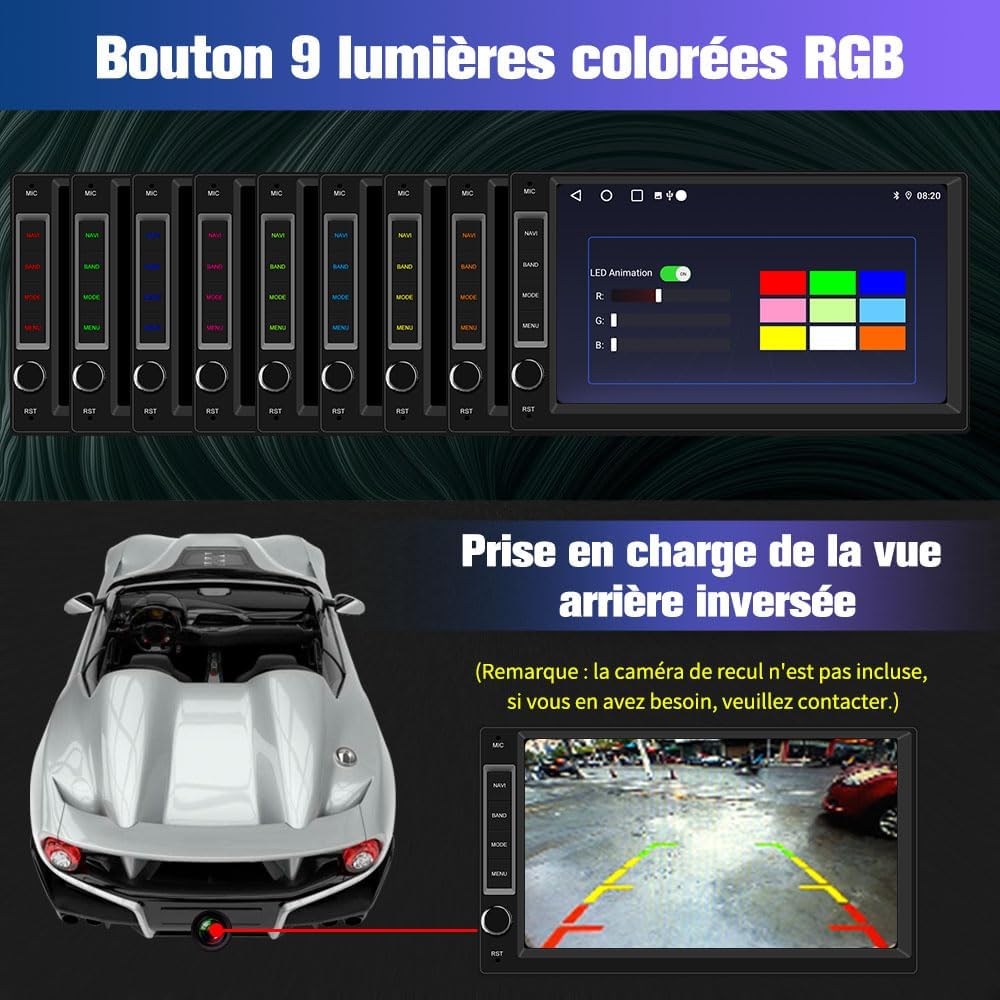
Image: Screen display showing a rearview camera feed with parking guidelines, and a separate interface for customizing RGB button lights.
Note: A rearview camera is not included with this product. Ensure the camera is properly connected to the 'BACK' wire (Pin 3) and the video input port for automatic activation.
7.7 Equalizer (EQ)
Customize your audio experience with the built-in multi-mode equalizer.
Adjustment: Access the 'EQ' or 'Sound Settings' app. You can select from preset modes (Rock, Pop, Jazz, Classic) or manually adjust frequency bands to fine-tune the sound output.
7.8 RGB Button Lights
Personalize the appearance of your car stereo with customizable RGB button illumination.
Customization: Navigate to the 'Settings' menu, then look for 'RGB Lights' or 'Button Illumination'. You can choose from various colors or set an automatic color cycling mode.
8. Maintenance
- Cleaning: Use a soft, dry cloth to clean the screen and unit. Do not use abrasive cleaners or solvents.
- Software Updates: Periodically check for software updates via Wi-Fi in the system settings to ensure optimal performance and access to new features.
- Temperature: Avoid leaving the unit in direct sunlight or extreme cold for extended periods, as this can affect its lifespan.
9. Troubleshooting
9.1 No Power
- Check all power connections (B+, ACC, GND) for secure contact.
- Verify the vehicle's fuse for the stereo is not blown.
9.2 No Sound
- Ensure speaker wires are correctly connected and not short-circuited.
- Check volume levels and ensure the unit is not muted.
- Verify audio source selection (e.g., FM, Bluetooth, USB).
9.3 Bluetooth Connection Issues
- Ensure Bluetooth is enabled on both the stereo and your smartphone.
- Delete previous pairings on both devices and attempt to re-pair.
- Move your phone closer to the unit to rule out interference.
9.4 GPS Signal Loss
- Ensure the GPS antenna is properly connected and placed in an area with a clear view of the sky (e.g., dashboard).
- Check if GPS is enabled in the system settings.
9.5 Touch Screen Unresponsive
- Restart the unit by turning off the vehicle's ignition and restarting.
- If the issue persists, perform a factory reset (note: this will erase all user data).
10. Technical Specifications
| Feature | Specification |
|---|---|
| Model Number | 759973914363 |
| Operating System | Android 13 |
| RAM | 1GB |
| ROM | 32GB |
| Screen Size | 7 Inches |
| Connectivity | Bluetooth, USB, Wi-Fi |
| Control Type | Touch Screen, Steering Wheel Control |
| Compatible Devices | Smartphone |
| Audio Output Mode | Stereo, Surround |
| Surround Sound Channel Config | 5.1 |
| Total HDMI Ports | 1 |
| Connector Type | HDMI, RCA, Coaxial, Optical, USB, 3.5mm |
| Manufacturer | Shenzhen jinnaibo Electronic Co., Ltd |
11. Warranty and Support
Your AWESAFE car stereo comes with a standard manufacturer's warranty. Please refer to the warranty card included in your package for specific terms and conditions. For technical support, troubleshooting assistance, or warranty claims, please contact AWESAFE customer service through the retailer where the product was purchased or visit the official AWESAFE website.


