
1. Introduction
The Guermok 4K@60FPS Capture Card (Model GM-72A) is a versatile device designed for high-quality video capture and passthrough. It supports up to 4K@60FPS capture via USB 3.0 and 4K@60Hz HDMI passthrough, making it ideal for live streaming, gameplay recording, content creation, and device mirroring. With support for various resolutions and frame rates, including 2K@120FPS and 1080P@120FPS, and integrated 3.5mm audio input/output, this plug-and-play device offers broad compatibility across multiple operating systems and platforms.
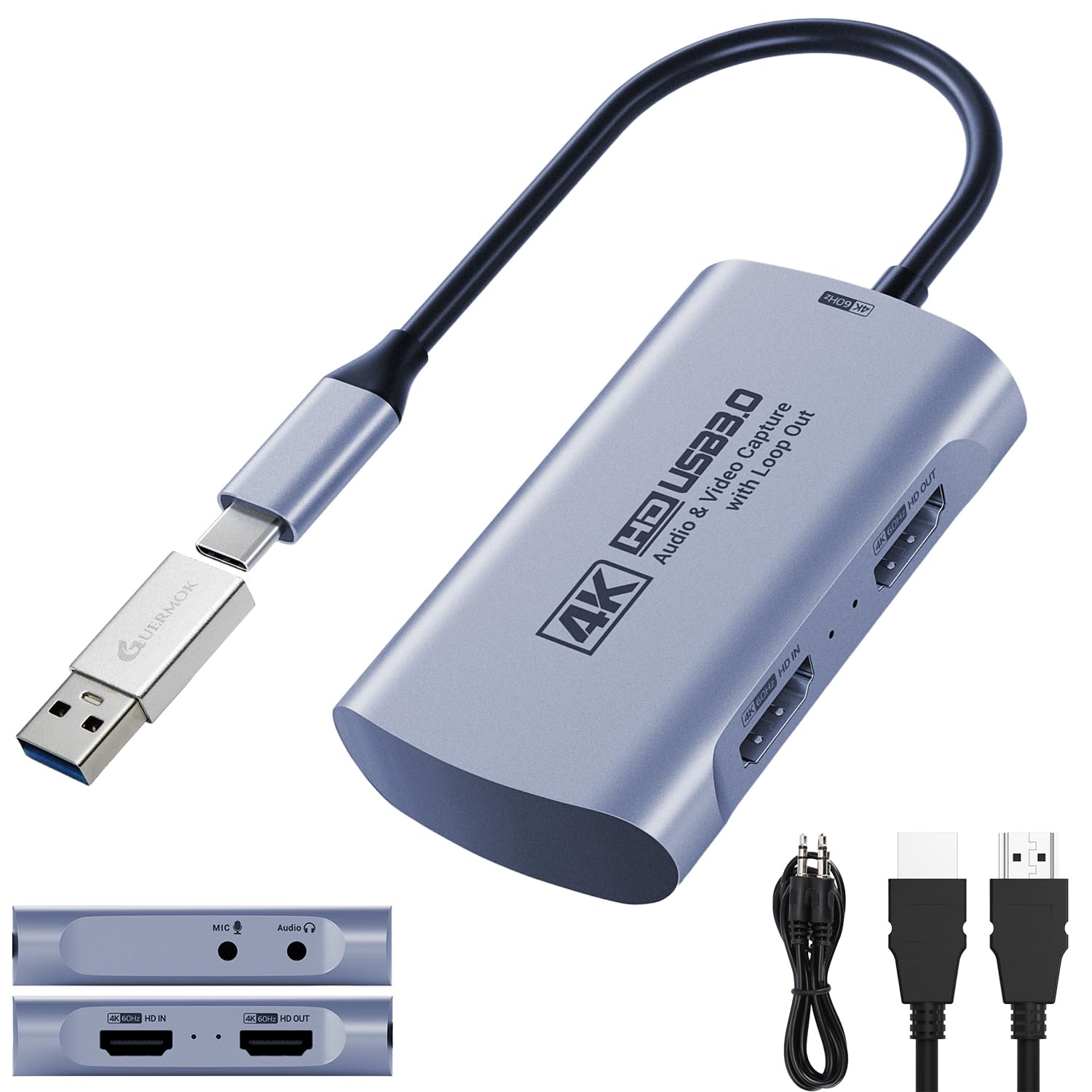
Image: The Guermok 4K@60FPS Capture Card, a compact silver device with HDMI and USB ports.
2. Package Contents
Verify that all items listed below are included in your package:
- 1x HDMI Loop-out Capture Card
- 1x USB 3.0 to USB-C Adapter (A-side 3.0, B-side 2.0)
- 1x User Manual
- 1x HDMI Cable (1.5m)
- 1x 3.5mm Audio Cable
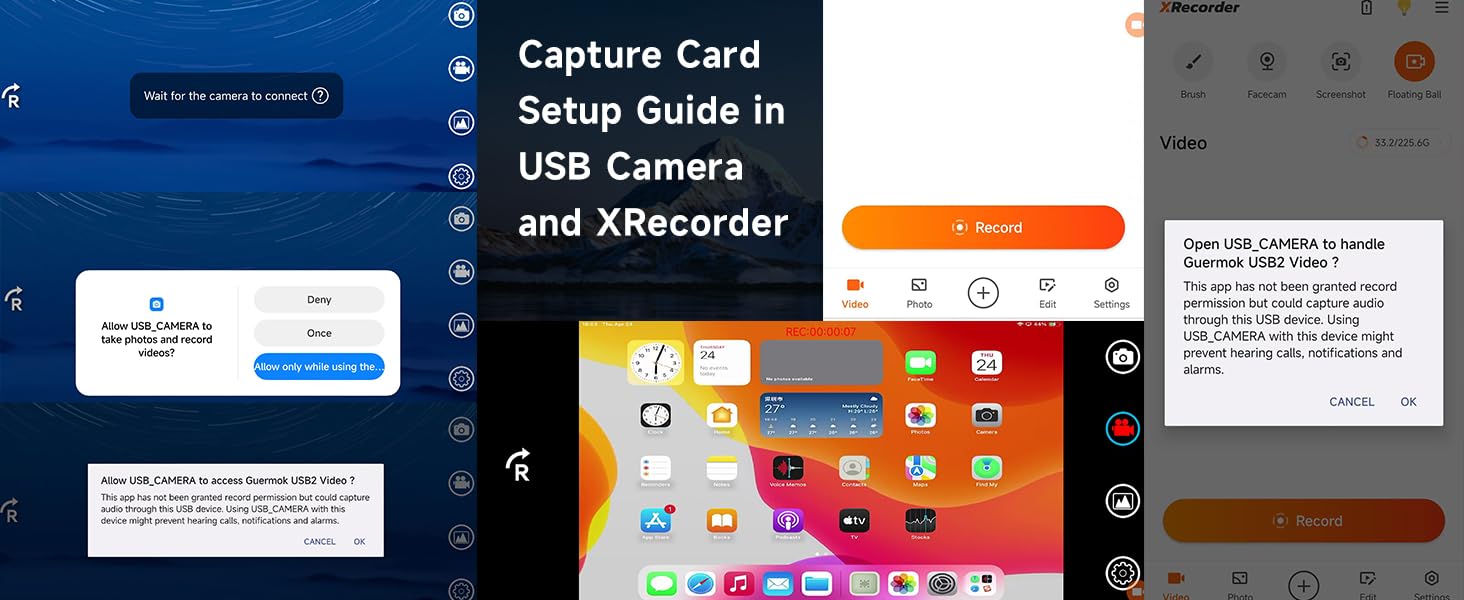
Image: Diagram showing the capture card, USB-C to USB-A adapter, HDMI cable, and 3.5mm audio cable included in the box.
3. Specifications
| Feature | Detail |
|---|---|
| Brand | Guermok |
| Model Name | GM-72A |
| Hardware Interface | 3.5mm Audio, HDMI, USB 3.0, USB 3.0 Type A, USB 3.0 Type C |
| Video Capture Resolution | 4K@60FPS (MJPEG), 2K@120FPS, 1080P@120FPS |
| Max Loop-out Resolution | 4096 x 2160@60Hz YUV420, 4096 x 2160@30Hz YUV444 |
| Supported Video Formats | MJPEG, YUY2, NV12, XRGB |
| Operating System Compatibility | Windows 7/8/10/11, macOS, Linux, Android 5.0+, PadOS 17+ |
| Recommended Uses | Game Streaming, Image Capture, Live Streaming, Video Recording |
| Item Weight | 1.6 ounces |
| Item Dimensions | 5.03 x 2.91 x 0.83 inches |
Minimum System Requirements:
- USB Port: USB 3.0 or higher
- Operating System: Windows 10 (recommended)
- Desktop PC: Intel Core i5-3400 and NVIDIA GT 630 or equivalent
- Laptop: Intel Core i7-3537U 2.0 GHz and NVIDIA GT 735M or equivalent
- RAM: 4 GB
4. Setup Guide
4.1 Initial Connection
The Guermok capture card is designed for plug-and-play operation, requiring no drivers. Ensure you use a USB 3.0 or higher port for optimal performance. If your computer only has USB-A ports, use the included USB-C to USB-A adapter.

Image: Illustration of the USB-C to USB-A adapter, highlighting its use for flexible port connection.
Connect your HDMI source (e.g., game console, camera) to the HDMI IN port on the capture card. Connect the HDMI OUT port of the capture card to your display (monitor/TV) for passthrough. Finally, connect the USB 3.0 output of the capture card to your computer or tablet.

Image: A setup diagram illustrating how to connect the capture card between a gaming device (PS5/Switch), a monitor for loop-out, and a laptop for capture and streaming.
4.2 Console Specifics
For optimal performance with game consoles, follow these guidelines:
- Nintendo Switch: Use TV mode for a stable HDMI signal. Handheld mode does not output to HDMI.
- PS5/PS4: If necessary, turn off HDCP in the console's settings. Some games or content may require HDCP to be disabled.
- Xbox: Check output resolution and display settings to ensure compatibility with the capture device.
- General: Always start testing at 1080P@60Hz for best compatibility, then adjust to higher resolutions as needed. Use a high-quality HDMI cable for stable video and audio transmission.

Image: A visual guide detailing quick setup steps for various game consoles and handheld devices, including notes on HDCP and resolution settings.
4.3 Software Configuration (OBS Studio Example)
The capture card is compatible with various streaming and recording software. Here's a basic setup guide for OBS Studio:
- Open OBS Studio. In the 'Sources' panel, click the '+' button and select 'Video Capture Device'.
- Create a new source or select an existing one.
- From the 'Device' dropdown, select 'Guermok USB3 Video'.
- Configure video settings: For 4K capture, use MJPEG. For YUY2, 4K@25Hz is supported. For XRGB, 1080P@60Hz is supported.
- For audio, add an 'Audio Input Capture' source and select the appropriate audio device (e.g., 'Realtek High Definition Audio').
- In 'Advanced Audio Properties', set 'Audio Monitoring' to 'Monitor and Output' if you wish to hear the audio through your monitoring device.
- Important: Restart OBS Studio after completing audio setup to ensure sound output.

Image: Detailed screenshot of recommended OBS settings for different capture formats (MJPEG, YUY2, XRGB) and USB 3.0 connection tips.

Image: A comprehensive guide showing the steps to configure video and audio sources within OBS Studio for the capture card.
4.4 Setup Videos
Video: A demonstration of connecting and setting up the Guermok 4K60 & 1080P240 HDMI Capture Card for streaming, including audio input/output.
Video: A guide on setting up the Guermok Switch 2 TV-Dock Adapter & 4K Capture Card, demonstrating its use with a Nintendo Switch for dual-screen display and capture.
5. Operating Instructions
5.1 Capture Formats and Resolutions
The capture card supports multiple video capture formats and resolutions to suit various needs:
- MJPEG: Ideal for 4K@60FPS high-resolution capture, efficient for most workflows.
- YUY2: Supports 4K@25Hz, offering balanced compatibility and an uncompressed format suitable for editing.
- XRGB: Supports 1080P@60FPS, providing full color format for detailed visuals and clear desktop/UI capture.
- NV12: A supported video format for efficient compression.
High-frame-rate input is supported up to 2560x1440@120FPS and 1920x1080@120FPS for smooth capture of fast-paced content and gaming.

Image: A visual breakdown of the different video capture formats (MJPEG, YUY2, XRGB) and their supported resolutions and frame rates.

Image: A detailed comparison table of capture formats and their performance characteristics, including high-frame-rate input support.
5.2 Audio Integration
The capture card features 3.5mm audio input and microphone output ports, allowing you to integrate external audio directly into your stream or recording. Connect a headset or microphone to add commentary or ambient sound without additional equipment.

Image: An illustration of the live audio monitoring capabilities, showing connections for microphone input and audio output for real-time feedback.
5.3 Usage Modes
The Guermok capture card supports three versatile modes for various scenarios:
- PC Mode: Capture and stream directly from your computer. Ideal for game streaming, content creation, and live broadcasts using software like OBS Studio.
- Console Mode: Play on your console (PS5/PS4, Xbox Series X/S, Nintendo Switch) and stream to your computer.
- Live Streaming Mode: Connect your camera to stream live to platforms like YouTube, Facebook Live, Twitch, and Instagram Live.

Image: A visual representation of the three main usage modes: PC, Console, and Live Streaming, demonstrating different connection setups.
5.4 Specific Applications
The capture card is suitable for a wide range of applications:
- Camera to Tablet Capture: Connect your DSLR or webcam to a tablet for professional quality recording, live streaming, vlogging, online teaching, and video calls on the go.
- Online Teaching & Conferences: Provides professional-level video and audio input/output for business meetings, product demonstrations, and remote collaboration, ensuring high-quality images and sound. Supports microphone input for clear voice transmission.
- VR & Drones: Supports real-time video transmission from drones and is compatible with mainstream VR headsets (e.g., Quest 3) for high-definition capture and live streaming.

Image: An illustration demonstrating how to connect a camera to a tablet using the capture card for mobile content creation and live streaming.
Video: A demonstration of unlocking a dual-screen gaming experience with ultra-low latency, showcasing the capture card's performance with a Nintendo Switch.
6. Maintenance
To ensure the longevity and optimal performance of your Guermok 4K@60FPS Capture Card, follow these simple maintenance guidelines:
- Cleaning: Use a soft, dry cloth to clean the exterior of the device. Avoid liquid cleaners or abrasive materials.
- Storage: Store the device in a cool, dry place away from direct sunlight and extreme temperatures when not in use.
- Handling: Handle the device and its cables with care to prevent damage to ports and connectors.
- Heat Dissipation: The all-aluminum alloy body is designed for rapid heat dissipation. Ensure the device is placed in an area with adequate airflow to prevent overheating during extended use.
7. Troubleshooting
If you encounter issues with your Guermok 4K@60FPS Capture Card, refer to the following common problems and solutions:
7.1 No Signal or Black Screen Issues
Most signal issues are related to the signal source or cables.
- Confirm that your HDMI source device is powered on and outputting video.
- Replace the HDMI cable with a known working, high-quality cable.
- Check if your capture software (e.g., OBS) detects the capture card. If the software detects the device, the capture card is working properly.
- Some consoles may require HDCP to be disabled in their settings.
- Start testing at 1080P@60Hz. If this works, gradually move to higher settings.

Image: A flowchart illustrating steps to diagnose and fix 'No Signal & Black Screen Issues', emphasizing checking the source, cable, and software detection.
7.2 Low Resolution or Detected as USB 2.0
If your device is detected as USB 2.0 or you experience low resolution, consider the following:
- Use a motherboard USB 3.0 port directly. Avoid USB 2.0 ports, hubs, or front panel ports if possible.
- If using the USB-C to USB-A adapter and the device is recognized as USB 2.0, try flipping the USB-C connector (180°) and reconnecting it. The high-speed chip connects on one side only.
- Manually set the resolution to 1920x1080 in your capture software.
- Different video formats support different resolution limits. Ensure your selected format matches your desired resolution.

Image: A guide addressing low resolution or USB 2.0 detection, explaining the difference between USB 2.0 and USB 3.0, and the importance of USB-C orientation.
7.3 Lag or Audio Noise
As this is a video decoding capture device, millisecond-level latency is normal. To optimize performance and reduce lag or audio noise:
- Use a USB 3.0 port for maximum bandwidth.
- Lower the capture resolution or FPS if experiencing significant lag.
- Select an appropriate video format (e.g., MJPEG for 4K@60Hz).
- For crackling or noise: Disable audio monitoring in your software, change the speaker output device, and restart OBS.

Image: A diagram explaining the video decoding process and offering solutions for lag or audio noise, including using USB 3.0 and adjusting settings.
7.4 USB Bandwidth Problems
Bandwidth directly affects capture performance. To avoid issues:
- Always connect directly to a motherboard USB 3.0+ port.
- Avoid unstable hubs or low-speed shared connections. If using a hub, ensure it is powered.
- Disconnect unnecessary USB devices while capturing, as they may compete for bandwidth.
- Use the included high-quality USB 3.0 cable and avoid long or low-quality cables.
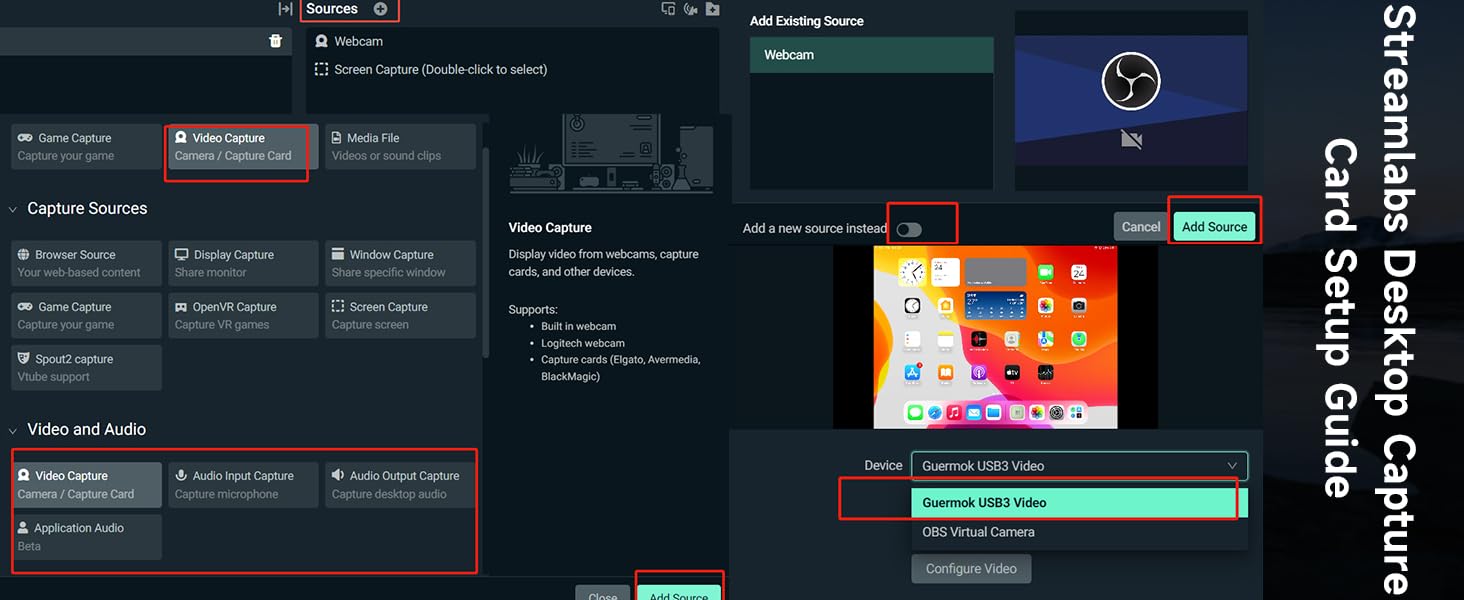
Image: A detailed guide on USB bandwidth problems, outlining USB 2.0 limitations, 4K bandwidth requirements, and recommended connection methods.
8. Warranty and Support
Guermok products are designed for reliability and performance. For any questions, technical assistance, or warranty inquiries, please contact Guermok customer support through the retailer's platform or the official Guermok website. Please retain your proof of purchase for warranty claims.


