Download PDFFree PDF. The Save button below keeps a bookmark and private notes in your account.
AWESAFE Android Car Radio Instruction Manual
Model: B0FK4SZLZD
1. Introduction
This manual provides detailed instructions for the installation, operation, and maintenance of your AWESAFE Android Car Radio. Please read this manual thoroughly before using the product to ensure proper functionality and safety.
2. Product Compatibility
This Android car radio is specifically designed for the following vehicle models:
Renault Lodgy (2014-2019)
Dacia Sandero 2 B52 (2014-2019)
Before purchase and installation, verify your vehicle's model, year, and dashboard configuration to ensure compatibility.
Image: Comparison of the car dashboard before and after installation, showing the integrated 9-inch touchscreen.
3. What's in the Box
The product package includes the following components:
Android Car Radio Unit
Frame
Connection Cables
Audio Cables
Microphone
GPS Antenna
Adapter Cables (various)
Can Bus Decoder
Camera and WiFi Cable
User Manual (this document)
Image: All components included in the product package.
4. Setup and Installation
Installation of the AWESAFE Android Car Radio requires careful attention to wiring and dashboard integration. It is recommended that installation be performed by a qualified professional.
4.1 General Installation Steps
Preparation: Disconnect the vehicle's battery before starting any electrical work.
Remove Original Unit: Carefully remove the existing car radio and dashboard trim. Refer to your vehicle's specific service manual for detailed instructions on removing the original unit.
Connect Wiring Harness: Connect the provided wiring harness to the vehicle's existing wiring. Ensure all connections are secure.
Connect Peripherals:
Connect the GPS antenna and position it for optimal signal reception.
Connect the WiFi antenna.
Connect the external microphone for hands-free calling.
If applicable, connect the Can Bus decoder. Ensure the white Can Bus and 8PIN connectors are properly connected for steering wheel controls to function.
Connect any additional accessories like a reverse camera (not included, contact seller if needed).
Test Connections: Before fully reassembling the dashboard, reconnect the battery and power on the unit to test basic functions (power, audio, display, touch response).
Secure Unit: Mount the new Android car radio into the dashboard using the provided frame and secure it.
Reassemble Dashboard: Carefully reassemble all dashboard trim pieces.
Important Note: If you require a reverse camera, please note that this unit is not compatible with original vehicle reverse cameras. Contact the seller for a compatible camera.
5. Operating Instructions
5.1 Power On/Off
Press and hold the power button (usually located on the front panel or as a soft button on the screen) to turn the unit on or off. A short press typically mutes the audio or puts the unit into standby mode.
5.2 Touchscreen Operation
The 9-inch touchscreen provides an intuitive interface. Tap icons to open applications, swipe to navigate menus, and use pinch-to-zoom gestures where supported (e.g., in navigation apps).
5.3 Wireless CarPlay & Android Auto
Connect your compatible smartphone wirelessly to access navigation, calls, messages, music, and voice commands directly from the car radio screen. This feature enhances convenience and reduces phone interaction while driving.
Ensure Bluetooth and Wi-Fi are enabled on your smartphone.
On the car radio, open the CarPlay or Android Auto application.
Follow the on-screen prompts to pair your phone.
Once connected, your phone's compatible apps will appear on the car radio display.
Image: Wireless CarPlay and Android Auto functionality displayed on the car radio screen.
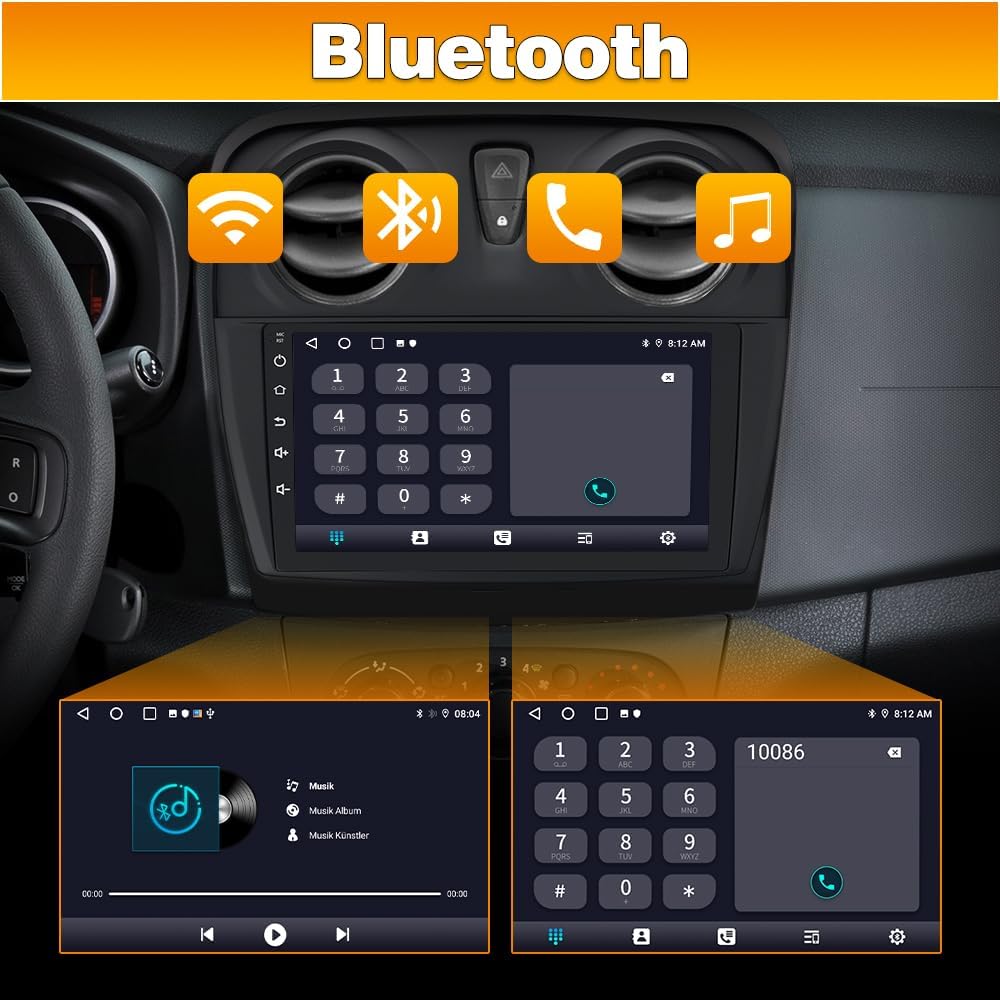
5.4 Bluetooth Connectivity
The Bluetooth connection allows for hands-free calls and wireless music streaming from a compatible smartphone.
On the car radio, navigate to the Bluetooth settings.
Enable Bluetooth and make the device discoverable.
On your smartphone, search for available Bluetooth devices and select "AWESAFE" (or similar device name).
Confirm the pairing code on both devices.
Once paired, you can make calls, access contacts, and stream audio.
Image: Bluetooth interface for calls and music streaming.
5.5 GPS Navigation & WiFi
The integrated GPS system provides navigation assistance for daily commutes and long-distance travel. Connect the car radio to the internet via WiFi to use online functions and compatible applications.
Ensure the GPS antenna is properly connected and positioned.
To use online navigation or other internet-dependent apps, connect the car radio to a WiFi hotspot (e.g., from your smartphone).
Navigate to the WiFi settings on the car radio, select your network, and enter the password.
Once connected, you can download and use various navigation applications from the app store.
Image: GPS navigation interface with route planning.
Image: Internet Wi-Fi interface showing various app icons and a video playing.
5.6 FM RDS Radio
Enjoy FM radio with RDS (Radio Data System) for station information and enhanced listening experience.
Access the "Radio" application from the main menu.
Use the scan function to find available stations or manually tune to a frequency.
RDS will display station names and other relevant information where available.
Image: FM RDS Radio interface showing frequency and station information.
5.7 Steering Wheel Controls
The unit supports original steering wheel controls for convenient operation. Ensure the Can Bus decoder and 8PIN connectors are correctly installed.
After installation, access the steering wheel control settings in the car radio's menu.
Follow the on-screen instructions to map your vehicle's steering wheel buttons to the corresponding functions on the car radio (e.g., volume up/down, track skip, mode).
Image: Steering wheel control functionality and interface.
5.8 DSP Audio Processing
The Digital Signal Processing (DSP) technology allows for advanced audio processing and customizable sound settings. Adjust your listening experience for clearer and more balanced sound.
Access the "Sound" or "DSP" settings in the car radio's menu.
Adjust equalizer settings, balance, fader, and other audio parameters to your preference.
5.9 Parking Assist
The unit supports parking assist features, typically when connected to a compatible reverse camera (not included). The display can show parking guidelines to aid in maneuvering.
Image: Parking assist display on the car radio screen with guidelines.
6. Features Overview
Operating System: Android (version not specified, but implied by "Android Car Radio").
RAM: 2GB for smooth operation of applications.
Internal Storage: 64GB for applications and multimedia content.
Display: 9-inch capacitive touchscreen for clear visuals and intuitive control.
Supported Internet Services: Apple CarPlay, Android Auto.
7. Maintenance
Cleaning: Use a soft, dry cloth to clean the screen and unit. Avoid abrasive cleaners or solvents.
Software Updates: Periodically check for software updates to ensure optimal performance and access to new features. Updates can usually be performed via WiFi.
USB Ports: Ensure USB ports are kept free of dust and debris.
8. Troubleshooting
Problem
Possible Cause
Solution
Unit does not power on.
Loose power connection.
Blown fuse.
Vehicle battery disconnected.
Check all power cables and connections.
Inspect vehicle fuses and replace if necessary.
Ensure vehicle battery is connected and charged.
No sound.
Volume too low or muted.
Speaker wires disconnected.
Incorrect audio source selected.
Increase volume, check mute status.
Verify speaker wire connections.
Select the correct audio input (e.g., FM, Bluetooth, CarPlay).
CarPlay/Android Auto not connecting.
Bluetooth/WiFi off on phone.
Phone not paired.
Incompatible phone model/OS.
Enable Bluetooth and WiFi on your smartphone.
Re-pair your phone with the unit.
Ensure your phone's operating system is up to date and compatible.
Steering wheel controls not working.
Can Bus decoder not connected.
Incorrect wiring of 8PIN connector.
Controls not configured in settings.
Verify Can Bus decoder and 8PIN connector installation.
Access steering wheel control settings and reconfigure.
9. Specifications
Feature
Detail
Brand
AWESAFE
Connectivity Technology
Bluetooth, USB, Wi-Fi
Controller Type
Manual Control, Touch Control
Special Feature
Android Auto, Apple CarPlay
Compatible Devices
Smartphone
Audio Output Mode
Stereo, Speaker, RCA
Surround Sound Channel Configuration
5.1
Number of Audio Channels
2 (for general audio), 5.1 (for surround configuration)
Video Encoding
H.264, H.265/HEVC
RAM
2GB
Storage
64GB
Display Size
9 inches
GTIN
759973262709
ASIN
B0FK4SZLZD
Country of Origin
China
10. Warranty and Support
For warranty information, technical support, or inquiries regarding compatible accessories (such as a reverse camera), please contact AWESAFE customer service or refer to the official AWESAFE website.
Seller: ADAMOSALVATORE (Fulfilled by Amazon)
Return Policy: 30-day refund/replacement policy (as per Amazon.fr).
Ask about setup, troubleshooting, compatibility, parts, safety, or missing instructions. Manuals+ will review the question and use this page’s manual context to help answer it.