
Introduction
This manual provides essential information for the safe operation and maintenance of your Holy Stone HS156 GPS Drone. Please read it thoroughly before your first flight and keep it for future reference. The HS156 is a lightweight, foldable drone equipped with a 2K camera, GPS, and brushless motors, designed for stable flight and high-quality aerial photography.
Package Contents
Verify that all items listed below are included in your package:
- Aircraft (Drone) x 1
- Transmitter (Remote Control) x 1
- Battery x 2
- Charging Cable x 1
- Spare Propellers x 4
- Propeller Screws x 1 set
- Protection Guards x 4
- Screwdriver x 1
- User Manual (Japanese) x 1
- Battery Safety Guide x 1

Image: All components included in the Holy Stone HS156 drone package, laid out neatly.
Product Overview
The Holy Stone HS156 is a compact and lightweight drone, weighing under 100g, which means no drone registration is required in many regions. It features a foldable design for easy portability.

Image: The Holy Stone HS156 drone flying outdoors, showcasing its compact design and GPS capabilities.
Key Features:
- Under 100g Weight: No drone registration required.
- Foldable Design: Enhances portability and storage.
- GPS Module: Provides stable outdoor flight and precise positioning.
- 2K Camera: Captures high-resolution photos and videos.
- Brushless Motors: Offers quiet operation, increased efficiency, and longer lifespan.
- Optical Flow Positioning: Ensures stable hovering indoors and in environments with weak GPS signals.

Image: A hand holding the folded Holy Stone HS156 drone, demonstrating its compact and portable design.

Image: The Holy Stone HS156 drone in flight, with an emphasis on its brushless motors for quiet and stable operation.
Setup
1. Battery Installation and Charging
Insert the fully charged battery into the drone. Connect the charging cable to the battery and a USB power source to charge. Ensure the battery is securely latched before flight.
Note on Battery Appearance: The slight swelling on the battery surface is due to internal cushioning foam and is not an indication of battery expansion or defect. It is safe for use. This foam can be removed if desired (refer to the provided video tutorial for instructions, if available).

Image: Two Holy Stone HS156 drone batteries and a charging cable, illustrating the 26-minute flight time with two batteries.
2. Propeller and Guard Installation
Attach the propellers to the motor shafts, ensuring correct orientation (A and B propellers). Secure them with the provided screws. For added safety, install the propeller protection guards before flying, especially for beginners.
3. Remote Control Preparation
Install batteries into the remote control. Extend the phone holder and securely mount your smartphone. Download and install the "HS GPS V4" app from your device's app store (links provided in the Support section).
4. Drone Unfolding
Carefully unfold the drone arms until they click into place. Ensure all arms are fully extended and locked before powering on.
Operating Instructions
1. Power On and Pairing
- Place the drone on a flat, open surface.
- Press and hold the power button on the drone until the indicator lights turn on.
- Turn on the remote control. The drone and remote will automatically pair.
- Connect your smartphone to the drone's Wi-Fi network (usually named "HolyStone-HS156-XXXXXX").
- Open the "HS GPS V4" app to view the live camera feed and flight status.
2. GPS Calibration
For stable outdoor flight, GPS calibration is crucial. Follow the app's instructions to calibrate the compass and gyroscope before each flight. Ensure you are in an open area away from strong magnetic interference.
Note: If GPS signal is weak or unavailable (e.g., indoors), the drone will rely on optical flow positioning for stability.
3. Takeoff and Landing
- One-Key Takeoff: Press the one-key takeoff button on the remote control or in the app. The drone will automatically ascend to a safe height and hover.
- Manual Takeoff: Push both joysticks down and outwards to start the motors, then slowly push the left joystick up to ascend.
- One-Key Landing: Press the one-key landing button. The drone will descend and land automatically.
- Manual Landing: Slowly pull the left joystick down to descend. Once landed, push both joysticks down and inwards to stop the motors.
4. Basic Flight Controls
Use the joysticks on the remote control to maneuver the drone:
- Left Joystick: Up/Down for altitude, Left/Right for rotation (yaw).
- Right Joystick: Up/Down for forward/backward movement (pitch), Left/Right for sideways movement (roll).
The drone offers 3 flight speed modes. Adjust the speed according to your skill level and environmental conditions.
Flight Modes and Features
1. Beginner Mode
The HS156 features a Beginner Mode that automatically adjusts distance and altitude limits, making it easier for new pilots to fly smoothly. This mode is enabled by default and can be disabled via the app settings.
| Parameter | Value |
|---|---|
| Hovering Radius | 5m |
| Flight Distance Limit | 0-20m |
| Flight Altitude Limit | 0-20m |
| Return Altitude | 15m |

Image: The Holy Stone HS156 drone flying in Beginner Mode, illustrating its ease of use for new pilots with automatic distance and altitude limits.
2. Follow Me Mode
In Follow Me mode, the drone will automatically follow the remote controller or the connected smartphone, capturing dynamic footage of your activities. Ensure sufficient GPS signal for optimal performance.

Image: The Holy Stone HS156 drone following a person on a bicycle, demonstrating the Follow Me mode.
3. Waypoint Mode
Plan your flight path by tapping desired waypoints on the map within the app. The drone will then fly along the specified route, allowing for hands-free aerial photography.

Image: A smartphone screen displaying the Holy Stone HS156 drone app with a flight path marked by waypoints over a coastal landscape.
4. Circle Flight Mode
In Circle Flight mode, the drone will fly in a circular path around a designated point, capturing panoramic video or photos. This feature is ideal for showcasing a specific subject or landscape.
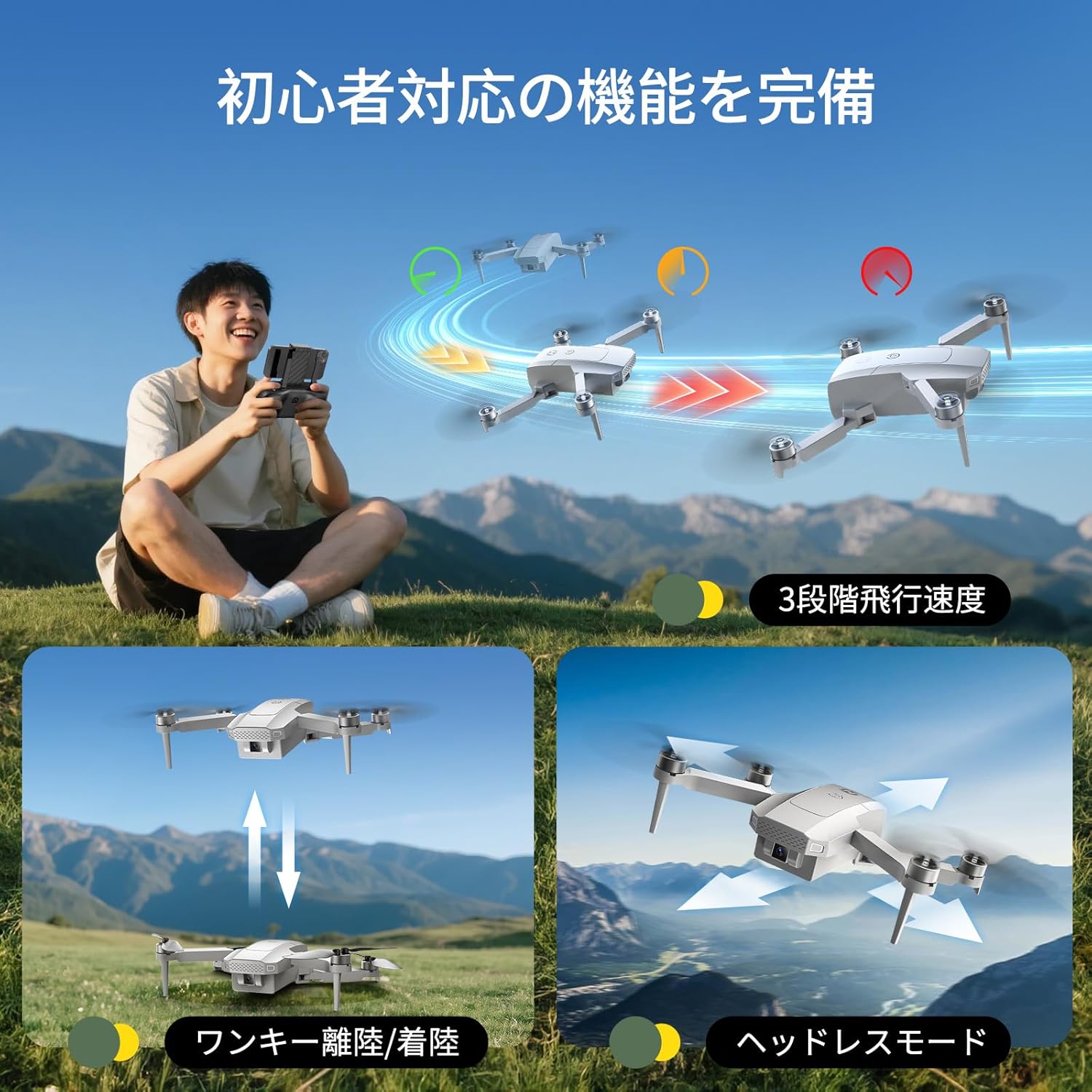
Image: The Holy Stone HS156 drone performing a circular flight around a person and a dog on a mountain, illustrating the Circle Flight mode.
5. Headless Mode
Headless Mode eliminates the need to distinguish the drone's head from its tail. The drone's orientation will be relative to the pilot, simplifying control, especially for beginners.

Image: The Holy Stone HS156 drone flying over water, with arrows indicating movement directions relative to the pilot in Headless Mode.
6. 2K Camera and Wi-Fi Transmission
The integrated 2K camera allows for clear photo and video capture. Real-time footage is transmitted via Wi-Fi to your smartphone. The drone supports up to a 64GB Class 10 TF card (sold separately) for storing media.

Image: A side-by-side comparison of image quality, showing the clarity of 2K resolution versus 1080P, captured by the Holy Stone HS156 drone's camera.
Safety Features
1. Automatic Return (RTH)
The HS156 is equipped with three types of automatic return functions to ensure safe recovery of the drone:
- One-Touch Return: Press the RTH button on the remote control or in the app, and the drone will automatically return to its takeoff point.
- Low Voltage Return: If the battery level drops critically low, the drone will automatically initiate a return to home.
- Communication Loss Return: If the drone loses connection with the remote control for more than 6 seconds, it will automatically return to its takeoff point.
These features significantly reduce the risk of losing the drone. The RTH function is only active when GPS is available.

Image: The Holy Stone HS156 drone returning to its takeoff point, illustrating the automatic return function for safe recovery.
Maintenance
- Propellers: Regularly inspect propellers for damage (cracks, bends). Replace any damaged propellers immediately using the provided spares.
- Motors: Keep motors free from dust and debris. Avoid flying in sandy or dusty environments.
- Battery Care: Store batteries in a cool, dry place. Do not overcharge or over-discharge. If not used for extended periods, charge them to about 50-60% capacity.
- Cleaning: Use a soft, dry cloth to clean the drone and remote control. Avoid using liquids or solvents.
- Storage: When not in use, fold the drone arms and store it in a protective case to prevent damage.
Troubleshooting
| Problem | Possible Cause | Solution |
|---|---|---|
| Drone does not power on. | Battery is not charged or not inserted correctly. | Ensure battery is fully charged and properly inserted. |
| Drone cannot pair with remote. | Remote control is off or too far from the drone. | Turn on the remote and ensure it's close to the drone during pairing. Restart both devices. |
| Unstable flight / Drifting. | Improper calibration, strong wind, or weak GPS signal. | Perform GPS and gyroscope calibration. Fly in calm conditions. Ensure strong GPS signal outdoors. |
| No camera feed on smartphone. | Wi-Fi not connected, app not open, or app permissions denied. | Connect to the drone's Wi-Fi. Open the "HS GPS V4" app. Check app permissions. |
| Automatic Return (RTH) not working. | Insufficient GPS signal. | Ensure the drone has acquired enough GPS satellites (indicated in the app) before takeoff. RTH requires a strong GPS signal. |
Specifications
| Feature | Detail |
|---|---|
| Model Number | HS156 |
| Weight | 99 g |
| Dimensions (Unfolded) | 16 x 12.3 x 4.5 cm |
| Camera | 2K (Video Capture Format: MP4) |
| Motor Type | Brushless |
| Positioning System | GPS, Optical Flow Positioning |
| Connectivity | Wi-Fi |
| Control Type | Remote Control |
| Battery Type | Lithium Ion (2 included) |
| Flight Time | Up to 26 minutes (with 2 batteries) |
| Max TF Card Support | 64GB (Class 10 or higher, sold separately) |
Warranty and Support
For warranty information, please refer to the documentation included with your purchase or contact Holy Stone customer support directly. If you have any questions or require assistance, please contact us via Amazon message.
App Download:
Scan the QR codes below or click the links to download the "HS GPS V4" app for your smartphone:

Image: QR codes for downloading the HS GPS V4 app for iOS and Android, along with a link to the Japanese instruction manual.


