
KTC H25Y7
KTC H25Y7 24.5 Inch 300Hz FHD Gaming Monitor Instruction Manual
Model: H25Y7 | Brand: KTC
Introduction
This manual provides essential information for setting up, operating, and maintaining your KTC H25Y7 24.5-inch 300Hz Full HD Gaming Monitor. Please read this guide thoroughly before using the product to ensure optimal performance and safety.

Image: Front view of the KTC H25Y7 24.5-inch 300Hz FHD Gaming Monitor.
What's in the Box
Verify that all the following items are included in your package:
- 24.5" FHD 300Hz Monitor (x1)
- Monitor Stand (x1)
- Quick Setup Guide (QSG) (x1)
- DisplayPort (DP) Cable (x1)
- Power Adapter (x1)
Setup
Monitor Stand Assembly
Follow these steps to assemble the monitor stand and attach it to the display panel:
- Carefully remove all components from the packaging.
- Attach the stand base to the stand column using the provided screws. Ensure it is securely fastened.
- Align the stand's mounting plate with the VESA mounting holes on the back of the monitor panel.
- Secure the monitor panel to the stand using the appropriate screws.

Image: Rear view of the KTC H25Y7 monitor showing dimensions and stand attachment points.
Connecting to a Device
Connect your monitor to a computer or other video source using the appropriate cables:
- DisplayPort (DP): For 300Hz refresh rate at 1920x1080 resolution, use the included DisplayPort 1.4 cable.
- HDMI: For up to 240Hz refresh rate at 1920x1080 resolution, use an HDMI 2.0 cable. Two HDMI 2.0 ports are available.
- Power: Connect the power adapter to the monitor's DC input and then to a power outlet.

Image: Close-up of the KTC H25Y7 monitor's rear panel, highlighting the DC power input, two HDMI 2.0 ports, one DisplayPort 1.4, and one USB 2.0 port.
Operating Instructions
Power On/Off
Press the power button located on the back of the monitor to turn it on or off.
OSD Menu Navigation
The On-Screen Display (OSD) menu allows you to adjust various monitor settings. Use the joystick control located on the back of the monitor to navigate the menu:
- Push the joystick in to select an option.
- Move the joystick up/down/left/right to navigate through menu options and adjust values.
Display Features
- High Refresh Rate & Fast Response Time: Experience smooth visuals with a 300Hz refresh rate (via DP 1.4) and 1ms response time, reducing motion blur and ghosting.
- Adaptive Sync Technology: This monitor supports Adaptive Sync to eliminate screen tearing and stuttering, providing a fluid gaming experience.
- Fast IPS Panel & Wide Color Gamut: The Fast IPS panel delivers realistic colors and clear details with 119% sRGB color gamut coverage. HDR support enhances immersion with improved contrast and color.
- Eye Care Features: The monitor includes Low Blue Light, Flicker-free, and Anti-glare technologies to reduce eye strain during extended use.

Image: Visual representation of 300Hz refresh rate compared to lower refresh rates, showing reduced motion blur.

Image: Split screen comparison demonstrating the effect of Adaptive Sync, showing a tear-free image on one side and a torn image on the other.

Image: Display showcasing vibrant colors and details, with icons indicating 99% sRGB, 16.7M colors, 350cd/m² brightness, and 1000:1 contrast.

Image: Visuals illustrating the benefits of Low Blue Light, Flicker-free, and Anti-glare features for eye comfort during gaming.
Ergonomic Adjustments
The monitor stand offers multiple adjustment options for comfortable viewing:
- Tilt: Adjust the screen angle from -5° to 20° (±3°).
- Pivot: Rotate the screen ±90° for portrait or landscape orientation.
- Height: Adjust the screen height by 110mm (±5mm).
- VESA Mount: Supports 100x100mm VESA mounting for wall or arm installation.
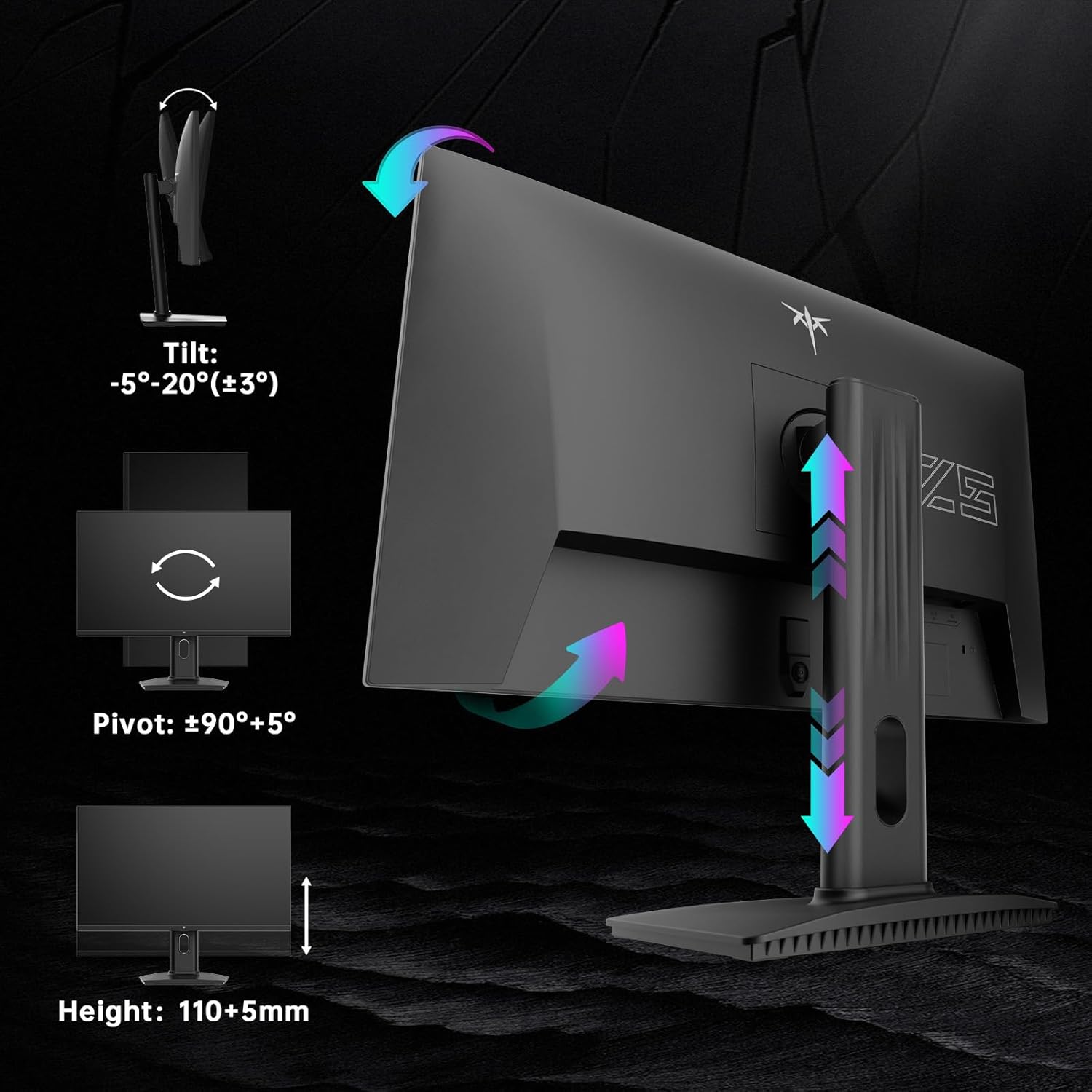
Image: Diagrams illustrating the tilt, pivot, and height adjustment capabilities of the KTC H25Y7 monitor stand.
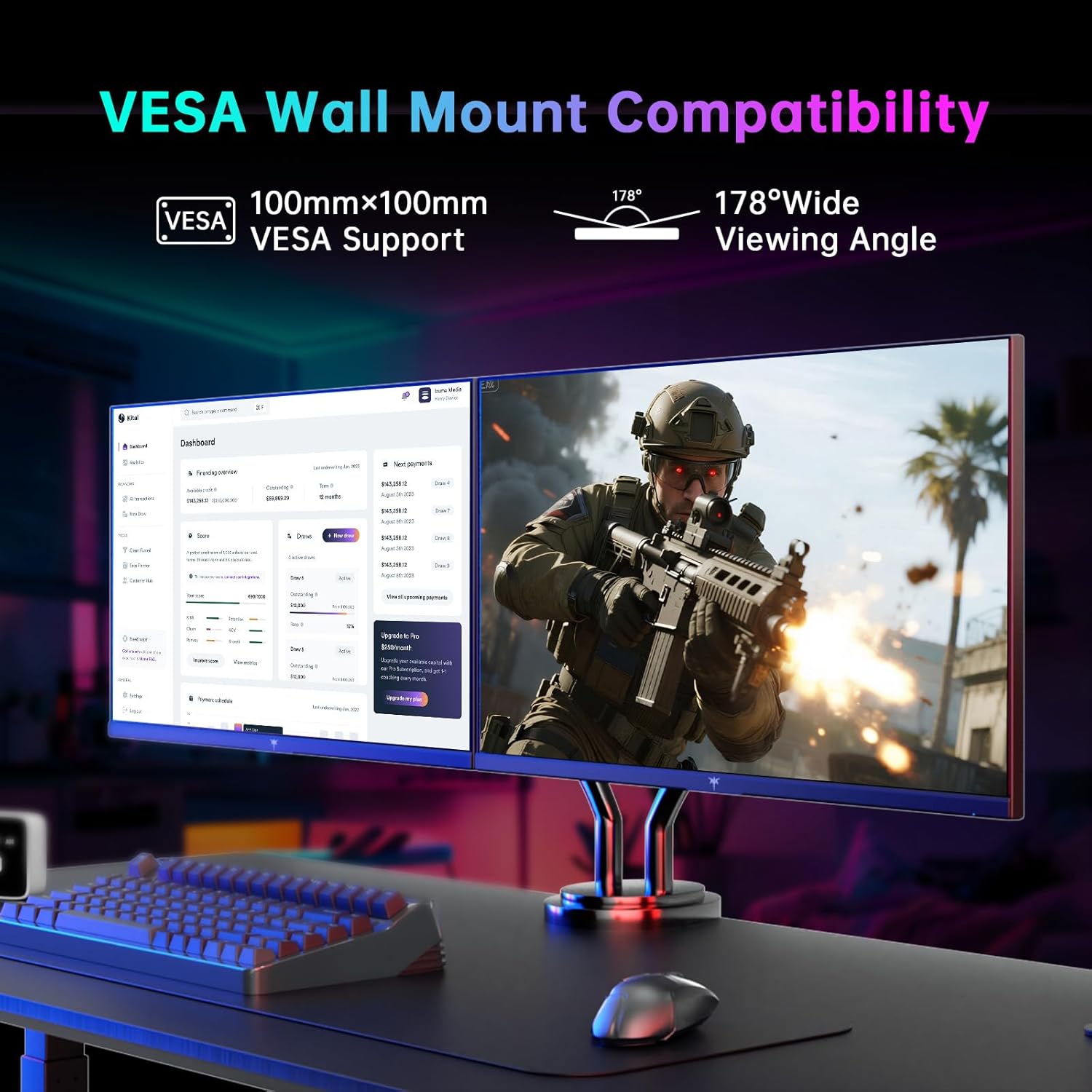
Image: Monitor mounted on a VESA-compatible arm, demonstrating VESA wall mount compatibility and wide viewing angles.
Maintenance
To ensure the longevity and optimal performance of your monitor, follow these maintenance guidelines:
- Cleaning the Screen: Gently wipe the screen with a soft, lint-free cloth. For stubborn marks, lightly dampen the cloth with water or a screen-cleaning solution. Avoid harsh chemicals.
- Cleaning the Casing: Use a soft, dry cloth to clean the monitor's casing.
- Handling: Avoid pressing directly on the screen or placing heavy objects on the monitor.
- Ventilation: Ensure proper ventilation around the monitor to prevent overheating. Do not block the ventilation openings.
Troubleshooting
If you encounter any issues with your monitor, refer to the following common solutions:
- No Power: Ensure the power adapter is securely connected to both the monitor and a working power outlet. Check if the power indicator light is on.
- No Signal: Verify that the video cable (DP or HDMI) is correctly connected to both the monitor and your computer/device. Ensure the correct input source is selected in the OSD menu.
- Flickering/Stuttering: Check your graphics card drivers are up to date. Ensure Adaptive Sync is enabled in both the monitor's OSD and your graphics card settings.
- Image Distortion/Incorrect Colors: Reset the monitor to factory settings via the OSD menu. Check the video cable for damage.
- Buttons Not Responding: Power cycle the monitor. If the issue persists, contact customer support.
Specifications
| Feature | Specification |
|---|---|
| Brand | KTC |
| Model Number | H25Y7 |
| Screen Size | 24.5 Inches |
| Resolution | 1920 x 1080 Pixels (FHD 1080p) |
| Refresh Rate | 300Hz (via DisplayPort 1.4), 240Hz (via HDMI 2.0) |
| Response Time | 1ms |
| Panel Type | Fast IPS |
| Aspect Ratio | 16:9 |
| Color Gamut | 119% sRGB |
| Image Brightness | 350 Candela |
| Connectivity | 1x DisplayPort 1.4, 2x HDMI 2.0, 1x USB 2.0 |
| Ergonomics | Tilt (-5° to 20°), Pivot (±90°), Height (110+5mm) |
| VESA Support | 100x100mm |
| Product Dimensions | 7.6 x 21.97 x 18.22 inches |
| Item Weight | 2.2 pounds |
Warranty and Support
For warranty information or technical support, please refer to the contact details provided in the Quick Setup Guide included with your monitor or visit the official KTC website. Keep your purchase receipt as proof of purchase for warranty claims.
Related documentsH25Y7


Ask a question about this manual
Ask about setup, troubleshooting, compatibility, parts, safety, or missing instructions. Manuals+ will review the question and use this page’s manual context to help answer it.