
Introduction
The Ninestar G&G Thermal Printer GG-D220 is a compact and portable mini thermal printer designed for a wide range of applications. This device allows you to print photos, labels, study notes, and organize various items directly from your smartphone via Bluetooth connection. Its thermal printing technology ensures ink-free operation, making it convenient and cost-effective for everyday use.
What's Included

The package for your Ninestar G&G Thermal Printer GG-D220 includes the following items:
- 1 x Thermal Printer (GG-D220)
- 3 x Thermal Paper Rolls
- 1 x Thermal Sticker Roll
- 1 x USB Type-C Cable
- 1 x Skin Sticker (Greg & Grace design)
- 1 x App Instruction Manual
Note: A USB AC adapter (DC5V 1A) is required and sold separately. Product design may vary slightly from images but quality remains consistent.
Setup Guide
Follow these steps to set up your Ninestar G&G Thermal Printer and connect it to your smartphone.
Step 1: Download the "Print-Label" App

Locate and download the official "Print-Label" application from your smartphone's app store. The app is available on both the Apple App Store and Google Play Store. Search for "Print-Label" by Ninestar Corporation.
Note: If your Android device's app language is English, you may need to change it to Japanese within the app settings for full functionality.
Step 2: Power On and Connect via Bluetooth
Turn on your Ninestar G&G Thermal Printer. Open the "Print-Label" app on your smartphone. Navigate to the connection settings within the app and select your printer (e.g., "GG-D220-XXXX") from the list of available Bluetooth devices to establish a connection.
Step 3: Load Paper
To load thermal paper or stickers:
- Grip the protrusions (red parts) on both sides of the cover and open it.
- Insert the thermal roll paper with the printing side facing outwards, towards the button.
- Close the cover, ensuring about 1 cm of paper protrudes from the printer.
Operating Instructions
The "Print-Label" app offers various functions to customize your prints. Once connected, you can freely edit and enjoy printing.
Printing Functions

The "Print-Label" app allows you to print various types of content:
- Image Printing: Print photos and images directly from your phone's gallery.
- Text Printing: Create custom text labels, notes, or lists.
- Icons & Graphics: Utilize a library of icons and simple graphics to enhance your prints.
- Barcodes & QR Codes: Generate and print barcodes or QR codes for various purposes.
- Templates: Use pre-designed templates for common tasks like to-do lists, study notes, or kitchen labels.
Example Uses

The GG-D220 printer is versatile and can be used in various scenarios:
- Image Printing: Print small photos or illustrations.
- Study Memos: Create quick notes or diagrams for studying.
- Collections: Label items in your collections.
- Task Lists: Print to-do lists for daily organization.
- Document Printing: Print small documents or excerpts.
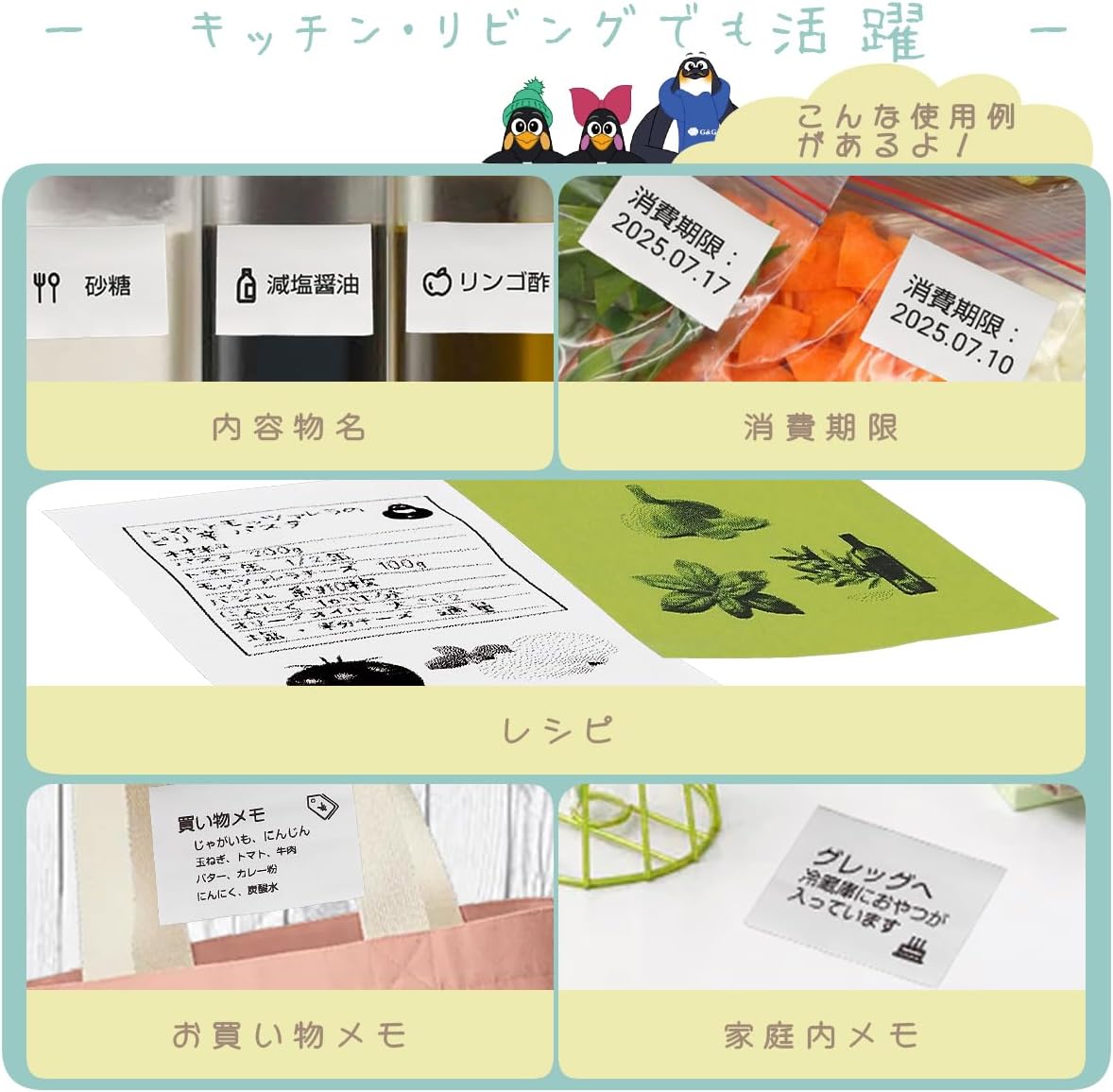
It's also highly useful in the kitchen and living room:
- Content Names: Label containers with their contents.
- Expiration Dates: Print expiration dates for food items.
- Recipes: Print small recipe cards.
- Shopping Memos: Create quick shopping lists.
- Household Memos: Print notes for family members.
Maintenance: Changing Thermal Rolls
Replacing the thermal paper or sticker rolls is a simple 3-step process.
- Open the Cover: Grip the protrusions (indicated in red in the diagram) on both sides of the printer cover and gently open it. No holder is needed, making it easy.
- Insert New Roll: Place the new thermal roll paper into the compartment. Ensure the printing surface of the paper is facing outwards, towards the button side of the printer.
- Close Cover: Close the cover, making sure approximately 1 cm of paper protrudes from the printer's output slot.
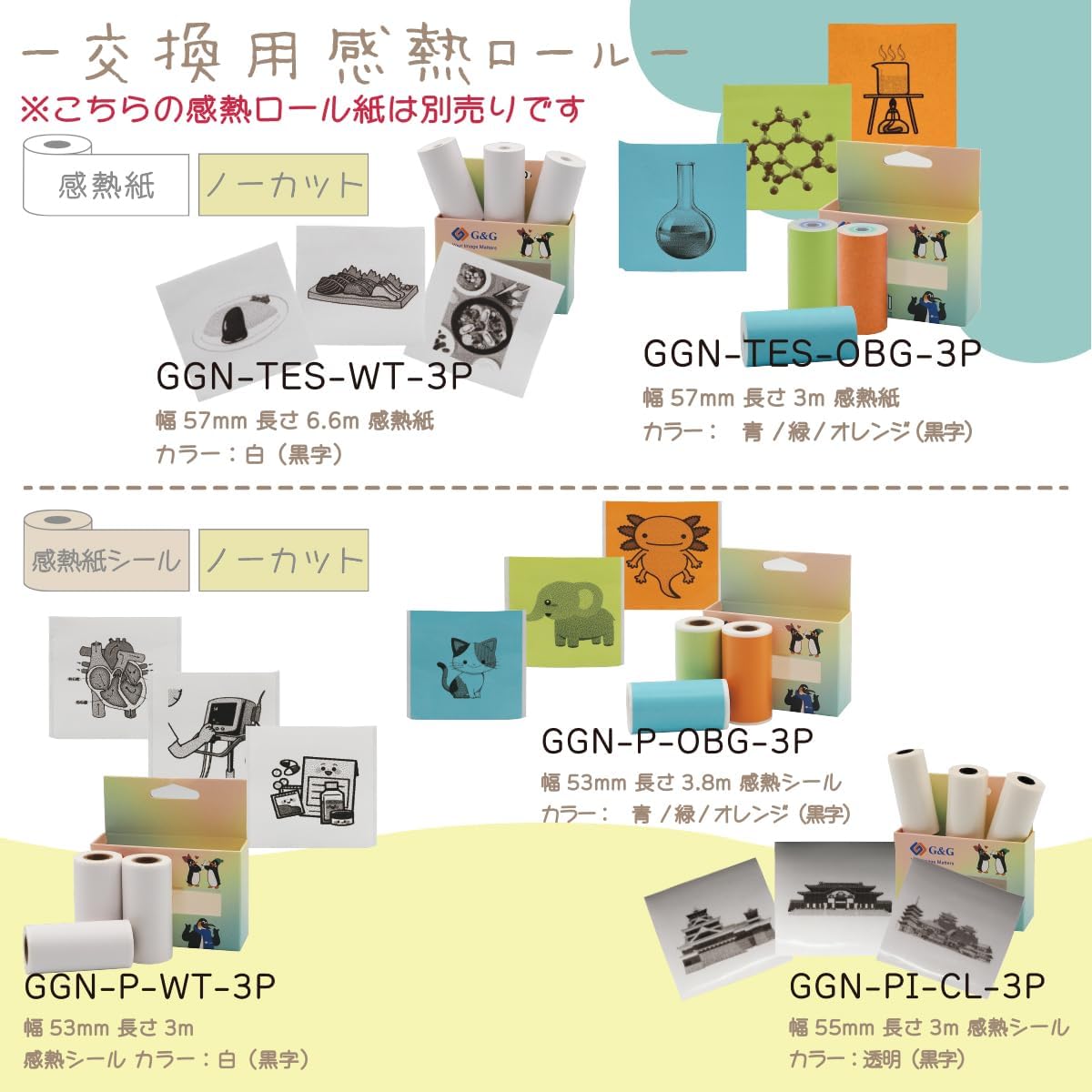
Note: Replacement thermal rolls and stickers are sold separately. Various types are available, including non-cut thermal paper (57mm width, 6.6m length, white/black text) and thermal stickers (53mm width, 3m length, white/black text; 55mm width, 3m length, transparent).

Different types of thermal paper and stickers are available for purchase:
- Thermal Paper (Non-cut): GGN-TES-WT-3P (57mm width, 6.6m length, white paper, black text), GGN-TES-OBG-3P (57mm width, 3m length, blue/green/orange paper, black text).
- Thermal Stickers (Non-cut): GGN-P-WT-3P (53mm width, 3m length, white sticker, black text), GGN-P-OBG-3P (53mm width, 3.8m length, blue/green/orange sticker, black text), GGN-PI-CL-3P (55mm width, 3m length, transparent sticker).
Troubleshooting
If you encounter any issues with your Ninestar G&G Thermal Printer, please refer to the following common troubleshooting steps:
- Printer not connecting via Bluetooth: Ensure the printer is powered on and within range. Check your smartphone's Bluetooth settings to confirm it's enabled and visible. Try restarting both the printer and your smartphone.
- No print output or blank prints: Verify that the thermal paper is loaded correctly with the printing side facing outwards. Ensure there is enough paper in the roll. The printer uses thermal technology, so no ink is required.
- Poor print quality: Check if the thermal paper is old or exposed to heat/light, which can degrade its quality. Ensure the printer's print head is clean (refer to maintenance section for cleaning instructions if available in the app manual).
- App issues: Make sure the "Print-Label" app is updated to the latest version. If the app crashes or freezes, try force-closing and reopening it. Reinstalling the app might also resolve persistent issues.
- Battery not charging: Ensure you are using a compatible USB AC adapter (DC5V 1A) and the provided USB Type-C cable. Check the charging port for any debris.
If these steps do not resolve your issue, please contact Ninestar customer support for further assistance.
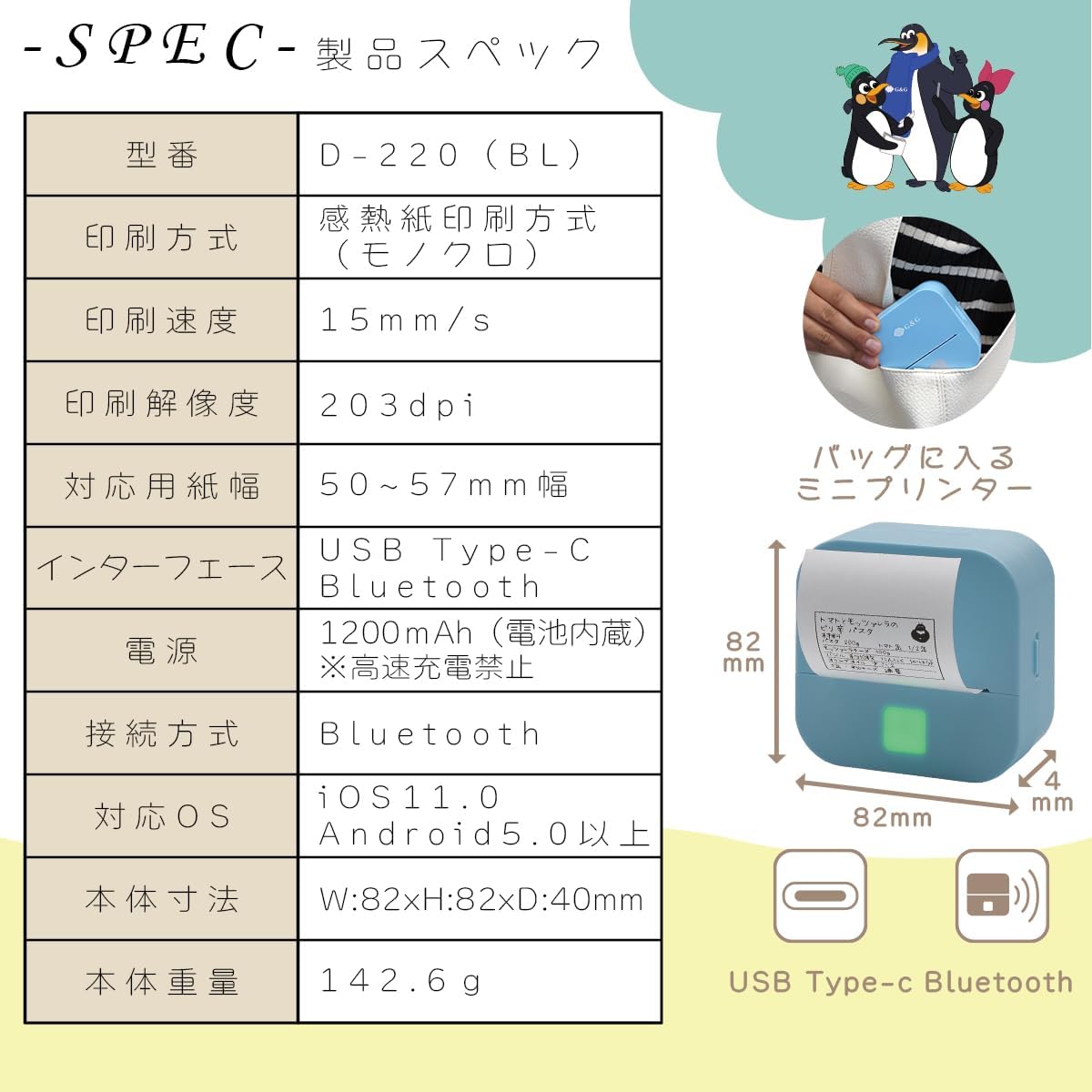
Specifications
| Feature | Detail |
|---|---|
| Model Number | D-220 (BL) |
| Printing Method | Thermal Printing (Monochrome) |
| Print Speed | 15 mm/s |
| Print Resolution | 203 dpi |
| Compatible Paper Width | 50 ~ 57 mm |
| Interface | USB Type-C, Bluetooth |
| Power | 1200mAh (Built-in Battery) *High-speed charging prohibited |
| Connection Method | Bluetooth |
| Compatible OS | iOS 11.0 and above, Android 5.0 and above |
| Body Dimensions (W x H x D) | 82 x 82 x 40 mm |
| Body Weight | 142.6 g |
The Ninestar G&G Thermal Printer GG-D220 is designed to be compact and lightweight, making it highly portable. Its dimensions are 82mm in width, 82mm in depth, and 40mm in height, with a total weight of 142.6 grams. It features a built-in 1200mAh battery and connects via Bluetooth or USB Type-C.
Warranty and Support
For warranty information and customer support, please refer to the documentation included with your product or visit the official Ninestar website. Keep your purchase receipt as proof of purchase for any warranty claims.
For common questions and troubleshooting, you may also refer to the FAQ section within the "Print-Label" application.
Official Ninestar Store: Visit the Ninestar Store on Amazon


