
VicoSafe BC1
VicoHome BC1 Wireless Outdoor Security Camera User Manual
Model: BC1 | Brand: VicoSafe
Introduction
Thank you for choosing the VicoHome BC1 Wireless Outdoor Security Camera. This manual provides essential information for the safe and effective use of your device. Please read it thoroughly before installation and operation, and retain it for future reference.
The VicoHome BC1 is a battery-powered, wire-free outdoor security camera designed for easy installation and long-lasting performance. It features 3MP (2304×1296) video, color night vision, smart motion detection, two-way audio, and an IP65 weatherproof rating, making it ideal for monitoring your home's exterior.
Safety Information
- Ensure the camera is installed in a location where it is protected from direct impact and extreme temperatures outside its operating range.
- Use only the provided charging cable and a compatible power adapter (5V/1A or 5V/2A recommended) to charge the camera.
- Do not disassemble, modify, or attempt to repair the camera. This will void the warranty and may cause damage or injury.
- Keep the camera and its accessories out of reach of children.
- Avoid placing the camera near strong magnetic fields or sources of interference.
- Dispose of the battery according to local regulations. Do not incinerate or expose to high temperatures.
What's in the Box
Verify that all components are present before proceeding with installation.
- 1 x VicoHome BC1 Wireless Outdoor Security Camera
- 1 x Mounting Kit (includes screws and wall anchors)
- 1 x Charging Cable
- 1 x Quick Start Guide (this manual serves as the detailed guide)
Product Overview
Familiarize yourself with the various parts of your VicoHome BC1 camera.
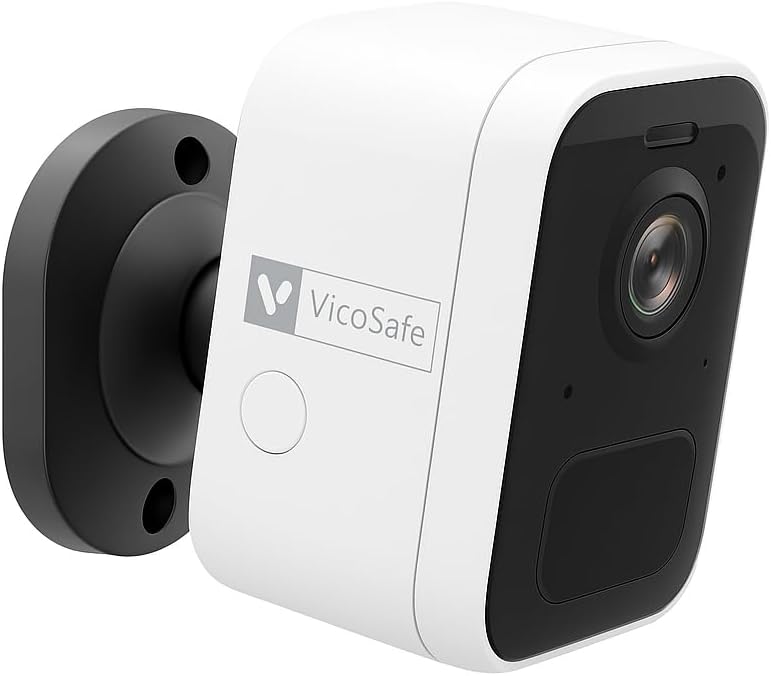


- Camera Lens: Captures video footage.
- PIR Motion Sensor: Detects heat signatures for motion detection.
- Status LED: Indicates camera status (e.g., charging, connected, motion detected).
- Microphone: For audio input and two-way communication.
- Speaker: For audio output and two-way communication.
- Charging Port: USB port for charging the internal battery.
- Reset Button: Used to reset the camera to factory settings.
- Mounting Thread: For attaching to the included wall mount.
Setup
1. Charging the Camera
Before initial use, fully charge the camera. Connect the provided charging cable to the camera's charging port and a 5V/1A or 5V/2A USB power adapter (not included). The status LED will indicate charging status and turn solid when fully charged. A full charge can provide up to 6 months of battery life depending on usage.
2. Downloading the VicoHome App
Search for "VicoHome" in the Apple App Store (for iOS devices) or Google Play Store (for Android devices) and download the official app. Create an account or log in if you already have one.
3. Pairing with Wi-Fi
- Open the VicoHome app and tap the "+" icon to add a new device.
- Select "Battery Camera" or the specific model "BC1" if prompted.
- Follow the on-screen instructions to power on the camera. The camera will enter pairing mode, indicated by a flashing blue LED.
- Connect your smartphone to a 2.4GHz Wi-Fi network. The VicoHome BC1 only supports 2.4GHz Wi-Fi.
- The app will display a QR code. Hold the camera lens approximately 15-20 cm (6-8 inches) in front of your phone screen until you hear a prompt sound from the camera, indicating successful scanning.
- Once connected, the camera's status LED will turn solid blue, and you can name your camera within the app.
4. Mounting the Camera
Choose a suitable outdoor location for mounting. Consider areas with good Wi-Fi signal strength and a clear view of the area you wish to monitor. The camera is IP65 weatherproof, suitable for outdoor use.
- Mark Drilling Positions: Use the mounting bracket as a template to mark the positions for drilling holes on the wall.
- Drill Holes: Drill holes at the marked positions. For masonry or concrete, insert the provided wall anchors.
- Attach Bracket: Secure the mounting bracket to the wall using the provided screws.
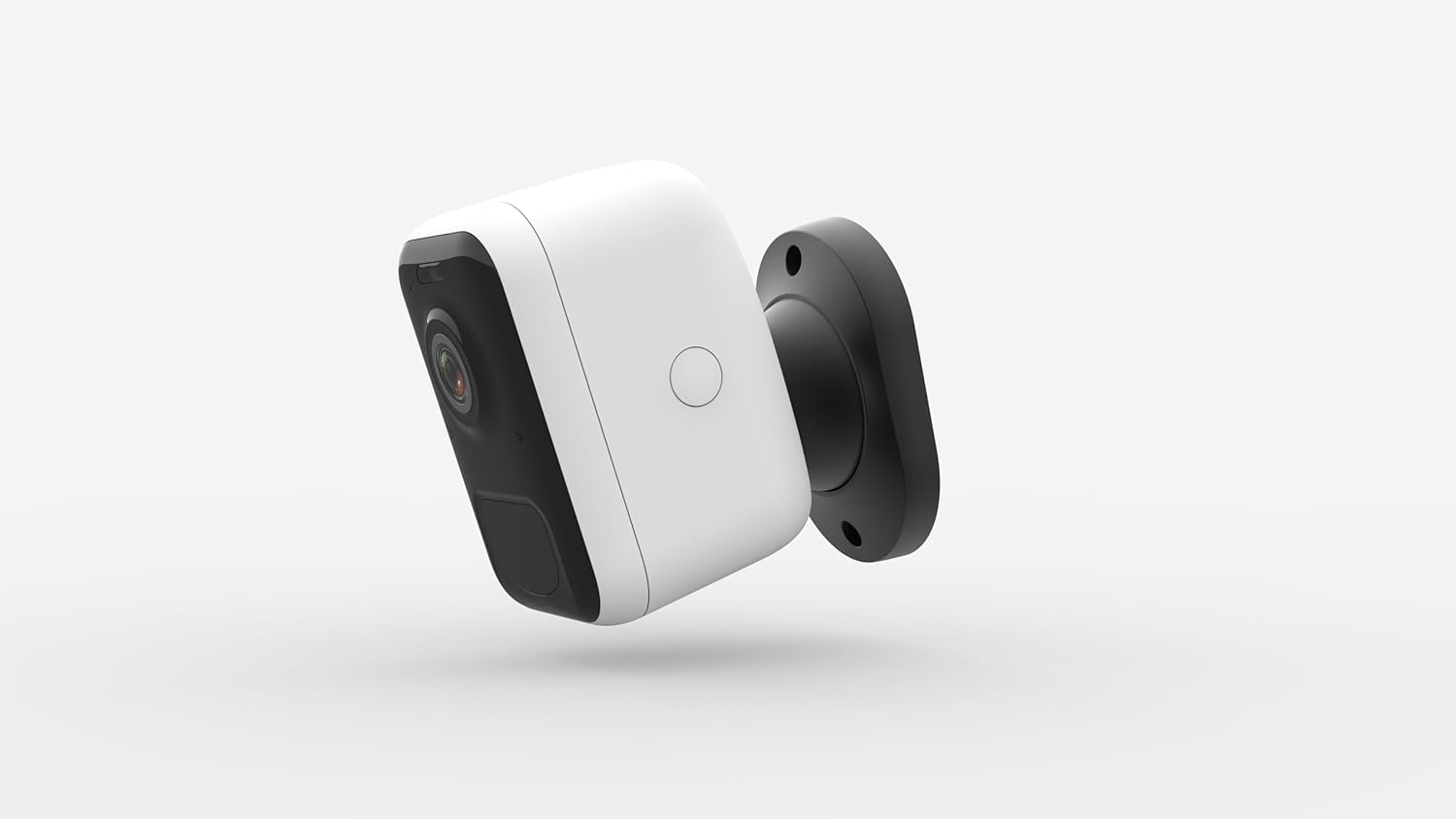
- Attach Camera: Screw the camera onto the mounting bracket. Adjust the camera angle to cover your desired viewing area.
Operating the Camera
Live View
From the VicoHome app's home screen, tap on your camera's name to access the live view. You can see real-time footage, take screenshots, record manually, and access other features.
Two-Way Audio
While in live view, tap the microphone icon to speak through the camera's speaker. Tap the speaker icon to listen to audio from the camera's microphone.
Motion Detection Settings
The VicoHome BC1 uses a PIR (Passive Infrared) sensor for smart motion detection, reducing false alarms. In the app's camera settings:
- Detection Sensitivity: Adjust the sensitivity level to optimize detection for your environment.
- Activity Zones: Define specific areas within the camera's view where you want motion detection to be active.
- Alert Schedule: Set specific times or days when you want to receive motion alerts.
- Human Detection: Enable this feature to filter out non-human movements (e.g., pets, vehicles) and only receive alerts for people.
Night Vision
The camera automatically switches to infrared night vision in low-light conditions. It also features a built-in spotlight that can be activated for color night vision, providing clearer images in the dark.
Recording and Playback
Motion-triggered events are recorded and stored. You can access these recordings via the VicoHome app. The camera supports both cloud storage (subscription may be required) and local storage via a microSD card (not included, up to 128GB).
- Event History: Browse recorded events by date and time.
- Download: Download important video clips to your phone.
Smart Home Integration
The VicoHome BC1 can be integrated with Amazon Alexa and Google Assistant for voice control and smart home automation. Refer to the VicoHome app's integration section for detailed instructions on linking your camera to these platforms.
Maintenance
- Battery Care: To maximize battery life, avoid exposing the camera to extreme temperatures for prolonged periods. Recharge the camera when the battery level is low. Consider a VicoHome solar panel (sold separately) for continuous charging.
- Cleaning: Gently wipe the camera lens and body with a soft, damp cloth. Do not use harsh chemicals or abrasive cleaners.
- Firmware Updates: Regularly check the VicoHome app for firmware updates. Updates often include performance improvements and new features.
- Weatherproofing: While IP65 rated, ensure the charging port cover is securely closed when not charging to maintain water resistance.
Troubleshooting
| Problem | Possible Solution |
|---|---|
| Camera won't power on. | Ensure the camera is fully charged. Connect it to a power source and wait a few minutes. |
| Cannot connect to Wi-Fi. |
|
| Frequent false motion alerts. |
|
| Poor video quality. |
|
| Two-way audio not working. |
|
Specifications
| Feature | Detail |
|---|---|
| Model Name | BC1 Outdoor Camera Wireless |
| Video Capture Resolution | 3MP (2304×1296) / 2K HD |
| Connectivity Technology | Wireless (Wi-Fi 2.4GHz) |
| Power Source | Battery Powered (5200mAh or 6700mAh rechargeable battery) |
| Battery Life | Up to 6 months (180 days) per charge |
| Indoor/Outdoor Usage | Outdoor |
| Weather Resistance | IP65 Rated |
| Night Vision Range | Up to 23 feet (7 meters) with infrared, Color Night Vision with spotlight |
| Viewing Angle | 125 Degrees |
| Special Features | 2-Way Audio, Smart Motion Sensor (PIR), Night Vision, Weather Proof, Amazon Alexa & Google Assistant Compatible |
| Storage Options | Cloud Storage, Local Storage (MicroSD card up to 128GB, not included) |
| Dimensions (L x W x H) | 3.15 x 1.57 x 4.33 inches |
| Item Weight | 2.2 pounds |
Warranty and Support
VicoSafe products typically come with a limited warranty. Please refer to the warranty card included with your product or visit the official VicoSafe website for detailed warranty terms and conditions.
For technical support, troubleshooting assistance, or any inquiries regarding your VicoHome BC1 camera, please contact VicoSafe customer support through their official website or the contact information provided in the VicoHome app.
Online Resources: For the latest FAQs, video tutorials, and support articles, visit the VicoSafe support page.
Ask a question about this manual
Ask about setup, troubleshooting, compatibility, parts, safety, or missing instructions. Manuals+ will review the question and use this page’s manual context to help answer it.