
Introduction
This manual provides detailed instructions for the installation, operation, and maintenance of your AWESAFE IB-FR-CLP11 10.26-inch Carplay and Android Auto screen. Please read this manual thoroughly before using the device to ensure proper functionality and safety.
Setup and Installation
Package Contents
Before installation, verify that all components are present in the package:
- AWESAFE 10.26-inch Carplay & Android Auto Screen
- Rear Camera
- Car Charger
- User Manual
- Mounting Accessory
- AUX Cable
- Support Base
- Rear Camera Cables
- Other Installation Accessories

This image illustrates the main unit's dimensions and all included accessories for installation.
Rear Camera Installation
The rear camera is included for enhanced safety and parking assistance. Follow these steps for installation:
- Connect the rear camera cable to the main unit's AV-IN port.
- Route the camera cable to the rear of your vehicle.
- Connect the red trigger wire from the camera cable to the positive pole of your vehicle's reverse light. This enables automatic display of the rear view when reversing.
- Mount the rear camera securely at the back of your vehicle, ensuring a clear view.

Detailed wiring diagram for the reverse camera, illustrating connections for power, audio, and the reverse trigger wire.
Operating Instructions
CarPlay and Android Auto
The device supports both wired and wireless Apple CarPlay and Android Auto. This allows you to integrate your smartphone's functions directly onto the 10.26-inch screen.
- Wireless Connection: Enable Bluetooth and Wi-Fi on your smartphone. Pair your phone with the AWESAFE device via Bluetooth. Once paired, the system will automatically initiate CarPlay or Android Auto wirelessly.
- Wired Connection: Connect your smartphone to the device using a USB cable. CarPlay or Android Auto will launch automatically.
Through CarPlay/Android Auto, you can access navigation, music, calls, messages, and other compatible applications directly from the screen, utilizing your phone's built-in voice control (e.g., Siri, Google Assistant) for hands-free operation.

The main screen displaying the CarPlay interface with various app icons like Phone, Music, Maps, Messages, and Calendar.

Banner highlighting the wireless CarPlay and Android Auto features.

Car dashboard view showing the CarPlay interface mirrored from a smartphone, with app icons clearly visible.

Car dashboard view showing the Android Auto interface mirrored from a smartphone, displaying navigation and media controls.
Mirror Link / AirPlay / Android Autolink
The device also supports screen mirroring functions like AirPlay for iOS devices and Android Autolink for Android devices, allowing you to cast your phone's screen directly to the display.

Multiple screens demonstrating smartphone screen mirroring and casting functionalities, labeled 'AirPlay'.
Dashcam and Rear Camera Functionality
The system includes a 2.5K front dashcam and a 1080P rear camera for comprehensive recording and parking assistance.
- Front Dashcam: Records in 2.5K resolution, providing clear footage of the road ahead. Supports loop recording, automatically overwriting older files when the storage card is full (64GB SD TF card not included).
- Rear Camera: Records in 1080P and provides a live feed for parking. When reversing, the screen automatically switches to the rear camera view with parking guidelines.
- Split Screen: The device can display both the CarPlay/Android Auto interface and the dashcam view simultaneously.
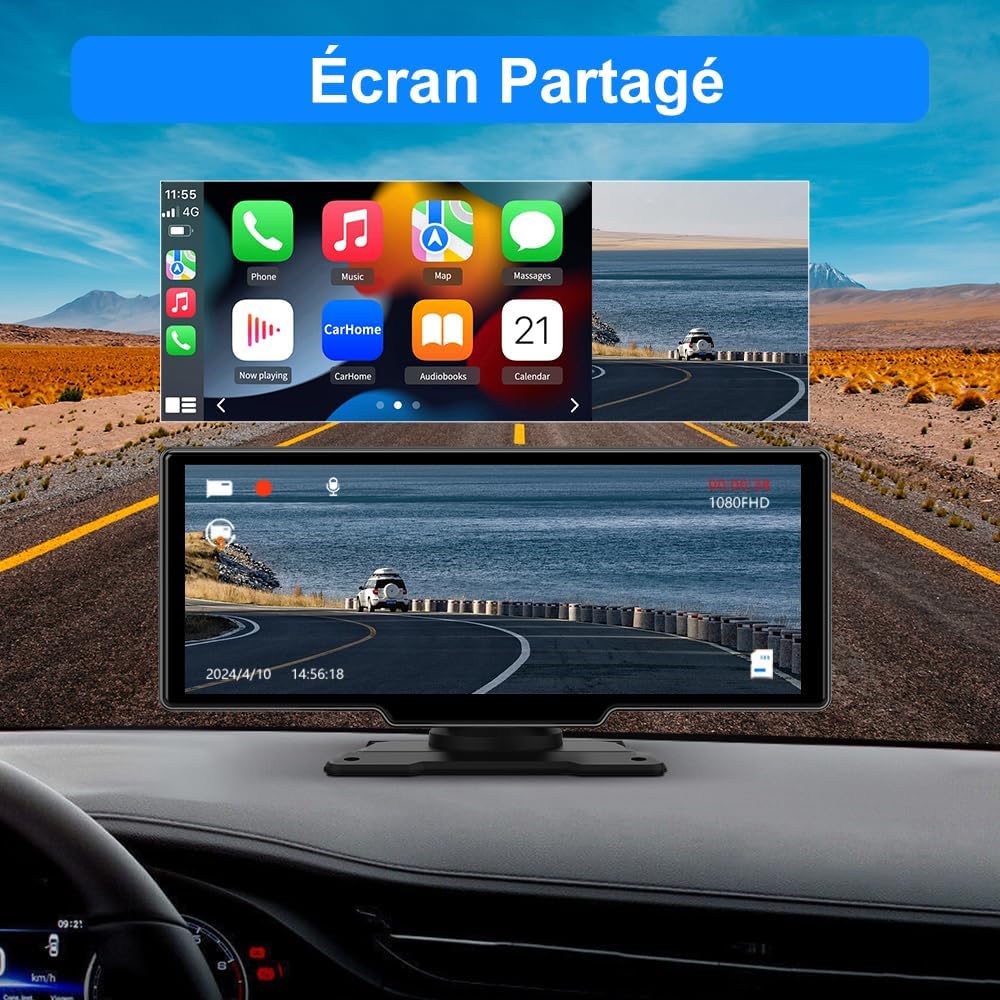
Split screen view showing both the main CarPlay interface and a 1080FHD dashcam recording, indicating simultaneous operation.

Image depicting continuous video recording while driving, with a dashcam view of the road and a visual representation of loop recording.

Screen displaying a 1080P HD rear camera view with parking guidelines, showing a car reversing into a parking spot.

Split screen view showing a 4K front camera recording on the left and a 1080P rear camera view on the right, demonstrating dual camera functionality.

Overhead view of a car illustrating the integrated front dashcam and rear camera, with separate screens showing front and rear views.
GPS Navigation
Utilize your smartphone's GPS navigation through CarPlay or Android Auto for real-time maps and directions. This system avoids common issues of traditional car GPS units like weak signals or lack of voice control.

Car dashboard screen displaying an online GPS navigation map with real-time traffic information, accessible via CarPlay/Android Auto.
Bluetooth Connectivity
The integrated Bluetooth allows for hands-free calls and music streaming. Pair your phone to synchronize contacts, make calls, and play audio through the device's built-in speaker or your car's audio system.

Car dashboard screen displaying a phone call interface activated by voice command, with 'Hello, Siri...' and 'Active Bluetooth...' prompts.
Audio Output Modes
You can transmit audio from the AWESAFE screen to your car's audio system using several methods:
- Device Speaker: Audio plays directly from the built-in speaker of the AWESAFE unit.
- FM Transmitter: Set the same FM frequency on the AWESAFE screen and your car radio (e.g., 95.6 MHz). Avoid frequencies occupied by local FM stations.
- AUX Cable: Connect the included AUX cable from the AWESAFE unit to your car's auxiliary input port.
- Bluetooth Audio: Stream audio wirelessly to your car's Bluetooth-enabled audio system.

Screen showing the FM transmitter interface, allowing audio transmission to the car's radio, along with instructions for using FM, AUX, or the device's built-in speaker.

Four panels illustrating different audio output modes: device speaker, AUX audio, FM audio, and Bluetooth audio, with corresponding connection methods.
Automatic Brightness Adjustment
The screen features automatic brightness adjustment, adapting to ambient light conditions for optimal visibility during both day and night driving.

Car dashboard screen demonstrating automatic brightness adjustment, showing a brighter screen during the day and a darker screen at night.
Maintenance
To ensure the longevity and optimal performance of your AWESAFE device, follow these maintenance guidelines:
- Cleaning: Use a soft, dry cloth to clean the screen and exterior. For stubborn smudges, lightly dampen the cloth with water or a screen-safe cleaner. Avoid abrasive materials or harsh chemicals.
- Temperature: Do not expose the device to extreme temperatures. Prolonged exposure to direct sunlight or very cold conditions can affect performance and lifespan.
- Connections: Periodically check all cable connections to ensure they are secure. Loose connections can lead to intermittent functionality.
- Software Updates: Check the manufacturer's website for any available software updates to ensure you have the latest features and bug fixes.
Troubleshooting
If you encounter issues with your AWESAFE device, refer to the following common problems and solutions:
| Problem | Possible Cause | Solution |
|---|---|---|
| No Power | Loose power connection, faulty car charger, vehicle's power outlet issue. | Check if the car charger is securely plugged into both the device and the vehicle's power outlet. Test the power outlet with another device. |
| No Sound | Incorrect audio output setting, low volume, loose AUX cable, FM frequency interference. | Verify the selected audio output mode (device speaker, FM, AUX, Bluetooth). Adjust volume on both the device and your car stereo. Ensure AUX cable is fully inserted. Try a different FM frequency if using FM transmitter. |
| CarPlay/Android Auto Not Connecting | Bluetooth/Wi-Fi off on phone, incorrect pairing, faulty USB cable, phone software issue. | Ensure Bluetooth and Wi-Fi are enabled on your phone. Forget and re-pair the device in your phone's Bluetooth settings. Try a different USB cable for wired connection. Restart your phone and the AWESAFE unit. |
| Rear Camera Not Displaying | Loose camera cable, incorrect wiring of trigger wire, faulty camera. | Check the connection of the rear camera cable to the main unit. Verify that the reverse trigger wire is correctly connected to the reverse light's positive pole. |
| Screen Unresponsive | Temporary software glitch, extreme temperature. | Restart the device by disconnecting and reconnecting power. Ensure the device is not exposed to extreme temperatures. |
Specifications
Below are the technical specifications for the AWESAFE IB-FR-CLP11 Carplay & Android Auto Screen:
| Feature | Detail |
|---|---|
| Brand | AWESAFE |
| Model Name | IB-FR-CLP11 (IB) |
| Screen Size | 10.26 Inches |
| Display Type | Capacitive Touchscreen |
| Connectivity Technology | Bluetooth |
| Special Features | Wireless/Wired CarPlay, Android Auto, Voice Control, Dashcam (Front 4K, Rear 1080P), GPS Support, FM Transmitter, AUX Output |
| Compatible Vehicle Types | Car, Truck, Caravan, Van, Trailer, Motorhome, Bus |
| Mounting Type | Dashboard Mount, Windshield Mount |
| Audio Output Mode | Stereo |
| Control Method | Touch |
| Supported Satellite Navigation System | GPS |
| Memory Storage Capacity | 64 GB (SD TF card not included) |
| Item Weight | 970 Grams |
| UPC | 759973262600 |
| ASIN | B0FJM8JRXY |
| Country of Origin | China |

This image illustrates the compatibility of the device with various vehicle types, including SUVs, pickup trucks, compact cars, and commercial vans.
Warranty Information
The AWESAFE IB-FR-CLP11 comes with a 2-year warranty from the date of purchase. This warranty covers manufacturing defects and malfunctions under normal use. Please retain your proof of purchase for warranty claims. The warranty does not cover damage caused by misuse, accidents, unauthorized modifications, or improper installation.
Customer Support
For further assistance, technical support, or warranty inquiries, please contact AWESAFE customer service. Refer to the contact information provided in your product packaging or visit the official AWESAFE website for support resources.


