
1. Introduction
This manual provides detailed instructions for the installation, operation, and maintenance of your AINAVI 10-inch Touchscreen Car Stereo Radio. Please read this manual thoroughly before using the product to ensure proper functionality and safety.
2. Compatible Vehicle Models
This head unit is designed for specific vehicle models and years. Please verify your vehicle's compatibility before installation.
- For Chevy Silverado: 1500HD / 2500HD / 3500HD (2007-2014, Second Generation)
- For Chevrolet: Traverse (2009-2012), Express Van (2008-2011), Avalanche (2007-2011, GMT900), HHR (SS/LT/Panel/LS) (2006-2011), Tahoe (2007-2014, Third Generation), Impala (2006-2012, Ninth Generation), Equinox (2005-2009, First Generation), Suburban (2007-2014, Tenth Generation), Monte Carlo (2006-2007, Seventh Generation)
- For HUMMER: H2 (2008-2009)
- For BUICK: Enclave (2008-2012)
- For GMC: Savana (2008-2013), Sierra (Denali) (2007-2014), Yukon (Denali) (2007-2014), Acadia (Denali) (2007-2012)
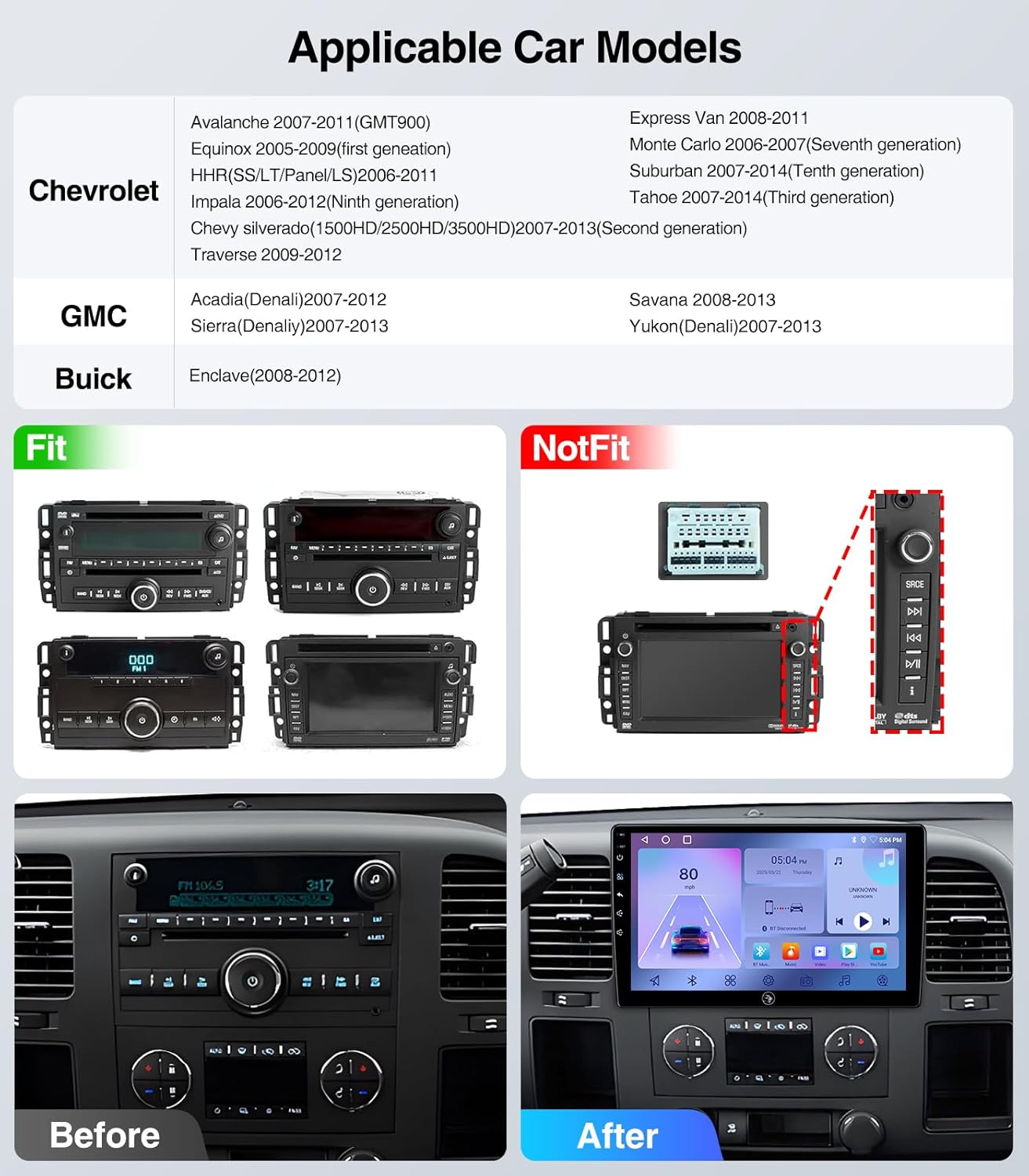
Figure 2.1: Applicable Car Models and Fitment Examples. This image illustrates various car models and their compatibility with the stereo, showing both fitting and non-fitting original radio units.
3. What's Included
The package includes the following components:
- 10 Inch 2+64G Android Car Stereo Head Unit
- Power Cable (with CANbus for some models)
- RCA Cable
- External Microphone
- GPS Module
- USB Cable *2
- Reversing Control Cable
- 1080P Rear View Camera
- Frame Removal Tool

Figure 3.1: Included Components. This image displays all the parts and cables that come with your AINAVI car stereo system.
Video 3.1: What you will get for Chevy Silverado 07-13 Cable Connection. This video demonstrates the various cables and components included in the package for Chevy Silverado 2007-2013 models.
4. Installation Guide
Professional installation is recommended. Ensure the vehicle's power is disconnected before beginning installation. Refer to the specific wiring diagrams for your vehicle model.

Figure 4.1: Before and After Installation. This image illustrates the visual transformation of the car's dashboard after installing the AINAVI stereo.
Video 4.1: How to install radio for Chevy Silverado 07-13 Chevrolet GMC. This video provides a step-by-step guide on installing the car stereo in compatible Chevrolet and GMC models.
Video 4.2: 4Core Car Radio installation. This video demonstrates the installation process for a 4-core car radio, which is applicable to this model.
Video 4.3: Car Radio Stereo for Chevy Chevrolet Silverado/GMC Sierra. This video provides an overview of the car radio stereo and its installation in compatible Chevy and GMC vehicles.
5. Operating Instructions
5.1. CarPlay and Android Auto
The unit supports both wireless CarPlay and Android Auto. Connect your iPhone or Android phone wirelessly to access navigation, make calls, send messages, and enjoy music safely while driving.

Figure 5.1: Wireless CarPlay & Android Auto. This image demonstrates the seamless integration of smartphone features onto the car stereo display.
Video 5.1: How to connect wireless Android Auto. This video guides you through the process of connecting your Android phone wirelessly to the car stereo.
Video 5.2: How to connect CarPlay? BT&Tlink. This video explains how to connect your iPhone to the car stereo using Bluetooth and Tlink for CarPlay functionality.
5.2. GPS Navigation
The unit features built-in GPS navigation and supports online/offline maps. Connect to Wi-Fi for online map access. You can install or delete Android apps from the Application Store, similar to a smartphone.

Figure 5.2: GPS Navigation. This image shows the GPS navigation interface with options for online/offline maps and voice commands.
5.3. Bluetooth Connectivity
Supports Bluetooth hands-free calls and music streaming. Equipped with a built-in mic and an external mic for clear audio quality. Pair your device via Bluetooth settings.

Figure 5.3: 5G WiFi Hotspot & BT Connection. This image highlights the unit's capabilities for internet access and Bluetooth pairing.
5.4. FM Radio
Listen to real-time traffic, news, and weather forecasts with the built-in FM Radio stereo receiver. (Not compatible with Sirius XM).

Figure 5.4: AM / FM / RDS Radio. This image shows the radio interface, allowing users to tune into various stations.
5.5. Steering Wheel Control
Operate all stereo functions directly from your steering wheel. Quickly adjust volume, skip tracks, and answer calls without diverting your attention from driving.

Figure 5.5: WiFi Connection and Steering Wheel Control. This image illustrates the convenience of controlling the stereo directly from the steering wheel.
5.6. Rear View Camera
The 1080P rear view camera provides HD reversing scenes with an astern ruler line for position information. If your car supports astern trajectory, it will also display on the screen.
Video 5.3: How to connect an aftermarket backup camera for Pickup Truck. This video demonstrates the connection process for an aftermarket backup camera in a pickup truck.
5.7. Split Screen and Screen Mirroring
The Android 13 operating system allows for split-screen functionality, enabling you to run multiple applications simultaneously. Screen mirroring is also supported.
Video 5.4: Split Screen Touchscreen Stereo Radio for Silverado 07-13. This video showcases the split-screen functionality of the touchscreen stereo.
Video 5.5: 5G-WiFi6 User Guide-Split-Screen-BT5.4. This video provides a user guide for 5G WiFi6, split-screen, and Bluetooth 5.4 features.
6. Maintenance
To ensure the longevity and optimal performance of your AINAVI car stereo, follow these maintenance guidelines:
- Cleaning: Use a soft, dry cloth to clean the touchscreen and surrounding areas. Avoid abrasive cleaners or solvents that may damage the screen or finish.
- Software Updates: Periodically check for software updates to ensure you have the latest features and bug fixes. Updates can typically be found on the manufacturer's website or through the device's settings.
- Environmental Conditions: Avoid exposing the unit to extreme temperatures, direct sunlight for prolonged periods, or excessive moisture.
- Cable Connections: Ensure all cables are securely connected. Loose connections can lead to intermittent issues.
7. Troubleshooting
If you encounter any issues with your car stereo, refer to the following common troubleshooting steps:
- No Power: Check all power connections and ensure the vehicle's ignition is on. Verify fuses are intact.
- No Sound: Check volume levels, audio output settings, and speaker connections. Ensure the mute function is not activated.
- Bluetooth Connection Issues: Ensure Bluetooth is enabled on both the stereo and your phone. Delete previous pairings and try reconnecting.
- GPS Not Working: Ensure the GPS antenna is properly installed and has a clear view of the sky. Check GPS settings for any disabled features.
- Touchscreen Unresponsive: Try restarting the unit. If the issue persists, a factory reset might be necessary (refer to the settings menu).
- CarPlay/Android Auto Not Connecting: Ensure your phone's operating system is up to date. Check the USB cable if using a wired connection, or Bluetooth/Wi-Fi for wireless.
For persistent issues, please contact customer support.
8. Specifications
| Feature | Specification |
|---|---|
| Brand | AINAVI |
| Model | 10" 2G+64G |
| Screen Size | 10 Inches |
| Display Type | QLED, Capacitive Touchscreen |
| Operating System | Android 13 |
| Memory Storage Capacity | 64 GB |
| Special Features | Bluetooth, Touchscreen, Wired/Wireless CarPlay and Android Auto |
| Connectivity Technology | Bluetooth, USB, Wi-Fi, Wired/Wireless CarPlay Android Auto |
| Supported Satellite Navigation System | GPS (North America, Worldwide maps) |
| Audio Output Mode | Stereo |
| Item Weight | 1.45 Kilograms |
9. Warranty and Support
Your AINAVI car stereo comes with a 12-Month Manufacturer's Guarantee.
For technical support, installation assistance, or warranty claims, please contact AINAVI customer service:
- Customer Service Phone: +1 833 858 5016
- Working Hours: 01:00 PM to 00:00 AM PST
- Email: info@ainavi.com

Figure 9.1: Customer Support Information. This image provides visual contact details for customer assistance.