
Overview
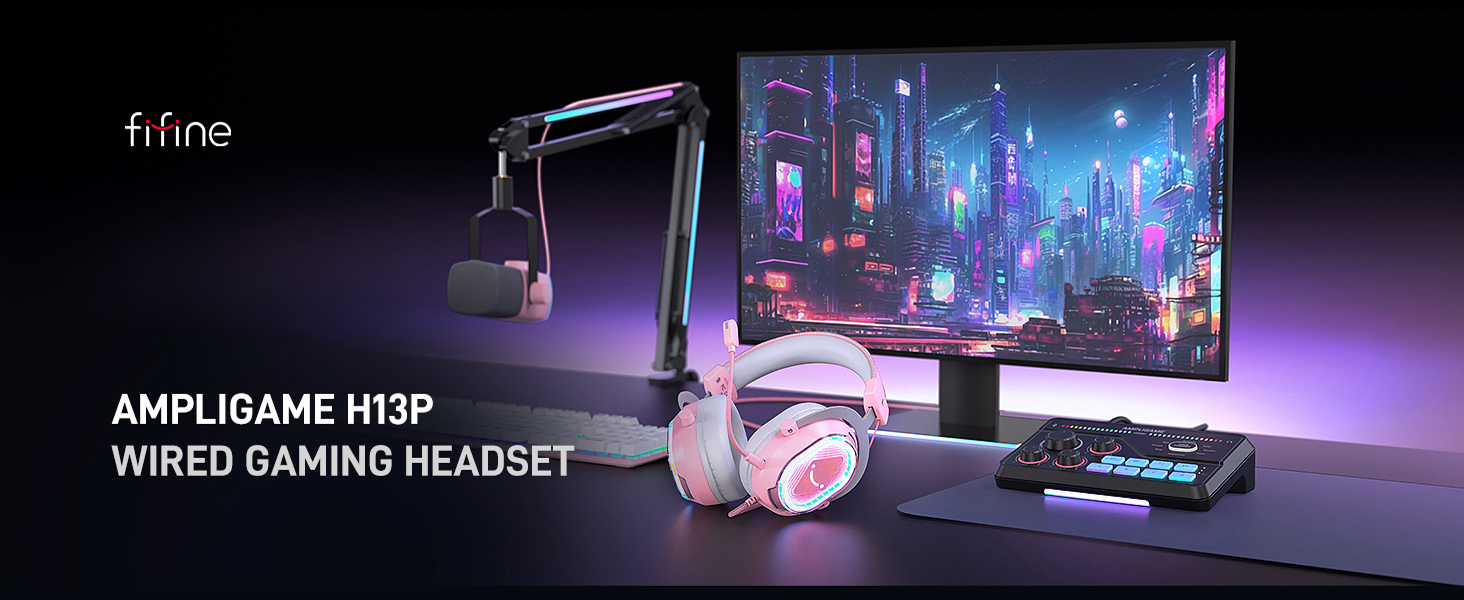
The FIFINE AmpliGame H13P is a wired RGB gaming headset designed for immersive audio experiences across multiple platforms. It features 7.1 virtual surround sound, a detachable noise-cancelling microphone, customizable RGB lighting, and comfortable over-ear design for extended use. This manual provides detailed instructions for setup, operation, and maintenance of your H13P headset.
Package Contents
- FIFINE AmpliGame H13P Gaming Headset
- Detachable Microphone
- User Manual
Product Features
- 7.1 Virtual Surround Sound: Delivers 360° audio for an immersive gaming experience, allowing clear detection of in-game sounds like footsteps.
- 50mm Dynamic Drivers: Provides rich audio detail, powerful bass, and clear sound for gaming, music, and movies.
- Detachable Noise-Cancelling Microphone: Features AI noise-cancelling to eliminate environmental noise for clear team communication. Includes a one-touch mute button with LED indicator.
- Customizable RGB Lighting: Offers 11 static or dynamic RGB light effects with a rhombus chassis design and transparent casing. The illuminated smiling-face logo adds a stylish touch. Further customization is available via Fifine Genie software.
- Ergonomic Comfort Design: Equipped with skin-friendly protein leather cushions and memory foam for even pressure distribution. An adjustable headband ensures a secure fit for various head sizes. Ergonomic ear cups fully enclose ears, blocking background noise without discomfort during long sessions.
- In-line USB Control Box: Provides easy access to controls including 7.1 surround sound toggle, 4 EQ modes (Default, Music, Game, Movie), mic mute, headset volume control, and game/chat balance.
- Universal USB Connectivity: Plug-and-play functionality via USB.
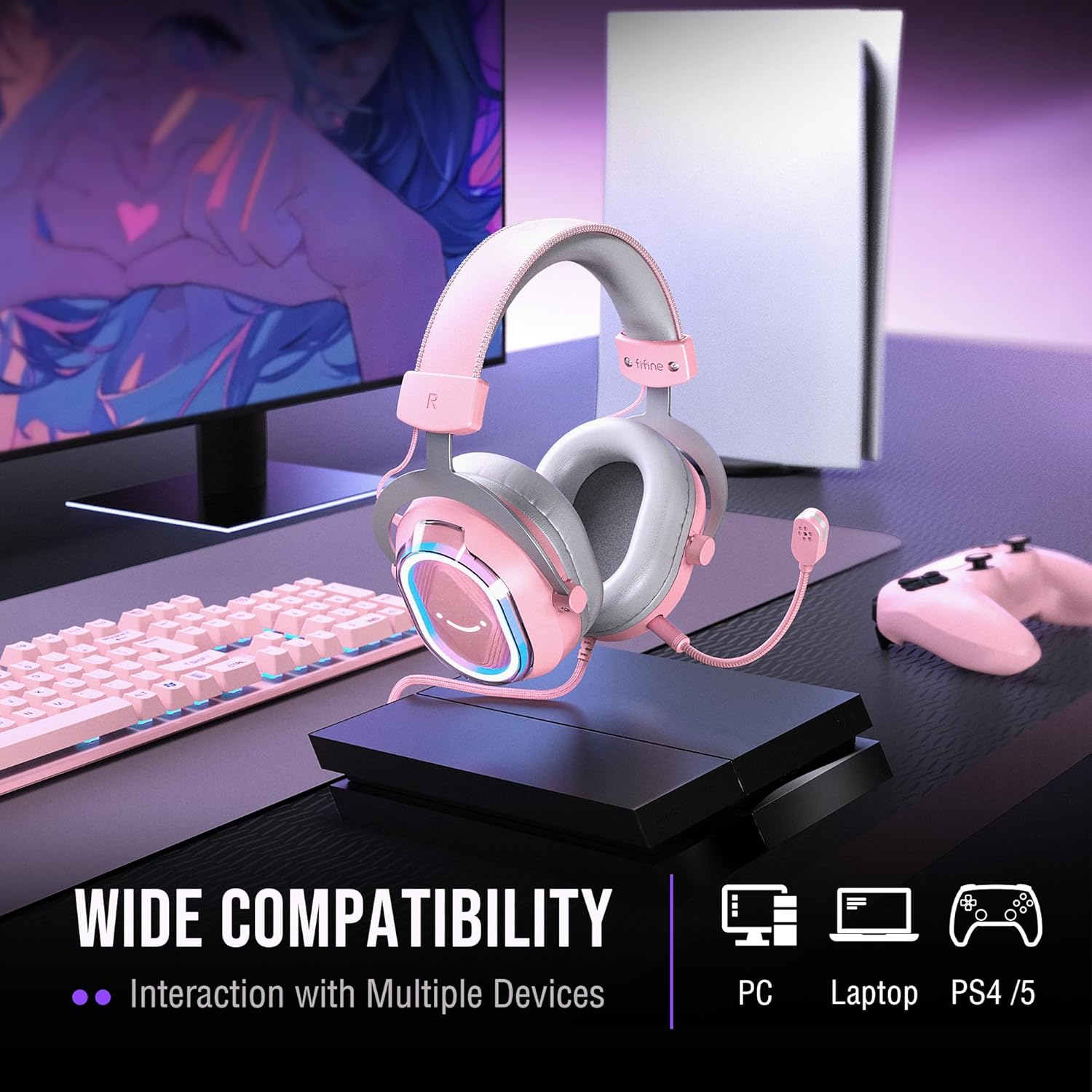
- Wide Compatibility: Compatible with PC, Laptops (Mac OS/Windows), PS4, and PS5 consoles.
- Durable Construction: Made with leather, metal, and plastic components, featuring a braided material cable.
Setup Instructions
- Connect the Headset: Plug the USB connector of the headset into an available USB port on your PC, Laptop, PS4, or PS5. The headset is plug-and-play and should be recognized automatically by your system.
- Attach the Microphone: Insert the detachable microphone into the designated port on the left earcup until it clicks securely into place. Adjust the microphone's position for optimal voice pickup.
- System Audio Settings:
- For PC/Laptop (Windows): Go to Sound Settings. You will typically see two output devices for the headset: "FIFINE H13 Game" and "FIFINE H13 Chat". Set "FIFINE H13 Game" as your default output for game audio and "FIFINE H13 Chat" as your default communication device (e.g., in Discord).
- For Mac: Select the FIFINE H13P as your audio input and output device in Sound Preferences.
- For PS4/PS5: Navigate to Sound/Audio Output settings and select the FIFINE H13P as the output device for chat and game audio.

Operating Instructions
In-line USB Control Box Functions:
- 7.1 Surround Sound Toggle: Press the large "7.1" button to activate or deactivate 7.1 virtual surround sound. An indicator light will confirm its status.
- EQ Modes: Press the "EQ" button to cycle through 4 preset equalizer modes: Default (balanced audio), Music (clear vocal), Game (powerful bass), and Movie (dynamic enhancement).
- Headset Volume Control: Use the volume roller on the side of the control box to adjust the overall headset volume.
- Microphone Mute: Press the microphone icon button to mute or unmute your microphone. A red LED indicator on the microphone tip will show when it is muted.
- AI Noise-Cancelling: Press the dedicated button on the control box to activate or deactivate the AI noise-cancelling function for the microphone.
- Game/Chat Balance: Use the slider on the side of the control box to adjust the balance between game audio and chat audio. Slide towards "GAME" to prioritize game sounds or towards "CHAT" to prioritize voice communication.
RGB Lighting Control:
- Change RGB Effects: Press the small button located on the left earcup to cycle through 11 static or dynamic RGB lighting effects.
- Customization Software: For more advanced RGB customization options, download and install the Fifine Genie software from the official FIFINE website.
Maintenance
- Cleaning: Use a soft, dry cloth to clean the headset. Avoid using harsh chemicals or abrasive materials.
- Storage: Store the headset in a cool, dry place away from direct sunlight and extreme temperatures.
- Cable Care: Avoid sharp bends or excessive pulling on the USB cable to prevent damage.
Troubleshooting
| Problem | Solution |
|---|---|
| No sound from headset. |
|
| Microphone not working. |
|
| RGB lighting not working. |
|
| 7.1 Surround Sound not active. |
|
Specifications
| Model Name: | H13P |
| Connectivity: | Wired (USB) |
| Audio Driver Size: | 50mm Dynamic Driver |
| Impedance: | 32 Ohms |
| Noise Control: | Passive Noise Cancellation, AI Noise-Cancelling Microphone |
| Ear Placement: | Over Ear |
| Material: | Leather, Metal, Plastic |
| Item Weight: | 1.41 pounds |
| Compatible Devices: | PC, Laptop (Mac OS/Windows), PS4, PS5 |
Warranty and Support
For warranty information, technical support, or customer service inquiries, please refer to the official FIFINE website or contact their customer support directly. Keep your purchase receipt for warranty claims.


