1. Introduction
This manual provides comprehensive instructions for the installation, operation, and maintenance of your LNBBEQ V380 Pro WiFi IP Camera. This outdoor security camera features 12MP 6K triple lenses, triple screen monitoring, advanced night vision capabilities, and a waterproof design. Please read this manual thoroughly before use to ensure proper functionality and safety.
2. Product Features
- Triple Lens 6K Ultra Clear Monitoring: Dual fixed lenses provide 180° panoramic coverage, combined with a PTZ (Pan-Tilt-Zoom) lens for 320° horizontal and 90° vertical rotation, and 10x digital zoom. Total 12MP resolution (4MP per lens) for detailed imaging.
- Full Color Night Vision: Equipped with infrared and white lights, offering full-color, black and white (infrared), and automatic night vision modes.
- Intelligent Human Detection & Automatic Tracking: AI-powered human detection triggers alarms and automatically tracks moving subjects.
- Dual Network Connection: Supports 2.4GHz WiFi and wired network (RJ45 port). Also features a built-in WiFi hotspot for direct connection within 10 meters.
- Multi-Terminal Access: Compatible with mobile phones and computers for real-time monitoring and multi-user sharing via the "V380 Pro" app.
- IP66 Waterproof Design: Durable construction for outdoor use in various weather conditions.
- Two-Way Audio: Built-in microphone and speaker for real-time voice communication.
- Storage Options: Supports local storage via up to 128GB SD card (if included) and cloud storage.
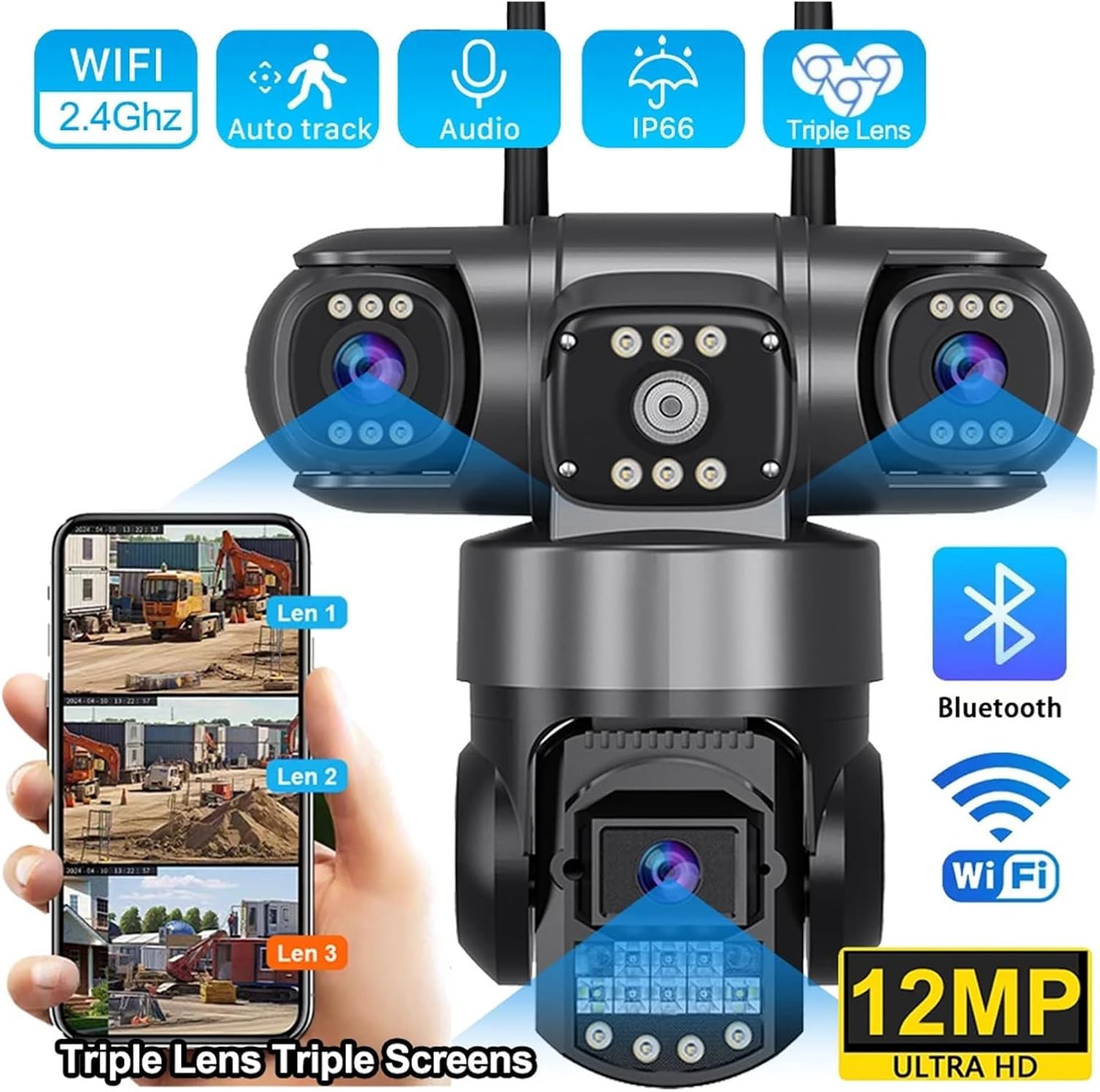
Image: A visual summary of the camera's key features, including 2.4GHz WiFi, auto-tracking, two-way audio, IP66 waterproofing, triple lens design, Bluetooth connectivity, and 12MP Ultra HD resolution.
3. Package Contents
Please verify that all items are present in your package:
- LNBBEQ V380 Pro WiFi IP Camera
- Power Adapter (US Plug)
- Mounting Bracket
- Waterproof Cap
- User Manual
- (Optional: 128GB Micro SD Card, if purchased with this option)

Image: The LNBBEQ V380 Pro camera shown with an optional 128GB Micro SD card, indicating the storage expansion capability.
4. Setup
4.1 Physical Installation
- Choose a Location: Select an outdoor location that provides the desired monitoring view and has access to a power outlet. Ensure the camera is within range of your 2.4GHz WiFi network if using a wireless connection.
- Mount the Camera: Use the provided mounting bracket and screws to securely attach the camera to a wall or pole. The camera supports wall-mounted, hanging, and pole-mounted installations.
- Connect Power: Connect the power adapter to the camera and plug it into a power outlet. Ensure the waterproof cap is properly installed over the power connection to protect against moisture.
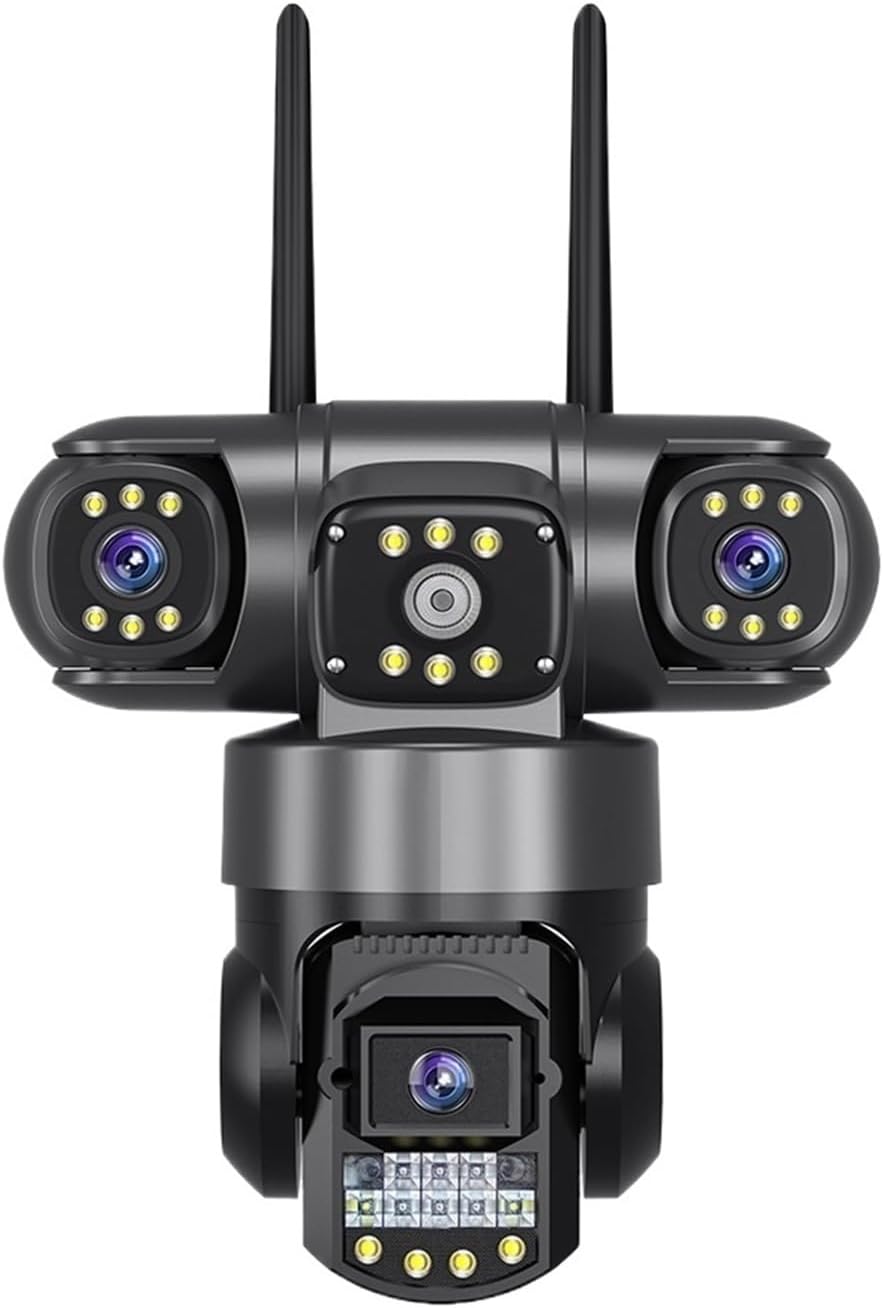
Image: A detailed front view of the LNBBEQ V380 Pro WiFi IP Camera, showcasing its triple lens design and dual antennas.
4.2 App Installation and Connection
- Download the App: Search for "V380 Pro" in your mobile app store (iOS or Android) and download the application.
- Register/Log In: Open the V380 Pro app and follow the on-screen instructions to register a new account or log in if you already have one.
- Add Camera:
- Wireless Connection (2.4GHz WiFi):
- Ensure your phone is connected to a 2.4GHz WiFi network.
- In the app, select "Add Device" and choose the WiFi connection method.
- Follow the prompts to connect the camera to your home WiFi network. This usually involves scanning a QR code generated by the app or entering your WiFi password.
- Wired Connection (RJ45):
- Connect an Ethernet cable from your router to the camera's RJ45 port.
- In the app, select "Add Device" and choose the wired connection method. The camera should be automatically detected.
- WiFi Hotspot Transmission (AP Mode):
- If no internet is available, you can connect directly to the camera's built-in WiFi hotspot within 10 meters.
- In your phone's WiFi settings, connect to the camera's hotspot (usually named "MV..." followed by numbers).
- Open the V380 Pro app, and the camera should appear for direct access.
- Wireless Connection (2.4GHz WiFi):
- Complete Setup: Once connected, you can name your camera and configure initial settings within the app.

Image: A visual guide illustrating the three available connection methods for the camera: wireless via 2.4GHz WiFi, wired via LAN cable, and direct WiFi hotspot transmission (AP mode).
5. Operating Instructions
5.1 Triple Screens Monitoring
The camera features three lenses, providing a comprehensive view. The V380 Pro app allows you to view feeds from these lenses simultaneously on a triple-screen interface. The two fixed lenses offer a wide 180° panoramic view, while the PTZ lens provides a dynamic, controllable view.

Image: An illustration detailing the camera's triple lens configuration, showing two fixed 4MP lenses and one PTZ 4MP lens, combining for a total of 12MP resolution and triple screen monitoring.
5.2 PTZ Control (Pan-Tilt-Zoom)
The PTZ lens can be controlled remotely via the V380 Pro app. You can pan the camera horizontally up to 320° and tilt it vertically up to 90°. The 10x digital zoom allows for closer inspection of details. Use the directional controls within the app to adjust the camera's view.

Image: A graphic demonstrating the PTZ (Pan-Tilt-Zoom) capabilities of the camera, showing 320-degree horizontal pan and 90-degree vertical tilt, controllable via the app for 360-degree monitoring.
5.3 Night Vision Modes
The camera offers three night vision modes for optimal visibility in low-light conditions:
- Full Color Mode: When sufficient ambient light is available or the warm light is continuously on, the camera provides color imaging.
- Infrared Night Mode (Black & White): In low light, with the warm light off, the camera uses infrared LEDs for clear black and white imaging.
- Double Light Mode (Automatic): By default, the camera operates in infrared night vision. When motion is detected, the warm light automatically activates, switching to full-color night vision for enhanced detail.
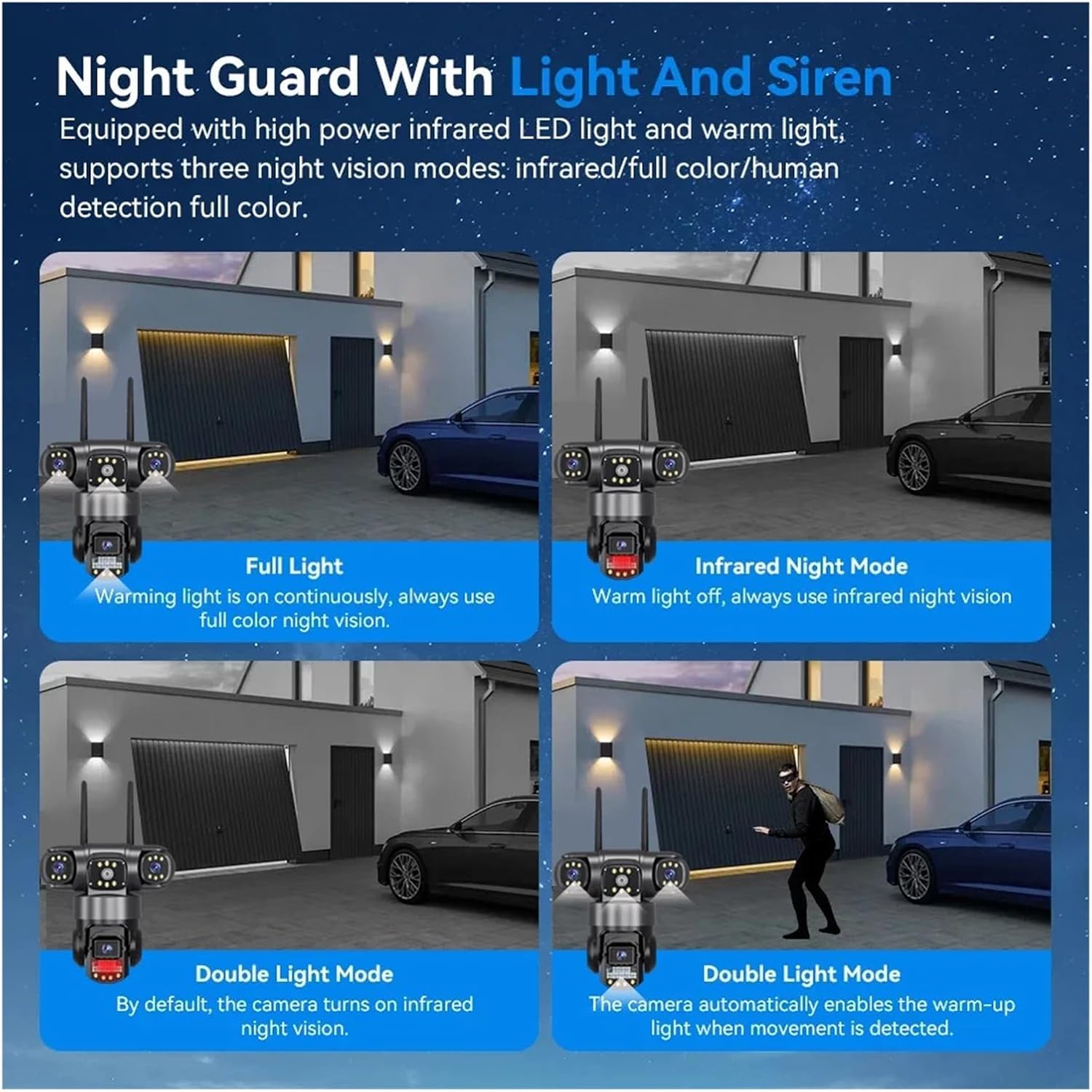
Image: A visual representation of the camera's "Night Guard With Light And Siren" feature, illustrating Full Light (continuous color), Infrared Night Mode (black and white), and Double Light Mode (automatic switching to color upon motion detection).
5.4 Two-Way Audio
Utilize the camera's built-in microphone and speaker for two-way communication. This allows you to speak to visitors or deter intruders directly through the V380 Pro app.

Image: A scenario depicting the two-way audio functionality, where a person outside the door can communicate with someone viewing the camera feed on their mobile phone.
5.5 Recording and Storage
The camera supports local storage via a Micro SD card (up to 128GB) and cloud storage services (subscription may be required). Recorded footage can be accessed and managed through the V380 Pro app.
5.6 Motion Detection and Tracking
The integrated AI human detection algorithm accurately identifies human movement. Upon detection, the camera sends a notification to your app, records an alarm video, and the PTZ lens automatically tracks the detected subject.
6. Maintenance
- Cleaning: Regularly clean the camera lenses with a soft, dry cloth to ensure clear image quality. Do not use harsh chemicals.
- Firmware Updates: Check the V380 Pro app periodically for firmware updates. Keeping your camera's firmware updated ensures optimal performance and security.
- Power Supply: Ensure the power connection remains secure and protected from water ingress using the waterproof cap.
- SD Card Management: If using an SD card, periodically review and back up important footage. Format the SD card occasionally to maintain performance.
7. Troubleshooting
| Problem | Possible Cause | Solution |
|---|---|---|
| Camera not connecting to WiFi | Incorrect WiFi password; 5GHz WiFi network; camera too far from router; weak signal. | Verify password; ensure 2.4GHz WiFi is used; move camera closer to router; check router settings. |
| No image/offline in app | No power; network disconnection; app issue. | Check power supply; verify network connection; restart camera and app. |
| Motion detection not working | Sensitivity too low; detection zone not set; firmware outdated. | Adjust sensitivity in app; configure detection zones; update firmware. |
| Poor night vision quality | Dirty lens; IR/white lights obstructed; incorrect night vision mode. | Clean lens; ensure clear view for lights; switch night vision mode in app. |
| Two-way audio issues | Microphone/speaker muted in app; network latency. | Check app audio settings; ensure stable network connection. |
8. Specifications
| Feature | Detail |
|---|---|
| Model | V380 Pro |
| Resolution | 12MP (3 x 4MP lenses), 6K output |
| Lenses | Triple Lenses (2 fixed, 1 PTZ) |
| PTZ Range | Pan: 320°, Tilt: 90° |
| Digital Zoom | 10x |
| Night Vision | Full Color, Infrared (B&W), Automatic (Double Light Mode) |
| Connectivity | 2.4GHz WiFi, RJ45 Ethernet, AP Hotspot |
| Audio | Two-Way Audio |
| Storage | Micro SD Card (up to 128GB), Cloud Storage |
| Weather Resistance | IP66 Waterproof |
| Operating Temperature | -10°C to 60°C (14°F to 140°F) |
| Power Supply | 12V (Municipal power supply) |
| App | V380 Pro |
9. Warranty and Support
For warranty information and technical support, please refer to the documentation provided with your purchase or contact LNBBEQ customer service. You can also visit the official V380 Pro app support section for FAQs and troubleshooting guides.
Note: Specific warranty terms may vary by region and retailer. Please retain your proof of purchase for warranty claims.


