
1. Introduction
Thank you for choosing the ieGeek S7 Ultra Wireless Baby Monitor. This device is designed to provide reliable monitoring of your baby without requiring Wi-Fi or a smartphone app for basic operation. It features a 5-inch 1080P display, night vision, two-way audio, VOX mode, temperature sensing, and a feeding timer to assist parents in childcare.
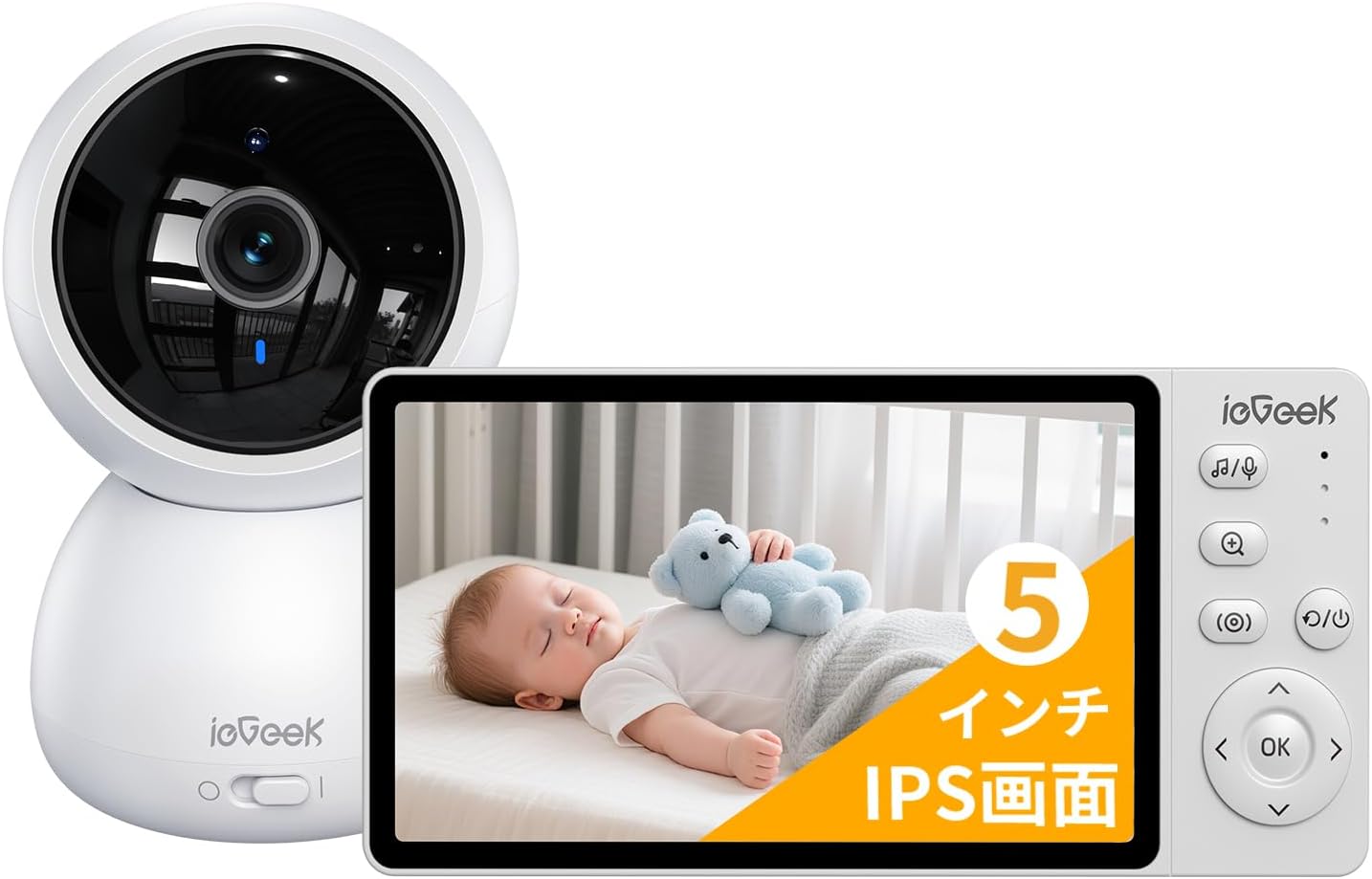
Figure 1: ieGeek S7 Ultra Baby Monitor (Camera and Display Unit)
2. Package Contents
Please ensure all the following items are included in your package:
- Camera Unit (x1)
- Monitor Unit (x1)
- Power Adapter (x2)
- Camera Mounting Stand (x1)
- Mounting Screws and Anchors (for camera)
- Power Cable (x1)
- Instruction Manual (x1)

Figure 2: Package Contents
3. Setup
3.1 Initial Power-Up
- Connect the camera unit to a power source using one of the provided power adapters.
- Connect the monitor unit to a power source using the other power adapter. It is recommended to fully charge the monitor before first use (approximately 3-4 hours).
- Press and hold the power button on the monitor to turn it on. The camera and monitor should automatically pair.
3.2 Camera Mounting
The camera can be mounted on a wall or placed on a flat surface. If mounting on a wall, use the provided mounting stand, screws, and anchors.
- Choose a suitable location for the camera, ensuring a clear view of the monitoring area.
- Place the mounting stand against the wall at the desired height and mark the positions for drilling.
- Drill pilot holes at the marked positions. For fragile materials like plasterboard, concrete, or brick, use the provided anchors.
- Insert the anchors into the drilled holes, then secure the mounting stand to the wall using the screws.
- Route the camera's power cable through the designated slot on the mounting stand.
- Connect the power cable to the camera.
- Align the holes on the camera's base with the protrusions on the mounting stand. Slide the camera into place until it clicks securely.
- Wrap any excess cable around the base of the mounting stand for neatness.
Video 1: Installation Guide for the Camera Unit. This video demonstrates the steps for preparing the installation, confirming the installation location, and basic mounting methods using screws and anchors.
4. Operating Instructions
4.1 Display and Night Vision
The 5-inch 1080P color LCD provides a clear view of your baby. The camera features a built-in light sensor that automatically switches to night mode in low-light conditions, allowing you to monitor your baby's movements even in a dark room without disturbing their sleep. The invisible infrared lights and a dimmable task lamp design create a good sleeping environment.
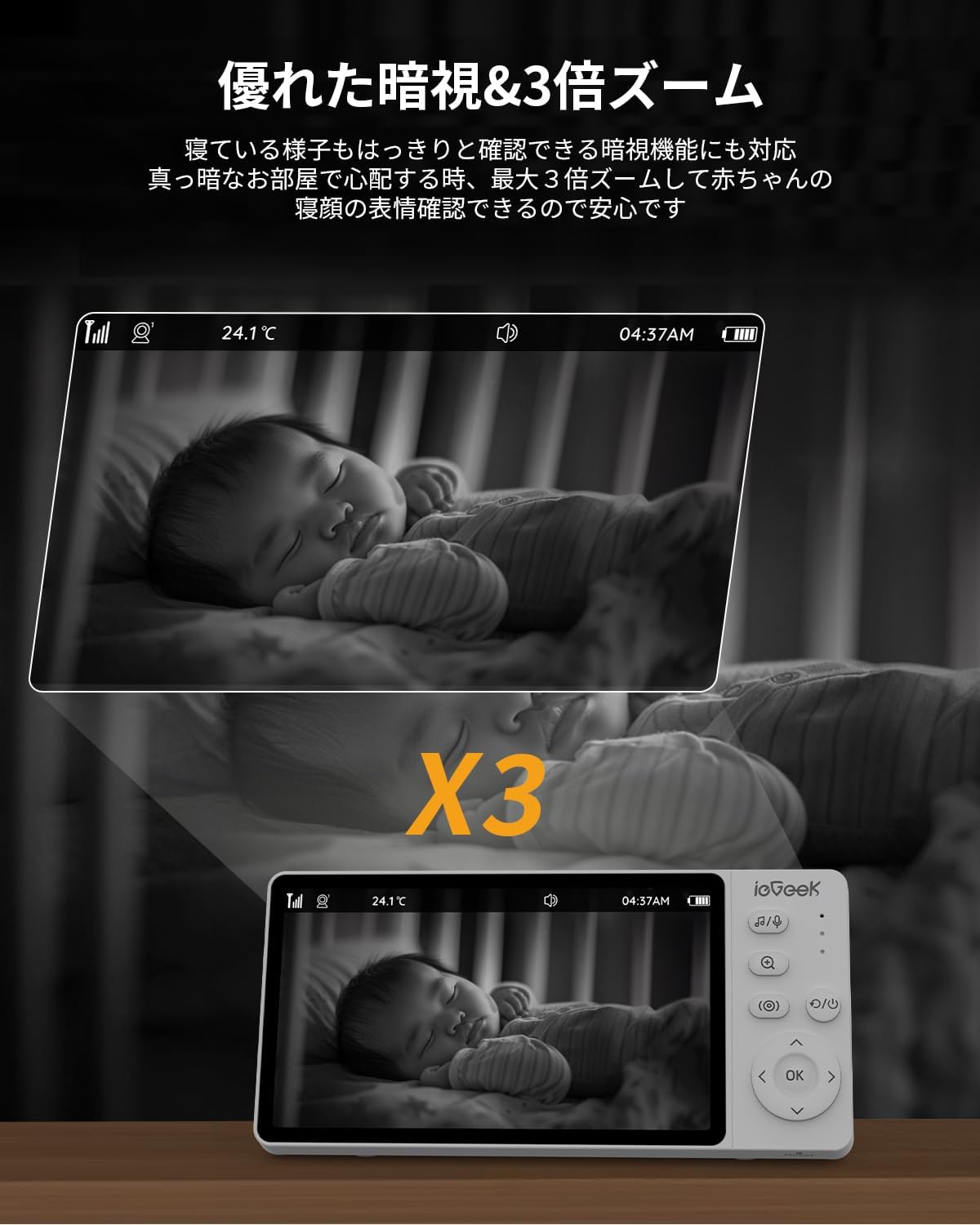
Figure 3: Night Vision and 3x Digital Zoom
4.2 Pan, Tilt, and Zoom (PTZ)
The camera offers 360° horizontal and 70° vertical rotation, allowing you to adjust the viewing angle remotely from the monitor. This ensures you can keep an eye on your baby even if they move around, covering all corners of the room without blind spots. The 3x digital zoom function allows you to magnify the image to check your baby's breathing or facial expressions.
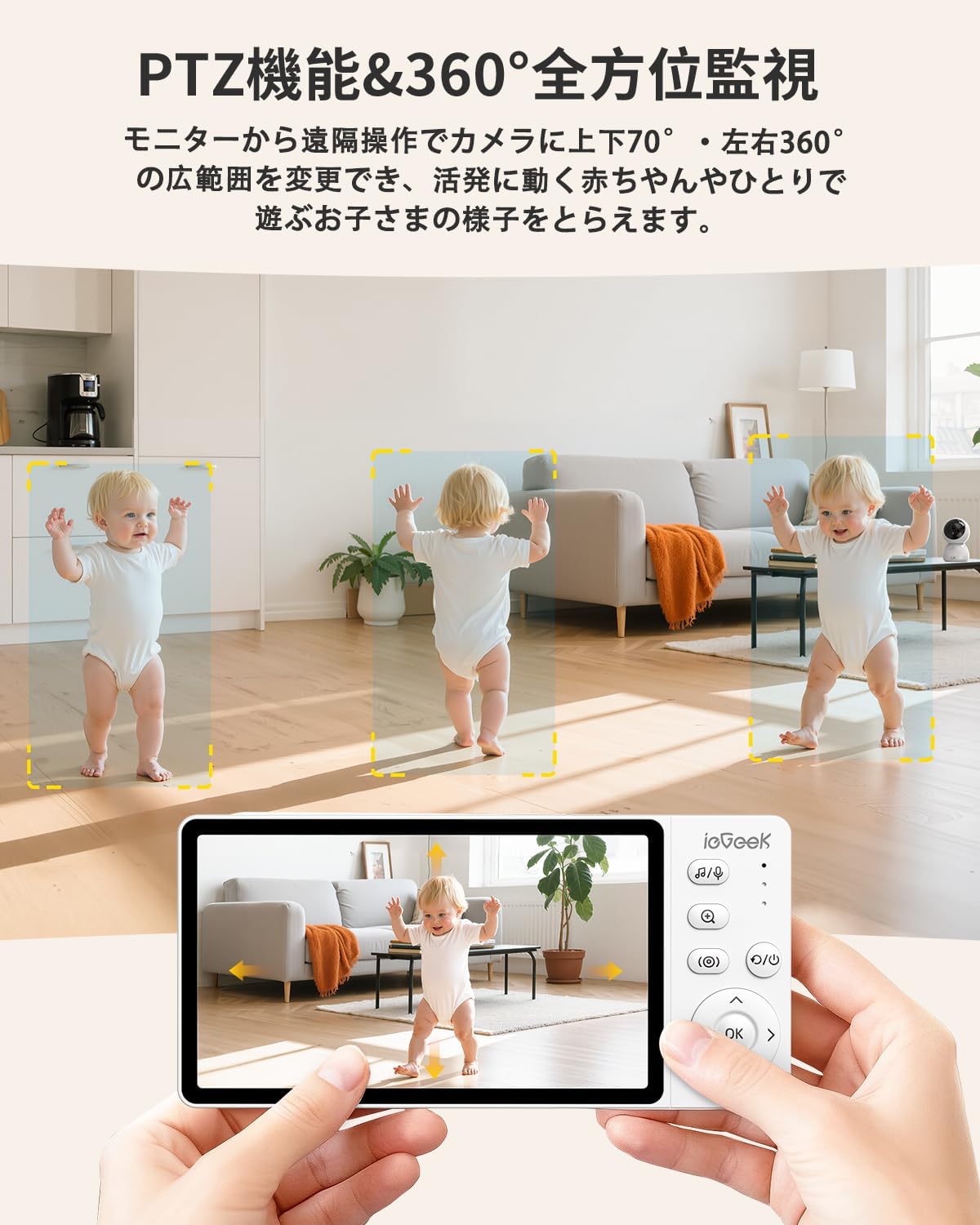
Figure 4: PTZ Functionality
4.3 Two-Way Audio
Both the camera and monitor are equipped with microphones and speakers, enabling two-way communication. You can hear your baby's sounds and talk to them in real-time. This feature is useful when you can't immediately attend to your baby or when your hands are full, providing comfort and reassurance.

Figure 5: Two-Way Audio Communication
4.4 VOX Mode (Voice Activated)
In VOX mode, the monitor screen remains off when no sound is detected from the camera. When your baby makes a noise (crying, turning over, coughing), the monitor's LED light will automatically illuminate and an audible alert will notify you. This conserves power and reduces parental stress by only alerting you when necessary. To keep the screen constantly on, disable VOX mode.
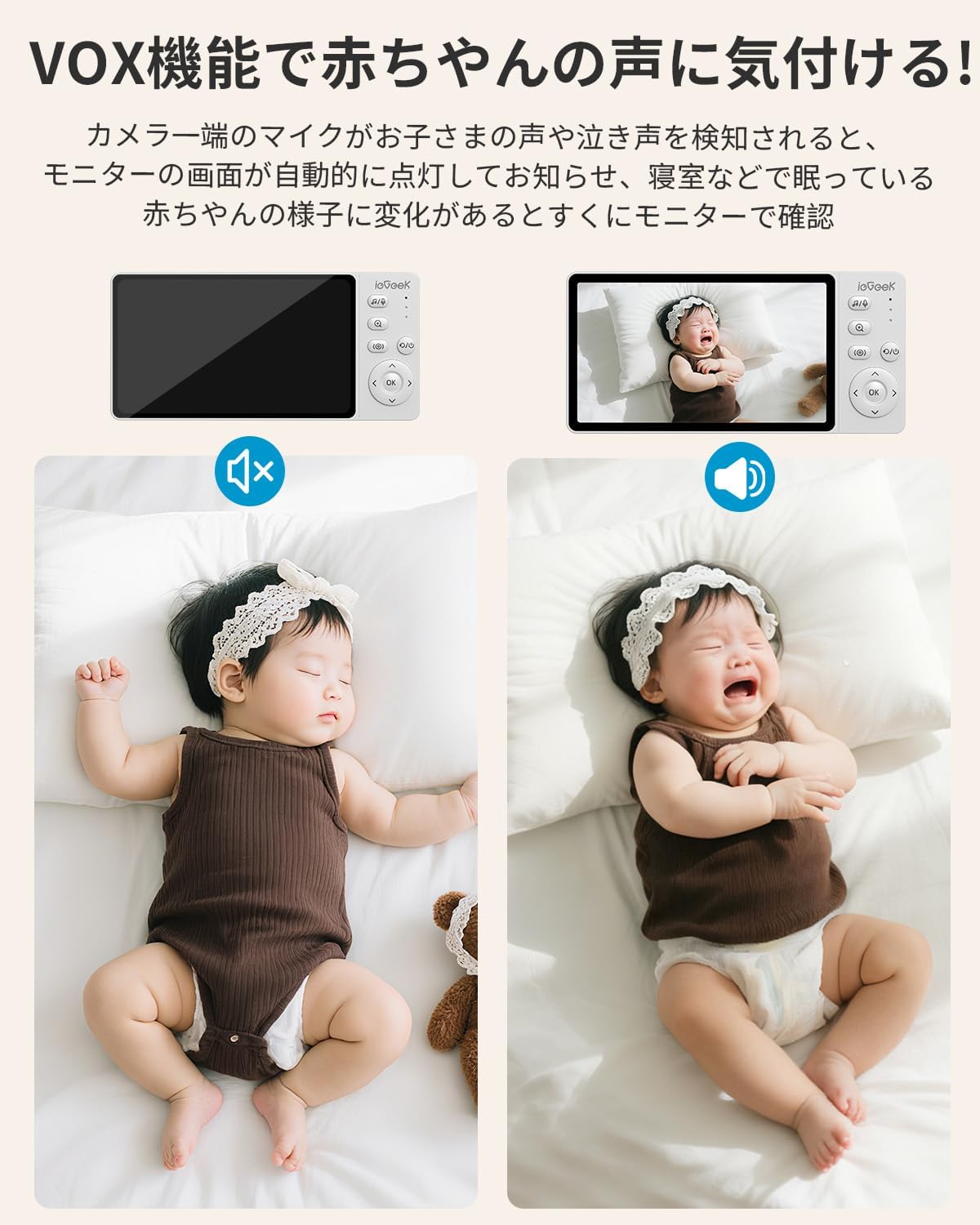
Figure 6: VOX Mode for Sound Detection
4.5 Temperature Sensor
The baby monitor includes a temperature sensor to display the room temperature on the monitor. This helps ensure your baby is in a comfortable environment, especially important during hot summers or cold winters.

Figure 7: Temperature Monitoring
4.6 Lullaby Function
The camera can play various lullabies (8 types available) to soothe your baby if they wake up crying. This feature helps create a calming environment and supports your baby's sleep.

Figure 8: Lullaby Function
4.7 Feeding Timer
The monitor includes a timer function to help manage feeding and sleep schedules. You can set alarms for feeding times (e.g., 30 minutes, 1 hour, 2 hours, 3 hours, 4 hours) to ensure your baby receives proper care.
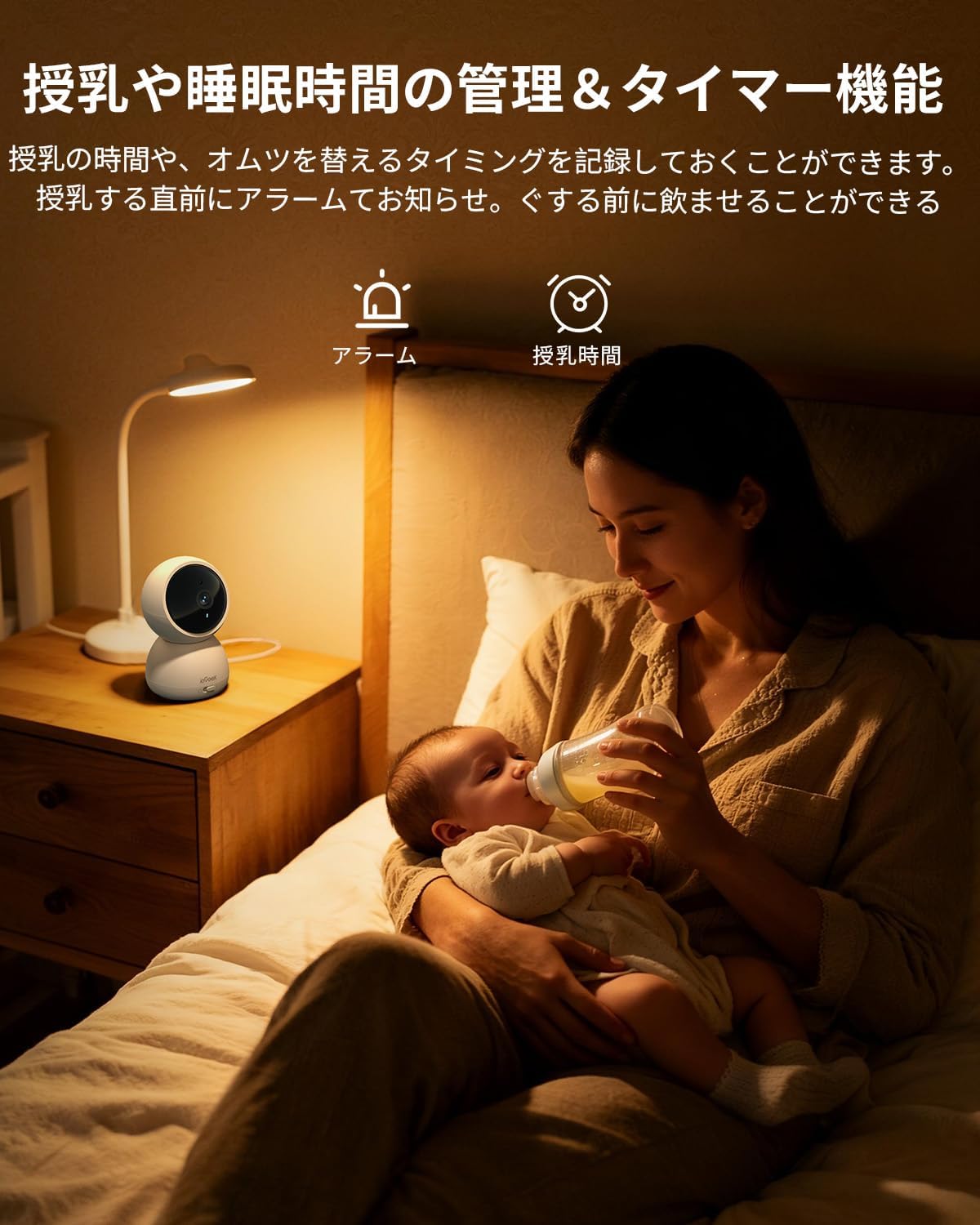
Figure 9: Feeding Timer
5. Maintenance
To ensure optimal performance and longevity of your ieGeek S7 Ultra Baby Monitor, please follow these maintenance guidelines:
- Cleaning: Use a soft, dry cloth to clean the camera and monitor surfaces. Do not use liquid cleaners or aerosols, as they may damage the device.
- Lens Care: Gently wipe the camera lens with a microfiber cloth to remove dust or smudges. Avoid touching the lens directly with your fingers.
- Storage: When not in use for extended periods, store the monitor and camera in a cool, dry place away from direct sunlight and extreme temperatures.
- Battery Care: For the monitor's built-in battery, avoid fully discharging it frequently. Charge it regularly to maintain battery health.
6. Troubleshooting
If you encounter any issues with your baby monitor, please refer to the following common solutions:
- No Image/Sound: Ensure both the camera and monitor are powered on and within range. Check that the power adapters are securely connected.
- Poor Signal: Move the camera and monitor closer to each other. Avoid placing them near large metal objects or other electronic devices that may cause interference. The device supports up to 305m wireless transmission distance.
- Monitor Not Responding: Try restarting the monitor by turning it off and on again. If the issue persists, fully charge the monitor.
- VOX Mode Not Activating: Check the VOX sensitivity settings on the monitor. Adjust to a higher sensitivity if your baby's sounds are not being detected.
- Camera Not Panning/Tilting: Ensure the camera is securely mounted and has a clear path of movement. Check the controls on the monitor for responsiveness.
If the problem persists after trying these steps, please contact ieGeek customer support for further assistance.
7. Specifications
| Feature | Specification |
|---|---|
| Brand | ieGeek |
| Model Number | S7 Ultra |
| Recommended Use | Baby Monitor |
| Connectivity Technology | Wireless |
| Special Features | PTZ Technology, Two-Way Audio, Crying Sound Detection, Night Vision, Cough Sound Detection |
| Indoor/Outdoor Use | Outdoor Use (Note: Product images suggest indoor use, please verify with manufacturer if outdoor use is intended for the camera unit.) |
| Power Source | Corded Electric |
| Connection Protocol | Wi-Fi (Note: Product description states "Wi-Fi not required" for basic operation, implying a direct connection between camera and monitor. Wi-Fi might be for advanced features or app connectivity if available.) |
| Mounting Type | Wall Mount |
| Video Capture Resolution | 1920p (1080P) |
| Color | White |
| Product Dimensions (LxWxH) | 10 x 10 x 10 mm |
| Product Weight | 640 g |
8. Warranty and Support
The ieGeek S7 Ultra Baby Monitor comes with a 1-year warranty. ieGeek is committed to providing 100% high-quality products and customer support. The product has obtained technical compliance marks for radio wave law (TELEC) and PSE certification, ensuring safety.
For any inquiries or support, please refer to the contact information provided in your package or visit the official ieGeek website.


