
1. Setup
1.1 Unboxing
Carefully remove your Devialet Phantom Ultimate speaker from its packaging. Always hold the speaker securely by the front and back, avoiding pressure on the sides to prevent damage.
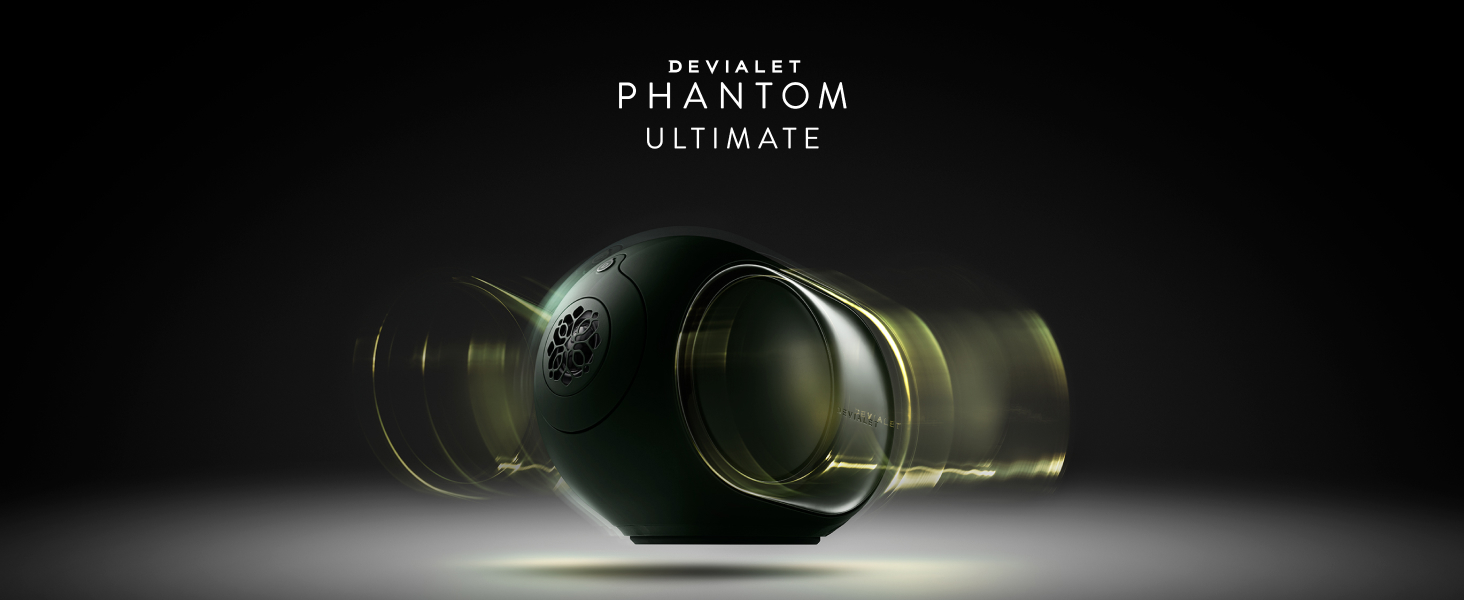
Image: Devialet Phantom Ultimate speaker being carefully removed from its packaging.
1.2 Power On
Connect the supplied power cable to your Devialet Phantom Ultimate speaker and then plug it into a power outlet. The LED indicator on the top of the speaker will pulse white while it powers up. Once it turns solid green and you hear a sound, your speaker is ready for setup.

Image: Rear view of the speaker, highlighting the power input.
1.3 Devialet App Installation and Connection
Ensure your smartphone is connected to a Wi-Fi network. Download and launch the official Devialet App. Sign in or create a Devialet account. From the homepage, tap "Set up a product" or the "+" icon. Follow the on-screen prompts to connect your Phantom Ultimate to your Wi-Fi network and unlock full access to its features.
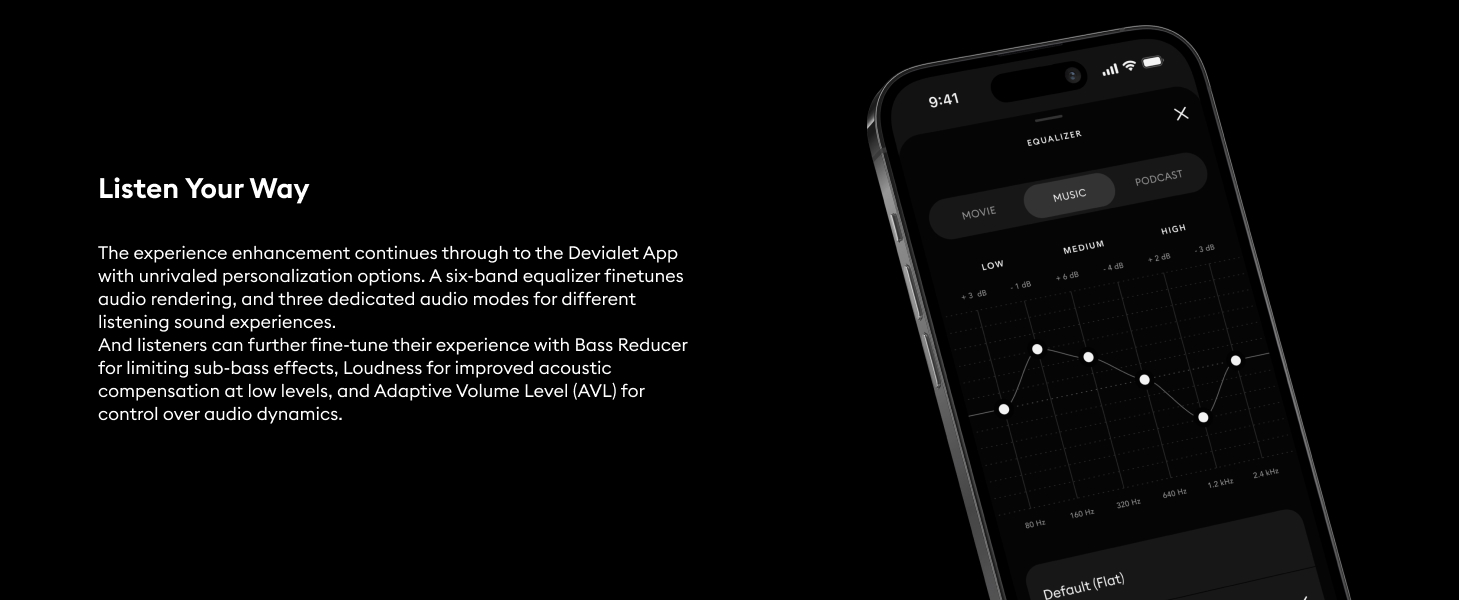
Image: Screenshot of the Devialet app, illustrating the user interface for speaker control.
1.4 Creating a Stereo Pair (Optional)
To create a stereo pair, power on both speakers and complete the initial setup for each individually through the Devialet App. Once both speakers are ready, the app will automatically prompt you to pair them in stereo. Follow the instructions to assign left and right channels. You can unpair them at any time via the app settings.

Image: Two Phantom Ultimate speakers positioned for stereo sound.
1.5 Resetting Your Speaker
If you need to change your network or location, or if you encounter issues, you can reset your Devialet Phantom Ultimate. To do this, hold the power button on the back of the speaker for seven seconds. Then, simply follow the setup steps in this manual again.
Video: Official tutorial on setting up the Devialet Phantom Ultimate speaker.
2. Operating Instructions
2.1 Audio Sources
The Devialet Phantom Ultimate supports various audio input methods for versatile listening:
- AirPlay & Google Cast: Stream audio directly from your mobile device.
- Streaming Protocols: Spotify Connect and Tidal Connect for high-resolution streaming.
- Bluetooth: Wireless connection for convenience.
- Optical Input: Connect external devices like TVs, DVD players, or CD players.
- Roon & UPnP: Stream high-resolution audio from media servers or compatible apps.
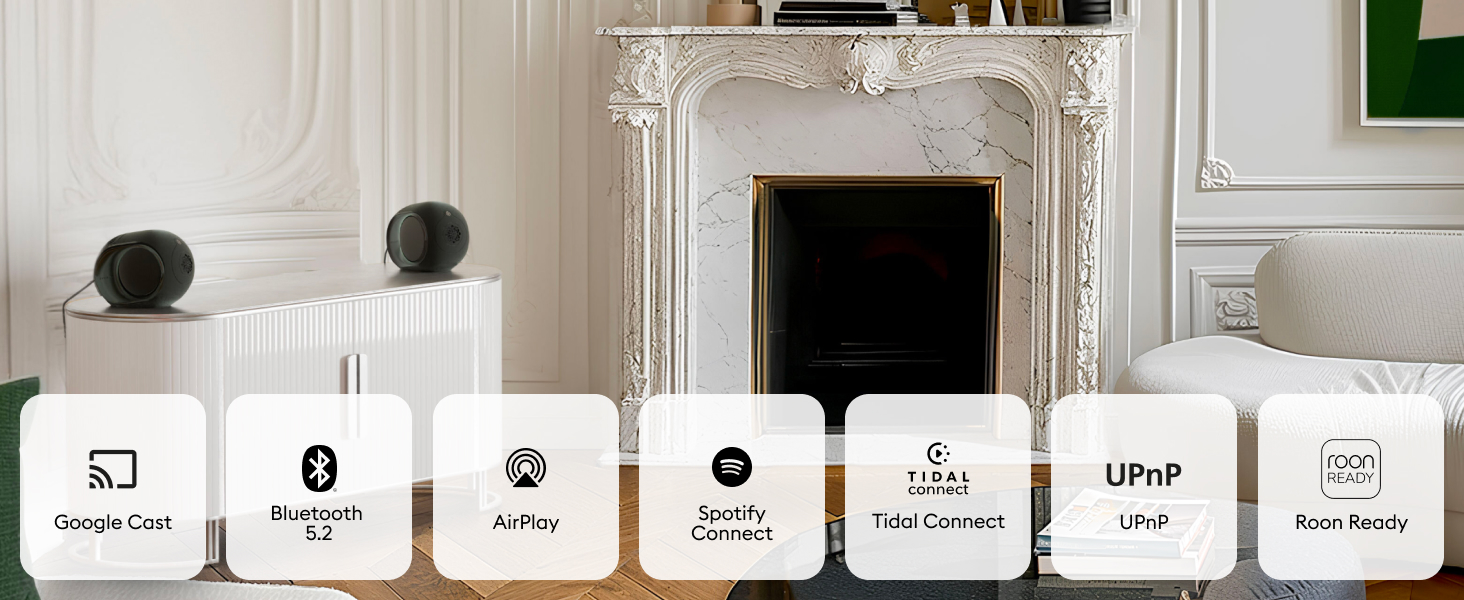
Image: Visual representation of the speaker's diverse connectivity options.
2.2 Using AirPlay and Google Cast
Ensure both your speaker and smartphone are connected to the same Wi-Fi network. Open your preferred music, podcast, or video app. Tap the AirPlay or Cast icon and select "Devialet Phantom Ultimate." Adjust the volume either from your device or directly via the Devialet App.
2.3 Using Streaming Protocols (Spotify Connect, Tidal Connect)
Simply open your streaming app (e.g., Spotify, Tidal), tap the audio output icon, and select your Devialet Phantom Ultimate speaker from the list of available devices.
2.4 Bluetooth Pairing
To pair via Bluetooth, open the Devialet App, go to the "Sources" tab, and tap "Bluetooth." Alternatively, press and hold the Bluetooth button on the top of your speaker for two seconds. Then, open your device's Bluetooth settings and search for "Devialet Phantom Ultimate" to complete pairing. Note: While Bluetooth offers convenience, Wi-Fi streaming generally delivers superior audio quality.

Image: Top view of the speaker, showing the control buttons including the Bluetooth pairing button.
2.5 Optical Input
You can connect external devices such as a TV, DVD player, or CD player using the optical input. Simply plug in an optical cable to the designated port on the back of your speaker. Your Devialet App will automatically switch to the optical source once audio playback begins from the connected device.
2.6 Roon and UPnP
For advanced high-resolution audio streaming, the Devialet Phantom Ultimate is Roon Ready and supports UPnP. Ensure your speaker and your Roon or UPnP server are connected to the same network. Use the Roon App or a compatible UPnP app (e.g., BubbleUPnP, Audirvana) to select Devialet Phantom Ultimate as the playback device.
Video: Official tutorial on connecting various audio sources to the Devialet Phantom Ultimate speaker.
3. Maintenance
3.1 Cleaning
To clean your Devialet Phantom Ultimate, use a soft, dry cloth. Avoid using abrasive cleaners, solvents, or chemical sprays, as these can damage the finish and internal components. Gently wipe the surface to remove dust and fingerprints.
3.2 Software Updates
Regularly check the Devialet App for available software updates. Updates often include performance improvements, new features, and bug fixes. Ensure your speaker is connected to Wi-Fi during the update process.
3.3 Storage
If you plan to store your speaker for an extended period, it is recommended to power it off and store it in its original packaging in a dry, temperature-controlled environment to protect it from dust and potential damage.
4. Troubleshooting
4.1 No Power
- Ensure the power cable is securely connected to both the speaker and a working power outlet.
- Check if the power outlet is functional by plugging in another device.
4.2 No Sound or Intermittent Audio
- Verify that the volume on both your source device and the Devialet App is not muted and is set to an audible level.
- Confirm that the correct audio source is selected in the Devialet App.
- For optical input, ensure the cable is properly connected and the source device is playing audio.
4.3 Bluetooth Disconnection
- Move your source device closer to the speaker to reduce interference.
- Try unpairing and re-pairing the Bluetooth connection through your device's settings and the Devialet App.
4.4 Wi-Fi/Network Issues
- Ensure both your speaker and the controlling device are connected to the same Wi-Fi network.
- Restart your Wi-Fi router.
- Perform a speaker reset by holding the power button for seven seconds and reconfigure the Wi-Fi connection through the Devialet App.
4.5 Audio Lag or Delay
- Check your network stability and bandwidth, especially for high-resolution streaming.
- If experiencing lag with Bluetooth, try switching to a Wi-Fi based streaming method (AirPlay, Google Cast, Spotify Connect) for better performance.
5. Specifications
Below are the key technical specifications for the Devialet Phantom Ultimate 98 dB speaker:
| Feature | Detail |
|---|---|
| Brand | Devialet |
| Model Name | Devialet Phantom Ultimate |
| Model Number | 98db |
| Speaker Maximum Output Power | 400 Watts |
| Frequency Response | 18 Hz - 25 kHz |
| Connectivity Technology | Bluetooth, Ethernet, Wi-Fi |
| Audio Output Mode | Mono (Stereo with two speakers) |
| Mounting Type | Tabletop Mount |
| Enclosure Material | Metal |
| Speaker Type | Multi Room |
| Additional Features | High-Resolution Audio Processing, Multiroom Sync |
| Control Method | App, Remote |
| Speaker Size (D x W x H) | 8.6"D x 6.2"W x 6.6"H (16.8 Centimeters) |
| What's in the Box | Devialet Phantom Ultimate 98db, Power Cable, Quick Start Guide |

Image: Speaker with an overview of its technical specifications.
6. Warranty Information
The Devialet Phantom Ultimate 98 dB speaker comes with a 2-year warranty from the date of purchase. This warranty covers manufacturing defects and malfunctions under normal use. Please retain your proof of purchase for any warranty claims.
For detailed terms and conditions, please refer to the official Devialet website or contact customer support.
7. Support
If you require further assistance, have questions, or encounter issues not covered in this manual, please contact Devialet customer support through the following channels:
- Online Support: Visit the official Devialet website for FAQs, troubleshooting guides, and contact forms.
- Devialet App: The app may offer direct support options or links to relevant resources.


