
1. Introduction
This manual provides detailed instructions for the installation, operation, and maintenance of your COUGAR OmnyX Mid Tower PC Case. Please read this manual thoroughly before beginning assembly to ensure correct setup and optimal performance. Keep this manual for future reference.
2. Safety Information
- Always disconnect the power supply from the wall outlet before installing or servicing any components inside the PC case.
- Handle all components with care to prevent damage from static electricity. Consider using an anti-static wrist strap.
- Avoid placing the PC case in direct sunlight, near heat sources, or in areas with high humidity.
- Ensure proper ventilation around the case to prevent overheating.
- Keep small parts and tools away from children.
3. Package Contents
Verify that all items are present in your package:
- COUGAR OmnyX Mid Tower PC Case
- Accessory Box (containing screws, standoffs, cable ties, etc.)
- User Manual (this document)
- Pre-installed 160mm fans (quantity as specified in product details)
4. Product Overview
The COUGAR OmnyX case is designed for high expandability and efficient cooling, suitable for various computing needs. Its symmetrical design allows for flexible placement, showcasing internal components from multiple angles. Key features include:
- Symmetrical Design: Allows for versatile orientation on your desk.
- Omnidirectional Dynamic Flow System (ODF): Optimized airflow for superior cooling performance.
- Quad 160mm Fans: Equipped with four large 160mm fans for powerful cooling.
- Ambidextrous I/O Module: Features 4x USB 3.0 Type-A and 2x USB 3.2 Gen 2 Type-C ports for convenient connectivity.
- Quick Release Mechanism: Tool-less panel removal for easy access and installation.
- Streamlined Cable Management: Dedicated channels and tie-down points for a clean build.
- Bracketless Vertical GPU Mount: Supports vertical GPU installation without additional brackets.
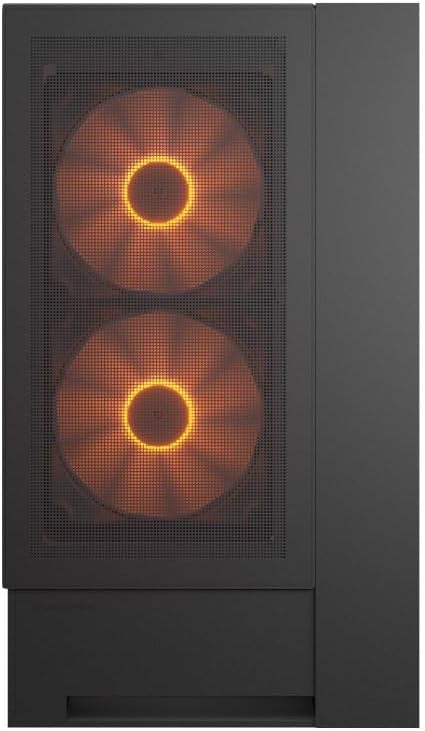
Front view of the COUGAR OmnyX PC case, highlighting the pre-installed 160mm fans.

Illustration of the symmetrical design, allowing flexible case orientation.

Close-up of the large 160mm fans providing powerful cooling.
Official product video showcasing the COUGAR OmnyX PC case features, including its symmetrical design, quad 160mm fans, ambidextrous I/O module, cable management, and quick release mechanism for easy installation.
5. Setup & Installation
5.1. Preparation
Before starting, ensure you have a clean, well-lit workspace and the necessary tools, including a Phillips head screwdriver.
5.2. Panel Removal
The OmnyX case features a quick-release mechanism for easy panel removal. Gently pull the panels to detach them from the chassis. Refer to the exploded view for component identification.

Disassembled view of the COUGAR OmnyX case, showing removable panels and components.
5.3. Motherboard Installation
The OmnyX supports Mini ITX, Micro ATX, and ATX motherboards. Install the necessary standoffs for your motherboard size, then carefully place the motherboard and secure it with screws.

Internal view showing the motherboard tray and mounting points.
5.4. Graphics Card (GPU) Installation
Install your graphics card into the appropriate PCIe slot. The case supports GPUs up to 380mm in length. For vertical GPU mounting, utilize the integrated bracketless vertical GPU mount.

Illustration of the bracketless vertical GPU mounting option.
5.5. Drive Installation
The case provides bays for 2x 3.5-inch drives and 2x 2.5-inch drives. Secure your storage devices in the designated locations using the provided screws.
5.6. Power Supply Unit (PSU) Installation
Install your power supply unit in the rear-mount location. The case accommodates PSUs up to 200mm in length.
5.7. Cable Management
Utilize the dedicated cable management channels and tie-down points behind the motherboard tray to route and secure cables. This ensures optimal airflow and a clean internal appearance.

View illustrating the efficient cable management system within the case.
5.8. Front I/O Connections
Connect the front panel I/O cables (USB 3.0, USB 3.2 Gen 2 Type-C, audio, power, reset) to their corresponding headers on your motherboard. The ambidextrous I/O module offers flexible placement.

Close-up of the front I/O panel with USB ports and controls.
6. Operating Instructions
6.1. Power On/Off
After all components are installed and cables connected, plug the power supply into a wall outlet. Press the power button on the front I/O panel to turn on your PC.
6.2. RGB Lighting Control
The pre-installed fans feature RGB lighting. Control of the RGB effects and fan speed is typically managed through your motherboard's software or a dedicated controller if included. Refer to your motherboard manual for specific instructions on RGB synchronization.

Illustration depicting RGB LED and fan speed control capabilities.
7. Maintenance
Regular maintenance helps ensure the longevity and performance of your PC case:
- Dust Cleaning: Periodically clean dust filters and internal components using compressed air or a soft brush. Dust accumulation can impede airflow and lead to overheating.
- Exterior Cleaning: Wipe the exterior surfaces with a soft, damp cloth. Avoid abrasive cleaners.
- Cable Check: Ensure all internal cables remain securely connected and neatly routed.
8. Troubleshooting
If you encounter issues, refer to the following common troubleshooting steps:
- No Power: Check if the power supply is properly connected to the wall outlet and the motherboard. Ensure the power button cable is correctly connected to the motherboard header.
- Fans Not Spinning: Verify that the fan cables are securely connected to the motherboard fan headers or a fan controller. Check BIOS settings for fan speed control.
- RGB Not Working: Confirm RGB cables are connected to the correct motherboard headers or controller. Check your motherboard's RGB software for settings.
- Overheating: Ensure all fans are functioning correctly and oriented for optimal airflow. Clean any dust buildup from filters and components. Verify CPU cooler and GPU cooler installations.
For more complex issues, consult your component manuals or contact COUGAR support.
9. Specifications
| Feature | Specification |
|---|---|
| Model Name | OmnyX |
| Model Number | CGR-2WA3B-RGB |
| Case Type | Mid Tower |
| Motherboard Support | Mini ITX / Micro ATX / ATX |
| Dimensions (D x W x H) | 300 x 470 x 520 mm |
| 3.5" Drive Bays | 2 |
| 2.5" Drive Bays | 2 |
| CPU Cooler Height Limit | 170mm |
| GPU Length Limit | 380mm |
| PSU Length Limit | 200mm |
| Pre-installed Fans | 4 x 160mm |
| Front I/O Ports | 4x USB 3.0 Type-A, 2x USB 3.2 Gen 2 Type-C |
| Weight | 12.6 kg |
10. Warranty and Support
The COUGAR OmnyX PC Case comes with a 1-year warranty from the date of purchase. This warranty covers manufacturing defects and faulty components under normal use. It does not cover damage caused by misuse, accidents, unauthorized modifications, or improper installation.
For technical support, warranty claims, or further assistance, please visit the official COUGAR website or contact your local retailer.
COUGAR Official Website: www.cougar-gaming.com


