
1. Product Overview
The PeriPage P92 is a compact and lightweight thermal tattoo stencil printer designed for both professional tattoo artists and enthusiasts. It utilizes inkless thermal technology to produce clear and precise tattoo lines, streamlining the stencil creation process. This printer offers versatile connectivity options, including Bluetooth and USB, making it compatible with a wide range of devices such as smartphones, tablets, and PCs.

Image: The PeriPage P92 Tattoo Stencil Printer, a sleek black device, shown on a desk with a printed tattoo stencil.
Key Features:
- Portable Design: Compact and lightweight (approximately 15.2 ounces) for easy transport.
- Inkless Thermal Technology: Eliminates the need for ink cartridges, reducing operational costs.
- High Compatibility: Supports Android, iOS, Windows, and macOS devices.
- Versatile Connectivity: Connects via Bluetooth for wireless printing or USB for wired connections.
- Powerful Mobile App: The "PeriPage APP" provides abundant resources, including built-in tattoo templates and design editing tools.
- Efficient Printing: Capable of printing clear and precise tattoo lines in seconds.
- Long Battery Life: Built-in 2600mAh rechargeable battery, capable of printing up to 200 pages per charge.
2. Setup Guide
2.1 Unboxing and Initial Charge
Carefully remove all components from the packaging. Before first use, ensure the printer is fully charged using the provided USB cable and a compatible power adapter. The power indicator light will typically change to indicate a full charge.
2.2 Software Installation
To operate the PeriPage P92, you will need to install the appropriate software:
- For Smartphones/Tablets (Android/iOS): Download the "PeriPage APP" from your device's respective app store (Google Play Store for Android, Apple App Store for iOS).
- For PCs (Windows/macOS): Download the printer driver from the official PeriPage website: https://www.ileadtek.com/en/download.html.

Image: The PeriPage P92 printer connected to a laptop via USB and a smartphone via Bluetooth, illustrating multi-device compatibility.
2.3 Loading Stencil Paper
- Ensure the printer is powered off or in standby mode.
- Gently insert the tattoo stencil paper (thermal paper, 8.5x11 inches) into the paper feed slot at the front of the printer.
- The printer will automatically detect and feed the paper into position. Ensure the transfer film side is facing up.

Image: A step-by-step visual guide showing how to power on the printer, insert stencil paper, and initiate printing via the app.
3. Operating Instructions
3.1 Powering On/Off
To power on the printer, press and hold the power button (usually located on the top or side) for approximately 2 seconds until the indicator light illuminates. To power off, press and hold the power button again until the light turns off.
3.2 Connecting to Your Device
- Bluetooth Connection:
- Ensure Bluetooth is enabled on your smartphone or tablet.
- Open the "PeriPage APP".
- Within the app, search for and select the PeriPage P92 printer to establish a connection.
- USB Connection:
- Connect the printer to your PC using the provided USB cable.
- Ensure the printer driver is installed on your PC.
- The printer should be recognized as a printing device.
3.3 Using the PeriPage App for Printing
The "PeriPage APP" is your primary interface for creating and printing tattoo stencils.
- Open the "PeriPage APP" on your connected device.
- You can choose to use built-in tattoo templates or import your personal designs. The app offers tools for editing, resizing, and adjusting your designs.
- Once your design is ready, select the print option within the app.
- Confirm print settings (e.g., density, size) if prompted.
- The printer will then feed the stencil paper and print your design.

Image: Screenshots of the PeriPage mobile application interface, demonstrating design editing, template selection, and 3D preview features.

Image: The PeriPage P92 printer actively printing a tattoo stencil design onto thermal paper, with a smartphone displaying the design.
4. Maintenance
4.1 Cleaning the Printer
Regular cleaning helps maintain print quality and extends the life of your printer.
- Exterior: Wipe the exterior of the printer with a soft, dry cloth. Avoid using abrasive cleaners or solvents.
- Thermal Print Head: If print quality degrades, gently clean the thermal print head with an alcohol wipe or a specialized thermal printer cleaning pen. Ensure the printer is off and cooled down before cleaning.
- Paper Path: Periodically check the paper path for any dust or debris and remove it carefully.
4.2 Storage
Store the printer in a cool, dry place away from direct sunlight and extreme temperatures. When not in use for extended periods, ensure the printer is fully charged and then powered off.
5. Troubleshooting
This section addresses common issues you might encounter with your PeriPage P92 printer.
5.1 Poor Print Quality
- Faint Prints:
- Check if the thermal paper is loaded correctly with the transfer film side facing up.
- Ensure the printer's battery is sufficiently charged.
- Clean the thermal print head (refer to Section 4.1).
- Adjust print density settings within the PeriPage APP.
- Streaks or Gaps:
- Clean the thermal print head.
- Ensure the paper is free from wrinkles or damage.
- Incomplete Designs (Large Shadows/Complex Images): The printer is optimized for clear line drawings. Complex images with large shaded areas may not transfer optimally.
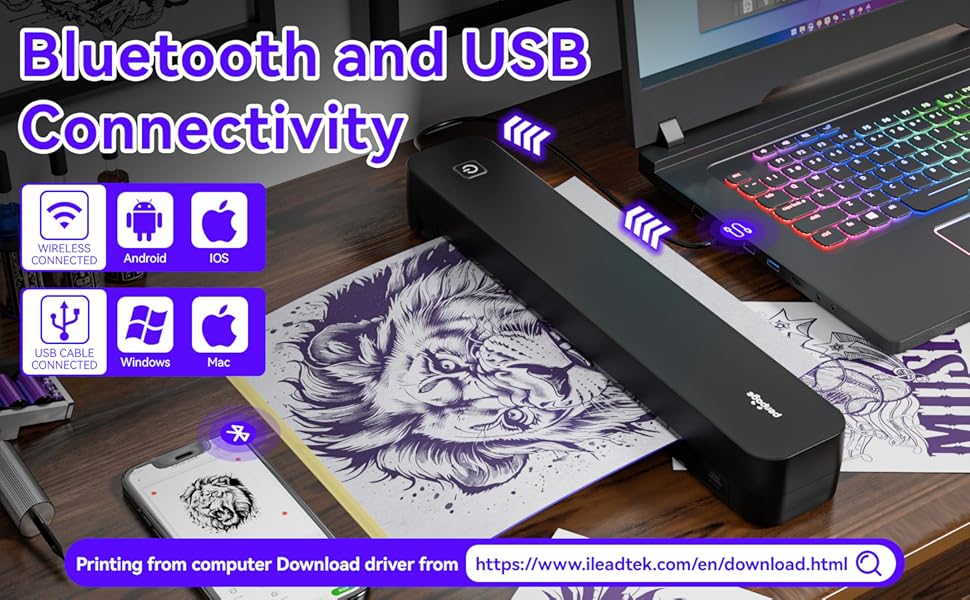
Image: A comparison showing effective line drawings and less shadowy prints versus bad effects with large shadows and complex images, illustrating optimal design types for the printer.
5.2 Connectivity Issues
- Bluetooth Not Connecting:
- Ensure the printer is powered on and within range of your device.
- Verify Bluetooth is enabled on your device.
- Restart both the printer and your device.
- Forget the device in your Bluetooth settings and try pairing again.
- USB Not Recognized:
- Ensure the USB cable is securely connected to both the printer and your PC.
- Verify that the correct printer drivers are installed on your PC.
- Try a different USB port or cable.
5.3 Paper Jam
If paper gets jammed, gently pull the paper out in the direction of the paper path. Avoid forcing it, as this can damage the printer mechanisms. Ensure paper is loaded straight and not wrinkled.
6. Specifications
| Feature | Detail |
|---|---|
| Brand | PeriPage |
| Model Name | HDD-P92 |
| Connectivity Technology | Bluetooth, USB |
| Printing Technology | Thermal (Inkless) |
| Special Feature | Portable |
| Color | Black |
| Printer Output | Monochrome |
| Max Print Speed (B&W) | 6 pages per minute |
| Item Weight | 15.2 ounces |
| Item Dimensions (D x W x H) | 2.13"D x 4"W x 11.4"H |
| Controller Type | Android, iOS |
| Print Media | Thermal Paper |
| Compatible Devices | Laptops, PC, Smartphones, Tablets |
| Control Method | App |
| Maximum Media Size | A4, 8.5x11 Inches |
| Battery | 2600mAh rechargeable, prints ~200 pages per charge |
7. Warranty Information
According to the product specifications, there is "Not Application" for warranty. Please refer to your retailer's return policy or contact the seller directly for any issues or concerns regarding your purchase.
8. Support
For further assistance, please refer to the following resources:
- PeriPage APP: The mobile application often includes help sections, FAQs, and direct support contact options.
- Official Website: Visit the PeriPage official website for updated drivers, FAQs, and support contact information: www.ileadtek.com.
- Seller Support: Contact the seller (Ileadtek Inc.) through the platform where you purchased the product for specific purchase-related inquiries.

