
Introduction
The Beats Studio Pro are premium wireless Bluetooth noise-cancelling headphones designed to deliver an immersive audio experience. Featuring Beats' custom acoustic platform, these headphones offer rich, balanced sound, personalized spatial audio, and versatile connectivity options for both Apple and Android devices. This manual provides detailed instructions for setting up, operating, maintaining, and troubleshooting your Beats Studio Pro headphones.
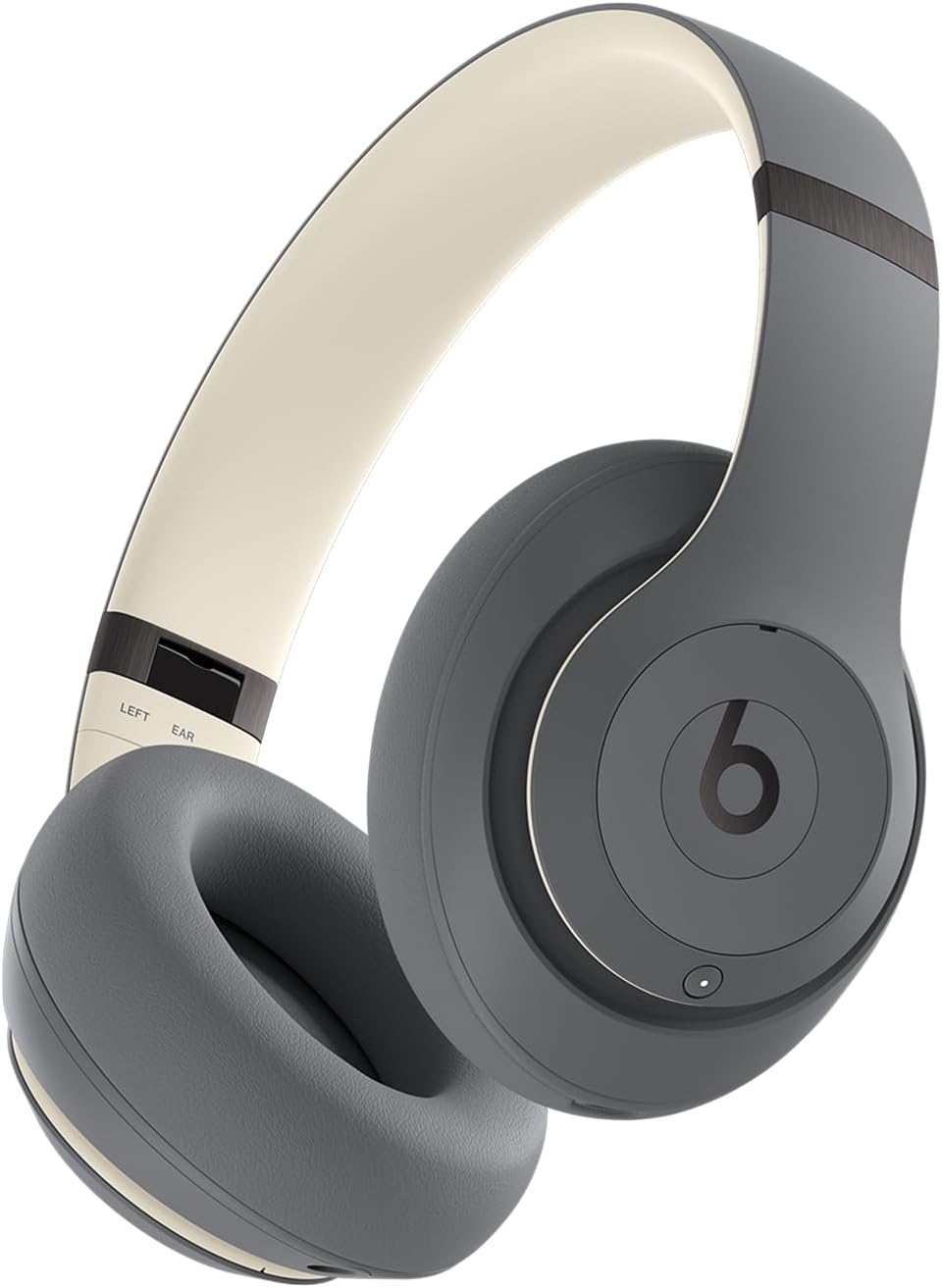
A front-angle view of the Beats Studio Pro wireless headphones in Sand Gray, showcasing the earcups and headband.
What's in the Box
Your Beats Studio Pro package includes the following components:
- Beats Studio Pro Wireless Headphones
- Protective Carrying Case
- USB-C to USB-C Cable (for charging and audio)
- 3.5mm Analog Audio Cable
- Quick Start Guide and Warranty Card

An image displaying the Beats Studio Pro headphones alongside their protective carrying case, USB-C charging cable, and 3.5mm analog audio cable, representing the items included in the product packaging.
Getting Started
Charging Your Headphones
Before first use, ensure your Beats Studio Pro headphones are fully charged. Connect the included USB-C to USB-C cable to the headphone's USB-C port and to a compatible USB-C power adapter (not included) or a computer's USB-C port. The LED indicator lights on the right earcup will show the charging status.
- Charging Time: A 10-minute Fast Fuel charge provides up to 4 hours of additional playback.
- Full Charge: Provides up to 40 hours of total battery life.

A graphic illustrating the impressive 40-hour battery life of the Beats Studio Pro headphones, with a large '40 hours' text overlaid on a headphone icon.
Pairing with Your Device (Bluetooth)
- Power On: Press and hold the power button on the right earcup until the LED indicator lights illuminate.
- Pairing Mode: Press and hold the system button on the right earcup for 3 seconds until the LED indicator lights begin to flash, indicating pairing mode.
- Connect: On your device, go to Bluetooth settings and select "Beats Studio Pro" from the list of available devices.
For Apple users, one-touch pairing is available for seamless integration across your iCloud-connected devices. For Android users, download the Beats app for enhanced features and quick pairing.

A person wearing the Beats Studio Pro headphones, emphasizing their enhanced compatibility with both Apple and Android devices for seamless integration.
Connecting via USB-C
The Beats Studio Pro supports lossless audio playback when connected via the included USB-C cable to a compatible audio source device. This connection also allows for charging.
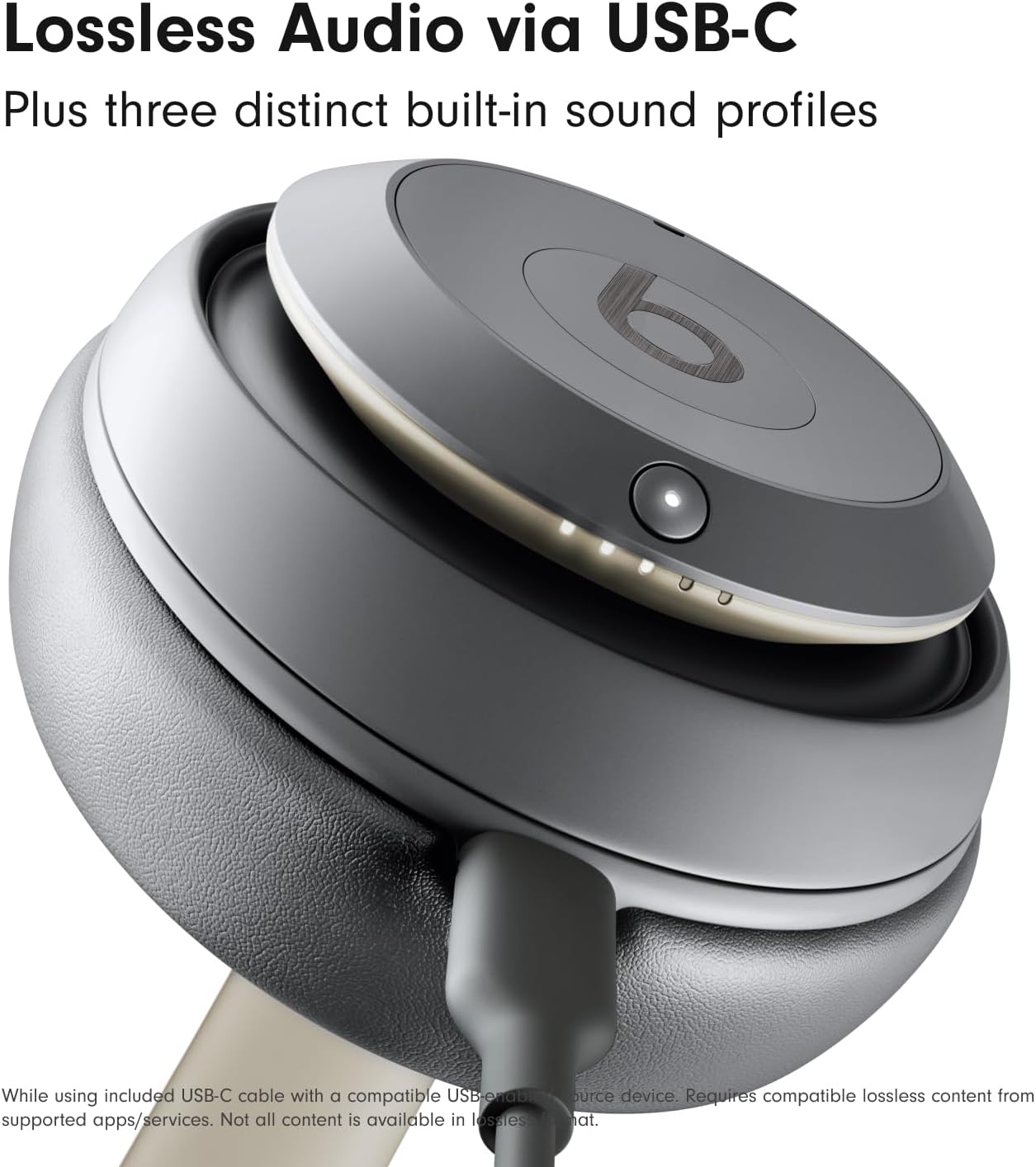
A close-up view of the Beats Studio Pro earcup with a USB-C cable connected, illustrating the lossless audio capability when used with a compatible device.
Using Your Headphones
On-Device Controls
The multi-function on-ear controls allow you to manage your audio and calls:
- 'b' Button (Left Earcup): Press once to play/pause audio or answer/end calls. Press twice to skip forward. Press three times to skip backward.
- Volume Rocker (Left Earcup): Press the top button to increase volume, and the bottom button to decrease volume.
- System Button (Right Earcup): Press once to switch between Active Noise Cancelling and Transparency mode. Press and hold to activate voice assistant (Siri, Google Assistant).
Active Noise Cancelling (ANC) & Transparency Mode
The Beats Studio Pro offers two distinct listening modes:
- Active Noise Cancelling (ANC): Fully adaptive noise cancellation that continuously monitors and blocks external noise for an immersive listening experience.
- Transparency Mode: Allows you to hear your surroundings while still enjoying your audio, ideal for staying aware of your environment.
Toggle between these modes using the system button on the right earcup.
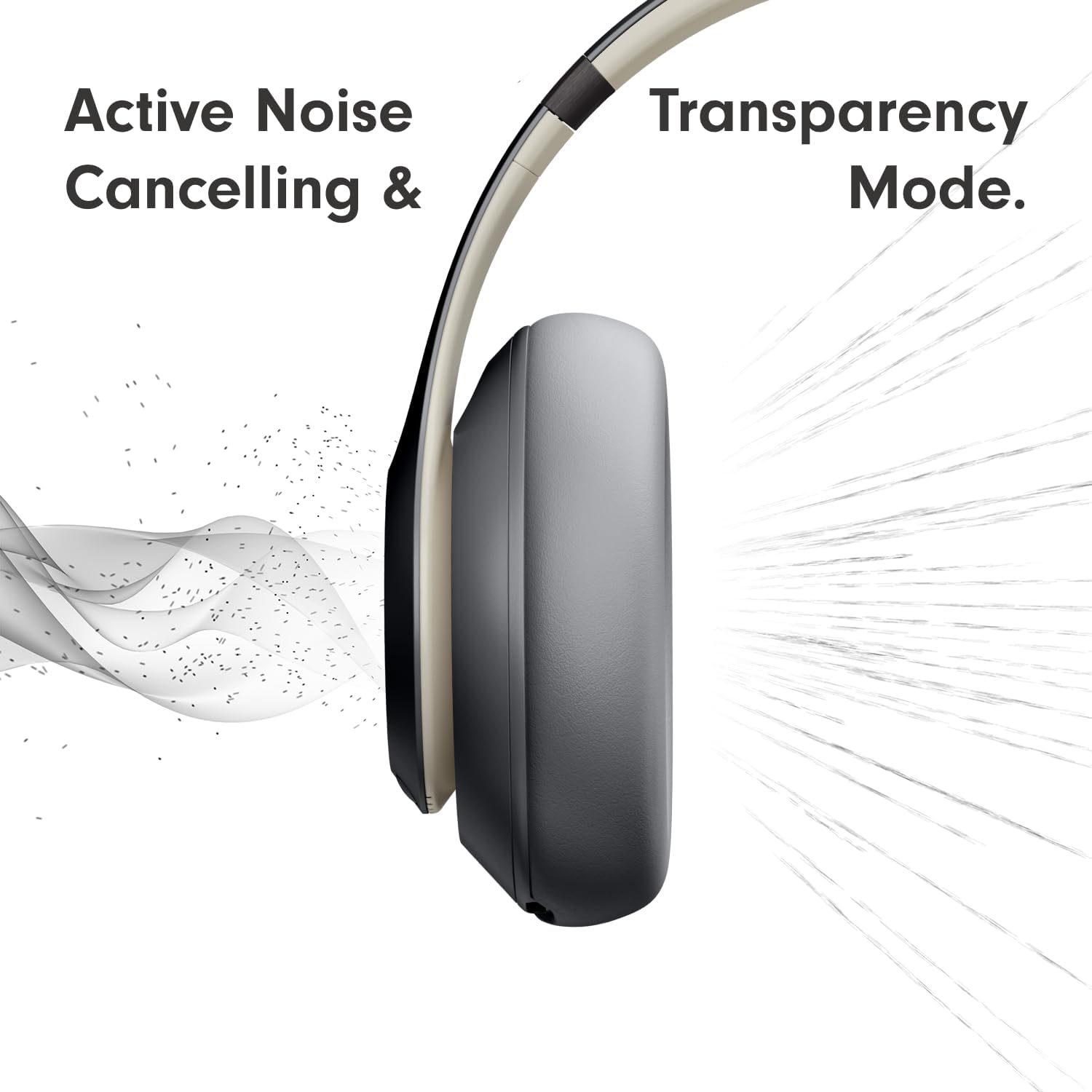
A visual representation demonstrating the Active Noise Cancelling (ANC) and Transparency Mode functionalities of the headphones, showing sound waves being blocked or allowed through.
Personalized Spatial Audio
Experience an immersive 360-degree listening environment with Personalized Spatial Audio and dynamic head tracking. This feature places you at the center of the sound, adapting the audio as you move your head for a truly captivating experience. This feature is available with compatible content and devices.
Call Performance
Voice-targeting microphones precisely filter background noise, ensuring crisp and clear call performance even in noisy environments.
Care and Maintenance
To ensure the longevity and optimal performance of your Beats Studio Pro headphones, follow these care guidelines:
- Cleaning: Use a soft, dry, lint-free cloth to clean the earcups and headband. Do not use abrasive cleaners or solvents.
- Storage: When not in use, store your headphones in the provided protective carrying case to prevent scratches and damage.
- Avoid Moisture: The headphones are not water resistant. Avoid exposure to liquids, high humidity, or extreme temperatures.
- Cable Care: Handle the USB-C and 3.5mm audio cables carefully. Avoid sharp bends or excessive pulling.
Troubleshooting
If you encounter issues with your Beats Studio Pro headphones, try the following solutions:
- No Power: Ensure the headphones are fully charged. Connect them to a power source using the USB-C cable.
- Cannot Pair: Make sure the headphones are in pairing mode (flashing LED lights). Turn off and on Bluetooth on your device. Try unpairing and re-pairing the headphones.
- No Sound: Check the volume levels on both the headphones and your connected device. Ensure the headphones are properly connected via Bluetooth or USB-C.
- Poor Sound Quality: Move closer to your connected device to reduce interference. Ensure no physical obstructions are between the headphones and the device. If using USB-C, ensure the audio source supports lossless audio.
- ANC Not Working: Ensure ANC mode is activated. Check for any physical obstructions on the headphone microphones.
- Reset: If issues persist, you may need to reset your headphones. Refer to the Quick Start Guide for specific reset instructions.
Specifications
| Feature | Specification |
|---|---|
| Model Name | Beats Studio Pro |
| Connectivity Technology | Wireless (Bluetooth 5.3), Wired (USB-C, 3.5mm Jack) |
| Noise Control | Active Noise Cancellation, Transparency Mode |
| Battery Life | Up to 40 Hours |
| Fast Fuel Charging | 10-minute charge for up to 4 hours playback |
| Audio Driver Type | Dynamic Driver |
| Bluetooth Range | Up to 100 Meters (Class 1) |
| Controls | Volume, App Control, Button Control, Siri, Touch Control, Voice Control |
| Compatible Devices | Cellphones, Desktops, Gaming Consoles, Laptops, Tablets (Apple & Android) |
| Weight | 1.39 Pounds (approx. 630 grams) |
| Dimensions | 8.81 x 6.33 x 3.97 inches |
| Water Resistance | Not Water Resistant |
| Earpiece Shape | Oval |
| Material | Metal, Engineered Leather, Plastic |
Warranty and Support
Your Beats Studio Pro headphones come with a limited manufacturer's warranty. Please refer to the Warranty Card included in your product packaging for detailed terms and conditions. For technical support, product registration, or further assistance, please visit the official Beats support website or contact their customer service.
You can find more information and support resources on the official Beats website: www.beatsbydre.com/support


