
1. Introduction
Thank you for choosing the Guermok HDMI Capture Card. This device allows you to capture high-quality video and audio from various sources for streaming, recording, and broadcasting. Please read this manual carefully to ensure proper setup and operation.
2. Product Overview
What's in the Box:
- Guermok HDMI Capture Card
- USB 3.0 to USB-C Adapter
- Instruction Manual (this document)
Key Features:
- 4K 60FPS Input & Output: Supports up to 4K@60Hz input and output via USB 3.0 for smooth, vivid visuals.
- 1080P 240FPS Support: Capable of capturing 1080P at 240FPS for high-motion content.
- Wide Compatibility: Works with Windows, macOS, Linux, Android, and iPadOS. Compatible with devices like iPad, MacBook, Switch, PS3/4/5, Xbox One, DSLR, webcams, and more.
- Plug and Play: No drivers or external power supply required.
- Versatile Software Support: Compatible with OBS Studio, Zoom, Streamlabs, YouTube Live, Twitch, VLC, PotPlayer, and other major streaming applications.
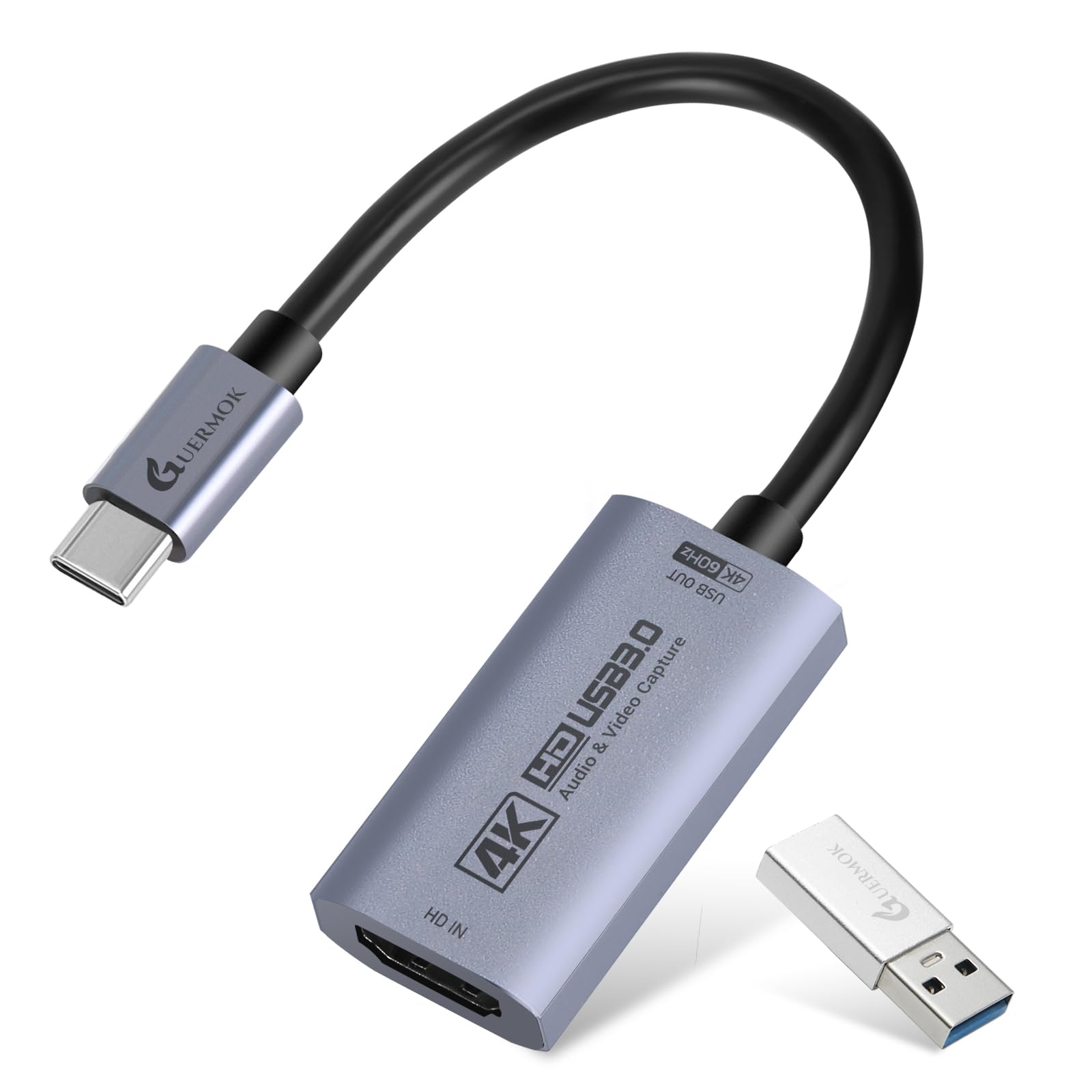
Figure 1: Guermok HDMI Capture Card with included USB-A adapter.
3. Setup Guide
3.1 Physical Connection
- Connect your HDMI source device (e.g., game console, camera, iPad) to the HDMI Input port on the capture card using an HDMI cable.
- Connect the USB-C output of the capture card to a USB 3.0 port on your computer or tablet. If your device only has USB-A ports, use the provided USB-A male to USB-C female adapter.
- Ensure all connections are secure.
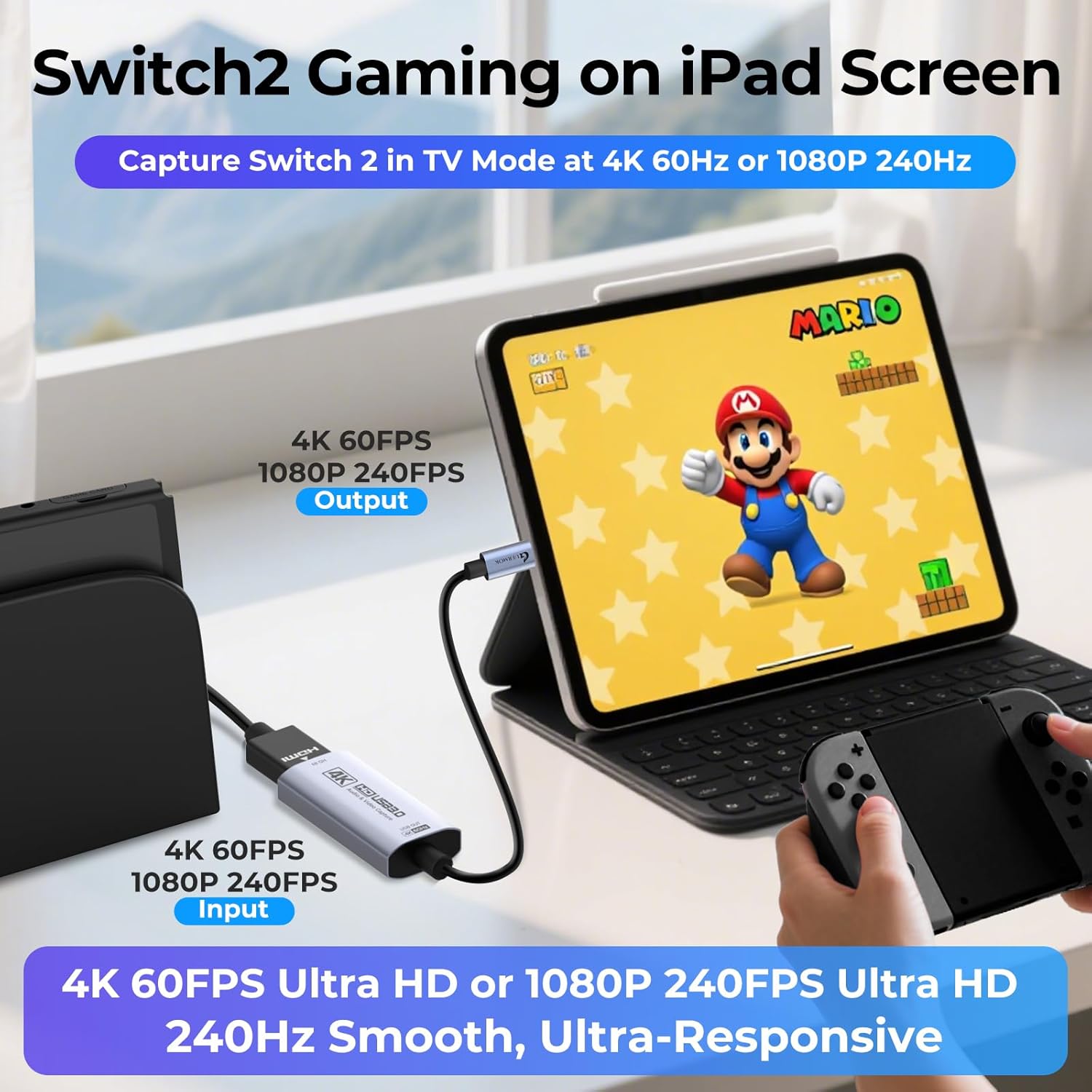
Figure 2: Connecting the capture card using the USB-A adapter.
3.2 System Requirements
- For optimal performance (4K@60Hz, 1080P@240Hz), a USB 3.0 or higher port is required. USB 2.0 ports will only support up to 1080P resolution.
- No drivers are needed; the device is plug-and-play.

Figure 3: Examples of plug-and-play setup with different devices.
4. Operating Instructions
4.1 Software Compatibility
The Guermok HDMI Capture Card is compatible with a wide range of operating systems and streaming/recording software:
- Operating Systems: Windows 7/8/10/11, macOS, Linux, Android 5.0+, iPadOS 17+.
- Software: OBS Studio, Zoom, Streamlabs, YouTube Live, Twitch, VLC, PotPlayer, Vmix, HDMI Link, MoniCon, QuickTime, and more.
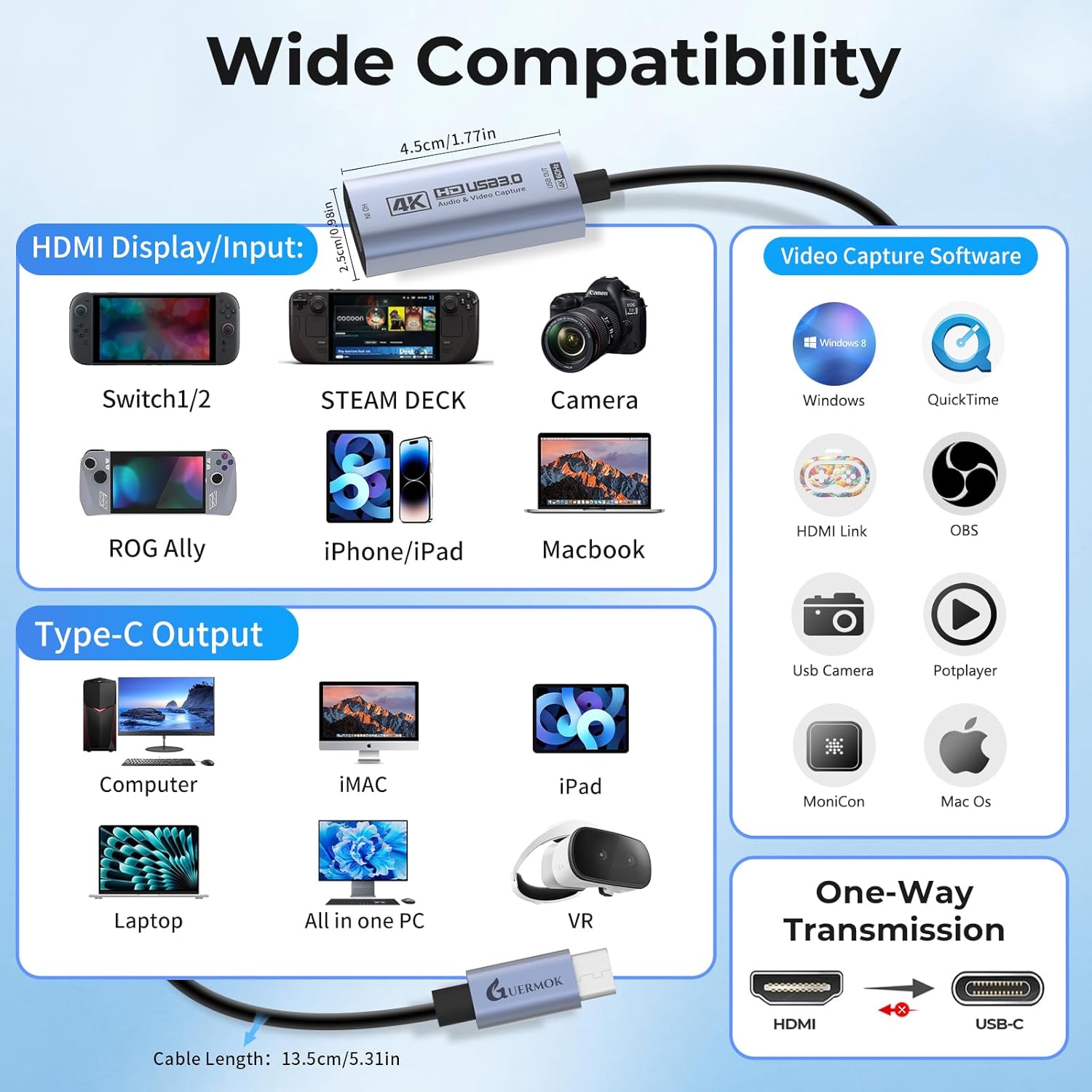
Figure 4: Wide compatibility with various devices and software.
4.2 Basic Usage with OBS Studio (Example)
- Connect your HDMI source and the capture card to your computer as described in Section 3.1.
- Open OBS Studio.
- In the 'Sources' box, click the '+' icon and select 'Video Capture Device'.
- Choose 'Create new' and name it (e.g., 'Guermok USB3 Video'). Click 'OK'.
- In the device dropdown, select 'Guermok USB3 Video'.
- Adjust resolution and FPS settings as needed. For 4K@60Hz or 1080P@240Hz, ensure your USB port is 3.0 or higher.
- For audio, in the 'Audio Mixer', check if your capture card has audio input. If not, right-click your video source, go to 'Properties', and enable 'Use custom audio device', selecting the capture card's audio.
- You can now start recording or streaming.
Video 1: Guermok 4K60 HDMI Capture Card USB 3.0 for PS5/Switch/Xbox/iPad/OBS. This video demonstrates the setup and usage of the capture card with various devices and OBS Studio.
Video 2: Guermok HDMI Capture Card 4K60fps 1080P240fps USB3.0 USBC/A Compatible 4K30 Passthrough 3.5mm Audio. This video provides an overview of the capture card's features and connectivity options.
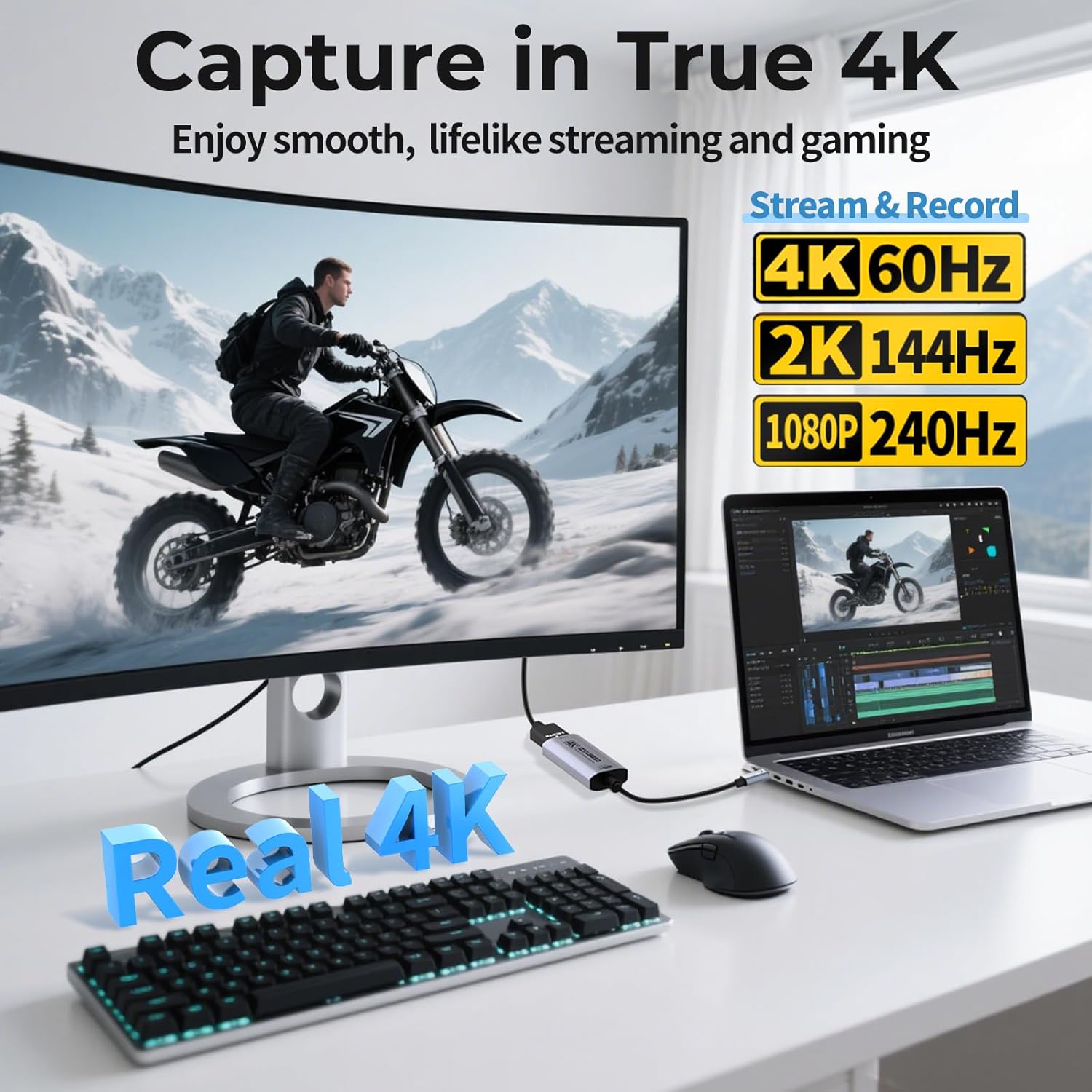
Figure 5: Capturing in True 4K for smooth streaming and gaming.

Figure 6: Visual comparison of 4K@60fps versus 1080P@60fps capture.
5. Advanced Features and Performance
5.1 High-Performance 4K Chip
The capture card is equipped with a high-performance 4K chip, ensuring stable and flicker-free video capture. It also features efficient heat dissipation to maintain optimal performance during extended use.
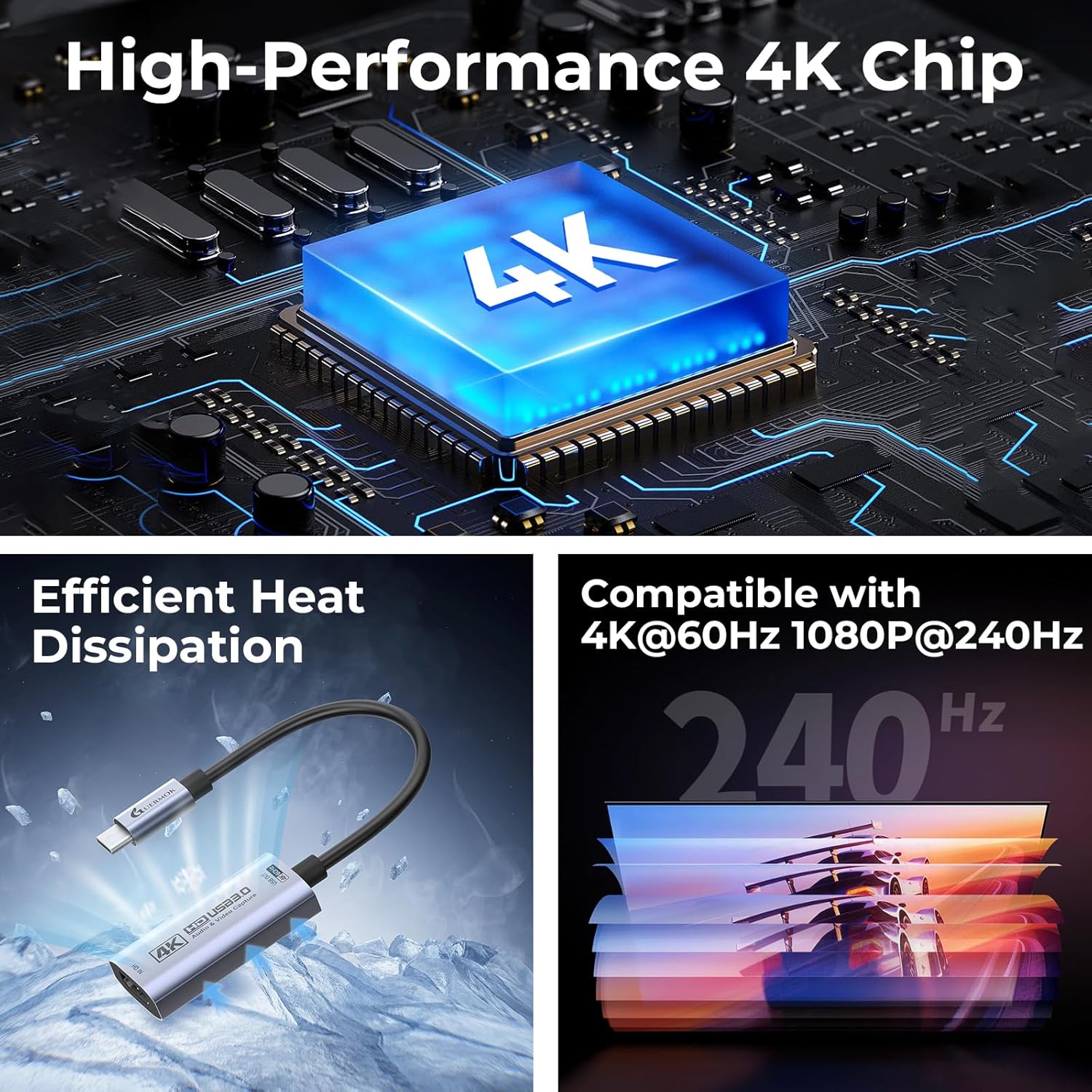
Figure 7: High-Performance 4K Chip for stable operation.
5.2 Versatile Capture Scenarios
This capture card supports a variety of applications, from gaming to professional use:
- Capture smooth gameplay from consoles like Nintendo Switch, PlayStation, and Xbox.
- Record drone footage in real-time.
- Connect to an iPad for mobile streaming and content creation.
- Ideal for virtual meetings, online teaching, and studio production.

Figure 8: Diverse applications of the Guermok HDMI Capture Card.
6. Maintenance
To ensure the longevity and optimal performance of your Guermok HDMI Capture Card, follow these simple maintenance guidelines:
- Keep the device clean and free from dust. Use a soft, dry cloth for cleaning.
- Avoid exposing the device to extreme temperatures, humidity, or direct sunlight.
- Do not attempt to disassemble or modify the device, as this will void the warranty.
- Store the device in a safe place when not in use to prevent physical damage.
7. Troubleshooting
If you encounter issues with your Guermok HDMI Capture Card, please refer to the following common problems and solutions:
7.1 Black Screen or Distorted Video/Audio
- Check Connections: Ensure all HDMI and USB cables are securely connected and functioning correctly. Try using different cables if possible.
- USB Port: For resolutions higher than 1080P, ensure the capture card is connected to a USB 3.0 or higher port. If connected to USB 3.0 and still experiencing issues, try rotating the USB-C connector 180° and reconnecting.
- Audio Sample Rate: This device supports 96kHz/24-bit audio. Some third-party software or older operating systems may only support 48kHz/16-bit audio. If you experience no audio, distorted audio, or a black screen at 4K resolution, manually set the input sample rate in your system audio settings to 48kHz or 96kHz. If the app does not support 96kHz, set the resolution to 1080P 60FPS.
- Software Compatibility: Ensure your streaming/recording software is up-to-date. For HarmonyOS, if the device still outputs 1080P, try rotating the capture card’s USB-C connector 180° and reconnect.
- HDCP: Some products may require disabling HDCP settings to function properly.

Figure 9: Important compatibility notice and troubleshooting tips.
Video 3: Watch This First GUERMOK Capture Card 4K. This video provides troubleshooting steps for common issues like black screen and audio problems.
7.2 Device Not Recognized
- Insufficient Power: Some USB ports may not provide enough power, causing the device to fail or disconnect. Use a USB 3.0 port and the device's original charging cable if applicable.
- USB Drivers: Ensure your computer's USB drivers are up-to-date.
- Test on Another Device: Try connecting the capture card to a different computer or tablet to rule out compatibility issues.
8. Specifications
| Feature | Specification |
|---|---|
| Brand | Guermok |
| Model Number | 4k |
| Hardware Interface | USB 3.0 |
| Video Capture Resolution | 4K (up to 4096x2160@60FPS MJPEG) |
| Supported Resolutions (MJPEG) | 4096x2160@60FPS, 3840x2160@60FPS, 2560x1440@144FPS, 1920x1080@240FPS |
| Supported Resolutions (YUY2/NV12) | 2560x1440@50FPS, 1920x1080@120FPS |
| Supported Video Formats | MJPEG, YUY2, NV12, XRGB |
| Operating System Compatibility | Windows 7/8/10/11, macOS, Linux, Android 5.0+, iPadOS 17+ |
| Item Weight | 1.12 ounces |
| Color | Silver Straight |
9. Warranty and Support
Guermok products are designed for reliability and performance. For warranty information and technical support, please refer to the product packaging or contact Guermok customer service directly. Our support team is available to assist you with any questions or issues you may encounter.


